
Overview
Pricing Tiers let you apply different prices by location when your account has multiple locations.
Each location is assigned one pricing tier, and that location automatically uses the prices from its assigned tier during ordering.
Pricing Tiers are location-based. They are not Customer-based and not menu-based. You can configure up to five pricing tiers.
Tip: When editing menus, avoid working in multiple CaterZen tabs at the same time. Changes may not save correctly. If updates don’t appear, you may be prompted to clear your menu cache.
Important Concepts (Read First)
The Base Price on a menu item in Menu Manager always represents Tier One.
Tier One is the Base Price
CaterZen supports up to five pricing tiers, including Tier One
If your account uses only one tier, the Base Price is the only price used
If your account uses multiple tiers, updating the Base Price in the menu item updates Tier One only
Additional tiers must be updated separately in the Manger Etc Section.
One Tier per Location
Each location can be assigned one pricing tier
A location cannot switch tiers per order
Tier selection is automatic based on the location
There is no tier selection during order entry.
When to Use Pricing Tiers
Pricing Tiers are ideal when:
You have multiple locations in one account
Pricing should vary by location
Locations have different cost structures
Pricing is consistent for all Customers at that location
When Not to Use Pricing Tiers
Pricing Tiers are not recommended when:
Pricing varies by Customer or contract
Pricing varies by menu
Pricing varies by size or portion
Use these instead:
Permission-Based Menus for Customer-specific pricing
Separate menus with different pricing
Separate menu items for different sizes
Creating/Updating Pricing Tiers on Menu Items
Pricing Tiers are adjusted at the Menu Item level.
Go to Admin > Menu
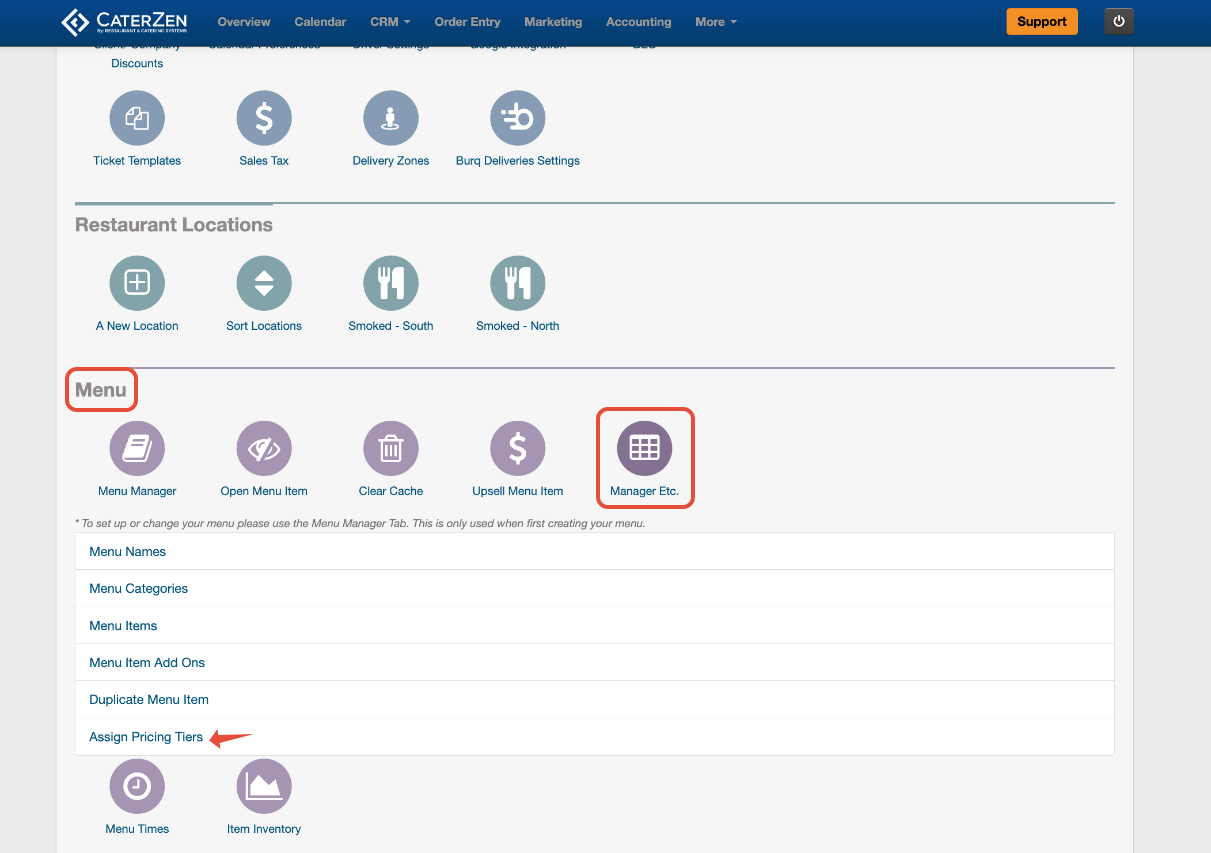
Select Manager Etc
Click Menu Items
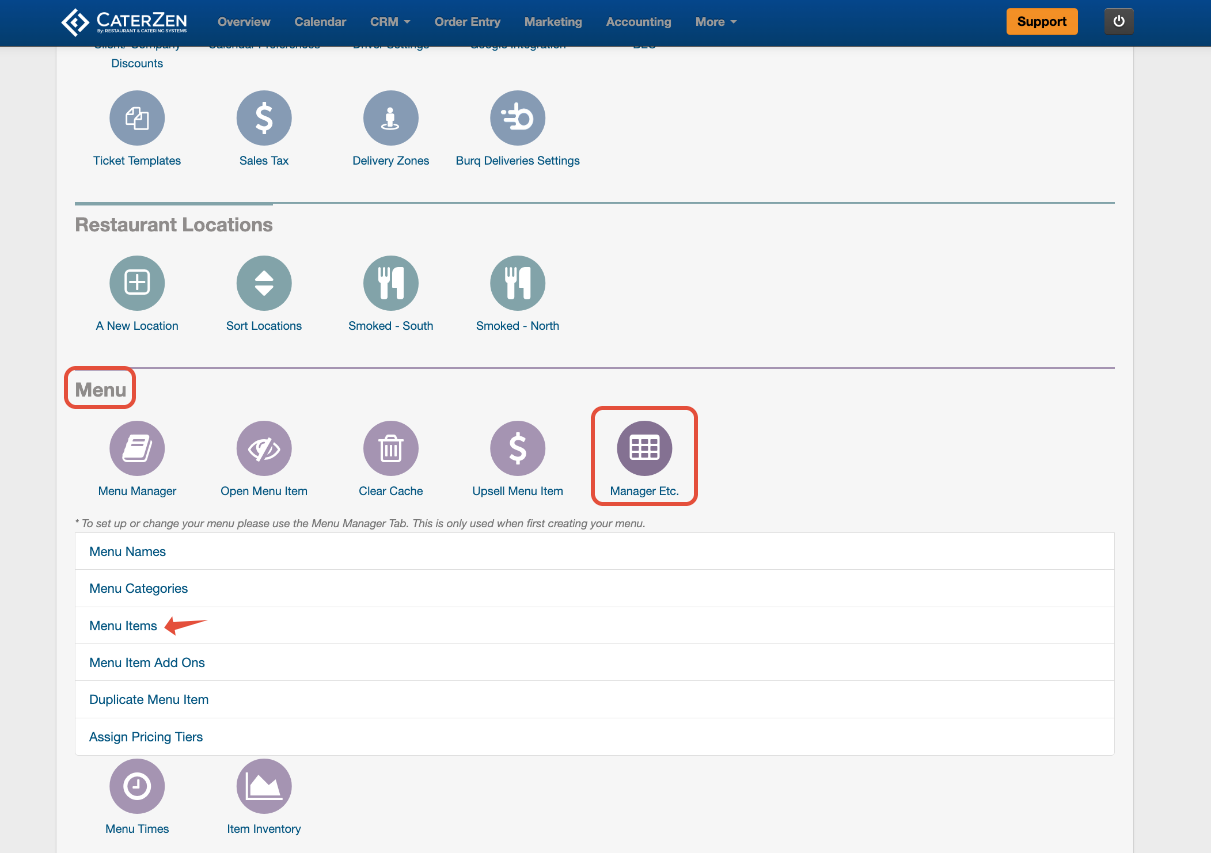
- Locate the Pricing Tiers section on the left
- Enter or update prices for additional tiers as needed
- After you enter the price you will see it save automatically as you move to the next price or Tier.
- After you make your make your changes you will see a yellow notice at the top of the screen indicating that recent updates may not be immediately visible. This happens because some menu data is temporarily cached for performance. Click CLICK HERE to clear menu cache.
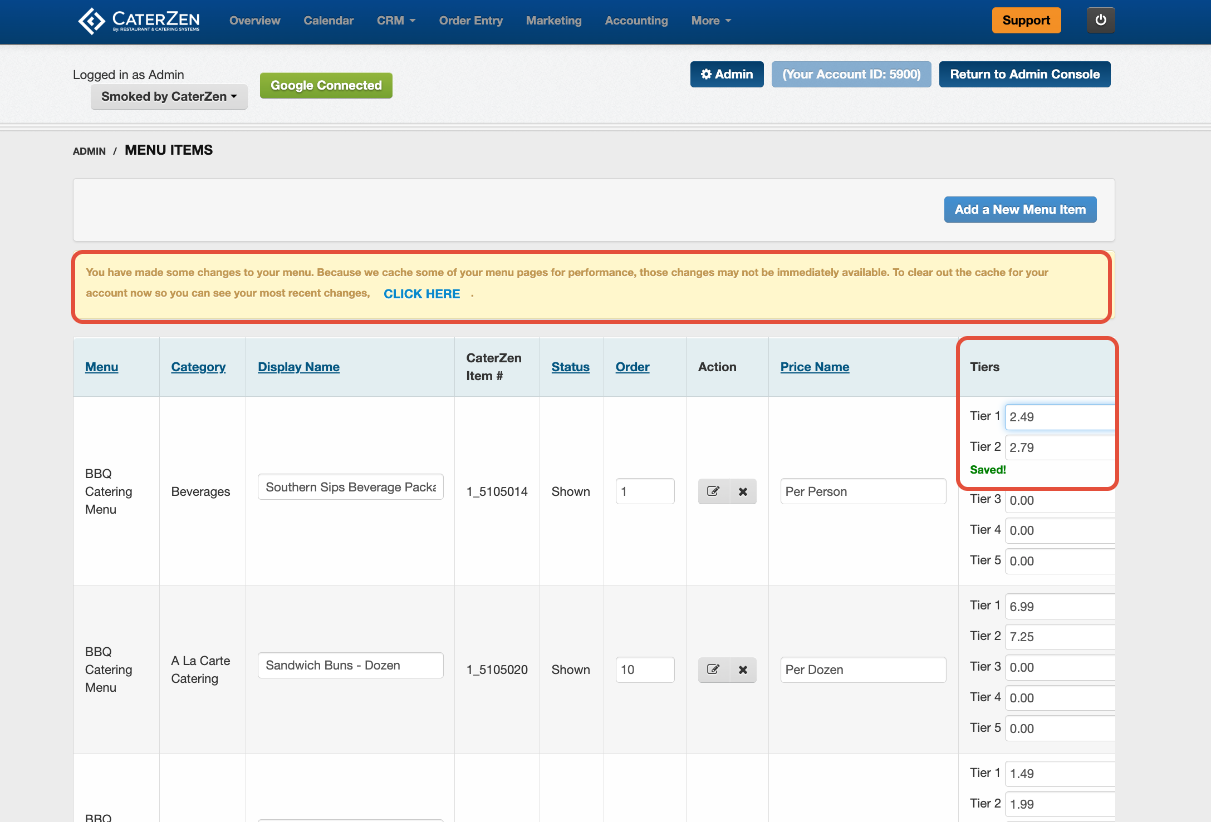
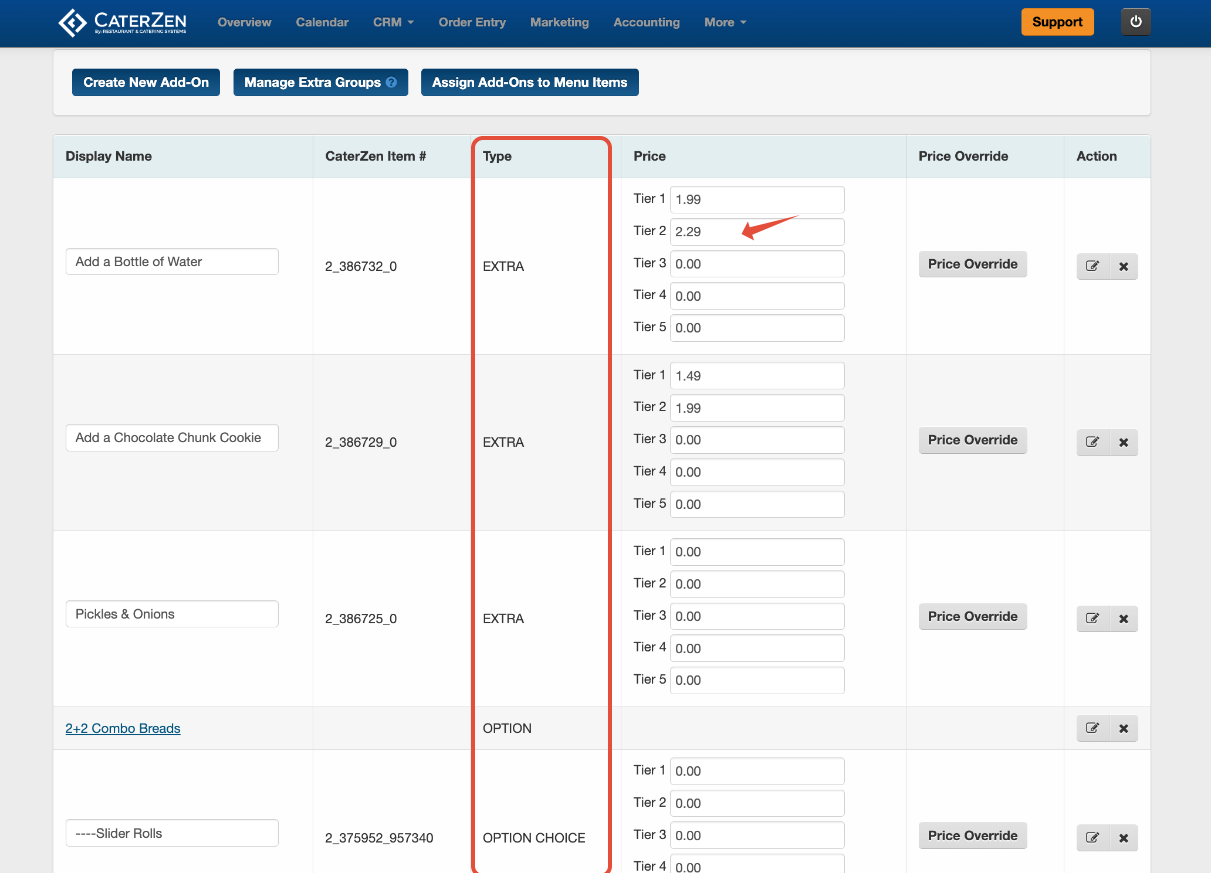
Creating/Updating Pricing Tiers on Menu Items Add Ons
Pricing Tiers are adjusted at the Menu Item Add On level, as well
Go to Admin > Menu
Select Manager Etc
Click Menu Items
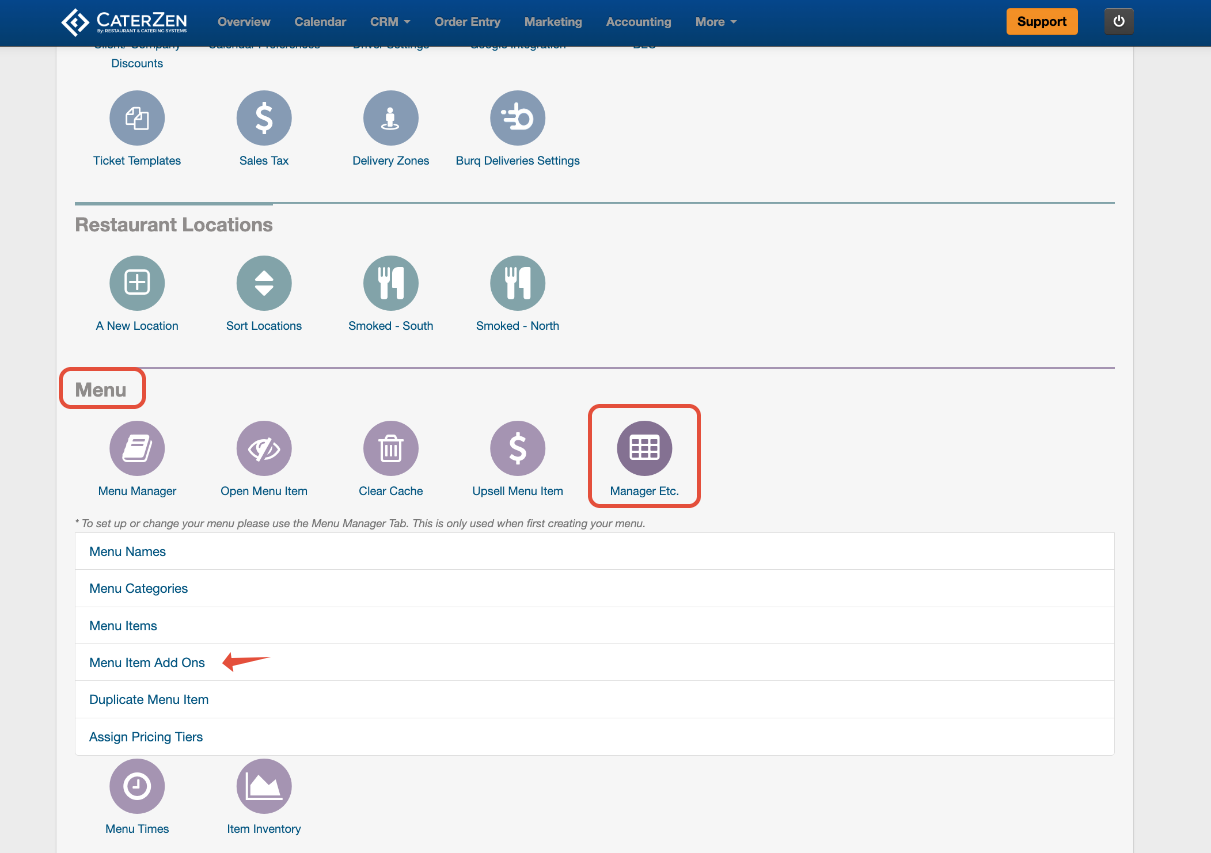
- Locate the Pricing Tiers section
- Enter or update prices for additional tiers as needed
- After you enter the price you will see it save automatically as you move to the next price or Tier.
- After you make your make your changes you will see a yellow notice at the top of the screen indicating that recent updates may not be immediately visible. This happens because some menu data is temporarily cached for performance. Click CLICK HERE to clear menu cache.
Assigning Pricing Tiers to Locations
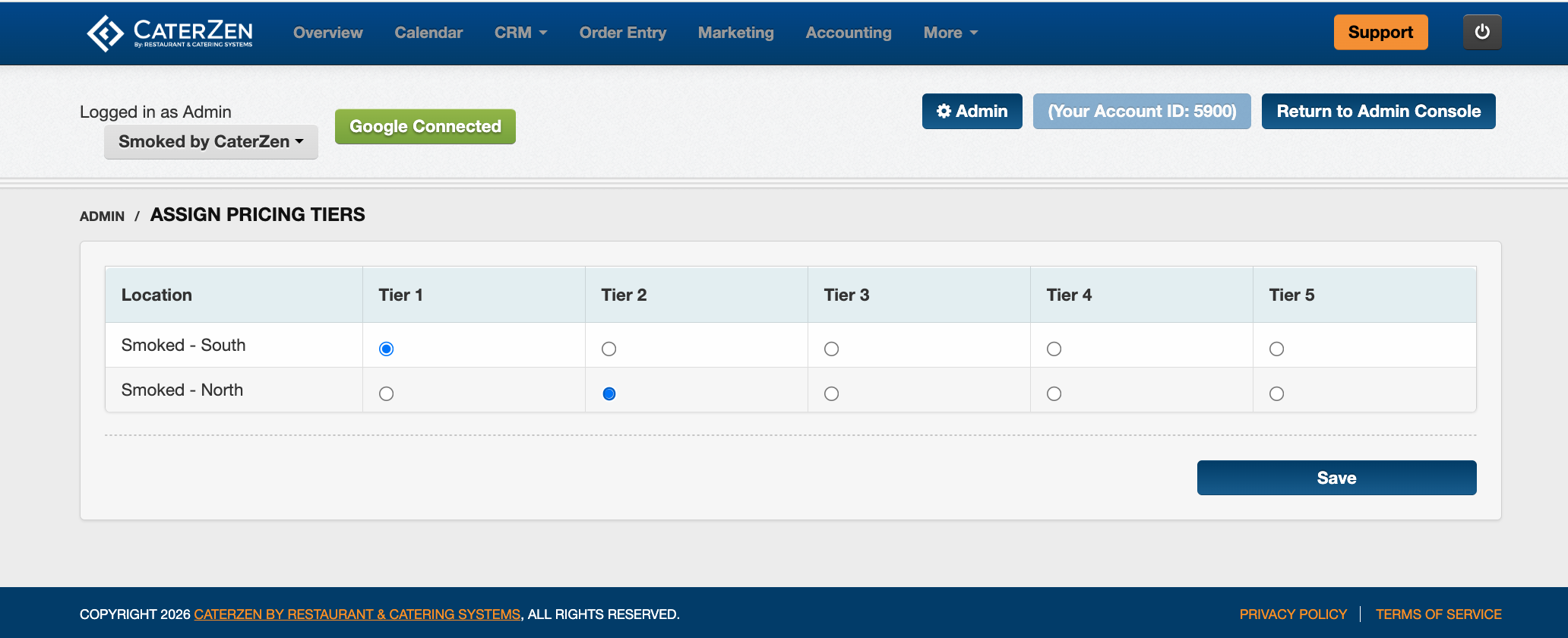
After pricing tiers are created, each location must be assigned to a tier.
Go to Admin > Menu
Open Assign Pricing Tiers
Select a location
Assign the desired Pricing Tier
Click Save
Once assigned, the location will automatically use prices from that tier.
Troubleshooting
If pricing is not appearing as expected:
Confirm the location is assigned to the correct pricing tier
Confirm the menu item has pricing tiers configured
Confirm you updated the correct tier
Clear the menu cache if changes were made recently
→ Menu Settings: Clear Menu Cache
Related Articles
Support
For additional help, the CaterZen Support Center can help review your setup.
Not a CaterZen customer yet? Discover how our catering software can streamline your business — click here to learn more!