
Overview
Menu Item Prices control what Customers are charged during Order Entry and Online Ordering.
You can update prices directly on individual menu items or use bulk tools when making larger pricing updates. This article explains how to change prices individually in Menu Manager, when updating multiple menu items or if using Pricing Tiers, it’s better to use Manager Etc. instead.
⚠️ Working in Multiple Browser Tabs
When making menu changes, we recommend working in a single CaterZen tab.
CaterZen can be opened in multiple browser tabs, but making menu changes in more than one tab at the same time can cause changes not to save correctly.
For best results:
Complete your menu changes in one tab
Save your changes and clear your menu cache before navigating elsewhere
Refresh your browser if you switch tasks
Before You Begin
The menu item must already exist
The item must be assigned to a menu and category
Price changes apply to future orders only
Existing orders retain their original pricing
Changing the Price of a Single Menu Item
Use this method when updating one item or a small number of items.
Steps
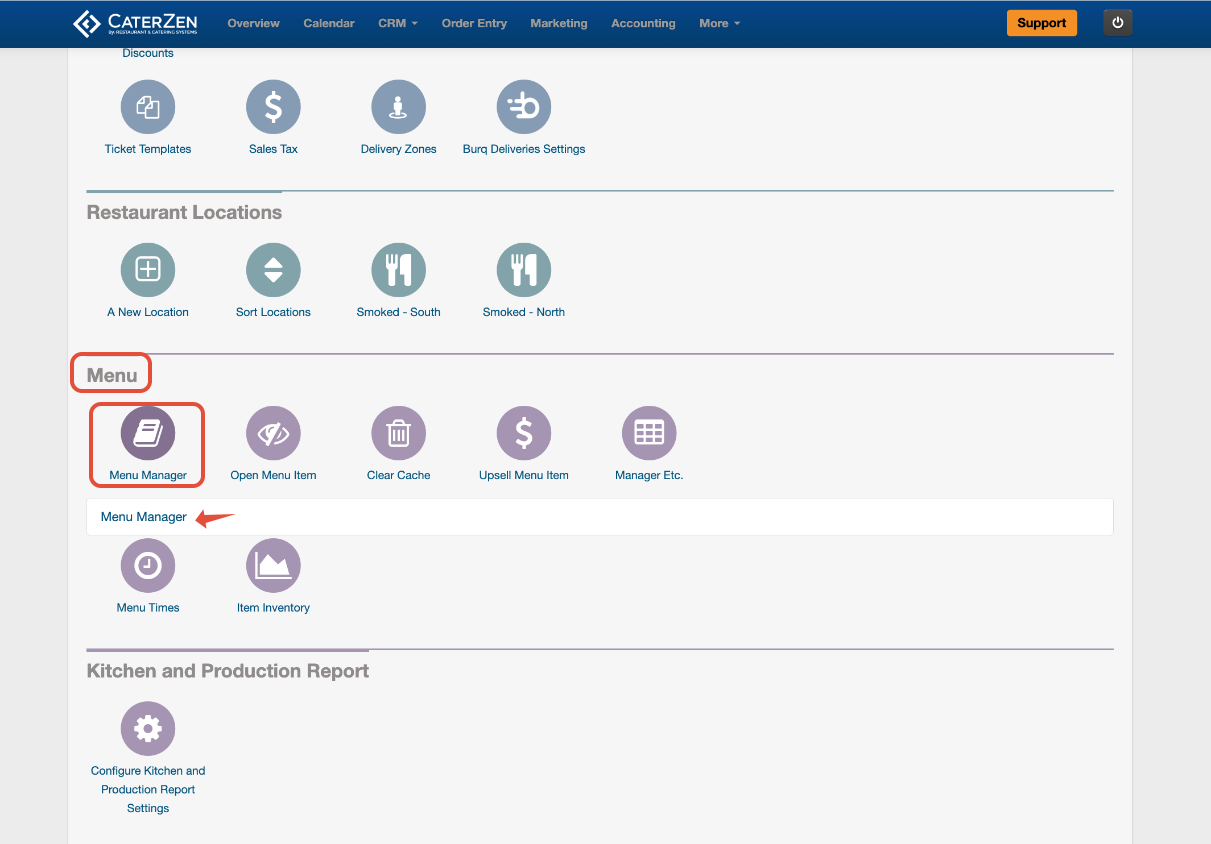
Go to Admin
Select Menu Manager
Finding the Menu Item You Want to Update
In Menu Manager, there are two ways to locate a menu item before changing its price. Both methods work — choose the one that’s easiest for you.
Important Note: Both methods open the same menu item. Changing the price updates that item wherever it appears.
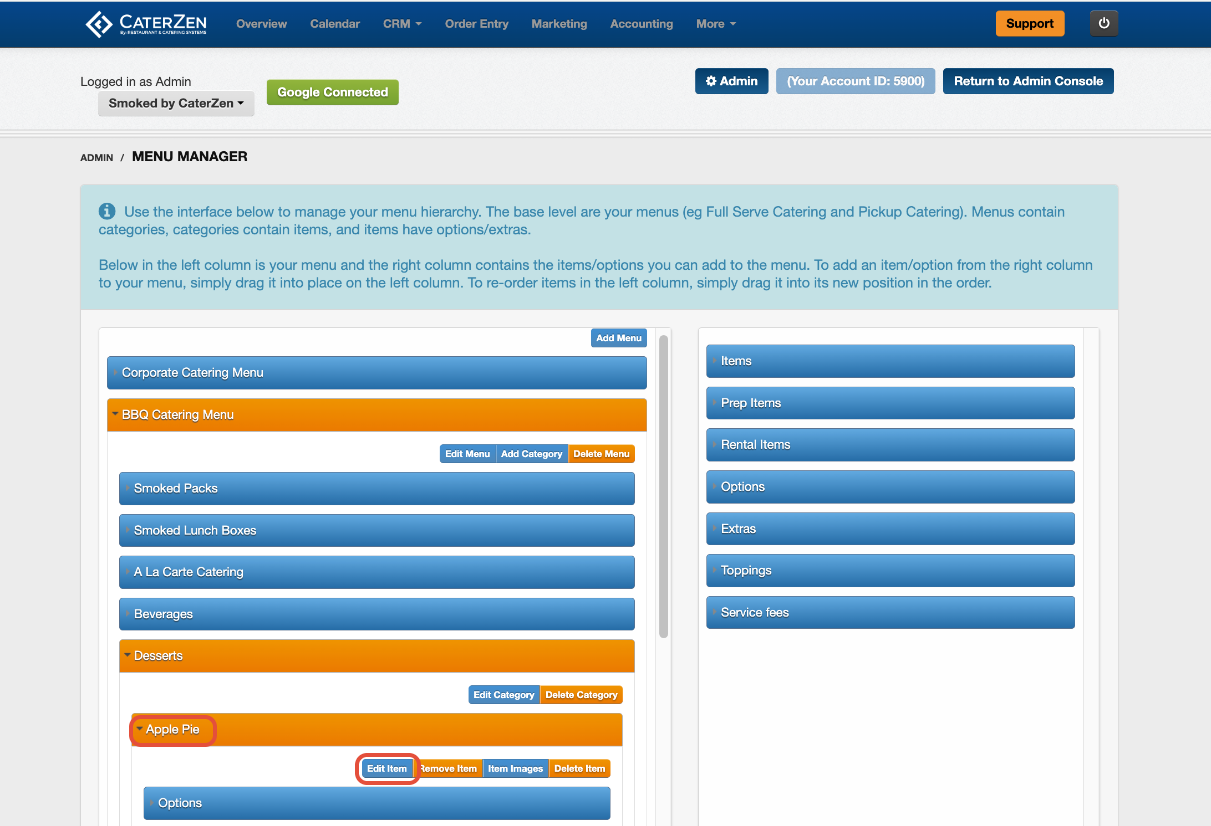
Option 1: Navigate Through the Menu and Category (Left Side)
Use this method if you know which menu and category the item lives in.
Open the menu on the left
Open the category
Click the menu item
The selected menu, category, and item will highlight in orange, confirming what you are editing.
This method is helpful when:
You’re reviewing pricing in context
You want to see how the item is grouped on the menu
You’re already working inside a specific menu
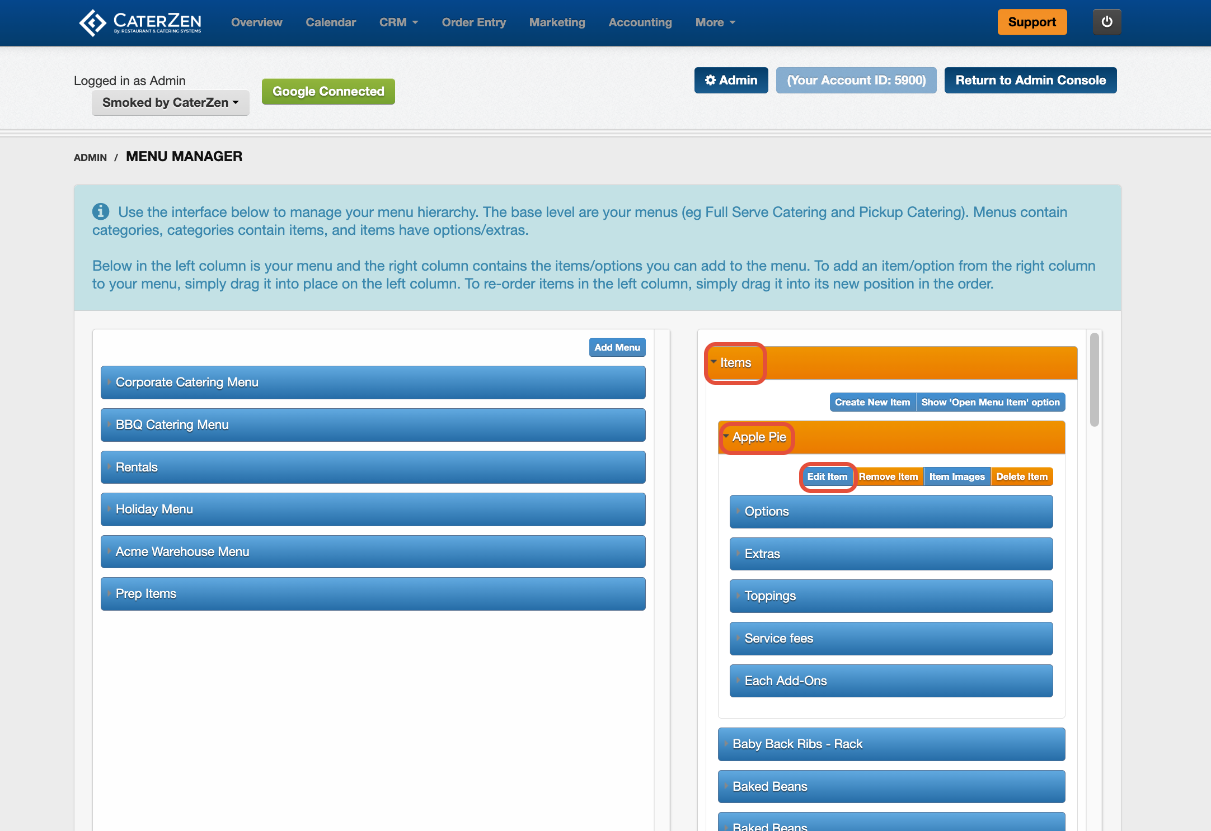
Option 2: Select the Item from the Item List (Right Side)
Use this method if you know the item name but don’t want to navigate through menus.
Locate the item in the Items list on the right
Items are listed alphabetically
Click the Menu Item to open it
This method is helpful when:
You have a large menu
You’re making quick pricing updates
You don’t need to view the full menu structure
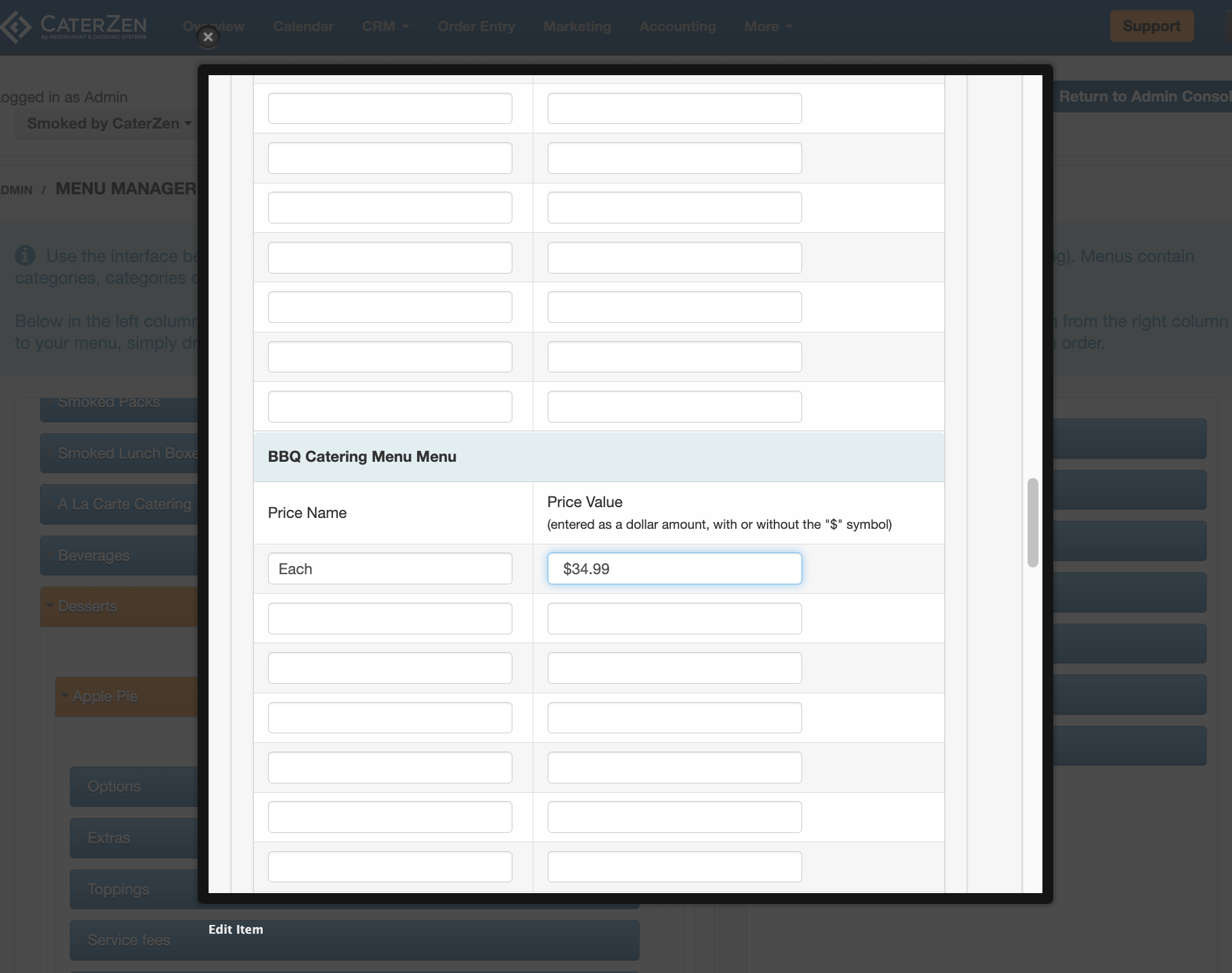
Open the menu item you want to update and click Edit Item
Update the Price Name or Price Value field
Scroll to the bottom and click Save This Information
After saving, you will be prompted to clear your menu cache so the updated price appears everywhere.
The updated price will apply immediately to new orders.
When This Method Works Best
Use Menu Manager to change prices when:
You are adjusting a single item
You do not use Pricing Tiers
You need to review item details while editing
Pricing the Same Item Differently Across Menus
A single menu item can be placed in multiple menus, and each menu can have different pricing for that item.
This is the recommended approach when pricing varies by Customer.
Common examples include:
Public menu vs. Permission-Based Menu
Corporate or contract pricing
Internal or wholesale menus
Example:
Beef Brisket is $24.99 on your public catering menu
The same item is $21.99 on a permission-based corporate menu
This approach keeps pricing clear and production reporting accurate.
Important Pricing Best Practice
Within a single menu, you may see the option to enter multiple price rows for a menu item.
While this is technically possible, we do not recommend using multiple prices within the same menu to represent different sizes, portions, or configurations.
Why this is discouraged:
Prices entered here cannot be tied to Kitchen Production formulas
There is no way to associate yields or prep logic
This often leads to inaccurate production reports and kitchen confusion
Recommended Alternatives
If an item needs different pricing or sizes, use one of the following instead:
Separate menu items (Pint, Quart, Half Tray, etc.)
Options with pricing, where appropriate
Pricing Tiers for location-based pricing
Permission-Based Menus for Customer-based pricing
These methods ensure accurate pricing and Kitchen Production reporting.
Pricing Tiers vs Base Prices
Menu items can be configured with Pricing Tiers.
To learn more about using Pricing Tiers, see:
→ Menu Manager: Pricing Tiers
Using Manager Etc. for Bulk Price Changes
Manager Etc. is designed for mass updates across menus and items.
Use Manager Etc. when:
Increasing prices across an entire menu
Updating pricing for multiple categories
Making global or company-wide price changes
Standardizing pricing across locations
To update multiple prices efficiently, see:
→ Menu Settings: Manager Etc.
Important Notes
Price changes apply to future orders only
Existing orders are not affected but you will see a warning when editing existing orders
Always review pricing after bulk updates
Troubleshooting
If updated prices are not appearing:
Confirm the item is active
Confirm the correct menu and category are being used
Confirm whether Pricing Tiers are enabled and you are in the correct location
→ Menu Manager: Pricing TiersClear the menu cache if changes were made recently
→ Menu Settings: Clear Menu Cache
Support
For additional help, the CaterZen Support Center can help review your setup.
Not a CaterZen customer yet? Discover how our catering software can streamline your business — click here to learn more!