
Overview
Permission-Based Menus allow you to control which Customers can see specific menus during Online Ordering and Order Entry.
These menus are commonly used for:
Corporate or house accounts
Wholesale or preferred Customers
Internal pricing menus
Limited-access or invite-only menus
Permission-Based Menus are not visible to the public. They only appear for Customers who meet the required permissions.
Tip: When editing menus, avoid working in multiple CaterZen tabs at the same time. Changes may not save correctly. If updates don’t appear, you may be prompted to clear your menu cache.
Important Before You Begin
Permission-Based Menus are configured in Menu Manager and assigned to Customers through the CRM.
To configure a permission-based menu:
Follow the steps below
To use a permission-based menu:
The Customer must exist in your CRM
The Customer must be granted access to the menu in CRM
The Customer must be selected on the order or logged in for Online Ordering
If these conditions are not met, the menu will not appear.
How Permission-Based Menus Work
Permission-Based Menus follow this logic:
A menu is marked as permission-based
One or more Customers are assigned permission to view that menu
Only those Customers can see and order from the menu
If a Customer does not have permission:
The menu will not display in Online Ordering
The menu will not appear during Order Entry when that Customer is selected
Setting a Menu as Permission-Based
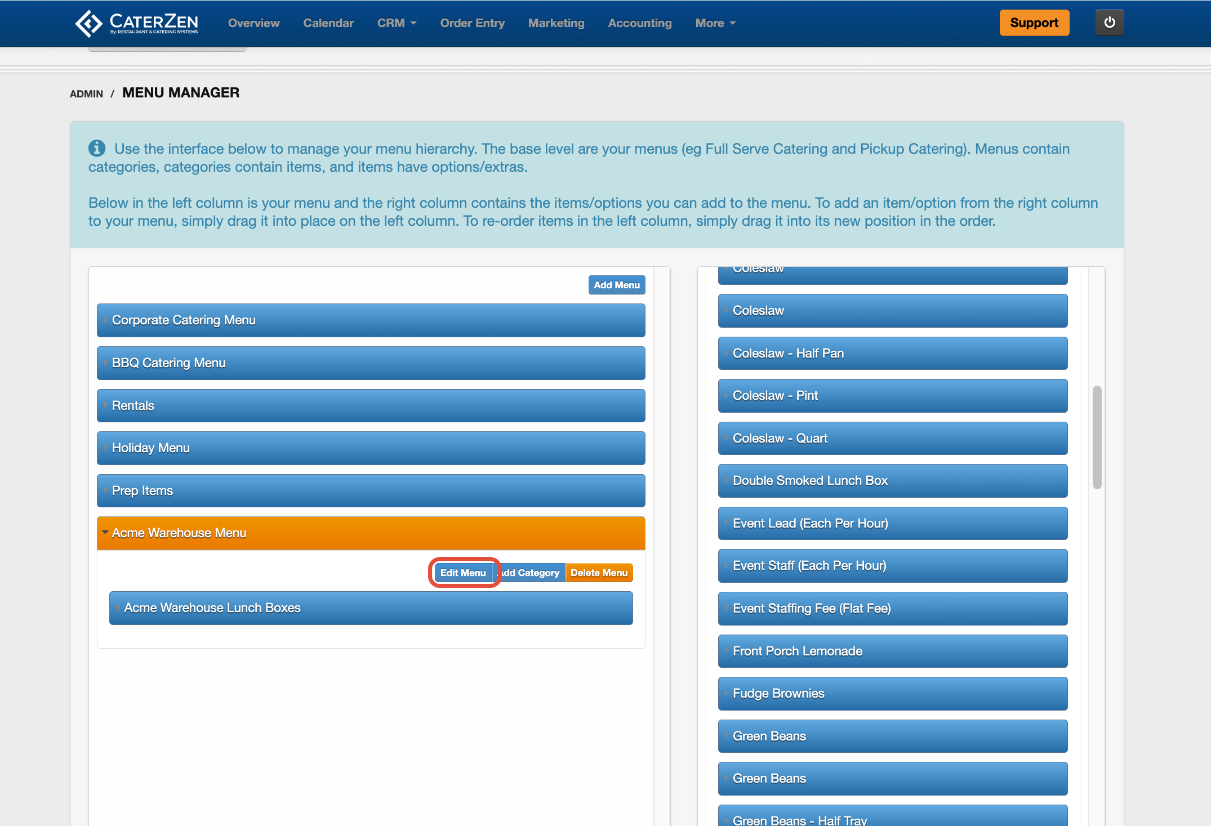
Go to Admin
Select Menu Manager
Click to open the menu you want to make Permission-Based
Click Edit Menu
Enable the Permission-Based Menu option
Click Save
The menu is now restricted and will not appear for Customers without permission.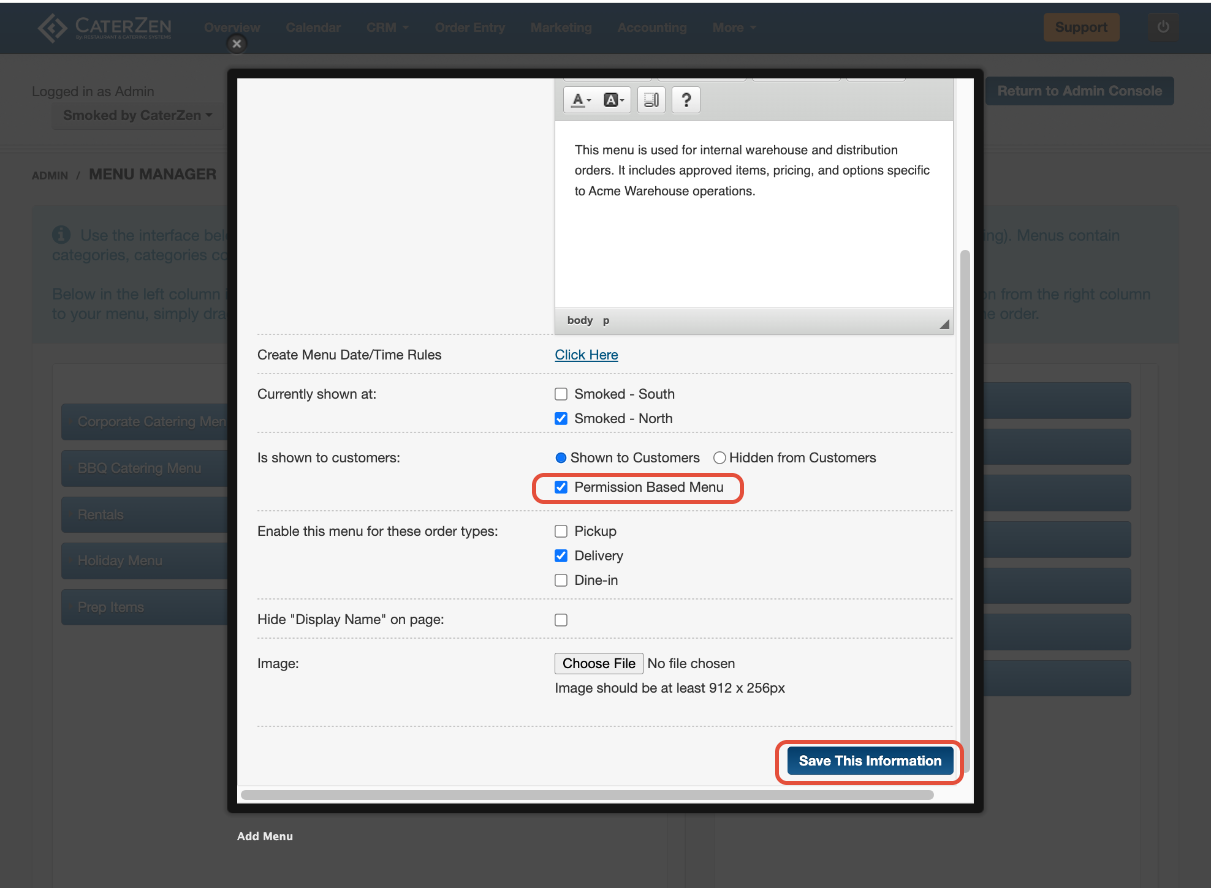
Granting Menu Access to Customers
After marking a menu as permission-based, you must assign it to specific Customers.
Select the CRM tab
Open the Customer record
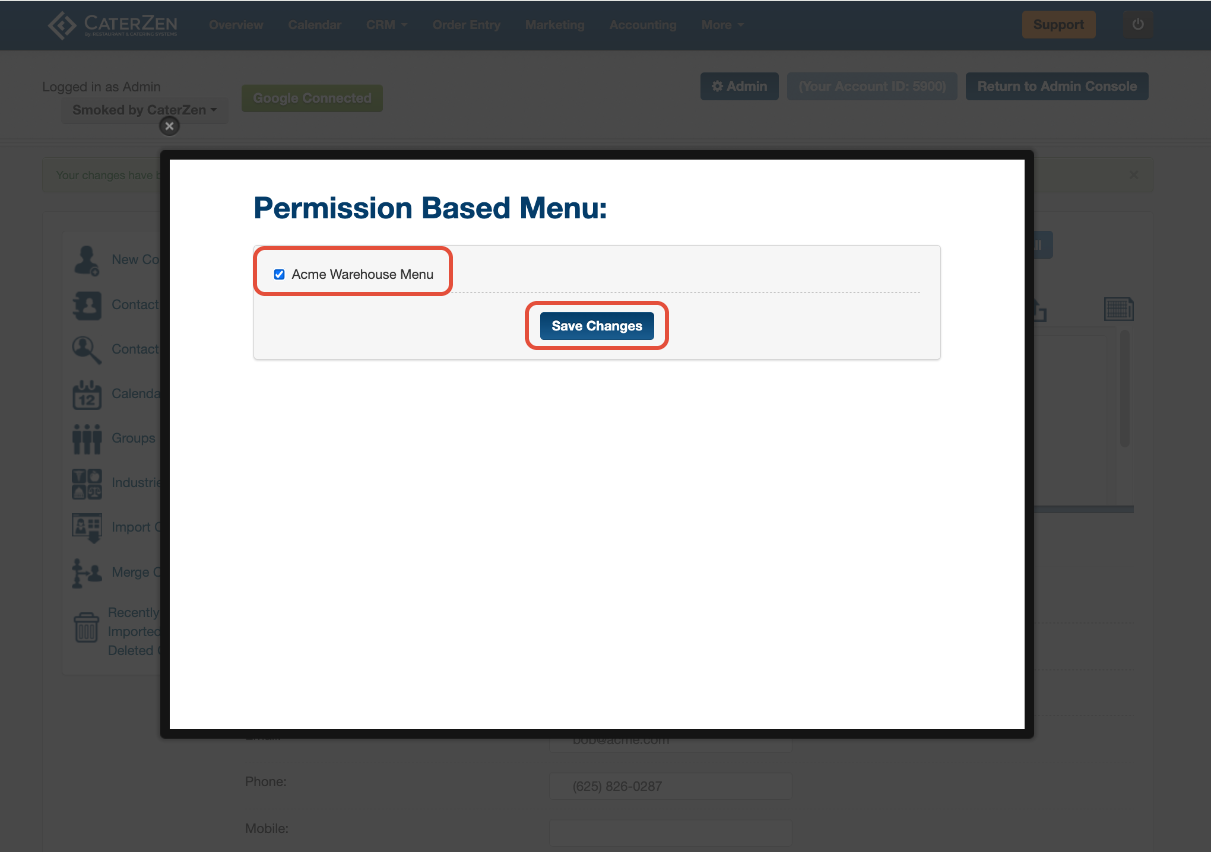
Click the Permission Based Menus icon
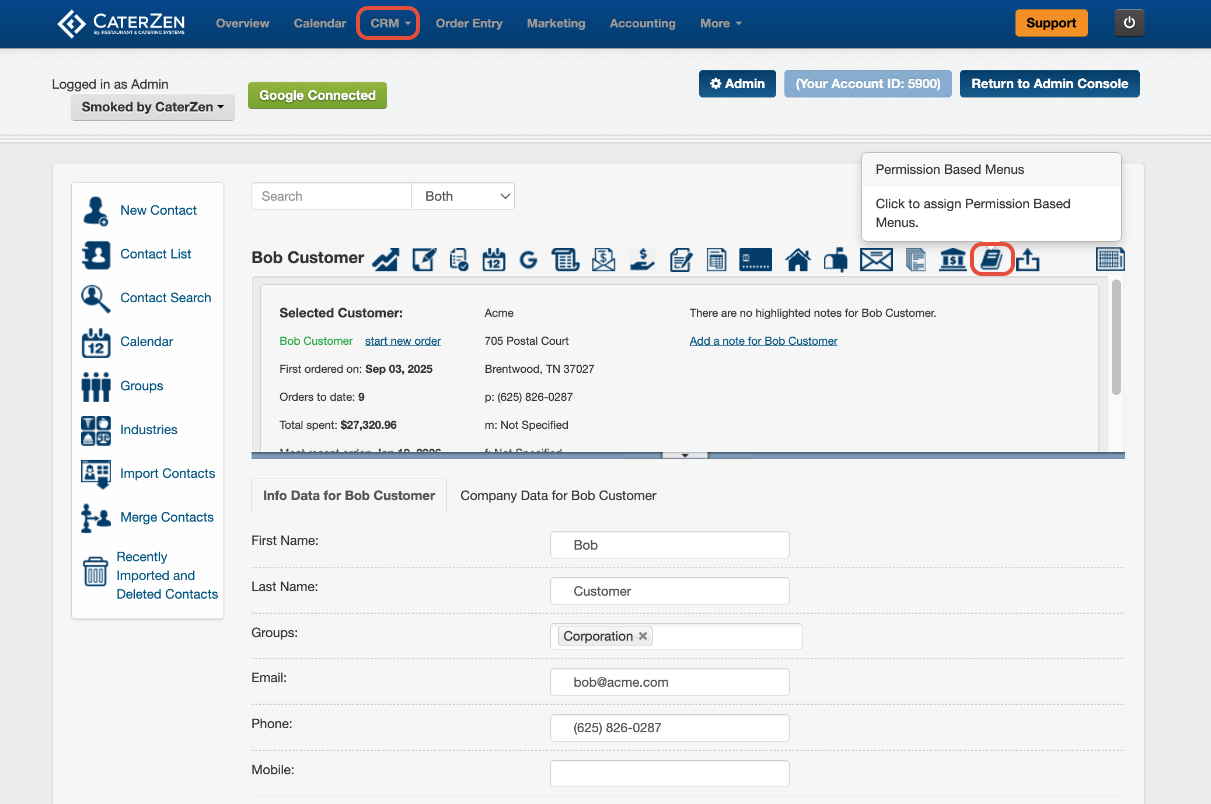
Select the menu(s) the Customer is allowed to access
Click Save Changes
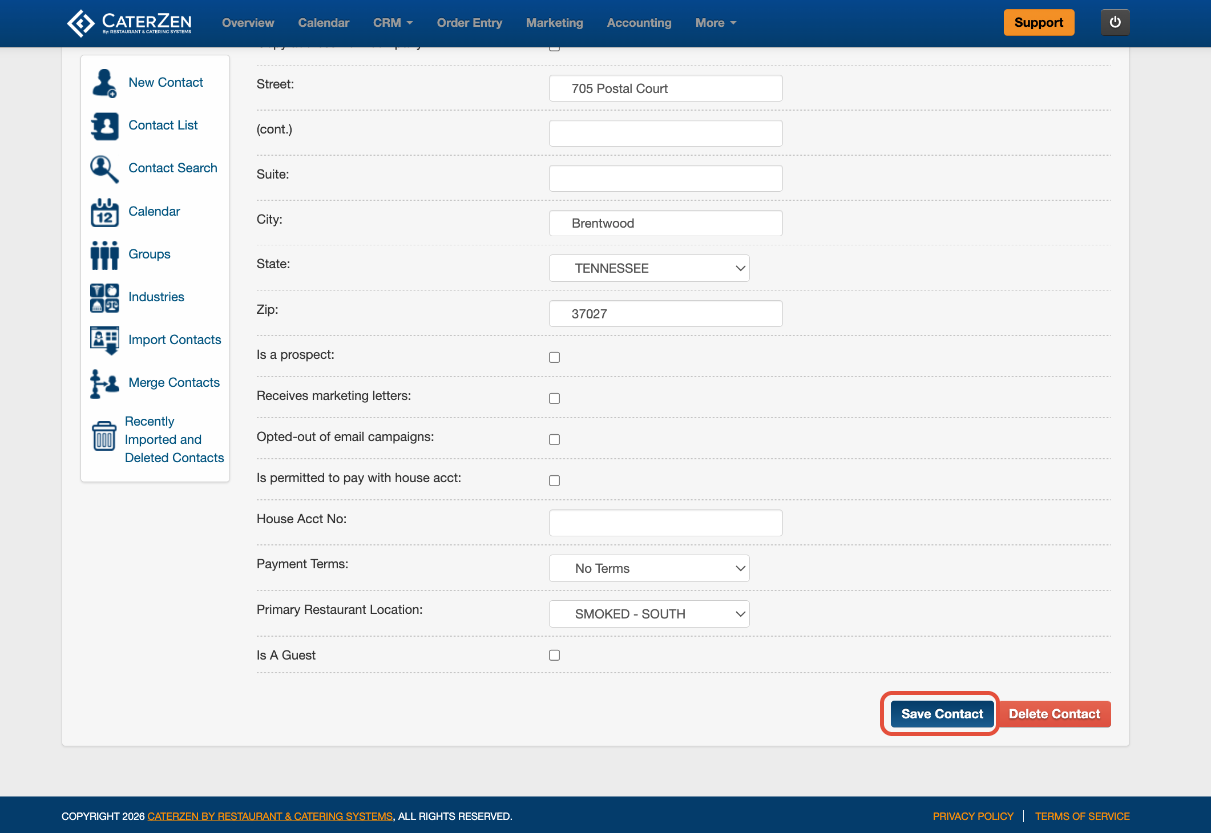
Save the changes you made to the Customer record by clicking Save Contact
Using Permission-Based Menus in Order Entry
For internal order takers:
The correct Customer must be selected on the order
Once selected, permission-based menus will appear automatically
If the Customer is not selected, restricted menus will remain hidden.
Common Use Cases
Permission-Based Menus are ideal for:
Corporate accounts with custom pricing
Wholesale Customers
VIP or contract Customers
Internal-only menus
Troubleshooting
If a permission-based menu is not showing:
Confirm the menu is marked as permission-based
Confirm the Customer is assigned permission
Confirm the correct Customer is selected on the order
Confirm the Customer is logged in (for Online Ordering)
Clear the menu cache if changes were recently made
Important Notes
Permission-Based Menus are Customer-specific, not user-specific
Menus cannot be partially restricted — access is all-or-nothing per menu
Changes apply immediately once saved, but may require cache clearing
Related Articles
Support
For additional help, refer to the CaterZen Support Center or contact our CaterZen Support Team.
Not a CaterZen customer yet? Discover how our catering software can streamline your business—click here to learn more!