
Overview
Clearing the Menu Cache refreshes menu data so recent changes appear correctly throughout the system. When making updates to menus, categories, items, pricing, or options, you may also see periodic notifications prompting you to clear your menu cache. These notifications appear as a yellow message box in Menu Manager. You can safely clear the menu cache directly from this message when prompted.
In many cases, changes will appear automatically without clearing the cache. Clearing the menu cache is safe and does not affect existing orders.
e.
When You Should Clear the Menu Cache
You may need to clear the menu cache if:
Menu changes are not appearing as expected
Pricing updates do not show immediately
New menu items, categories, or options are missing
You recently made multiple menu-related changes
In many cases, changes will appear automatically without clearing the cache.
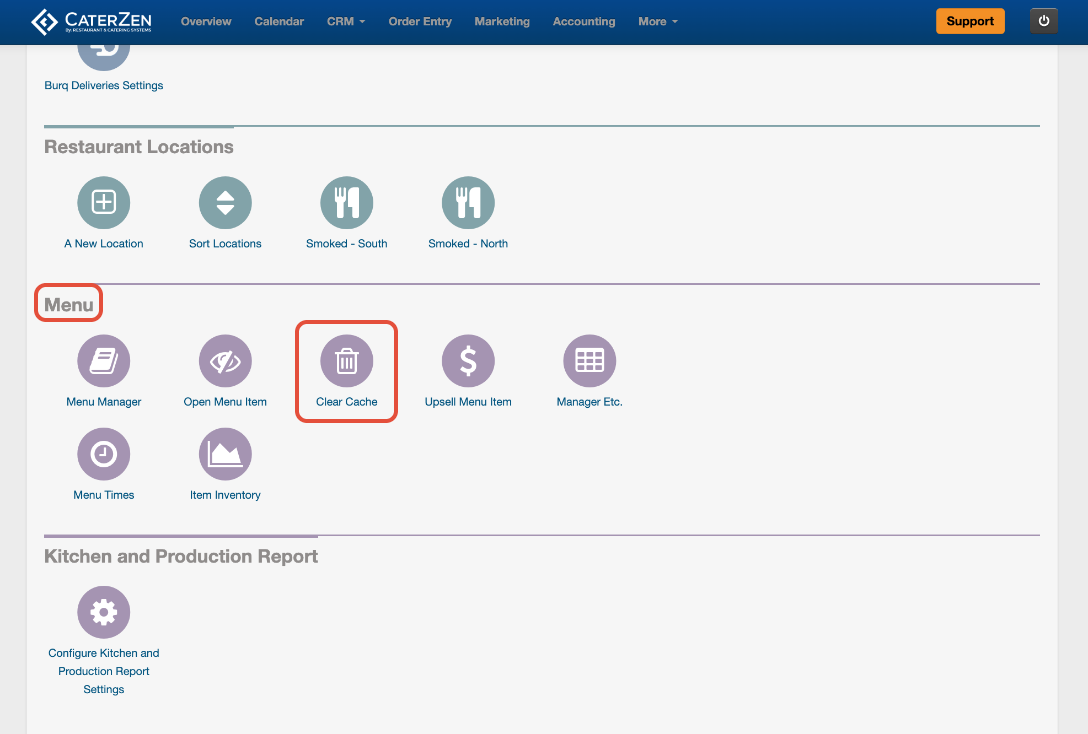
How to Clear the Menu Cache
Go to Admin
Select Menu Settings
Click Clear Menu Cache
The cache will refresh immediately.
Important Notes
Clearing the menu cache does not delete or reset any data
Existing orders are not affected
Clearing the cache does not impact reporting
You do not need to clear the cache after every change
Best Practices
Clear the menu cache only if changes are not appearing
If prompted by the system, it is safe to proceed
Use this as a troubleshooting step before contacting Support
Troubleshooting
If changes still do not appear after clearing the cache:
Refresh your browser
Confirm the correct menu or location is selected
Confirm the item or setting was saved
Related Articles
Support
For additional help, refer to the CaterZen Support Center or contact our CaterZen Support Team.
Not a CaterZen Customer yet? Discover how our catering software can streamline your business — click here to learn more!