
Overview
Adding images to menu items helps Customers better understand what they are ordering and improves the overall online ordering experience. Menu item images display directly with the item during online ordering.
When to Use Menu Item Images
Menu item images work best when:
You want to visually highlight popular or signature items
Presentation matters to the Customer’s decision-making
Items may be unfamiliar to first-time Customers
Images are optional. Not every item needs an image.
Image Guidelines and Best Practices
For best results:
Use clear, well-lit photos
Avoid text-heavy images
Use square images when possible
Keep file sizes reasonable for fast loading
Images should be at least 767px wide by 556px tall
Images should represent the item accurately.
Step 1: Locate the Menu Item
Go to Admin → Menu → Menu Manager
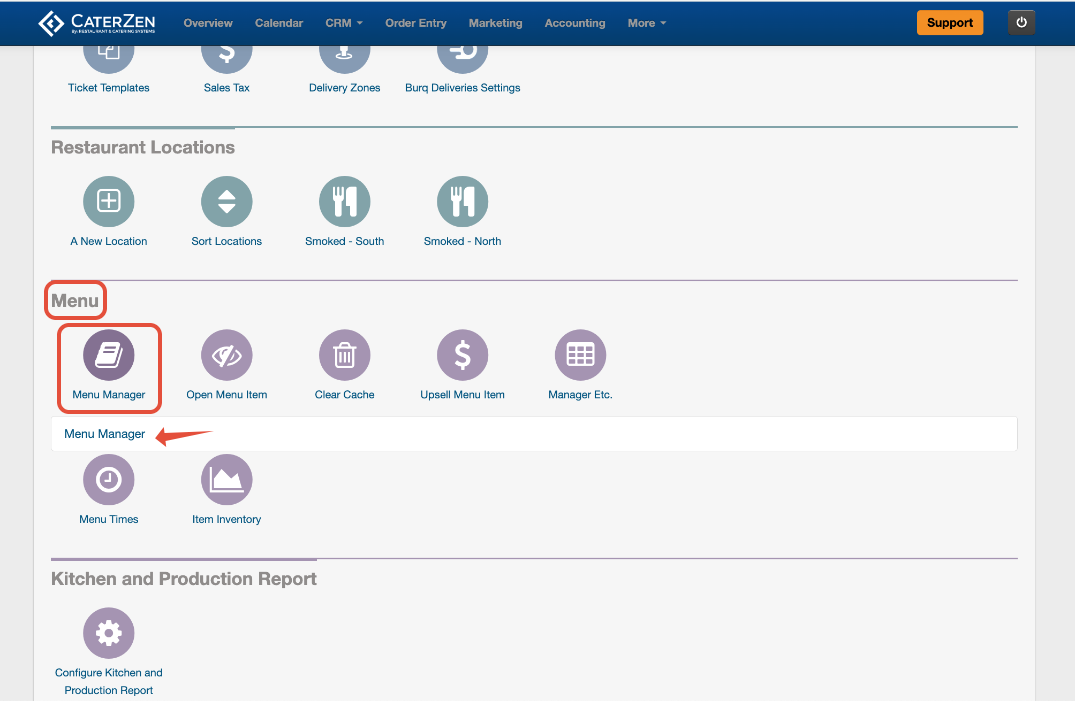
- Open the menu and category where the item lives
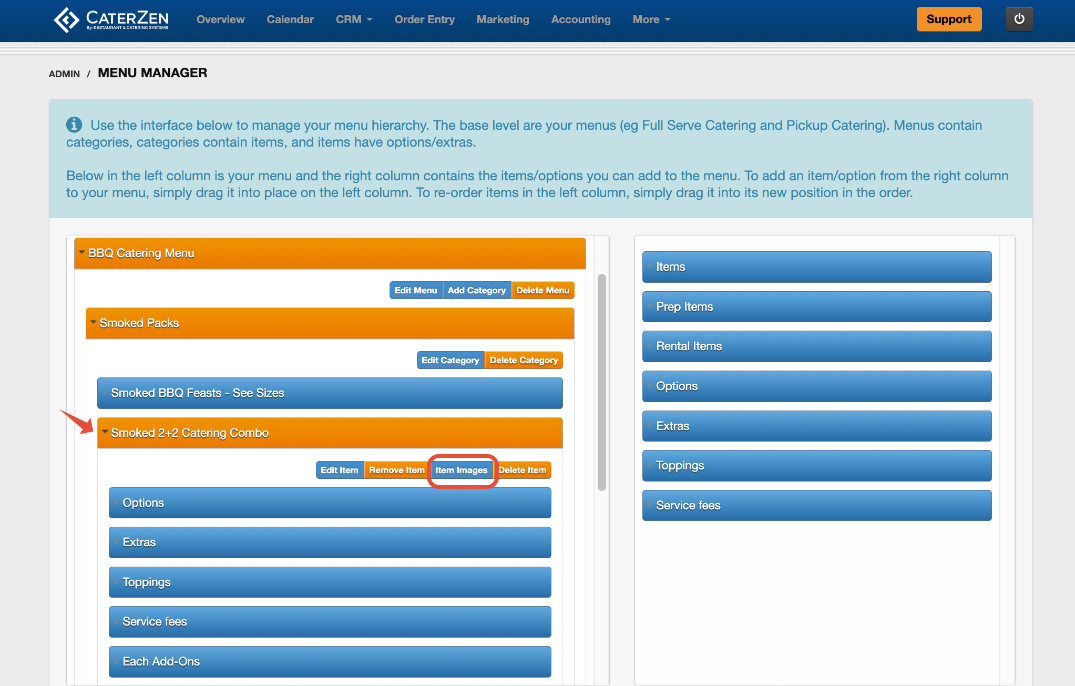
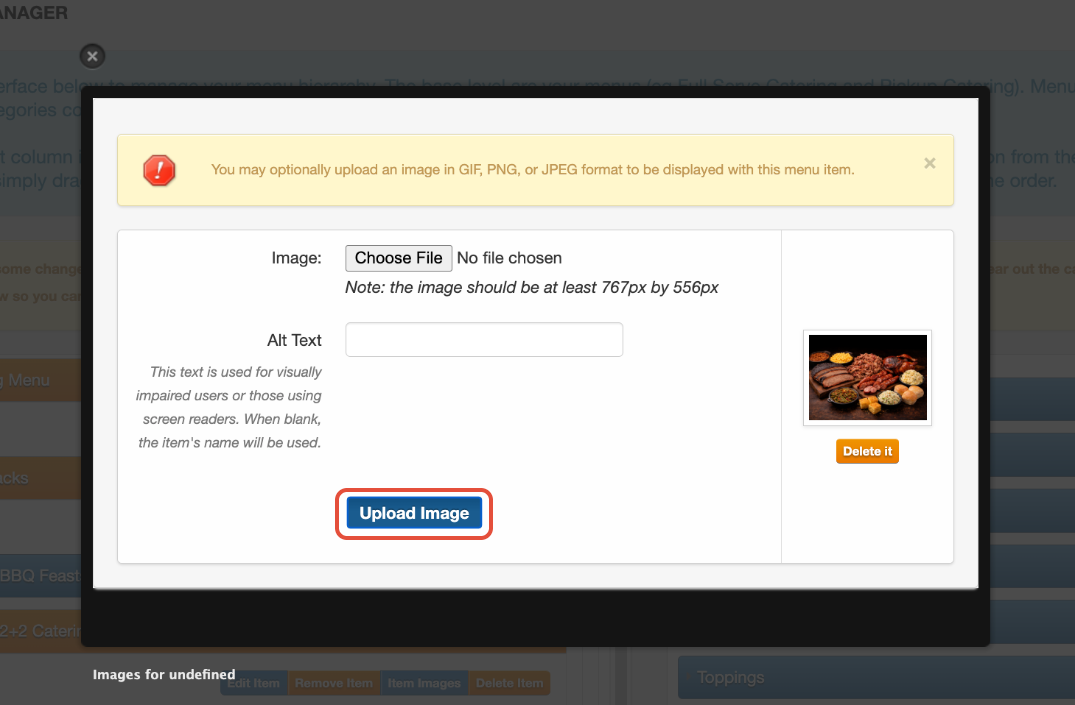
- Click the menu item to open its settings, Click Item Images
Step 2: Add an Image to the Menu Item
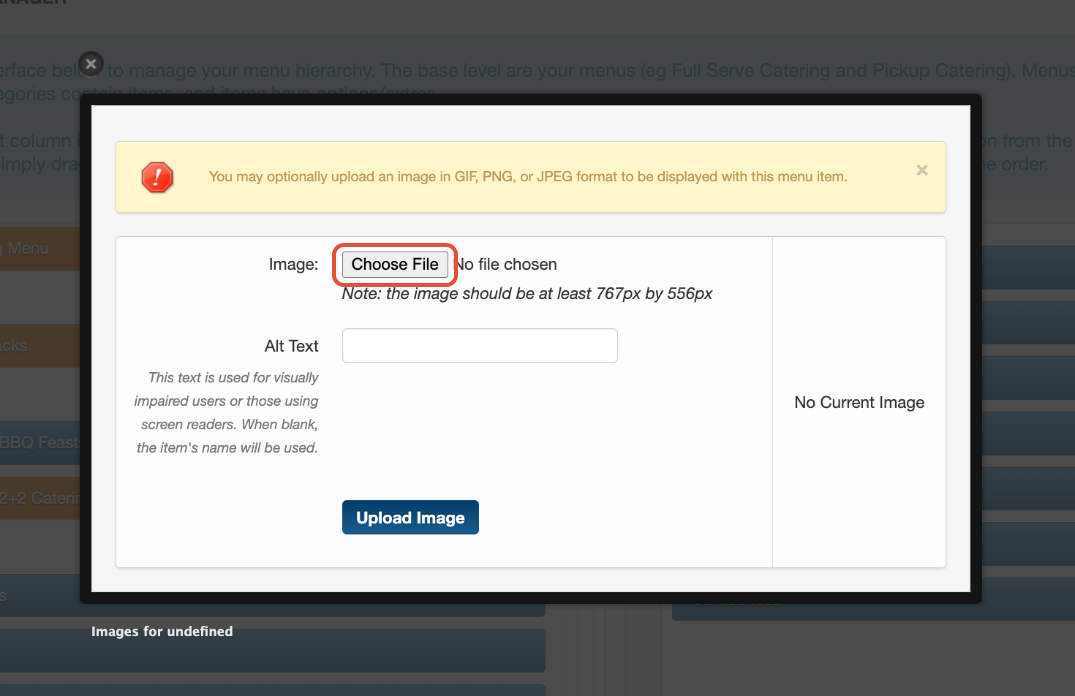
Click Choose File
Select the image you wish to insert from your computer
Click Upload Image
You will now see the uploaded image displayed on the right
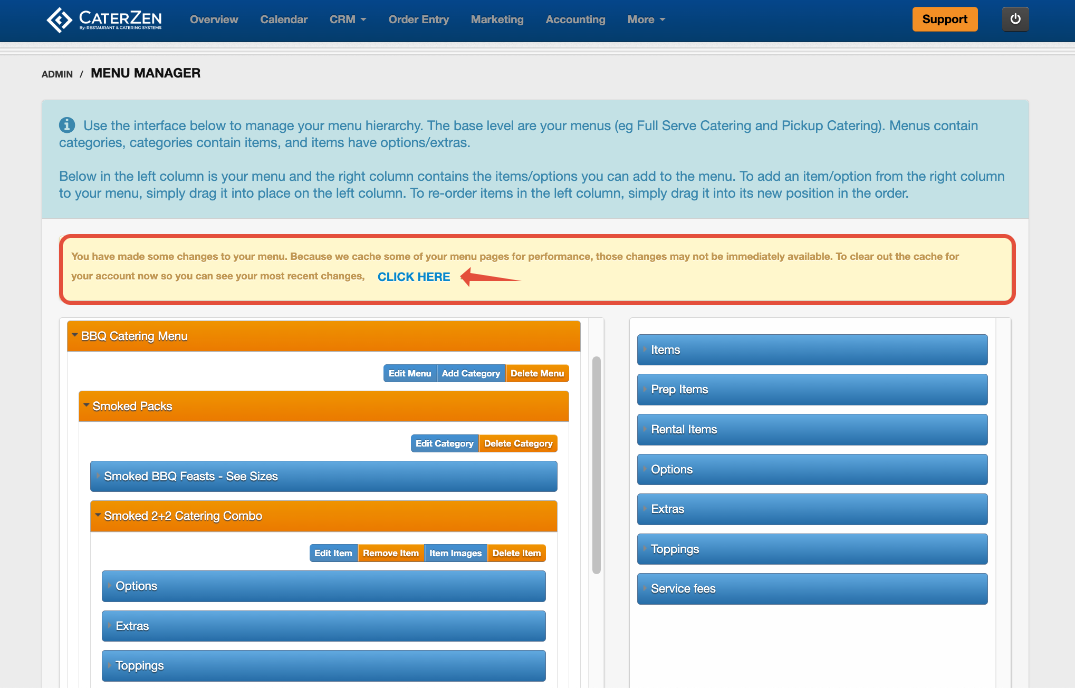
Step 3: Clear Menu Cache
Click CLICK HERE in the yellow box to clear the menu cache
Avoid working in multiple CaterZen tabs while editing in Menu Manager
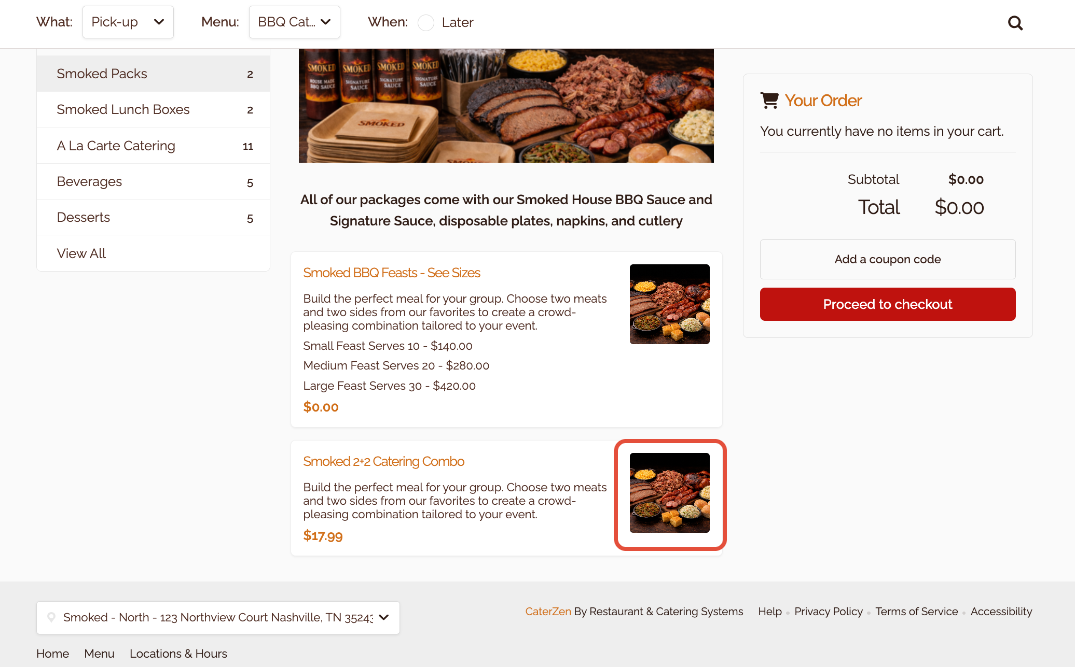
The updated image will be added.
How to Preview the Image After Uploading
After uploading and saving an image, View the menu the same way a Customer would.
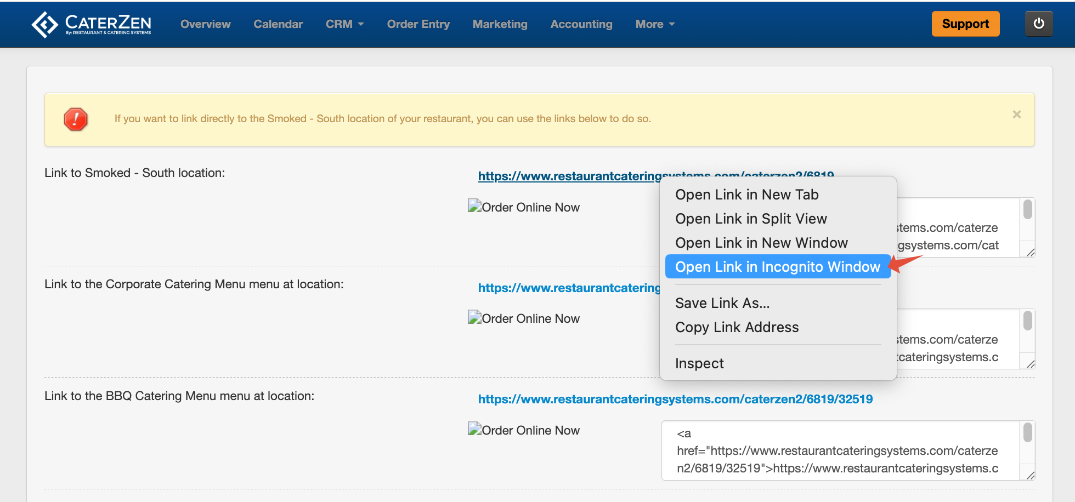
For the most accurate preview: Admin → Online Order Settings → Online Ordering Links
Open your online ordering link in a different browser, or
Right click on the link to open the link in an incognito/private window
Updating or Replacing an Image
To change an existing image:
Open the menu item, click Item Images
Click Choose File to select the image from your computer
Click Upload Image
The new image will replace the previous one.
What the Customer Sees
When ordering online, Customers will:
See the image next to the menu item
Be able to better visualize the item before adding it to their order
Images help reduce uncertainty and increase confidence in ordering.
Important Notes
Images are tied to the menu item, not the order
The same image appears anywhere the item is used
Changes apply after saving the item
If an image does not appear right away, you may be prompted to clear your menu cache.
Image Usage Reminder
When uploading images, please make sure you have the rights to use them. CaterZen does not provide or upload food images on your behalf, but our team is happy to help show you how to upload images if you need assistance.
By uploading images to your menu, you confirm that you own the rights to use them or have permission from the image owner.
Best Practices
Use images selectively for maximum impact
Keep images consistent in style when possible
Avoid editing menus in multiple CaterZen tabs at the same time
Troubleshooting
If an image does not appear:
Confirm the item was saved
Refresh your browser
Clear the menu cache if prompted
Related Articles
Support
For additional help, refer to the CaterZen Support Center or contact our CaterZen Support Team.
Not a CaterZen customer yet? Discover how our catering software can streamline your business — click here to learn more!