
Overview
The Open Menu Item feature lets your team add a custom, one-off item directly to an order during Order Entry, without it needing to exist on your regular menu. Your staff simply types in a name, enters a price, and it's added to that order only.
It's a handy tool for special requests or items you don't offer regularly but are willing to accommodate. Think of it as a blank line item your team can fill in as needed.
A few things to know before you enable it:
- Open Menu Items are only available to your staff during Order Entry. Customers placing orders online will never see this option.
- They don't appear on PLU Reports and don't support Kitchen Production Formulas. If you find yourself using the same custom item repeatedly, it's worth creating a proper menu item instead.
Common Use Cases
Open Menu Items are commonly used for:
Custom catering requests
One-off or special items not on the menu
Custom charges or adjustments
Enable Open Menu Item
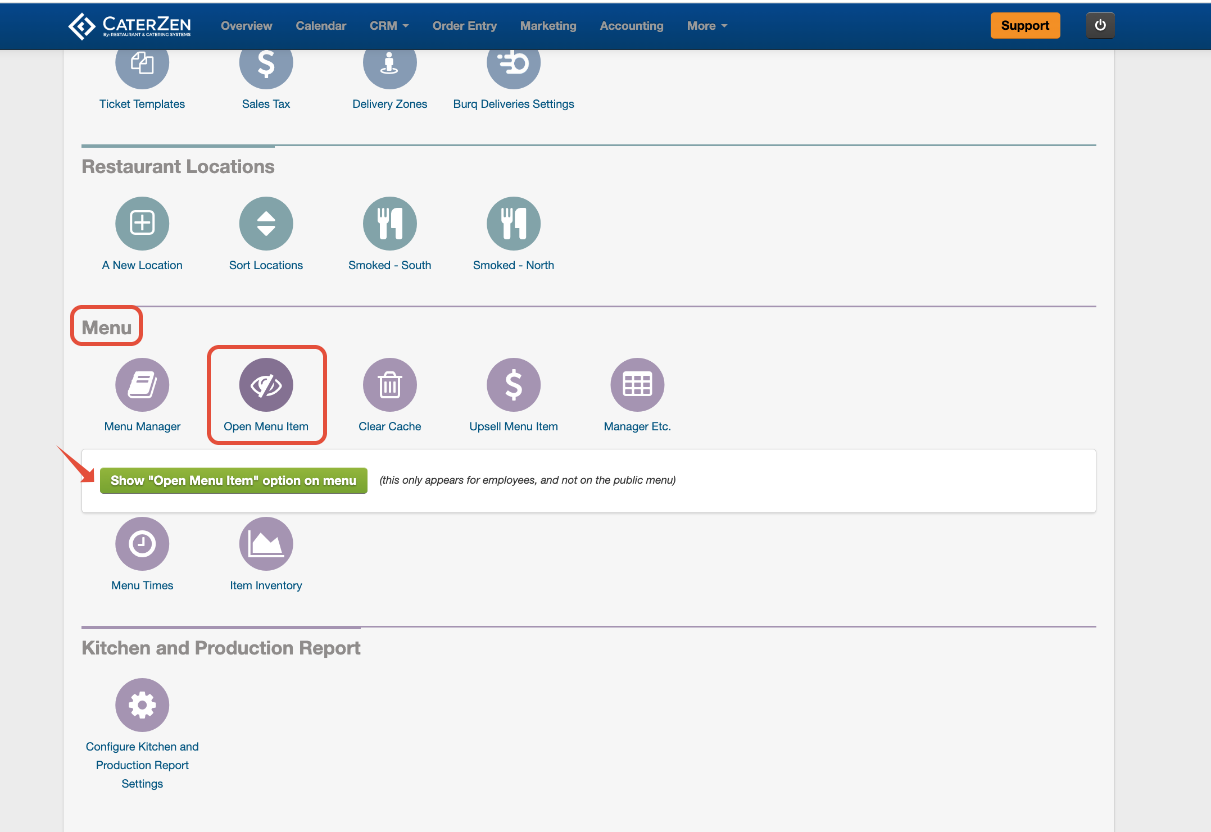
Before your team can use this feature, you'll need to turn it on in Admin.
Go to Admin → Menu
Click Open Menu Item
Click Show “Open Menu Item” option on menu
Once enabled, this option will appear for employees during Order Entry only. It will not appear on your public online menu.
Adding an Open Menu Item to an Order
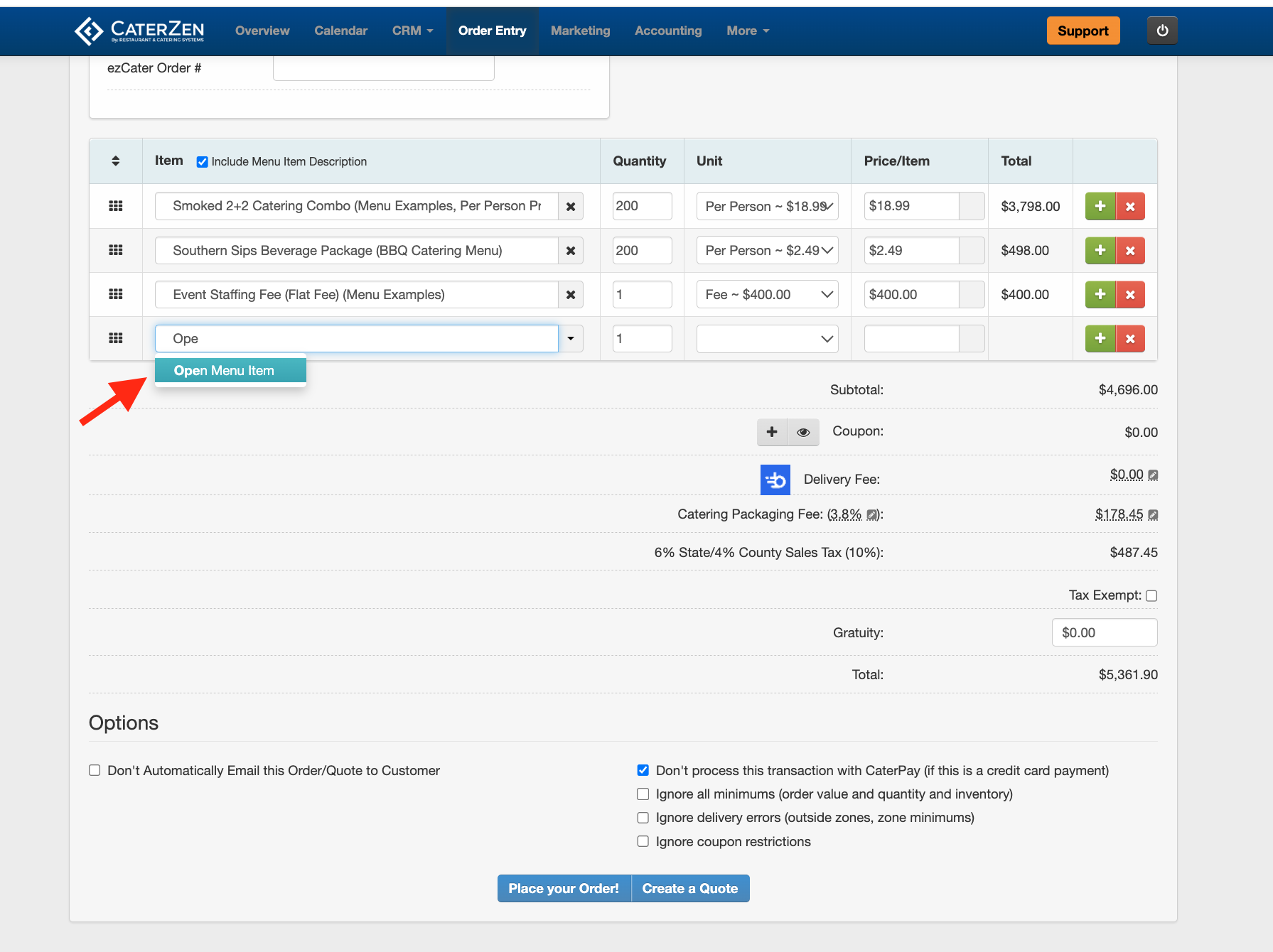
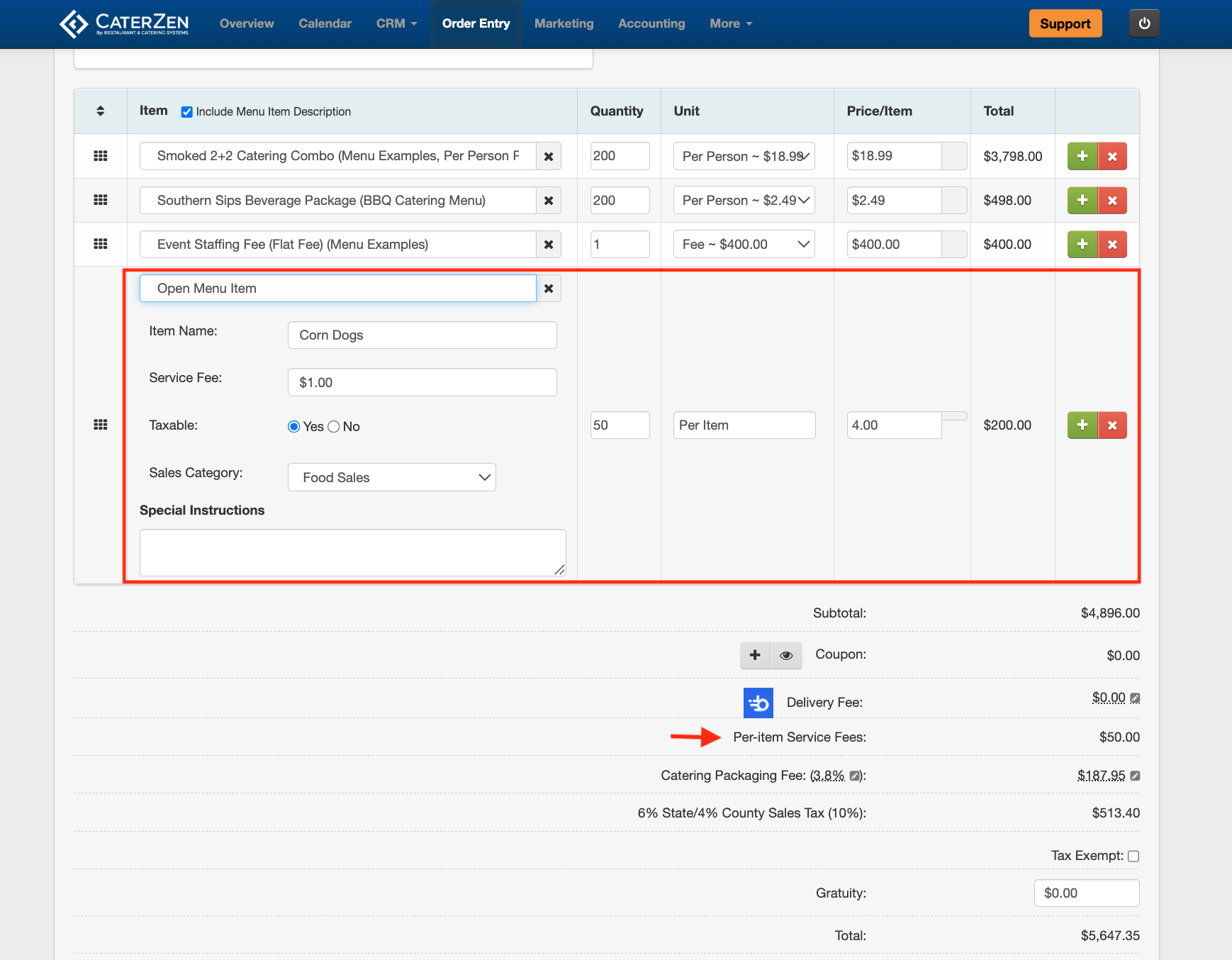
In Order Entry, search for "Open Menu Item" in the menu section and click to add it. You'll then fill in the details:
- Item Name (required) - if this is left blank, the item won't save
- Quantity
- Price
Optional fields (use only if they apply):
- Service Fee - Enter a flat dollar amount or a percentage. The fee calculates on the item price first, then multiplies by quantity. For example, a $1.00 fee at quantity 50 = $50.00. A 10% fee on a $10.00 item at quantity 5 = $5.00. This fee appears in order totals as "Per-Item Service Fees" and is separate from the Restaurant Service Fees and Custom Order Type Service Fee. See Understanding Service Fees in CaterZen for how all fee types relate to each other.
- Taxable/Non-Taxable - Open Menu Items are taxable by default; change this if needed
- Sales Category - helps keep your reporting organized
- Special Instructions - any notes about the item
- Unit - change from Per Item to something else if needed (like Per Pound)
After saving, refresh your browser and the item name will appear on the order.
Best Practices
Use Open Menu Items sparingly.
If you sell an item frequently, we recommend creating a standard menu item instead.
Standard menu items allow for:
Consistent pricing
Inclusion on PLU and sales reports
Kitchen Production Formulas and reporting
Open Menu Items:
Do not appear on PLU Reports
Do not support Kitchen Production Formulas
Are best used for one-off or special requests
Troubleshooting
If the Open Menu Item fields do not appear:
Confirm Open Menu Item is enabled in the Admin Section
Clear the menu cache if changes were made recently
Related Articles
Support
For additional help, refer to the CaterZen Support Center or contact our CaterZen Support Team.
Not a CaterZen customer yet? Discover how our catering software can streamline your business — click here to learn more!