
Overview
Menu Option Sort Order controls the order in which option choices appear when a Customer or your team is placing an order.
This allows you to prioritize common choices, improve the ordering experience, and keep menus consistent.
When to Edit Option Sort Order
You may want to update the option sort order if:
Certain choices should appear first
Less common choices should appear lower in the list
Options were added later and appear out of sequence
You want the order to match your printed or catering menus
Step 1: Locate the Option
Go to Admin → Menu Manager
In either the right or left columns, find the Option you wish to reorder
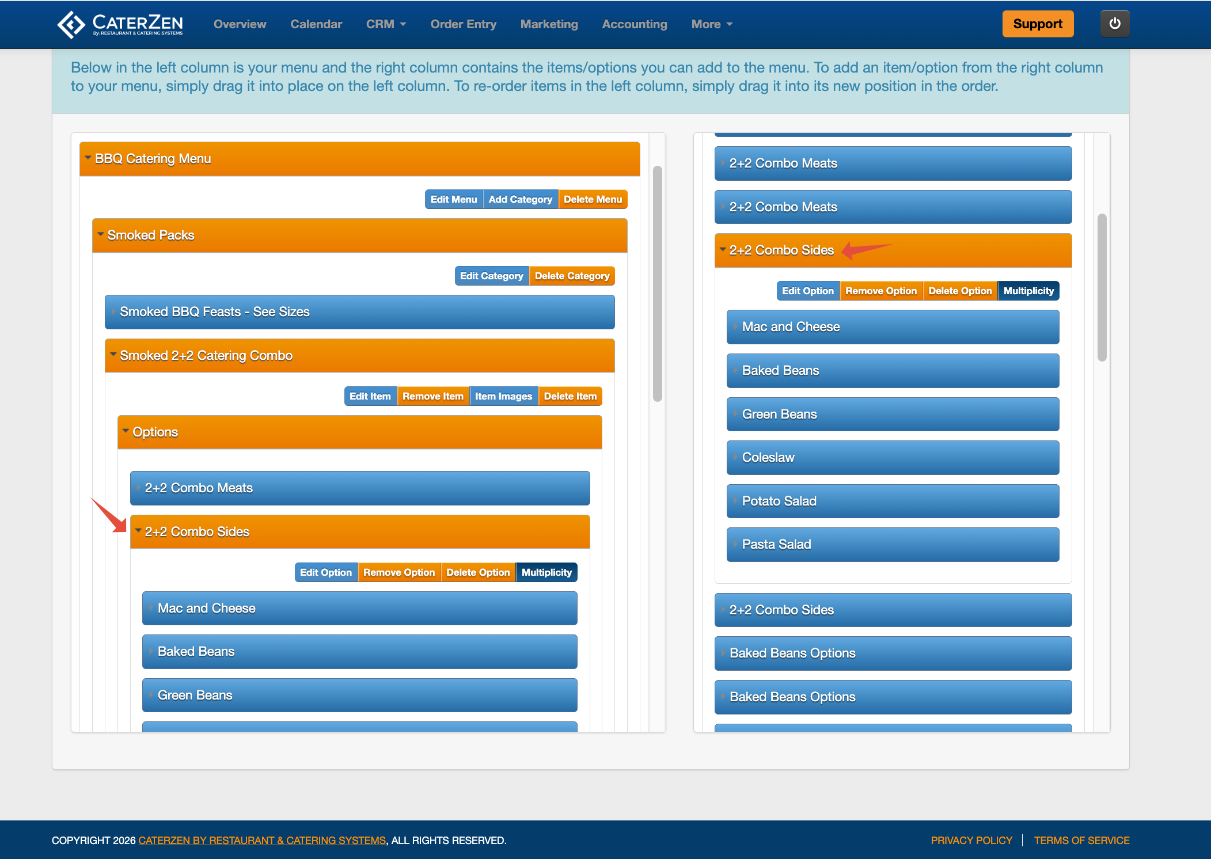
Step 2: Edit the Option Sort Order
Within the option, locate the list of Option Choices
Use the small arrows on the left of the Option Choice name to drag to adjust the position of each choice
Arrange the choices in the order you want them to appear
Changes are applied in real time within the option.
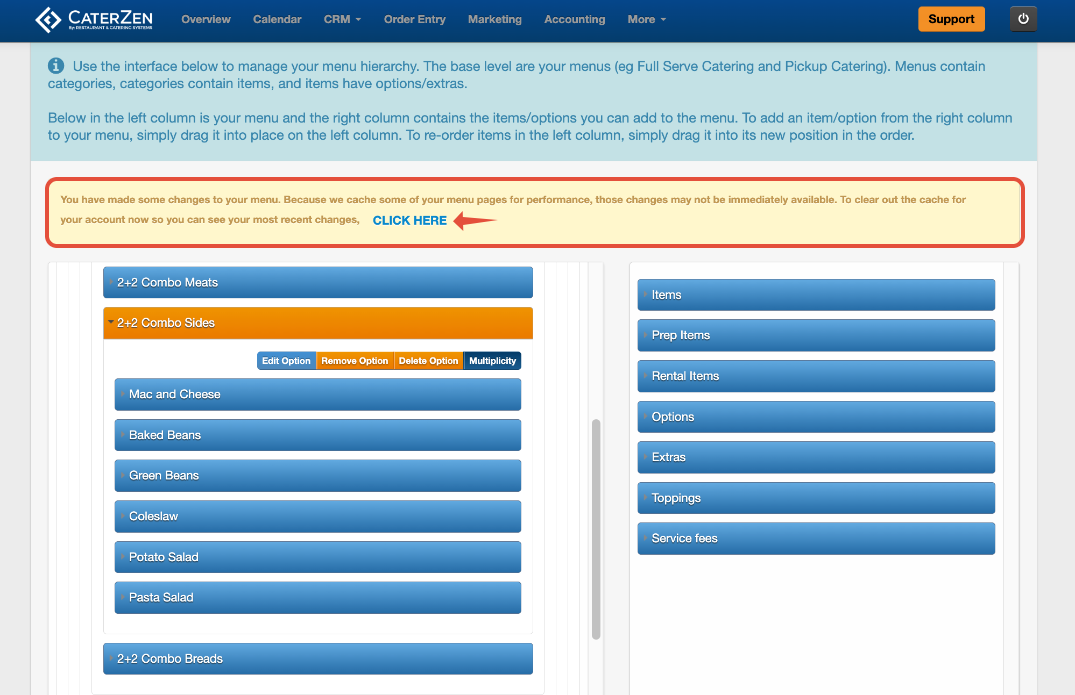
Step 3: Clear Menu Cache
Click CLICK HERE in the yellow box to clear the menu cache
Avoid working in multiple CaterZen tabs while editing in Menu Manager
The updated sort order will apply anywhere this option is used.
Important Notes
Option sort order applies everywhere the option is used
You only need to edit the sort order once per option
This does not affect pricing, availability, or inventory
Best Practices
Place the most common choice at the top
Group similar choices together
Keep naming consistent for easier scanning
Troubleshooting
If the updated sort order does not appear:
Confirm the option was saved
Refresh your browser
Clear the menu cache if prompted
Related Articles
Support
For additional help, refer to the CaterZen Support Center or contact our CaterZen Support Team.
Not a CaterZen customer yet? Discover how our catering software can streamline your business — click here to learn more!