
Overview
Show Cake Options allows you to present visual cake choices to Customers when they are ordering a cake item. This feature is designed specifically for cakes and desserts where appearance, design, or message selection matters.
Cake Options display as selectable images and can include a message field when appropriate. This helps Customers clearly communicate their selection without confusion.
When to Use Show Cake Options
Show Cake Options works best when:
You sell cakes with multiple design or style choices
The visual selection matters more than text alone
Customers need to choose a specific cake look or theme
This feature is intended for cake-style items only and should not be used for general menu options.
Important Rules Before You Begin
Before enabling Show Cake Options, keep the following in mind:
Cake Options are tied to a specific menu item
Each cake option uses an image as the selection method
Cake Options are not meant to replace standard Options or Extras
Pricing should be handled on the menu item itself, not the cake option
Step 1: Create the Cake Menu Item
Go to Admin → Menu Manager
Create or locate the cake menu item
Set pricing and save the item
The cake item must exist before Cake Options can be added.
Step 2: Enable Show Cake Options
Open the cake menu item
Locate the Show Cake Image Upload Field setting
Enable the option
Save the menu item
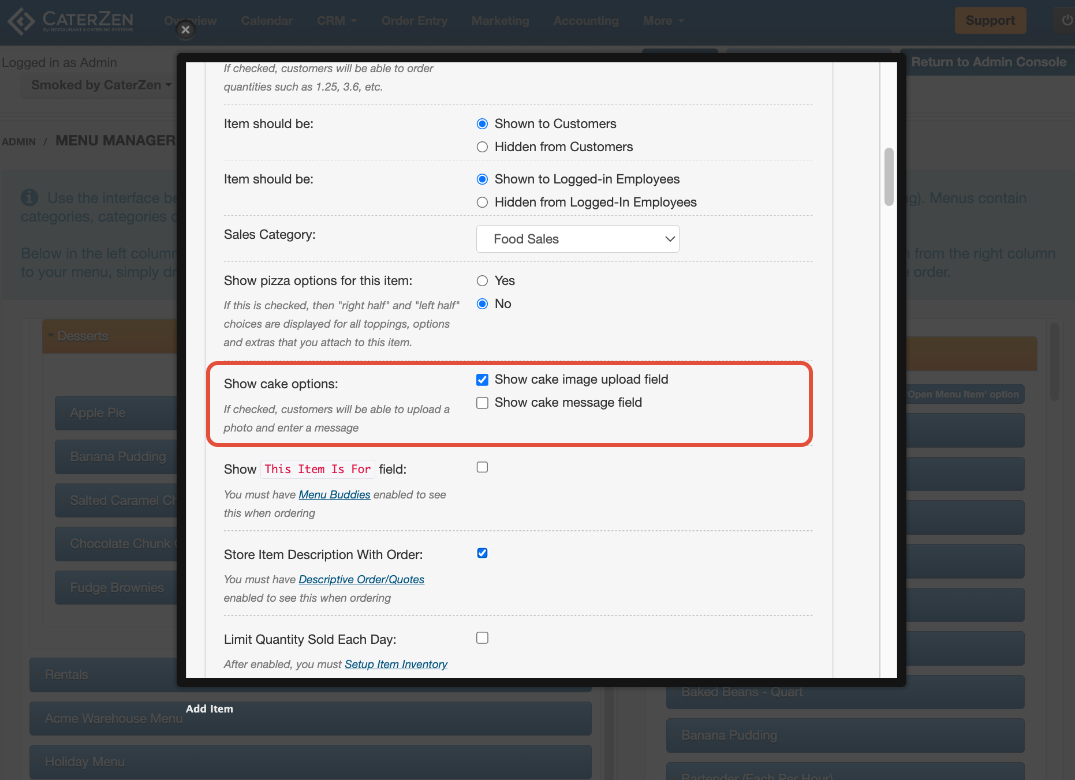
Optional: Allow a Cake Message
If you allow Customers to add a custom message:
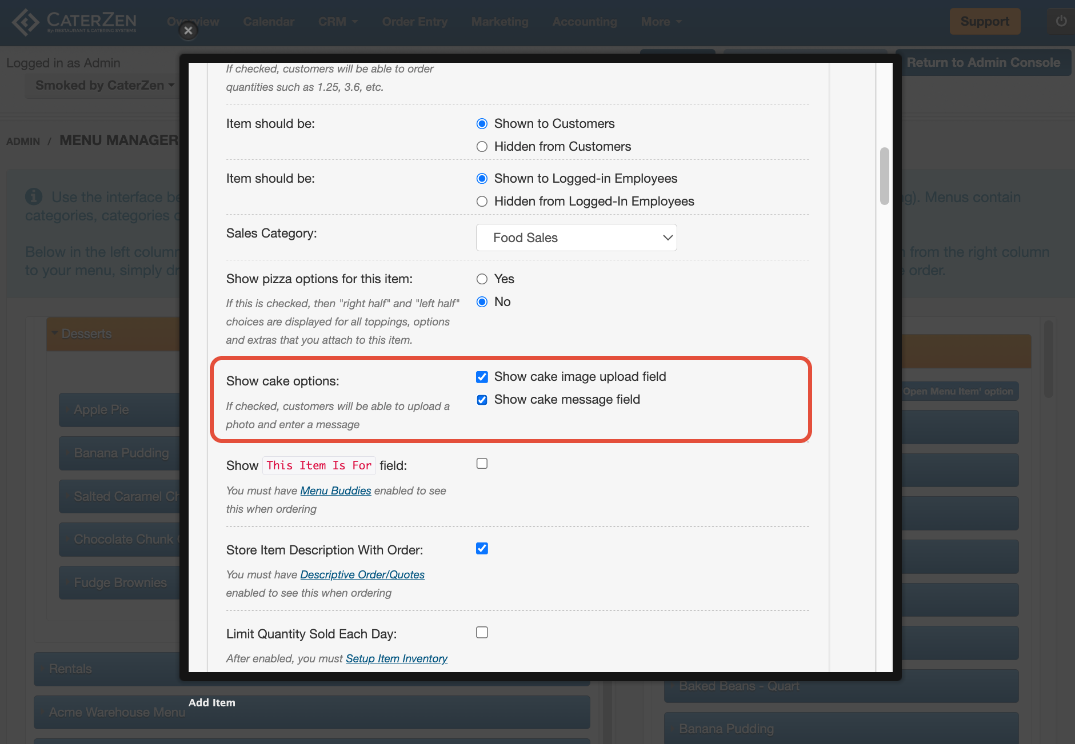
Enable the message field within the cake item
Customers will be prompted to enter text during ordering
This is commonly used for birthday or celebration cakes. (ex: Happy Birthday Michael)
Step 3: Add Cake Option Images
Within the cake options section, click Add Option
Upload an image for each cake option
Enter a clear option name (for example: Chocolate Design, Floral Design)
Save each option
Repeat these steps for all available cake designs.
? Screenshot: Cake option image upload
What the Customer Sees Online
When ordering online, the Customer will:
See cake options displayed as images
Select the desired cake design
Enter a custom message if enabled
This reduces back-and-forth and ensures accurate fulfillment.
What Your Team Sees in Order Entry
In Order Entry, your team can:
See the selected cake option
View the chosen image reference
See any custom message entered by the Customer
This information appears directly on the order.
Best Practices
Use high-quality, well-lit images
Keep option names simple and descriptive
Avoid too many cake options on a single item
Do not use Show Cake Options for non-cake items
Avoid editing menus in multiple CaterZen tabs at the same time
If changes do not appear right away, you may be prompted to clear your menu cache.
Troubleshooting
If Cake Options do not appear:
Confirm Show Cake Options is enabled and saved
Confirm images were uploaded successfully
Refresh your browser
Clear the menu cache if prompted
Related Articles
Support
For additional help, refer to the CaterZen Support Center or contact our CaterZen Support Team.
Not a CaterZen customer yet? Discover how our catering software can streamline your business — click here to learn more!