
Overview
Multiplicity settings control what happens when a menu item requires multiple selections from the same option list.
For example, if a meal comes with "Choose 2 Sides", multiplicity determines:
- How customers make those selections
- How the options and quantities are displayed
- How the selections are calculated in Kitchen Production
Quick Decision: Multiplicity vs Show Quantity Fields (Mix and Match)
Use this to pick the right setup fast:
Use Show Quantity Fields / Mix and Match when you want the Customer to enter quantities for each choice (example: “12 sandwiches total — choose how many of each”).
→ Menu Manager: Enable Quantity Fields for Options + Mix and Match OptionsUse Multiplicity when the Customer is picking multiple items from the same list (example: “Choose 2 sides” or “Choose 2 meats”).
Important: If Show Quantity Fields / Mix and Match is enabled on an option, it overrides multiplicity for that option.
Configuring Multiplicity Settings
Steps:
- Go to Admin → Menu → Menu Manager
- On the left side, click the Menu → Category → Menu Item containing the option
- The menu item will highlight in orange
- Click the Options tab under the menu item
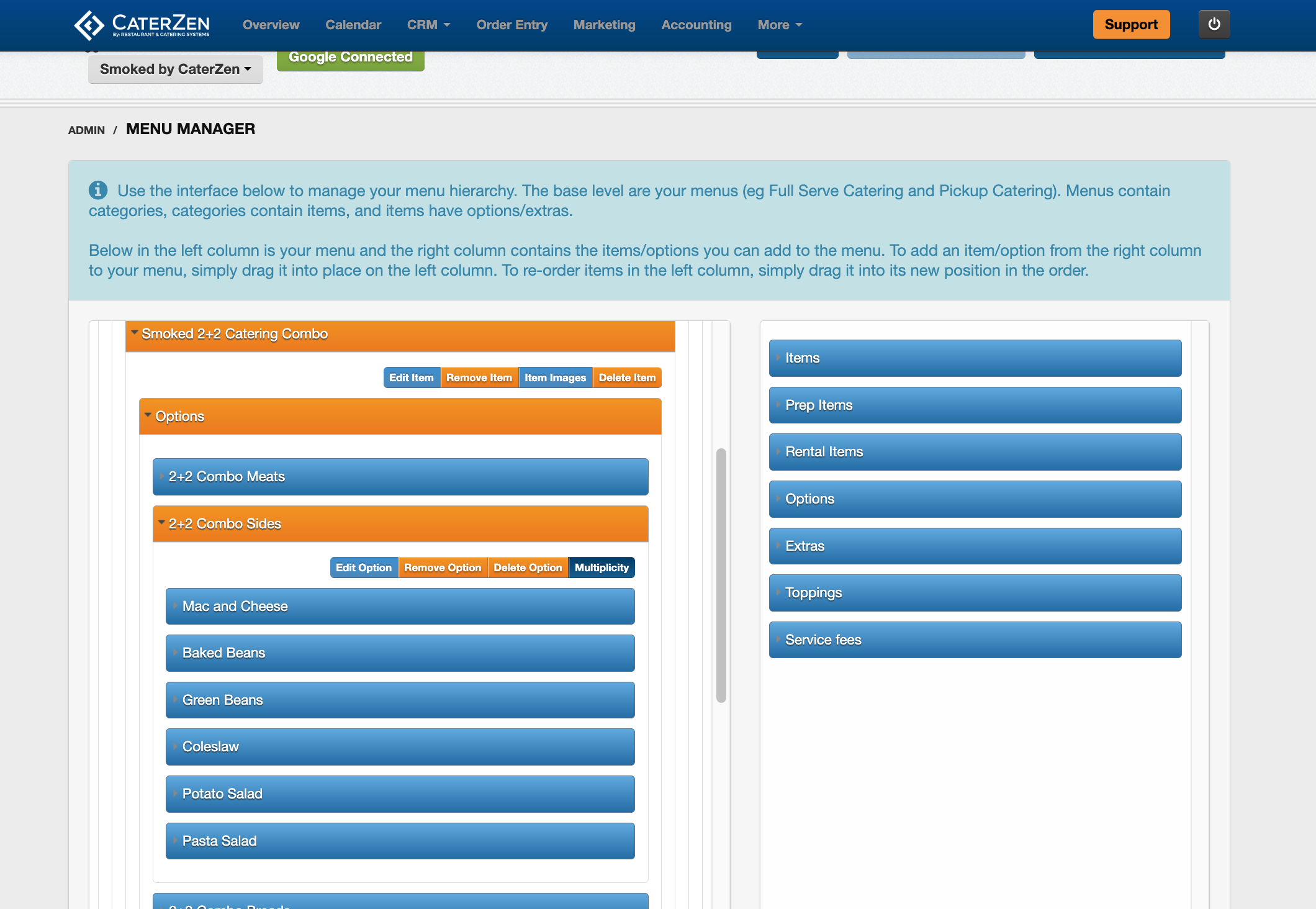
- Click the option you want to configure
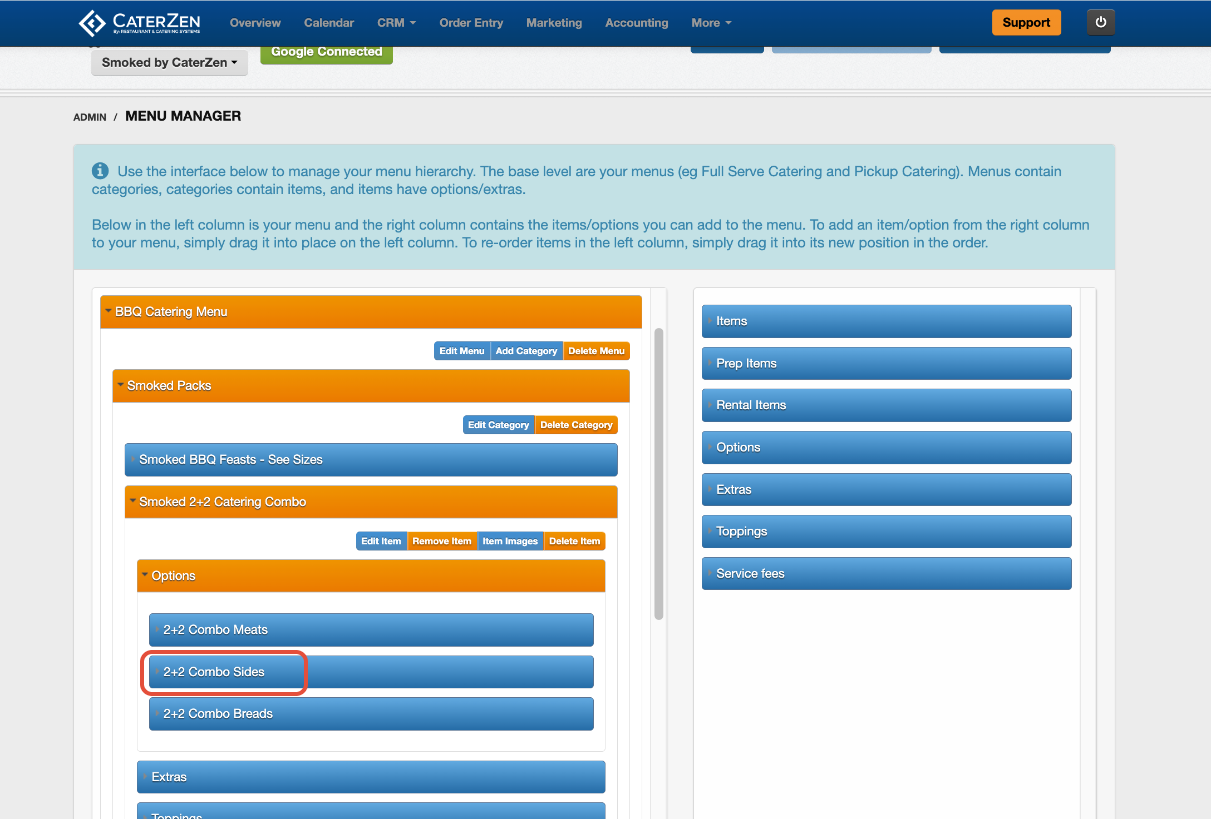
- Click the Multiplicity tab
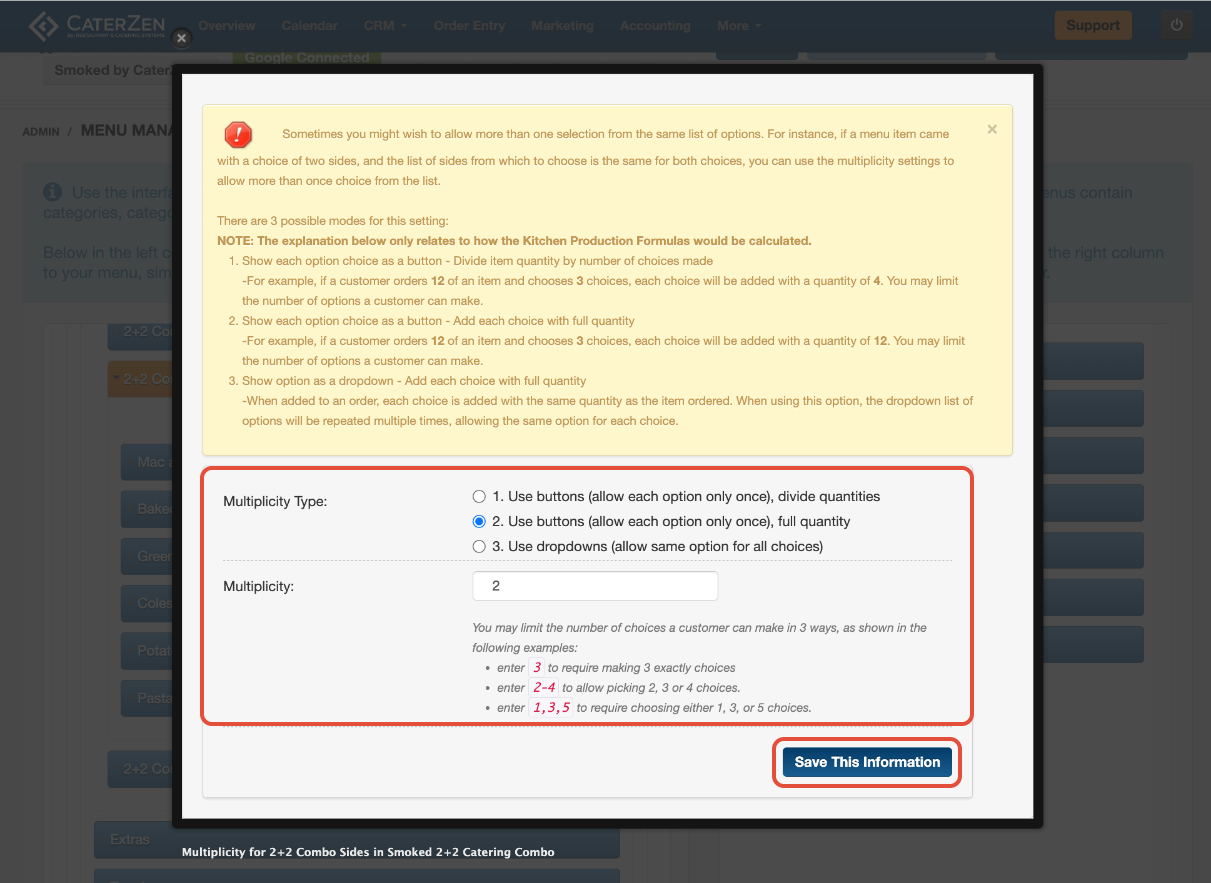
- A popup window will appear with three method options
- Select your desired method (See Understanding the Three Multiplicity Methods below)
- Configure the number of selections required (See Configuring the Number Selections below)
- Scroll to the bottom of the popup and Click Save This Information
Understanding the Three Multiplicity Methods
When you configure multiplicity, you choose one of three methods. Each method changes both the Customer experience and how Kitchen Production calculates quantities.
Type 1: Use Buttons (allow each option only once), Divide Quantities
(Most Common for Split Portions)
How it works:
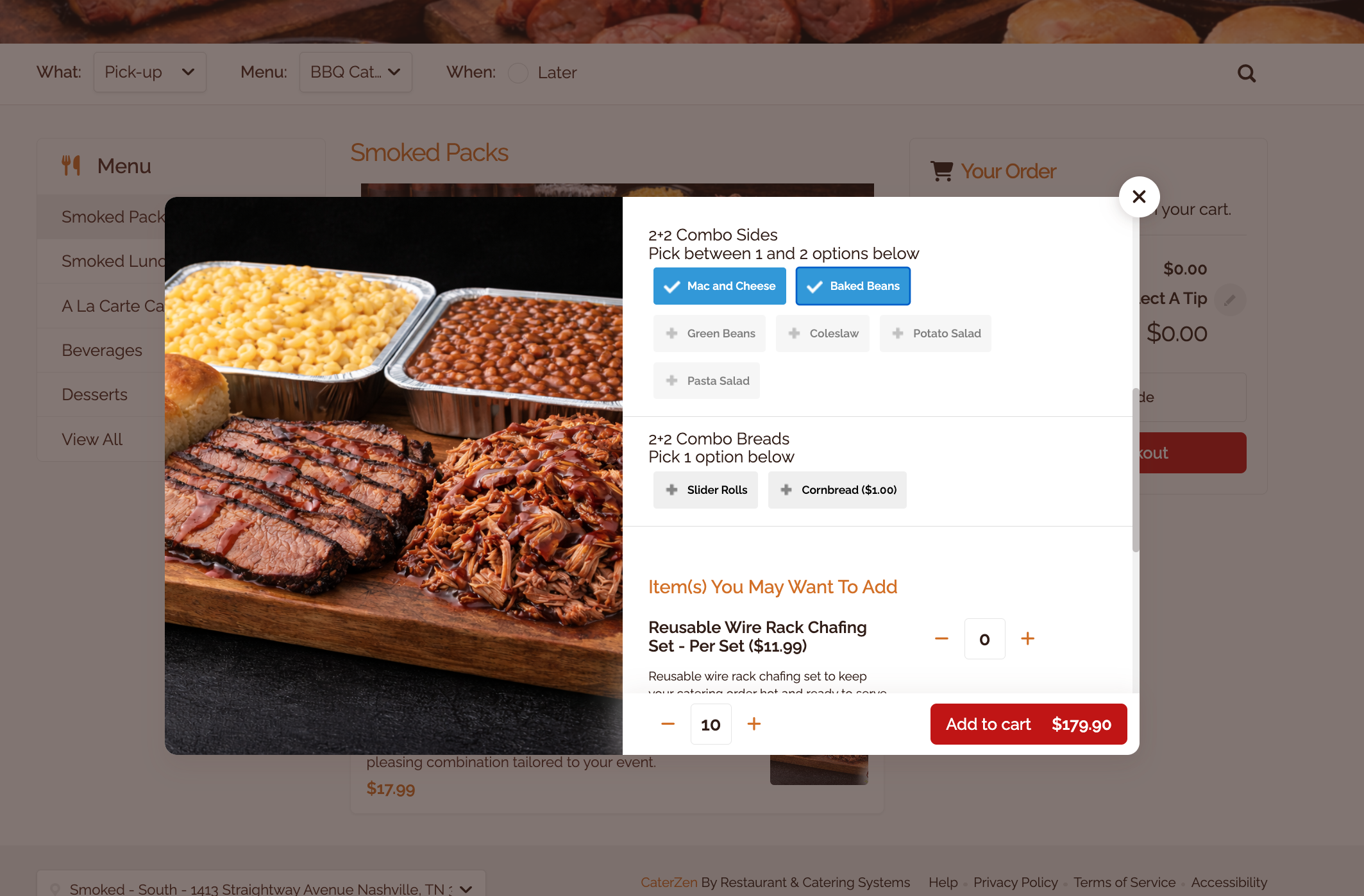
- Customer sees buttons for each choice
- Each option can only be selected once (button becomes unavailable after selection)
- Kitchen Production formulas are divided among selections
Customer Experience:
- Sees all choices as clickable buttons
- After selecting a choice, that button is disabled
- Cannot select the same option twice
- Visual feedback shows remaining selections needed
Kitchen Production Impact: This is where the "divide" happens - in the production formula, not the order quantity.
Example:
- Menu item: Side Choices
- Kitchen Production Formula: 10 oz of each side in the Option group per person
- Multiplicity: Choose 1-2 sides
- Customer selects: Mac & Cheese and Baked Beans
- Kitchen Production sees:
- Mac & Cheese: 5 oz (10 ÷ 2) per person
- Baked beans: 5 oz (10 ÷ 2) per person
If Customer had only selected 1 side:
- Mac & Cheese: 10 oz (10 ÷ 1) per person
Type 2: Use Buttons - Full Quantity
(For Independent Full Portions)
How it works:
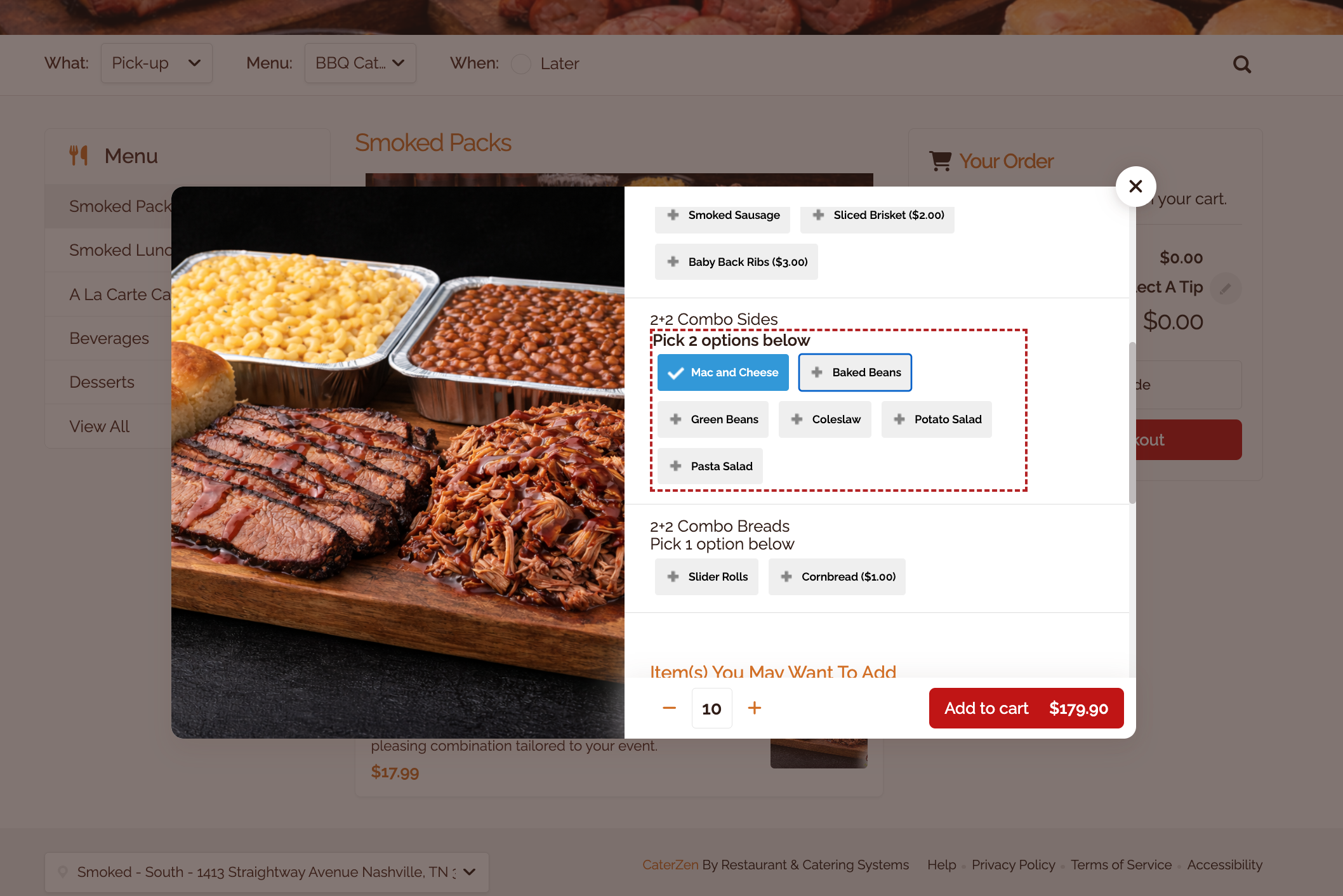
- Customer sees buttons for each choice
- Each option can only be selected once (button becomes unavailable after selection)
- Each selection gets the full Kitchen Production formula quantity
Customer Experience:
- Identical to Type 1 from the Customer's perspective
- Sees buttons, can't repeat selections
- Visual feedback shows remaining selections
Kitchen Production Impact: Each selection gets the full formula amount - no division.
Example:
- Menu item: Side Choices
- Kitchen Production Formula: 5 oz of each side in the Option group per person
- Multiplicity: Choose 2 sides
- Customer selects: Mac & Cheese and Baked Beans
- Kitchen Production sees:
- Mac & Cheese: 5 oz per person
- Baked Beans: 5 oz per person
- Kitchen Production sees:
When to use:
- Each selection should receive a full portion
- When kitchen formulas should not be divided
Type 3: Use Dropdowns - Full Quantity
(For Repeated Selections with Customization)
How it works:
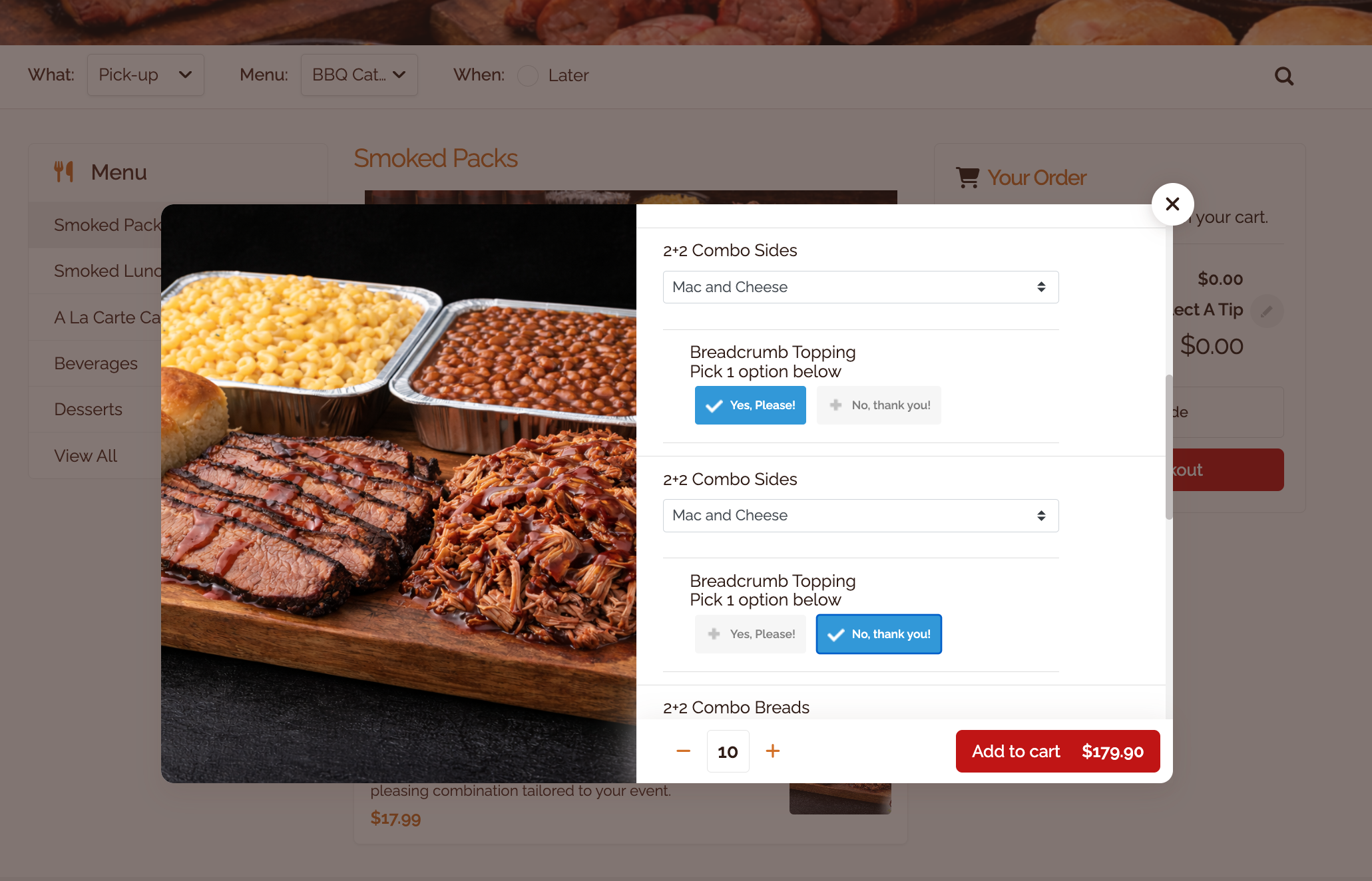
- Customer sees dropdown menus
- Same option can be selected multiple times across different dropdowns
- Each selection gets the full Kitchen Production formula quantity
Customer Experience:
- Sees multiple dropdown menus (one for each selection)
- Each dropdown shows the same list of options
- Can select the same option more than once
- Each selection can have different customizations/add-ons
Kitchen Production Impact: Each selection gets the full formula amount.
Example:
- Menu item: Side Choices
- Kitchen Production Formula: 5 oz of each side in the Option group per person
- Multiplicity: Choose 2 sides
- Customer selects:
- Dropdown 1: Mac & Cheese
- Dropdown 2: Mac & Cheese
- Kitchen Production sees:
- Mac & Cheese: 10 oz per person / half with topping, half without
Key Difference from Types 1 & 2: With buttons (Types 1 & 2), after selecting "Mac & Cheese" once, that button is disabled. With dropdowns (Type 3), you can select "Mac & Cheese" in both dropdowns.
When to use:
- Customer might want the same item multiple times
- Each selection might have different preparation or add-ons
- Customizable repeated items (e.g., two Mac & Cheese with different toppings)
- You need flexibility to select duplicates
Configuring the Number of Selections
After selecting a method, you configure how many selections the customer must make. You have three options:
Option A: Require Exact Number
Enter a single number: 2
Result: Customer must make exactly 2 selections
Example:
- "Choose 2 Sides"
- Customer must select exactly 2, no more, no less
Option B: Allow a Range
Enter a range: 2-4
Result: Customer can choose 2, 3, or 4 selections
Example:
- "Choose 2 to 4 Sides"
- Customer must pick at least 2, can pick up to 4
Option C: Require Specific Numbers
Enter comma-separated values: 1,3,5
Result: Customer must choose exactly 1, 3, OR 5 selections (not 2 or 4)
Example:
- "Choose 1, 3, or 5 Add-ons"
- Customer must pick one of those exact amounts
Note: This option is rarely used and can be confusing. Consider using Option A or B instead.
Visual Feedback for Customers
When Customers are making their selections:
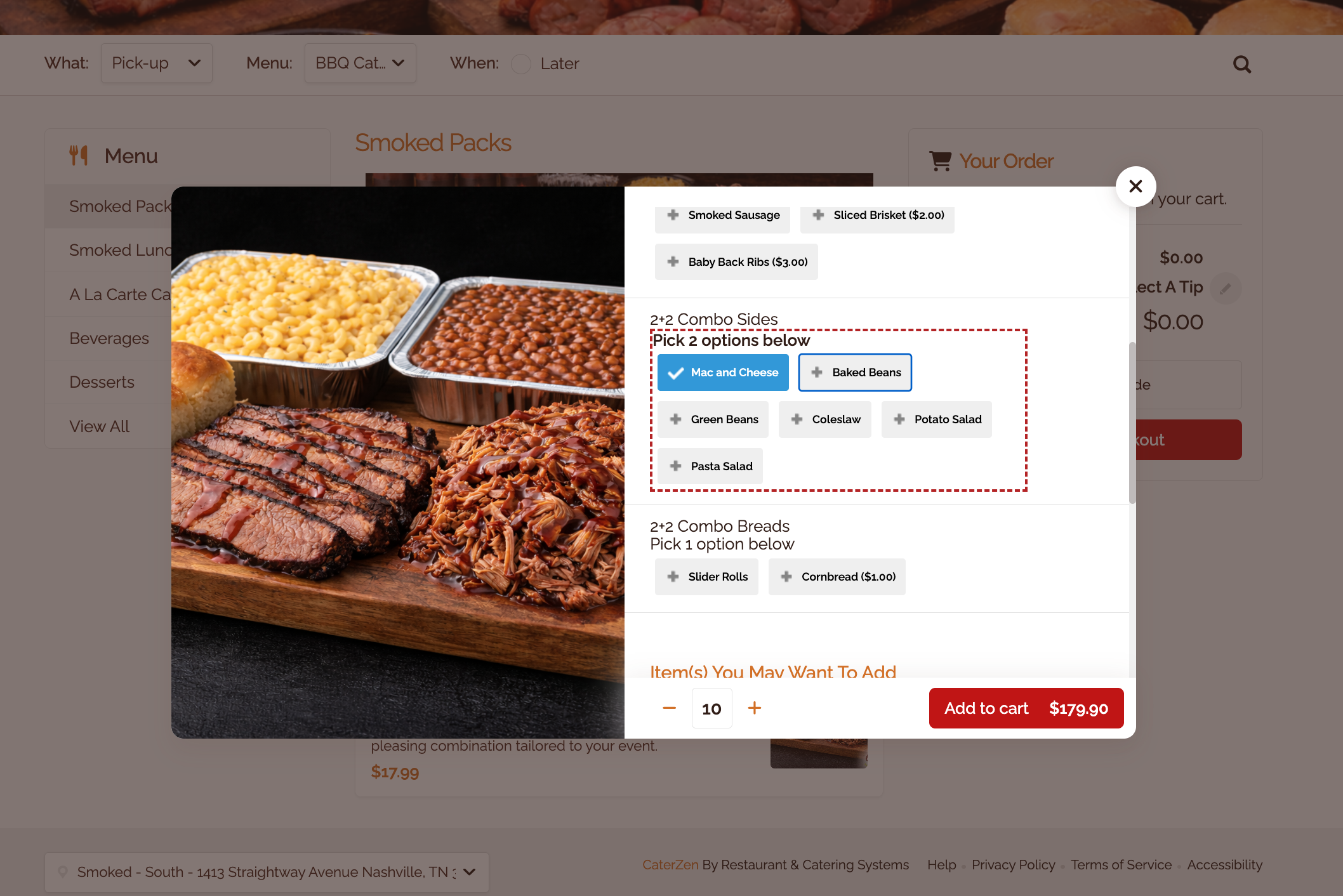
Before completing required selections:
- Red indicator appears
- Message shows how many more selections are needed
- Cannot proceed to checkout
After completing required selections:
- Green indicator appears
- Confirms selections are valid
- Can proceed with order
Understanding "Divide" vs "Full Quantity"
This distinction affects Kitchen Production Formulas, not order quantities.
Divide Quantity (Type 1 only):
- Your production formula amount is divided by the number of selections
- Formula: 8 oz → Customer picks 2 → Kitchen produces 4 oz of each
- Total production matches your formula (8 oz total)
Full Quantity (Types 2 & 3):
- Your production formula amount is not divided
- Formula: 8 oz → Customer picks 2 → Kitchen produces 8 oz of each
- Total production is multiplied (16 oz total)
Important: This does NOT affect what the Customer pays or sees in their order quantity - it only affects kitchen prep calculations.
Most Common Setup: Packages (Choose 2 Meats + Choose 2 Sides)
Multiplicity is most often used for packages, where the Customer needs to pick multiple items from the same list.
Example package:
Choose 2 Meats
Choose 2 Sides
How to choose the right Multiplicity method for packages
Use this cheat sheet:
Buttons (Type 1 or Type 2) = Customers can’t pick the same item twice
Best when you want two different choices (example: Mac & Cheese + Beans)Dropdowns (Type 3) = Customers can pick the same item more than once
Best when you want to allow duplicates (example: Mac & Cheese + Mac & Cheese)
Example: “2 Sides” but the Customer wants all Mac & Cheese
You have two good options:
Option A: Lowest friction (Customer doesn’t have to pick it twice)
Set selections required to 1–2
Use Type 1: Buttons – Divide Quantities
Result: If they select Mac & Cheese once, Kitchen Production applies the full side amount to Mac & Cheese. If they select two sides, the total is divided between them.
Option B: Most explicit (Customer must select Mac & Cheese twice)
Set selections required to 2
Use Type 3: Dropdowns – Full Quantity
Result: The Customer chooses Mac & Cheese in both dropdowns, so duplicates are intentional and clearly shown.
Troubleshooting
If multiplicity settings aren't working:
- Confirm you saved the changes
- Confirm the option is assigned to the menu item
- Check if Mix and Match is enabled (it overrides multiplicity)
- Clear the menu cache
→ Menu Settings: Clear Menu Cache
If Customers report errors:
- Verify the number of selections makes sense
- Test the ordering flow yourself
- Check that enough option choices exist to meet requirements
- Verify the menu item is active
If Kitchen Production quantities are wrong:
- Confirm you're using the correct method (1 vs 2)
- Understand that Method 1 divides, Method 2 doesn't
- Review actual Customer selections in order details
Related Articles
- Menu Manager: Menu Item Add-Ons Overview (Options, Extras, and Toppings)
- Menu Manager: Enable Quantity Fields for Options + Mix and Match Options
Support
For additional help, refer to the CaterZen Support Center or contact our CaterZen Support Team.
Not a CaterZen customer yet? Discover how our catering software can streamline your business — click here to learn more!