
Overview
Option for an Option allows you to show a Sub Add-On only when a specific choice is selected.
This keeps menus clean and prevents Customers from seeing options that do not apply to their selection.
This feature is can be used when an additional choice is conditional or required. You can determine this in your Multiplicity Settings for the Sub Add On.
⚠️ Working in Multiple Browser Tabs
When making menu changes, we recommend working in a single CaterZen tab.
CaterZen can be opened in multiple browser tabs, but making menu changes in more than one tab at the same time can cause changes not to save correctly.
For best results:
Complete your menu changes in one tab
Save your changes and clear your menu cache before navigating elsewhere
Refresh your browser if you switch tasks
Understanding the “Sub Add-Ons” Section
When you open an option on the left side of Menu Manager, you may see a section labeled Sub Add-Ons.
The label says Sub Add-Ons, this area can contain:
Options
Extras
Toppings
This section is simply where conditional selections appear when using Option for an Option.
You do not need to rename this section or change how it is displayed.
Common Use Cases (Examples)
Example 1: Add a Dressing When a Salad Is Chosen
Primary Option: Choose a Side
Triggering Choice: Salad
Sub Add-On: Select a Dressing
The dressing Sub Add-On only appears if Salad is selected. If another side is chosen, it stays hidden.
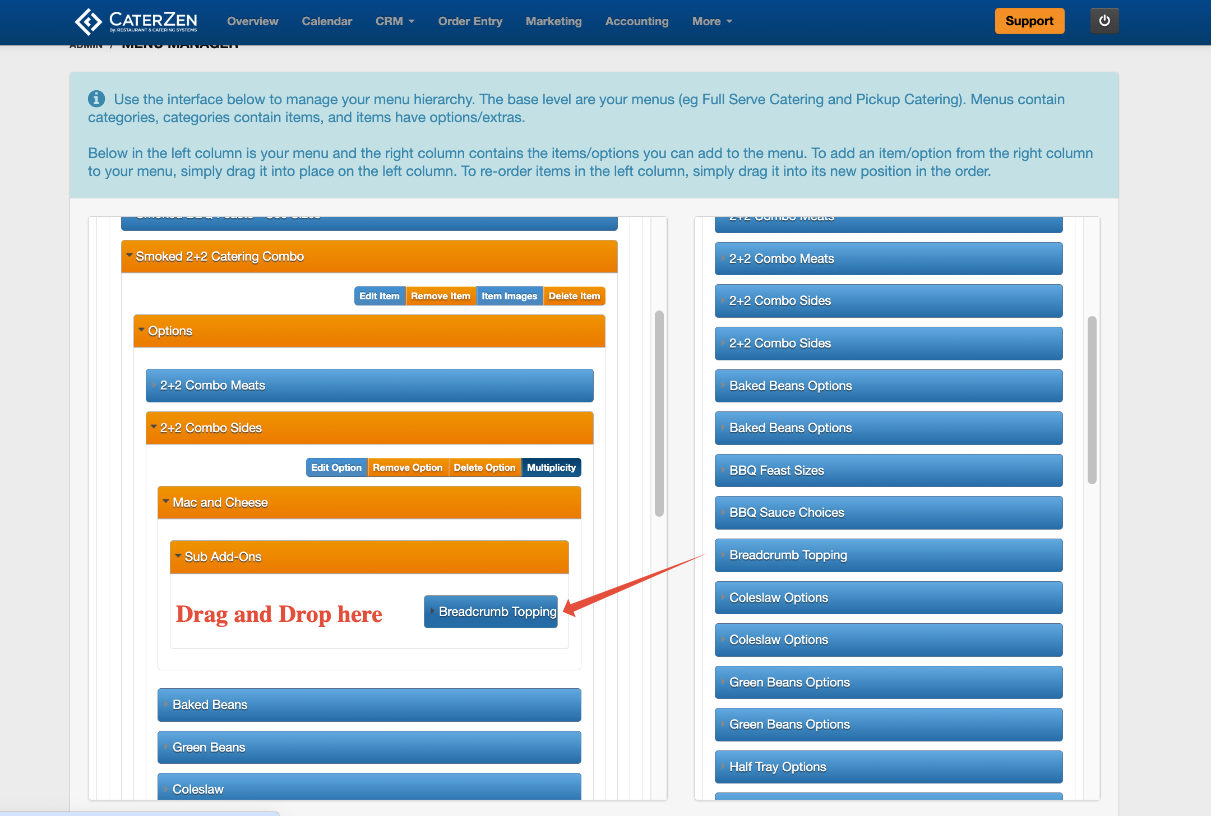
Example 2: Add a Breadcrumb Topping When Mac and Cheese Is Chosen
Primary Option: Choose a Side
Triggering Choice: Mac and Cheese
Sub Add-On: Breadcrumb Topping
The breadcrumb Sub Add-On appears only when Mac and Cheese is selected, keeping the ordering experience simple and relevant.
Note: If the triggering choice is changed or removed, the Sub Add-On is hidden again.
Step 1: Create the Primary Option
Create the option that will control whether the Sub Add-On appears.
Examples:
Choose a Side
Would you like to add a sauce?
Select an entrée
Create this option like any standard option. Follow the steps here: Menu Manager: Menu Item Add-Ons Overview (Options, Extras, and Toppings)
Step 2: Create the Sub Add-On
Create the option that should appear only when triggered.
Examples:
Select a Dressing
Breadcrumb Topping
Choose Heat Level
Create this option/extra/topping by following the steps here: Menu Manager: Menu Item Add-Ons Overview (Options, Extras, and Toppings)
Step 3: Assign the Sub Add On to the Primary Option
Click the menu item on the left (it will highlight in orange)
Click the Options tab under the menu item (left side)
Click on the specific item in that Option Set that want to add to
Locate the option/extra/topping on the right side
Drag it into the Sub Add On box under the menu item
The Sub Add On is now assigned.
Configuring Sub Option Multiplicity
If the sub option needs special selection behavior:
Click the assigned sub option under the menu item
Select the Multiplicity tab
Choose the appropriate settings
Click Save
For details, see:
→ Menu Options: Multiplicity Settings for Options
Best Practices
Use Sub Add On only when an additional choice is truly conditional
Keep logic simple and easy to follow
Test the flow before making the menu live
Common Mistakes to Avoid
Assigning both the primary option and Sub Add-On directly to the menu item
Using Sub Add On when a standard option would work
Troubleshooting
If the Sub Add-On does not appear:
Confirm the correct triggering choice is selected
Confirm the Sub Add-On is linked correctly
Confirm only the primary option is assigned to the menu item
Clear the menu cache if changes were made recently
Related Articles
Support
For additional help, refer to the CaterZen Support Center or contact our CaterZen Support Team.
Not a CaterZen customer yet? Discover how our catering software can streamline your business — click here to learn more!