
Overview
Add Each Add Ons Item to a menu item or package lets you suggest and encourage simple, complementary add-on items when a Customer selects a package.
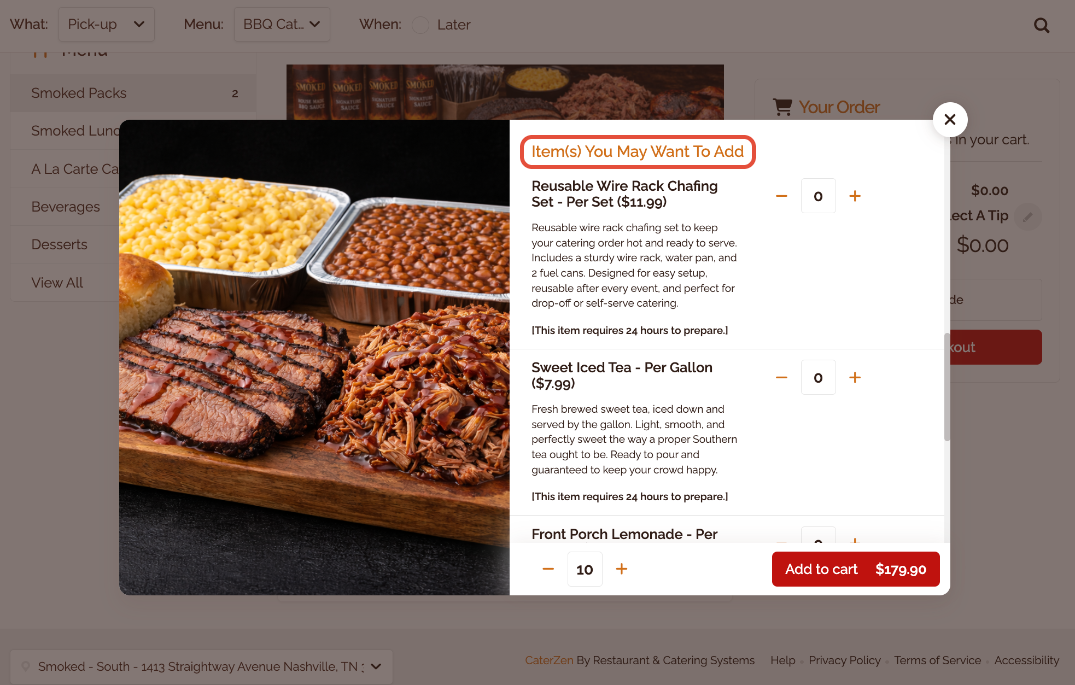
Once configured, these items appear during ordering as “Item(s) You May Want To Add.” Customers can choose whether to include them and select the quantity they need.
This feature is ideal for recommending items Customers often forget or may not realize they need, such as beverages, disposables, or desert.
What This Feature Is Designed To Do
This feature is meant to encourage additional items that naturally pair with a menu item or package.
It works best for:
Gallons of tea or lemonade
Desserts
Disposable plates, napkins, and utensils
Reusable warming racks or chafing sets
These items are:
Optional
Quantity-based
Simple to add or skip
Important Rules Before You Begin
Before adding an Each Item to a package, keep the following rules in mind:
The add-on must be a simple menu item
The item cannot have Options, Extras, or Toppings
Quantity is the only adjustable field
If an item requires choices (flavor, size, preparation, etc.), this is not the correct place to use it.
Common Example
A Customer selects a per-person catering package.
Before adding it to the cart, CaterZen displays recommended add-ons such as:
Gallon(s) of Tea
Desserts
Reusable Wire Rack Chafing Set (Customer can add 1, 2, or more)
These items are suggested, not required, and help Customers complete their order without searching the full menu.
Step 1: Create the Add-On Item (If Needed)
If the item does not already exist:
Go to Admin → Menu Manager
Create the item as a standard Menu Item → Menu Manager: Add Menu Items
Ensure it is a simple item with no Options or Extras
The item must have a price set for the menu you are adding it to
Step 2: Add the Each Item to the Package
Open the menu and category where the Menu Item/Package lives
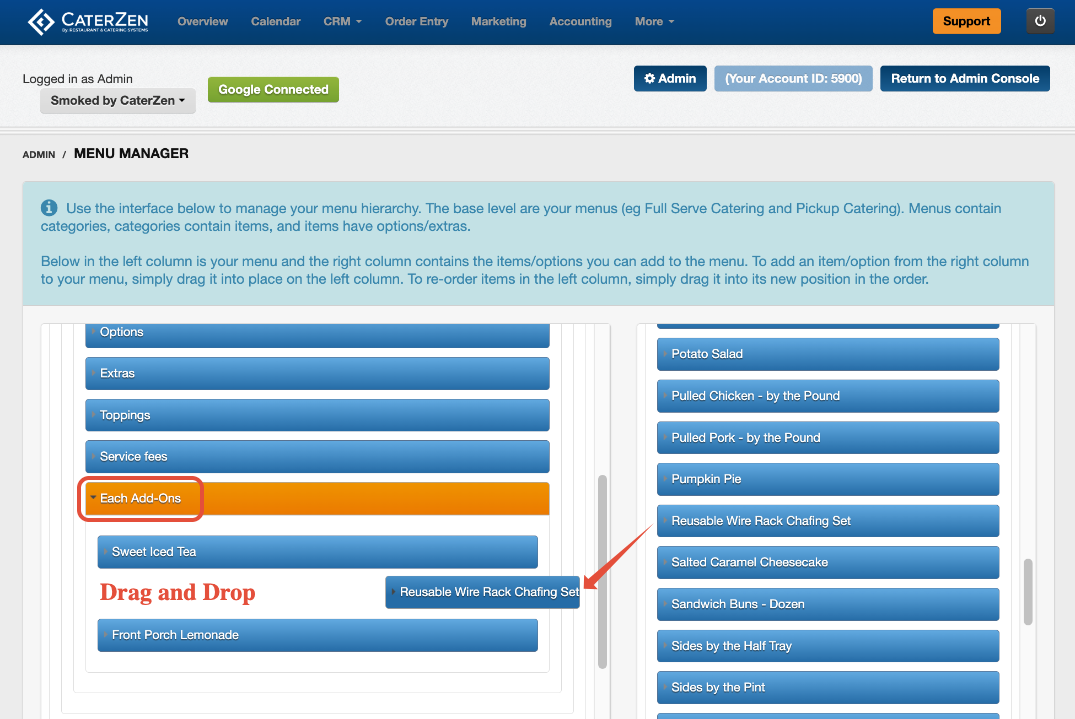
Click the item so it expands and locate the section labeled Each Add-Ons
From the right-side Items list, drag the add-on item into the Each Add-Ons area
Step 3: Clear Menu Cache
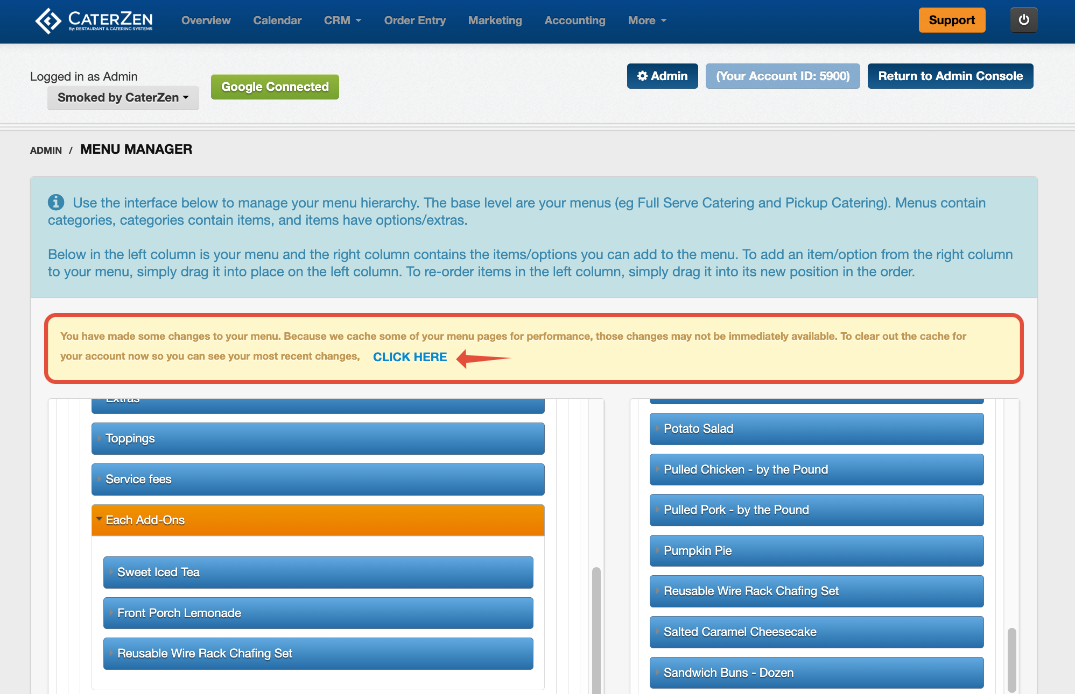
Click CLICK HERE in the yellow box to clear the menu cache
Avoid working in multiple CaterZen tabs while editing in Menu Manager
What the Customer Sees
When ordering online, the Customer sees a section labeled: Item(s) You May Want To Add
For each item, the Customer can:
Increase or decrease the quantity
See pricing update automatically
Choose to skip the item entirely
What Your Team Sees in Order Entry
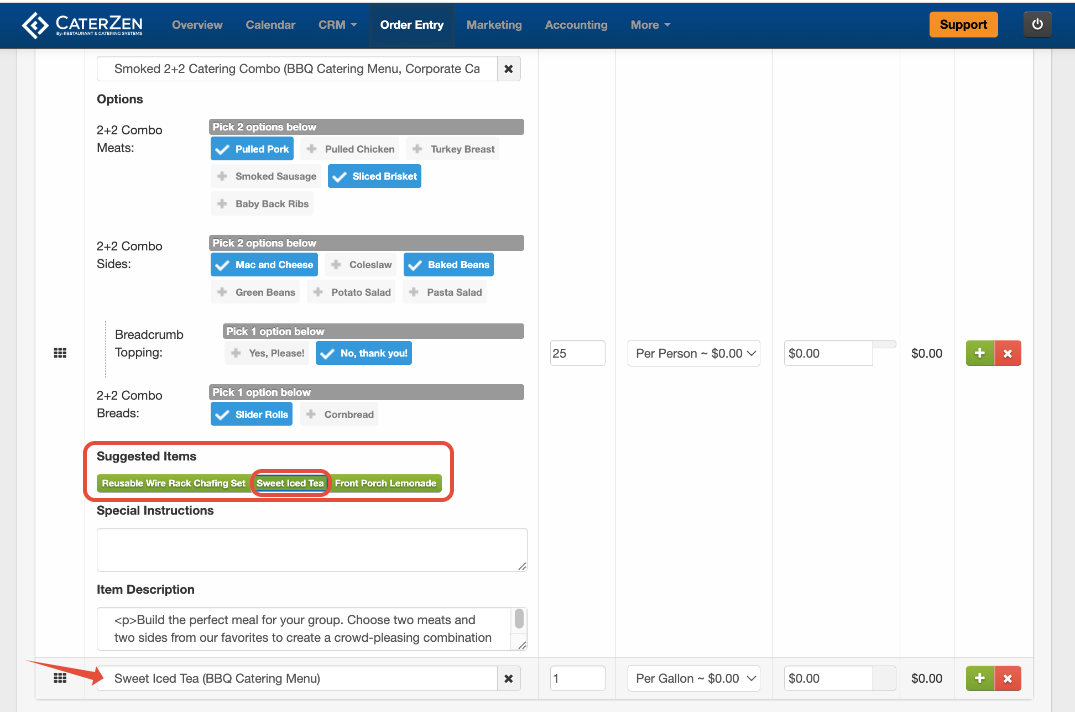
When your team is taking an order in Order Entry, Each Add-ons Items appear under Suggested Items.
Your team can:
See all Each Add-ons Items associated with the Menu Item/Package
Recommend add-ons during the order
Adjust quantities on behalf of the Customer
Add or remove Each Items before checkout
Each Items behave like simple line items:
No Options or Extras
Quantity-only adjustments
Immediate price updates in the order summary
Best Practices
Use Each Items to encourage truly complementary items
Focus on items Customers commonly forget
Keep add-ons simple and easy to understand
Avoid editing menus in multiple CaterZen tabs at the same time
If changes don’t appear immediately after saving, you may be prompted to clear your menu cache.
Troubleshooting
If the add-on item does not appear:
Confirm the item is a simple menu item
Confirm it was added to Each Add-Ons and saved
Confirm the item has a price set for the menu you are adding it to
Refresh your browser
Clear the menu cache if prompted
Related Articles
Support
For additional help, refer to the CaterZen Support Center or contact our CaterZen Support Team.
Not a CaterZen customer yet? Discover how our catering software can streamline your business — click here to learn more!