
Overview
Partial Quantities allow your team to order a fraction of a menu item instead of a whole unit. This is commonly used when menu items are priced or sold by weight, portion, or volume rather than as a fixed unit.
Partial Quantities are most often used for items like:
Meats sold by the pound
Sides sold by the quart or half pan
Items that can be ordered in halves or fractions
How Partial Quantities Work
When Partial Quantities are enabled on a menu item:
The item can be ordered in decimal or fractional amounts (for example: 0.5 or 1.5)
Pricing is calculated automatically based on the quantity entered
The item still behaves as a single menu item on the order
Partial Quantities affect ordering and pricing only.
Important Rules Before You Begin
Before enabling Partial Quantities, keep the following in mind:
Partial Quantities apply per menu item
The menu item must have a base price set
Partial Quantities work best with simple items
Options, Extras, and Toppings are not impacted
If the item requires fixed portions or packaged quantities, Partial Quantities may not be appropriate.
Common Use Case Examples
Ordering 1.5 lbs of pulled pork
Ordering 0.5 pan of macaroni and cheese
Ordering 2.25 lbs of sliced brisket
These quantities allow flexibility without creating multiple versions of the same item.
Step 1: Locate the Menu Item
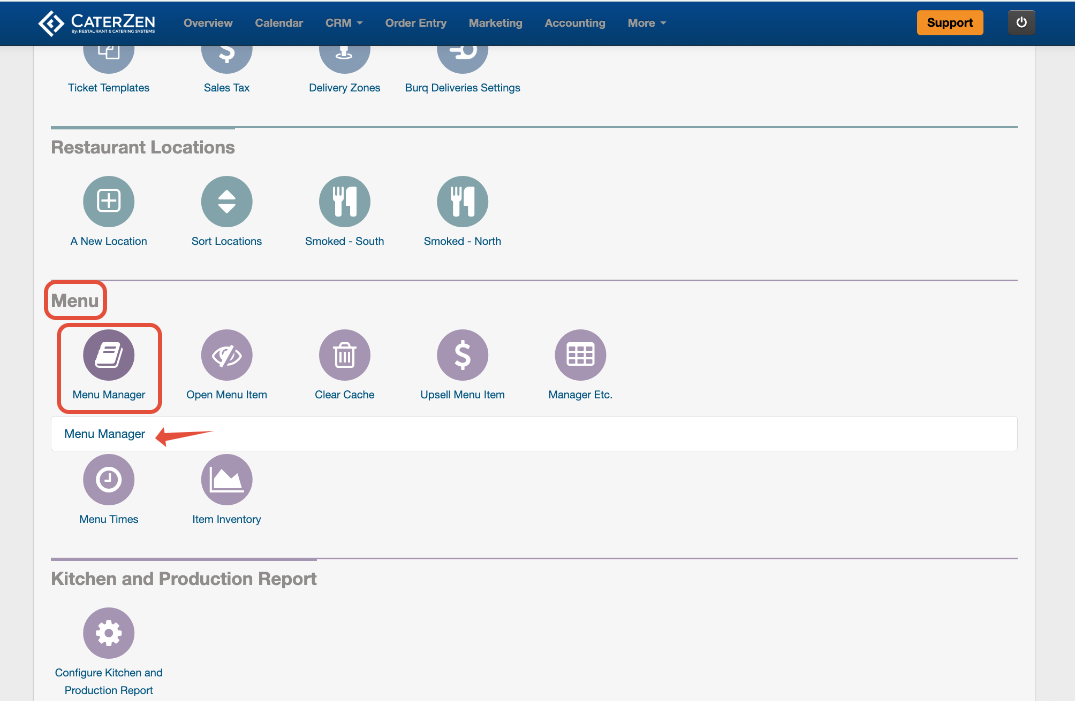
Go to Admin → Menu → Menu Manager
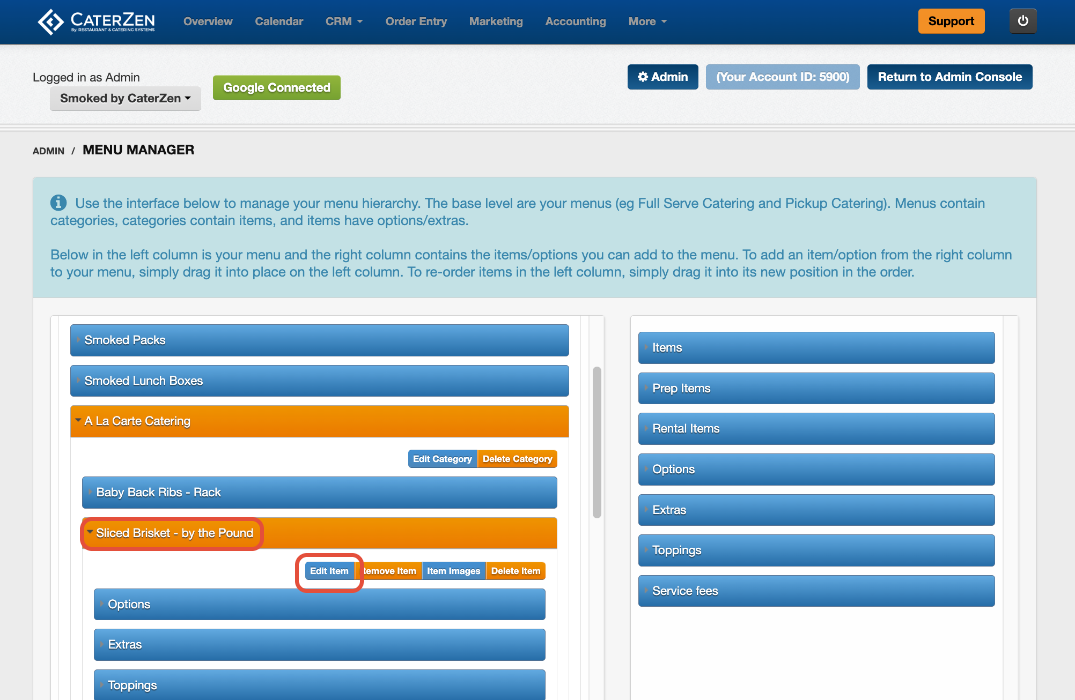
Open the menu and category where the item lives
Click the menu item to open its settings, Click Edit Item
Step 2: Enable Partial Quantities
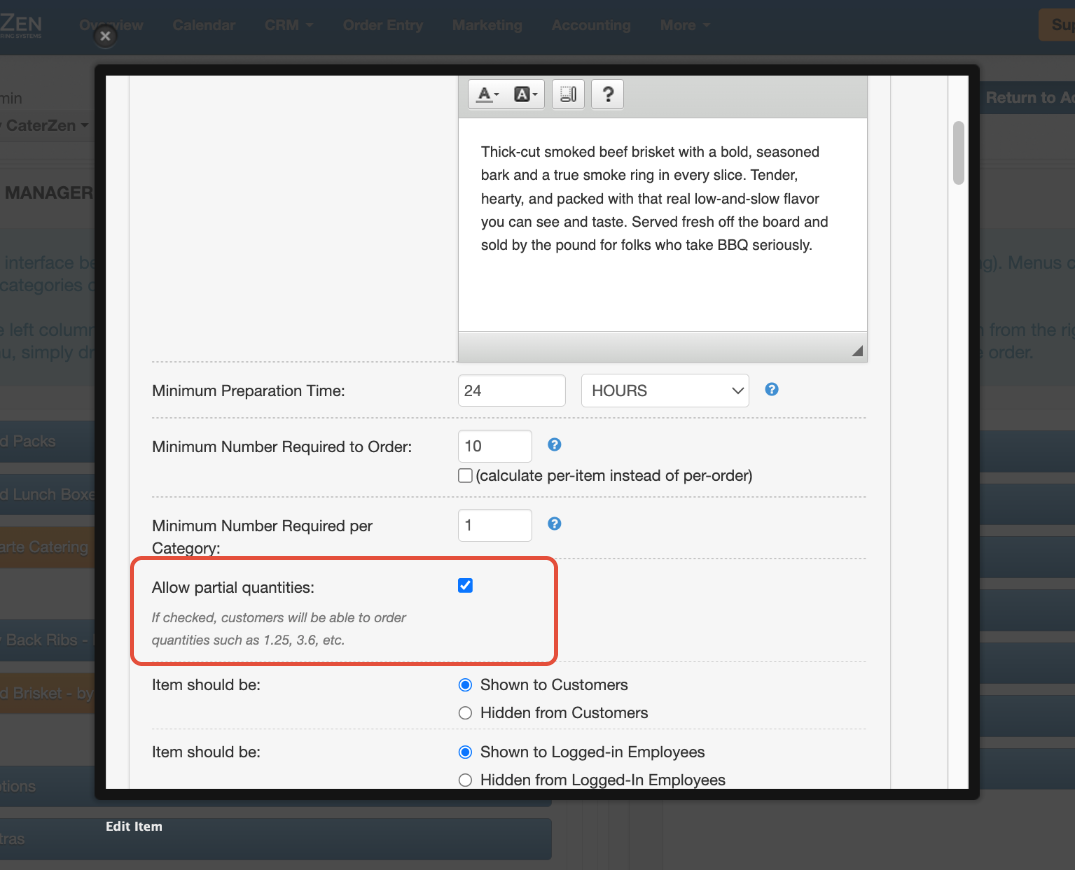
Locate the Partial Quantities setting within the menu item
Enable the option to allow partial quantities
Click Save this Information at the bottom of the popup to save the changes
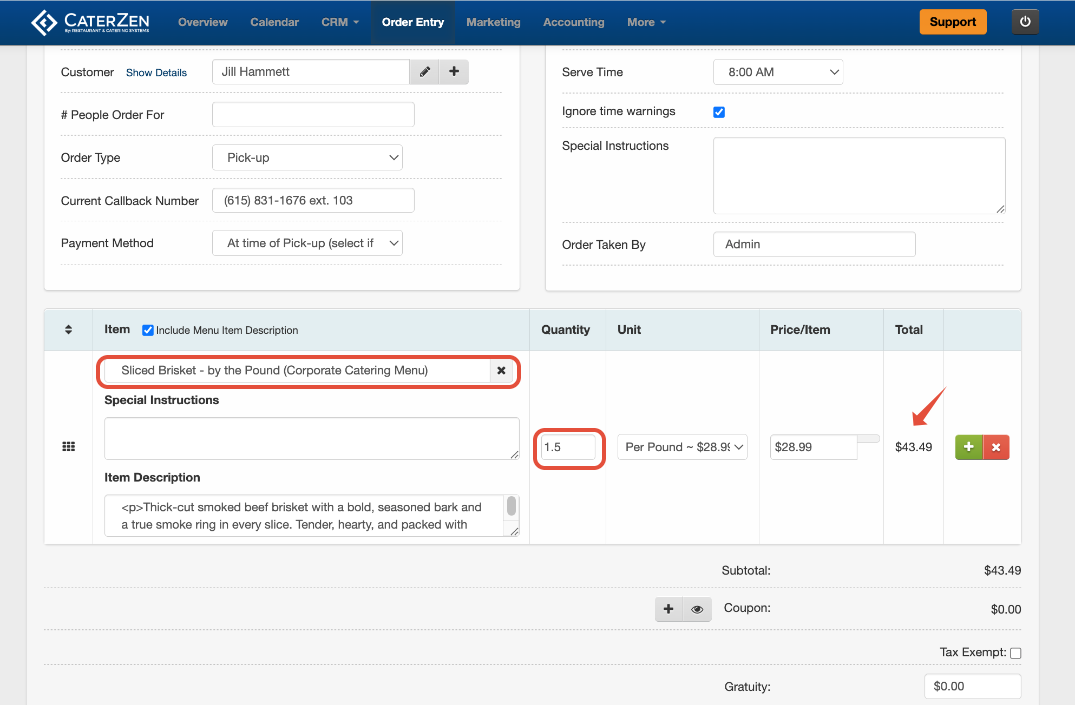
Step 3: Test the Item - What You Team Sees in Order Entry
After saving:
Preview the menu in Order Entry
Enter a partial quantity for the item
Confirm pricing updates correctly
Best Practices
Use Partial Quantities for weight-based or volume-based items
Keep naming clear so Customers understand how the item is priced
Avoid enabling Partial Quantities on packaged or fixed-portion items
Avoid editing menus in multiple CaterZen tabs at the same time
If changes don’t appear immediately after saving, you may be prompted to clear your menu cache.
Troubleshooting
If Partial Quantities do not work as expected:
Confirm the setting is enabled and saved
Confirm the item has pricing
Refresh your browser
Clear the menu cache if prompted
Related Articles
Support
For additional help, refer to the CaterZen Support Center or contact our CaterZen Support Team.
Not a CaterZen customer yet? Discover how our catering software can streamline your business—click here to learn more!