
Overview
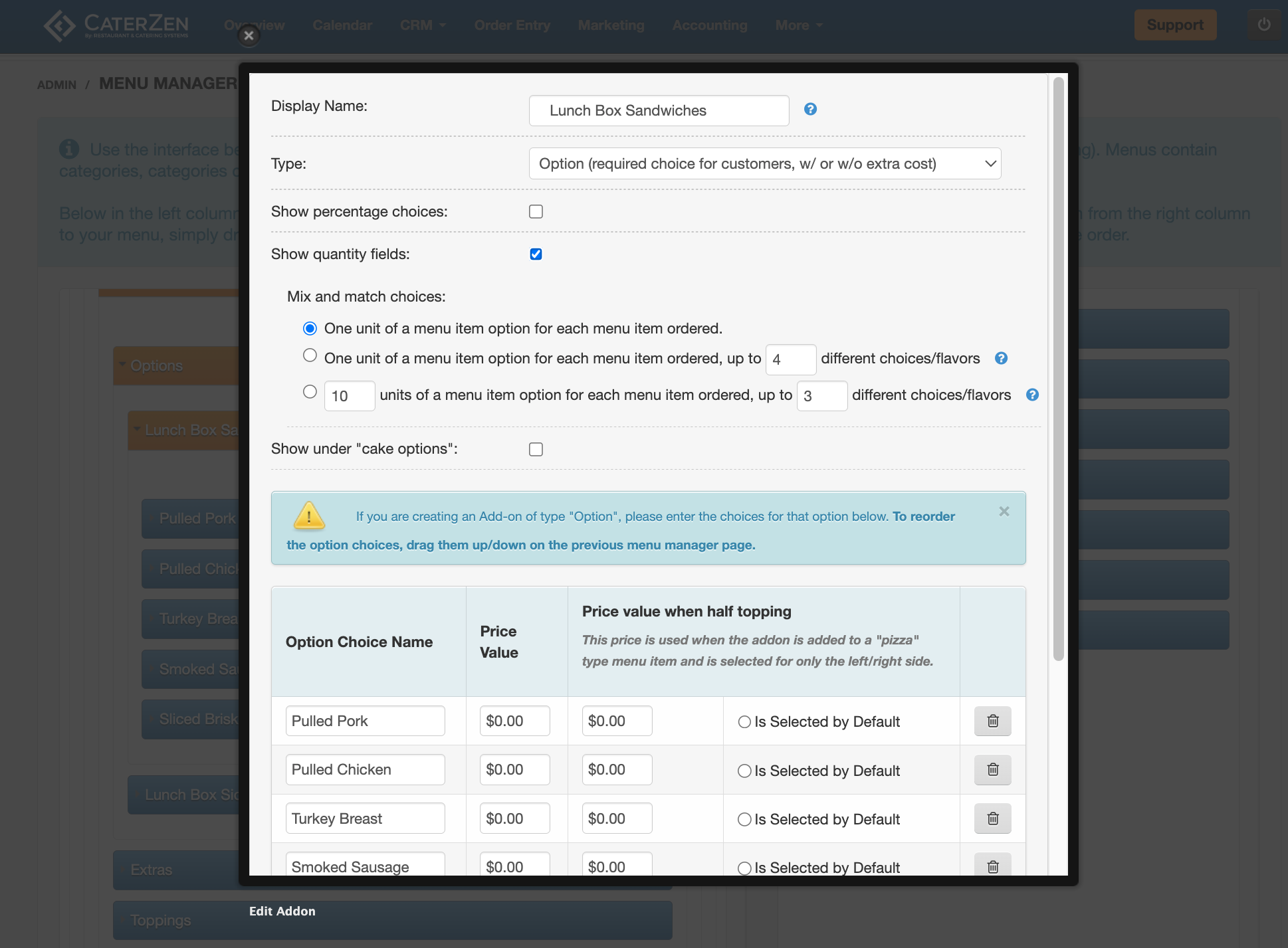
Show Quantity Fields changes how Customers select options on a menu item. When enabled, Customers enter specific quantities for each option choice instead of selecting from a dropdown or checking boxes.
Enabling this feature also reveals three selection methods that control how option quantities relate to menu item quantities.
⚠️ Working in Multiple Browser Tabs
When making menu changes, we recommend working in a single CaterZen tab.
CaterZen can be opened in multiple browser tabs, but making menu changes in more than one tab at the same time can cause changes not to save correctly.
For best results:
Complete your menu changes in one tab
Save your changes and clear your menu cache before navigating elsewhere
Refresh your browser if you switch tasks
Quick Decision: Multiplicity vs Show Quantity Fields (Mix and Match)
Use this to pick the right setup fast:
Use Show Quantity Fields / Mix and Match when you want the Customer to enter quantities for each choice (example: “12 sandwiches total — choose how many of each”).
Use Multiplicity when the Customer is picking multiple items from the same list (example: “Choose 2 sides” or “Choose 2 meats”).
→ Menu Manager: Multiplicity Settings for Options
Important: If Show Quantity Fields / Mix and Match is enabled on an option, it overrides multiplicity for that option.
Example use cases:
- Box lunch orders (20 lunches split across multiple sandwich types)
- Platters with variety (12 sandwiches, choose quantities)
- Package selections with flexible breakdowns
Enabling Show Quantity Fields
Steps:
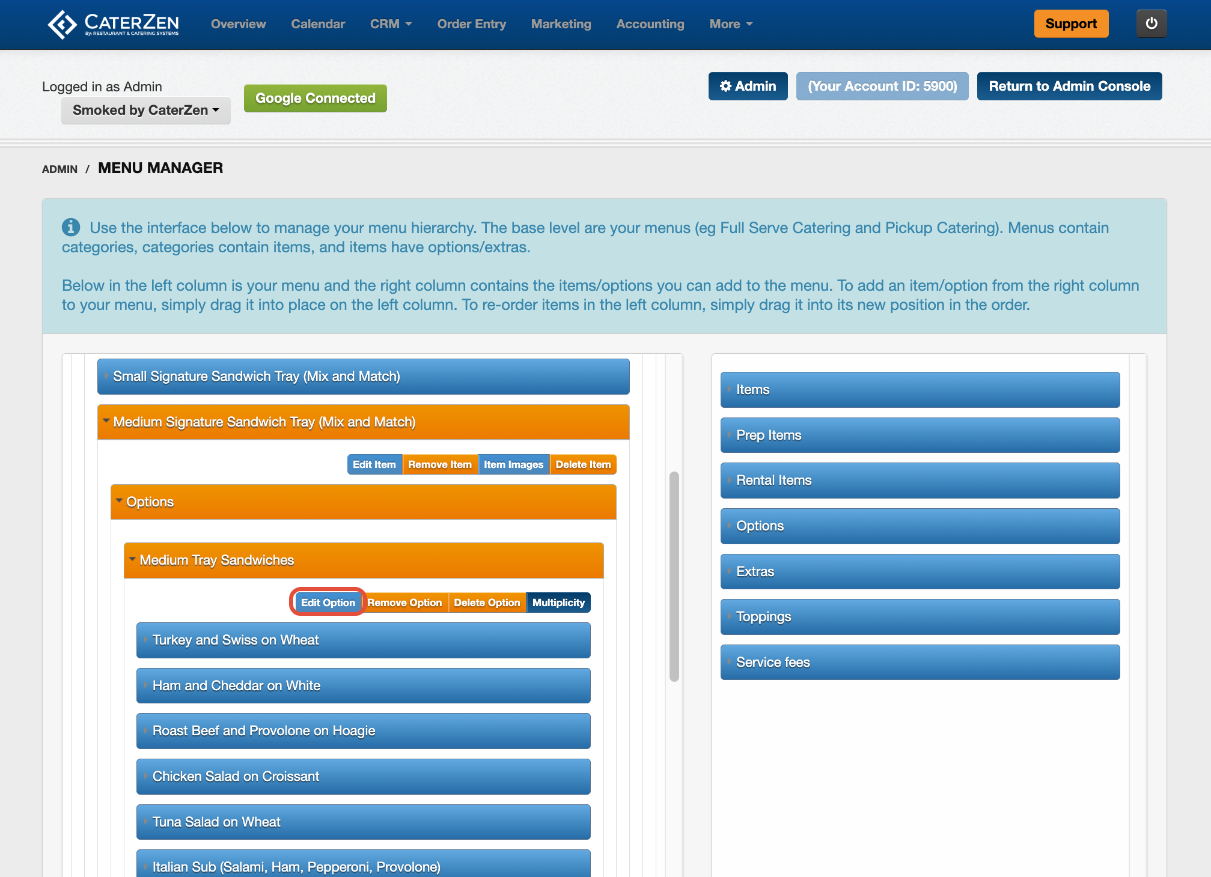
- Go to Admin → Menu → Menu Manager
- In the left or right columns, open the Option you wish to modify
- Click Edit Option
(or click Create New Option if creating a new one)
- Enable Show Quantity Fields
- Once you enable Show Quantity Fields, three additional options appear below. Choose one of the three options (explanations below)
- Scroll to the bottom of the popup window and click Save This Information
Understanding the Three Selection Methods
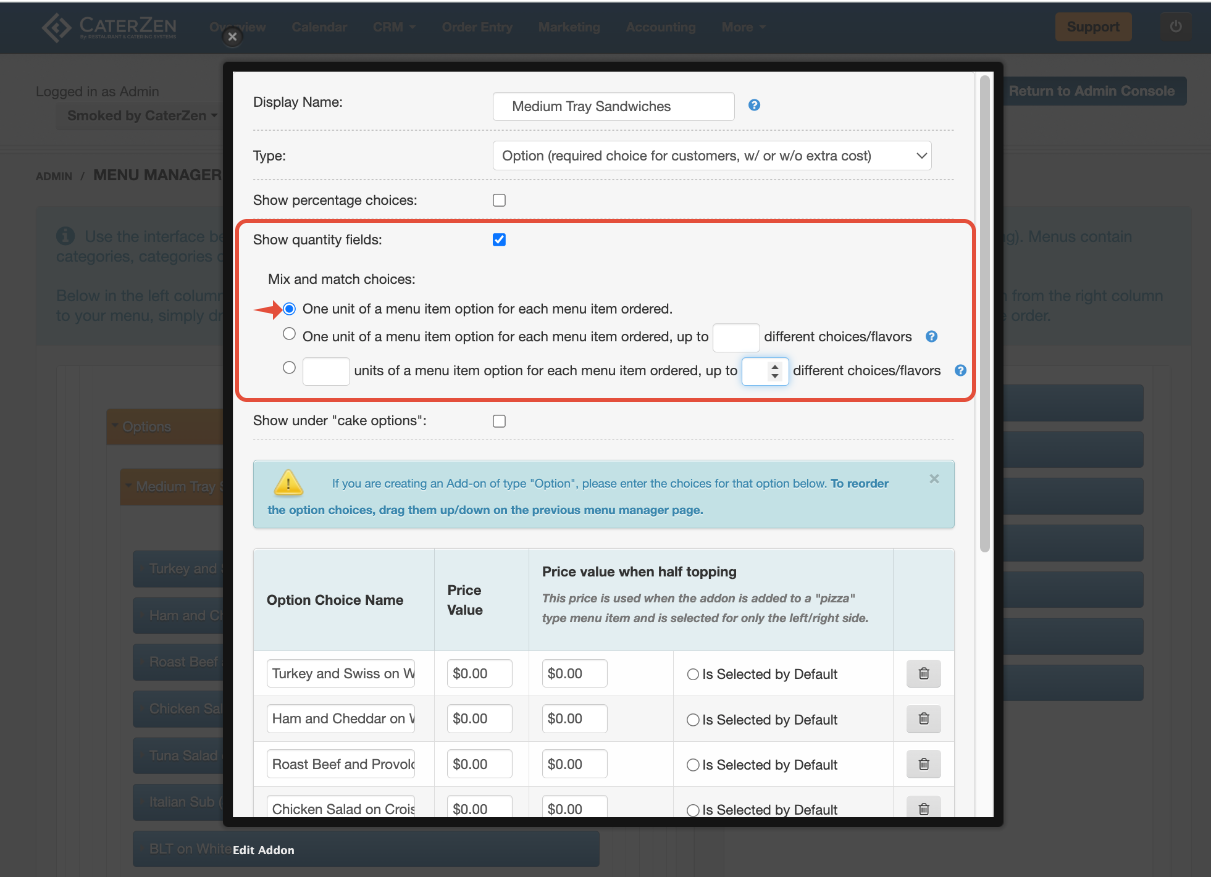
When you enable Show Quantity Fields, you must choose one of three methods that control how option quantities work. This section explains what each method does.
DEFAULT: One unit of a menu item option for each menu item ordered
This is the standard behavior and is selected by default.
How it works:
- Each menu item ordered requires exactly one unit of option selection
- Total option quantities must equal the menu item quantity
- No limit on how many different choices can be selected
Example:
- Customer orders: 4 sandwiches
- Option: Sandwich Choice (with quantity fields enabled)
- Customer must enter quantities that total 4
- Valid selections:
- 4 Turkey ✓
- 2 Turkey, 2 Ham ✓
- 1 Turkey, 1 Ham, 1 Roast Beef, 1 Veggie ✓
- Invalid selections:
- 2 Turkey, 1 Ham (total = 3, but must equal 4) ❌
- 5 Turkey (total = 5, exceeds order quantity) ❌
- 2 Turkey (total = 2, less than order quantity) ❌
Visual feedback:
- Green indicator: Correct total selected
- Red indicator: Too many or too few selections
When to use this method:
- Standard box lunch or meal kit orders
- Simple quantity distribution
- When variety doesn't need to be limited
- Most common use case
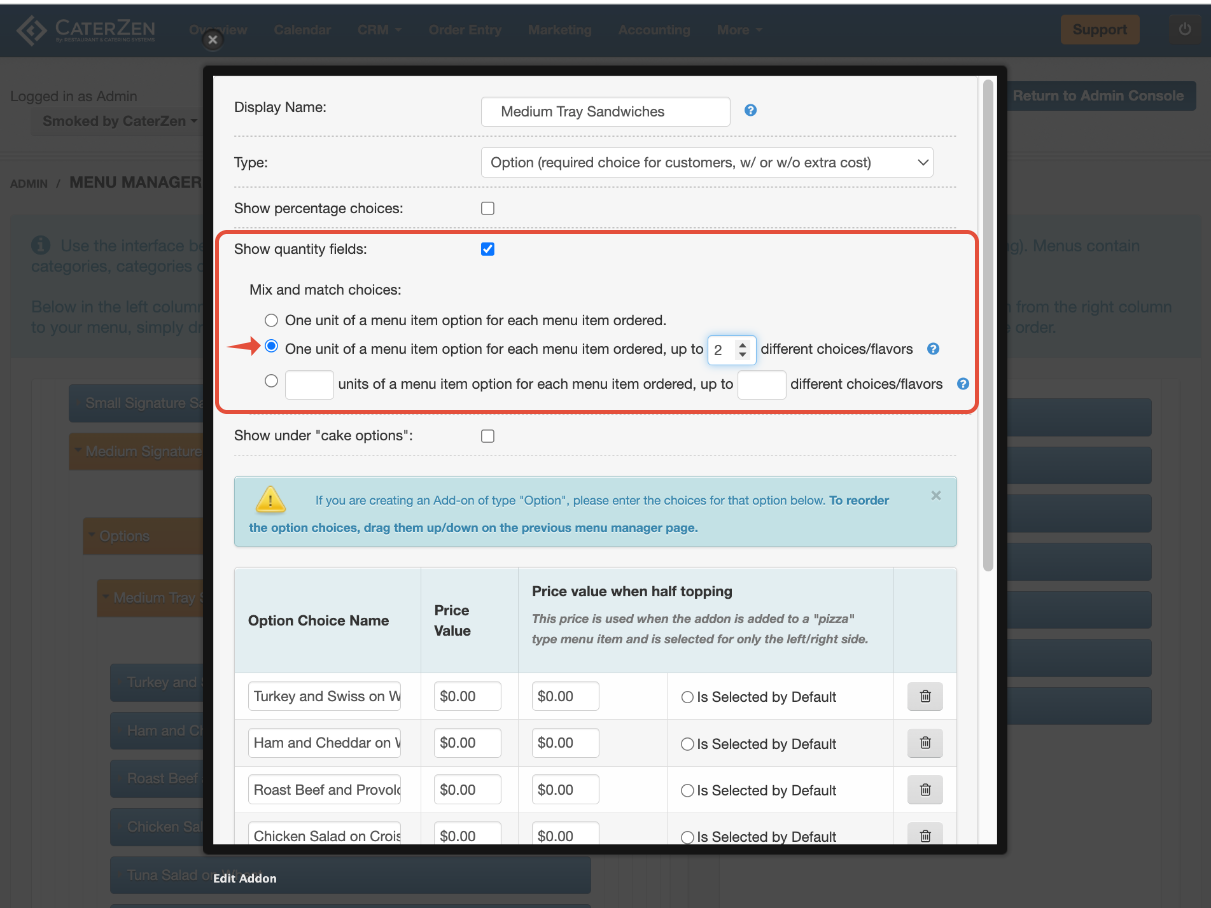
Method 2: One unit... up to [X] different choices/flavors
This method maintains the 1:1 ratio but limits how many different choices can be selected.
How it works:
- Total option quantities must still equal menu item quantity
- Maximum number of different choices is enforced
- Useful for controlling kitchen complexity
Example:
- Customer orders: 12 sandwiches
- Rule: Maximum 4 different types
- Valid selections:
- 5 Turkey, 4 Ham, 3 Roast Beef (3 types) ✓
- 3 of four different types (4 types) ✓
- Invalid selections:
- 2 each of 6 different types (6 types exceeds limit) ❌
When to use this method:
- Platters where variety needs to be controlled
- Kitchen efficiency requirements
- When too many choices slow down prep
How to configure:
- Select this radio button
- Enter the maximum number of different choices in the text field
- Scroll to the bottom of the popup window and click Save This Information
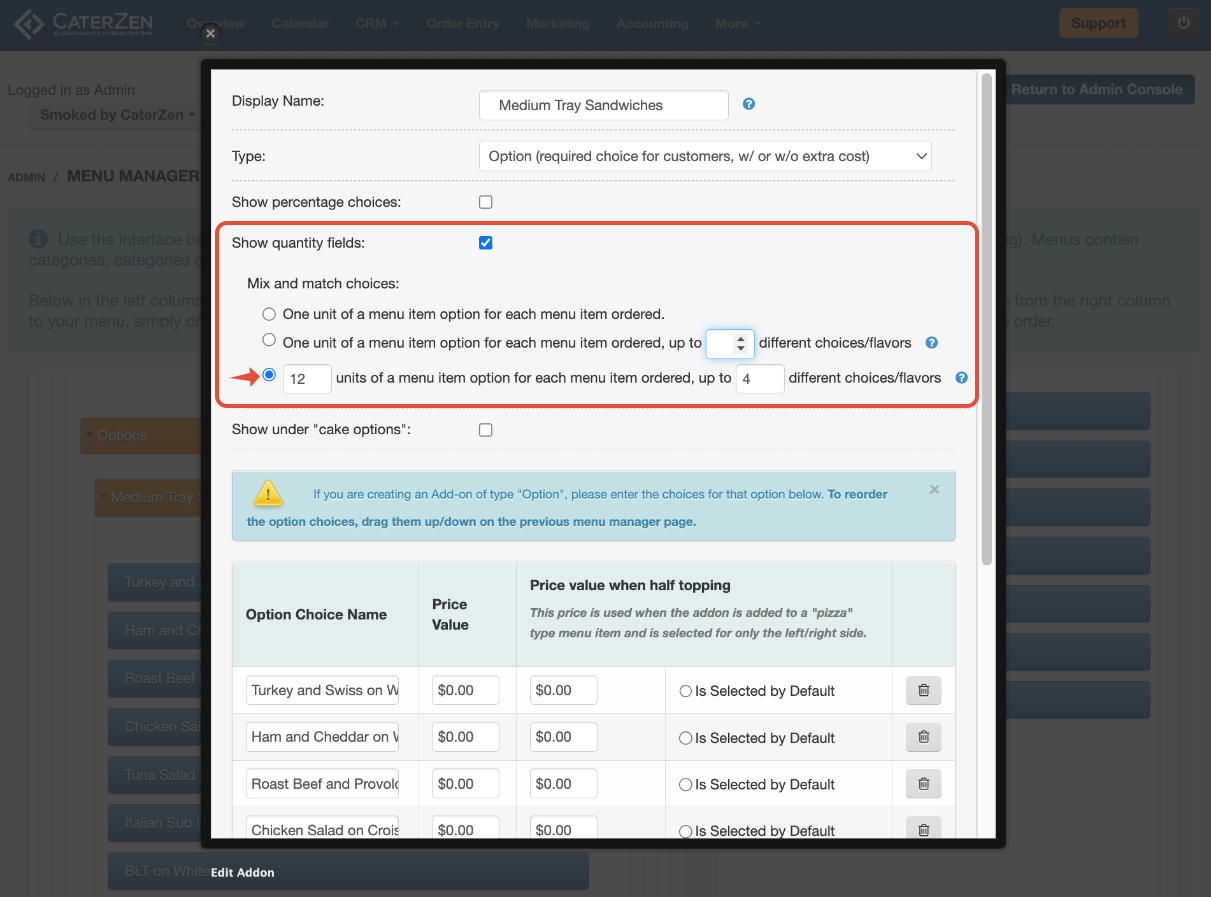
Method 3: [X] units of a menu item option... up to [Y] different choices/flavors
This method changes the ratio - Customers can select multiple option units per menu item ordered.
How it works:
- You define how many options equal one menu item
- Customers must select that many options per item ordered
- You can still limit the number of different choices
Example:
- Menu item: Sandwich Platter
- Rule: 12 sandwiches per platter, maximum 4 different types
- Customer orders: 1 platter
- Customer must select: 12 total sandwiches from up to 4 types
If Customer orders 2 platters: They must select 24 sandwiches
When to use this method:
- Bulk packs sold by the unit
- Platters sold as "one item" containing multiple pieces
- Meal packages not sold per person
- Catering packages with fixed quantities per order
How to configure:
- Select this radio button
- Enter the number of options per menu item (first field)
- Optionally enter maximum different choices (second field)
- Scroll to the bottom of the popup window and click Save This Information
Choosing the Right Method
| If you need... | Use this method |
|---|---|
| Simple quantity distribution, any variety | Method 1 (Default) |
| Limit how many different types can be chosen | Method 2 |
| Multiple items per order unit (bulk packs, platters) | Method 3 |
Most customers use the Default (Method 1) for standard ordering. Methods 2 and 3 are for advanced selection control such as platters or packages with specific rules,
Important Notes
- One of these three methods must be selected - there is no way to enable quantity fields without choosing a method
- Method 1 is selected by default when you first enable Show Quantity Fields
- These settings apply to this specific option only - different options can use different methods
- Changes take effect immediately after saving
What Customers See
Before enabling quantity fields:
- Dropdown list or checkboxes
- One selection per item
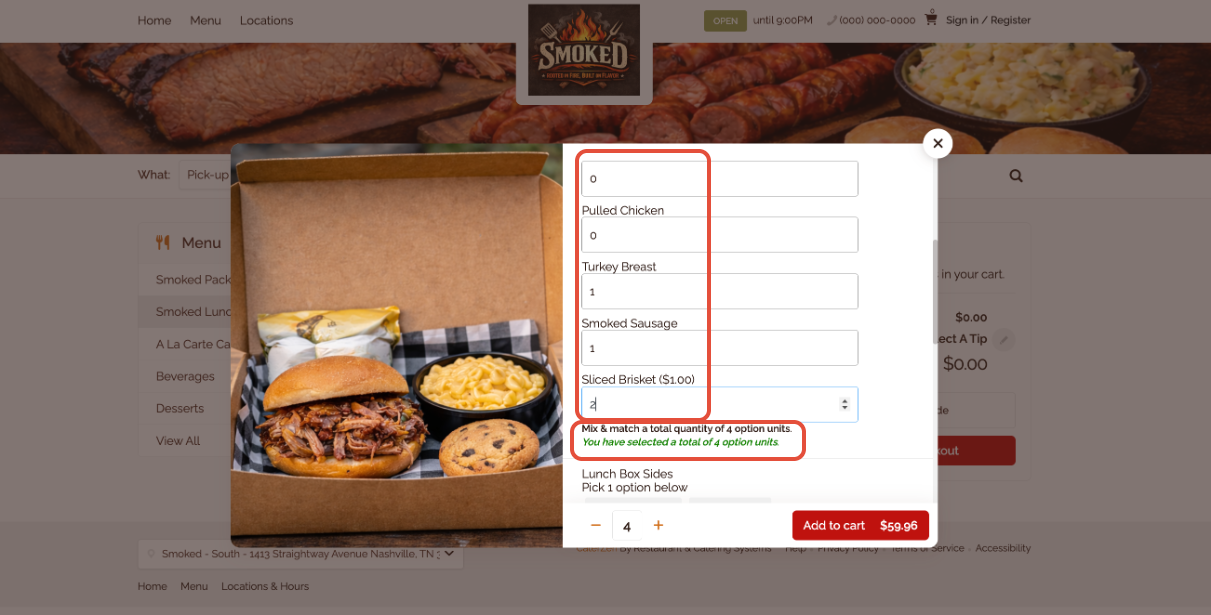
After enabling quantity fields:
- Quantity input boxes for each choice
- Visual feedback (green/red) showing if total is correct
- Clear indication of how many total selections are required
Next Steps
After configuring quantity fields:
- Test the Customer experience by placing a test order
- Assign the option to menu items if not already done
→ Menu Manager: Menu Item Add-Ons Overview
Troubleshooting
If quantity fields are not appearing:
- Confirm the option is saved with Show Quantity Fields enabled
- Confirm one of the three methods is selected
- Confirm the option is assigned to the menu item
- Clear the menu cache if needed
→ Menu Settings: Clear Menu Cache
If Customers report errors:
- Verify the correct method is selected for your use case
- Test the ordering flow yourself
- Check that the numbers make sense (quantities, limits)
Related Articles
- Menu Manager: Menu Item Add-Ons Overview (Options, Extras, and Toppings)
- Menu Options: Multiplicity Settings for Options
Support
For additional help, refer to the CaterZen Support Center or contact our CaterZen Support Team.
Not a CaterZen customer yet? Discover how our catering software can streamline your business — click here to learn more!