
Overview
Upsell Menu Items allow you to encourage additional items to Customers during online ordering when they select a specific menu item.
Upsells appear as suggestions such as “Some Special Offers for You” and are designed to increase average order value without changing the original menu item. Upsells only display to your Customer during online ordering. They do not appear for your team when taking orders in Order Entry.
Performance and usage can be tracked using the Upsell Item Report.
Important Behavior to Know
Upsell Menu Items only display during online ordering
Upsells do not display in Order Entry for phone or manual orders
Upsells are optional and can always be skipped
If you want your team to recommend add-ons while taking orders, use Each Items or Options / Extras instead.
When to Use Upsell Menu Items
Upsell Menu Items work best when:
You want to encourage commonly paired items
The add-on is optional
The item does not require choices
You want to prompt add-ons at checkout rather than inside the menu item
Common examples include:
Desserts
Bottled beverages
Side trays
Disposable supplies
Important Rules Before You Begin
Before configuring Upsell Menu Items:
Both the triggering item and the upsell item must already exist as menu items
The upsell item must have pricing set on the same menu
Upsell items should be simple menu items (no Options or Extras)
Do not select prep or internal-only items
Step 1: Open Upsell Menu Settings
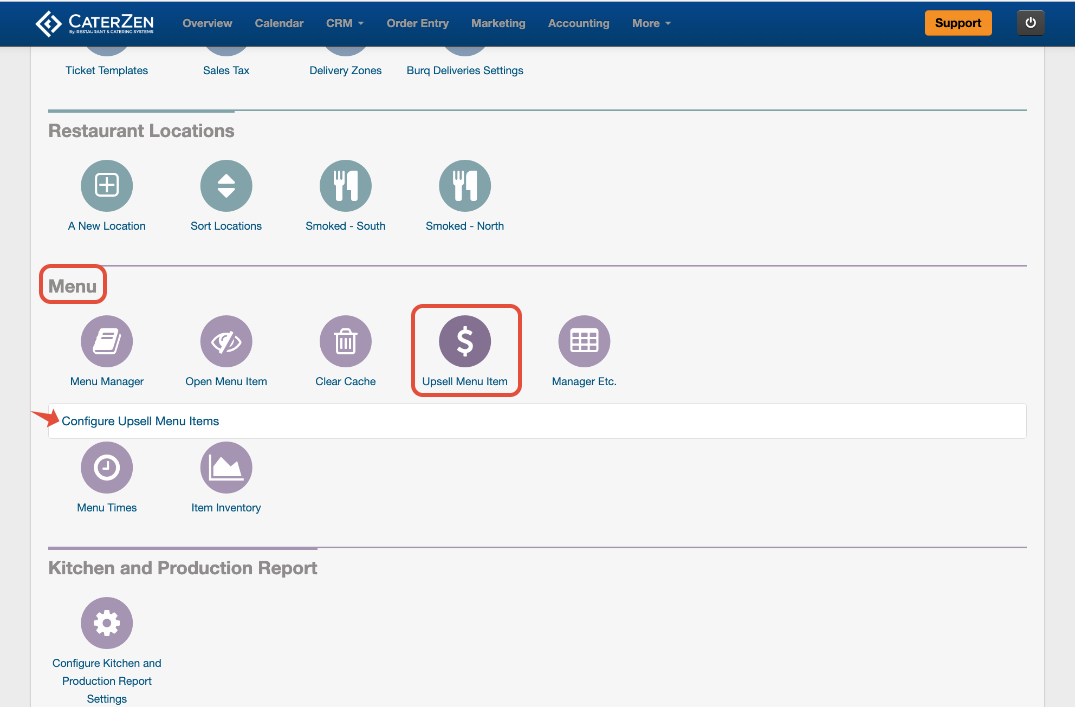
Go to Admin
Scroll to the Menu section
Click Upsell Menu Item
Click Configure Upsell Menu Items
Step 2: Select the Triggering Menu Item
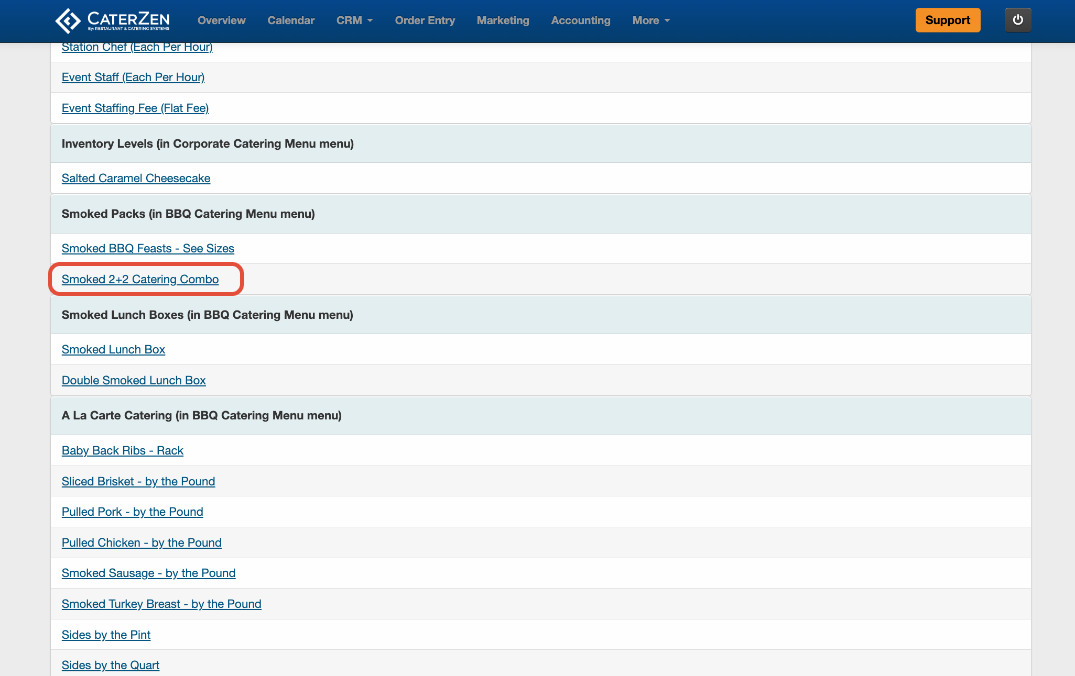
Choose the menu item the Customer will be ordering
This item will trigger the upsell prompt during online ordering
Avoid selecting prep or internal-only items.
Step 3: Select Upsell Items to Promote
After selecting the triggering item:
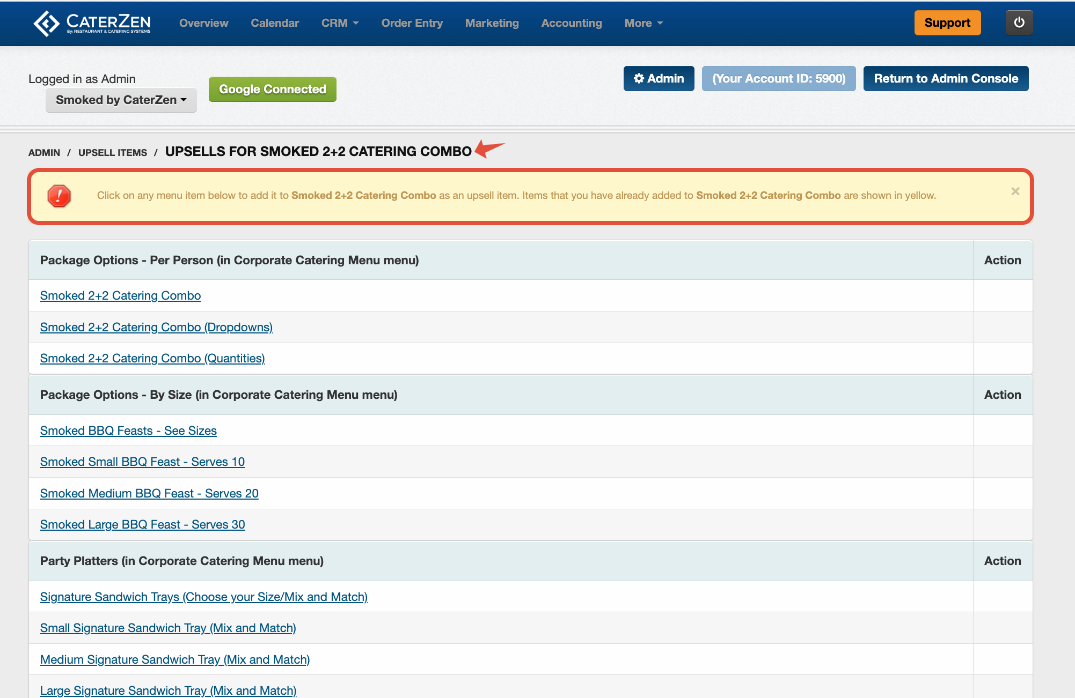
Choose the menu item(s) you want to promote as upsells
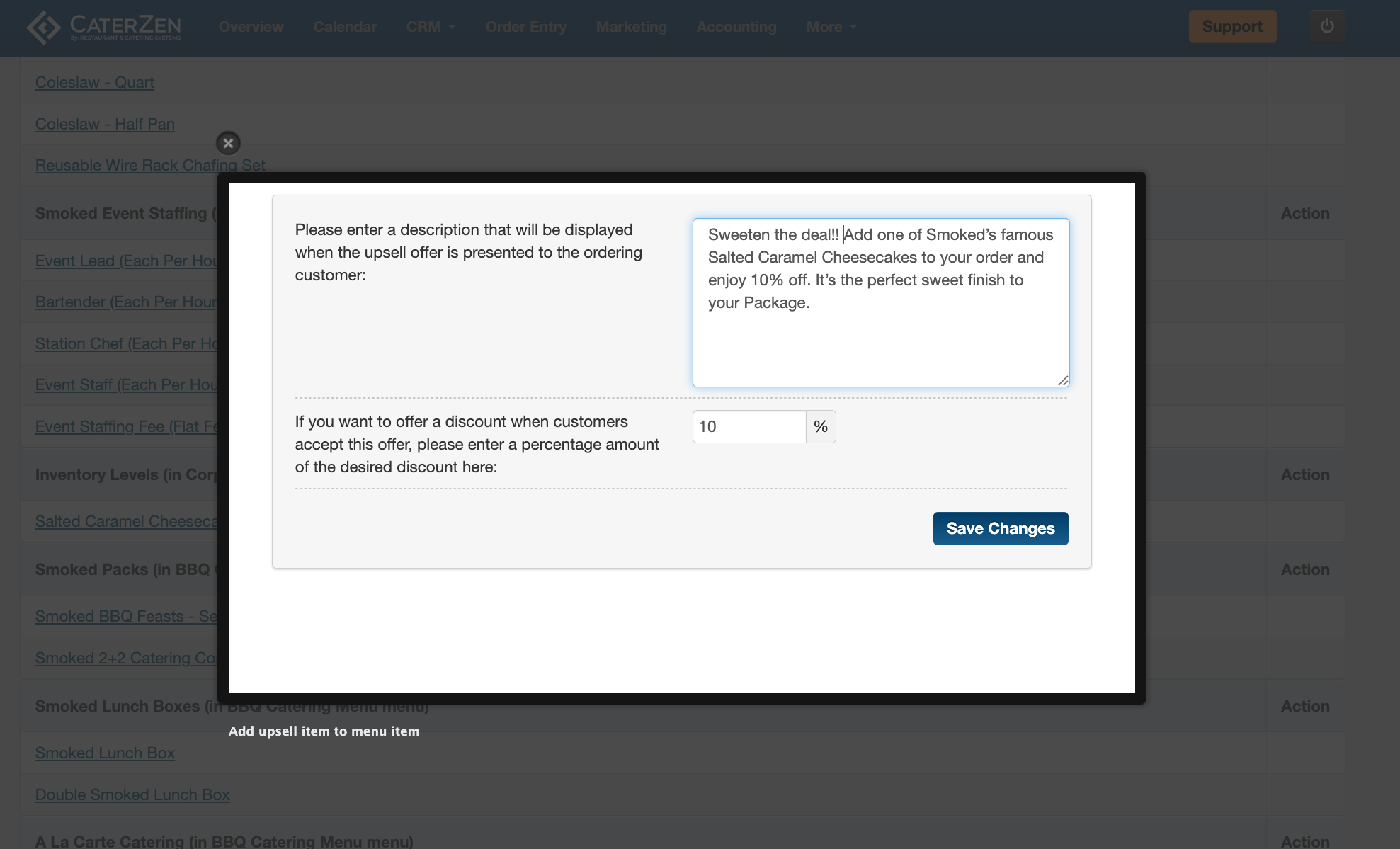
Optionally add a short description (not required)
Optionally apply a percentage discount
Click Save Changes
You can assign up to three (3) upsell items per triggering menu item.
Discounts on Upsell Items
When configuring an upsell item, you can:
Leave pricing unchanged, or
Apply a percentage discount (for example, 5% or 10%)
Any discount applies only when the item is added through the upsell prompt.
Viewing Which Items Have Upsells
To quickly see which menu items already have upsells configured:
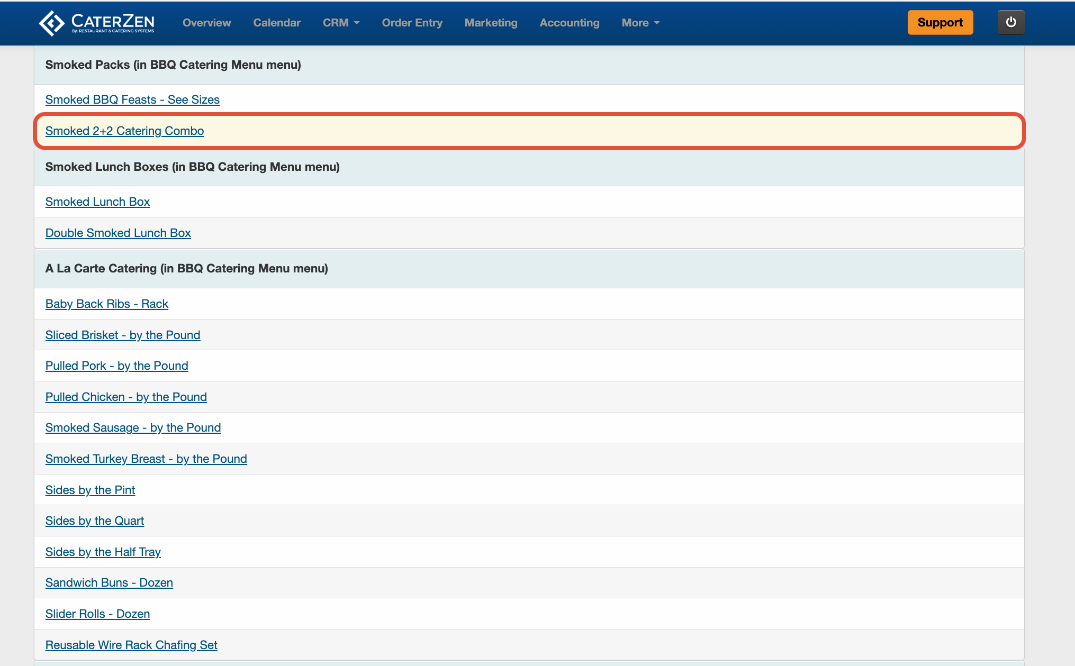
Go to Admin → Upsell Menu Item → Configure Upsell Menu Items
Menu items highlighted in yellow already have one or more upsells assigned
What the Customer Sees Online
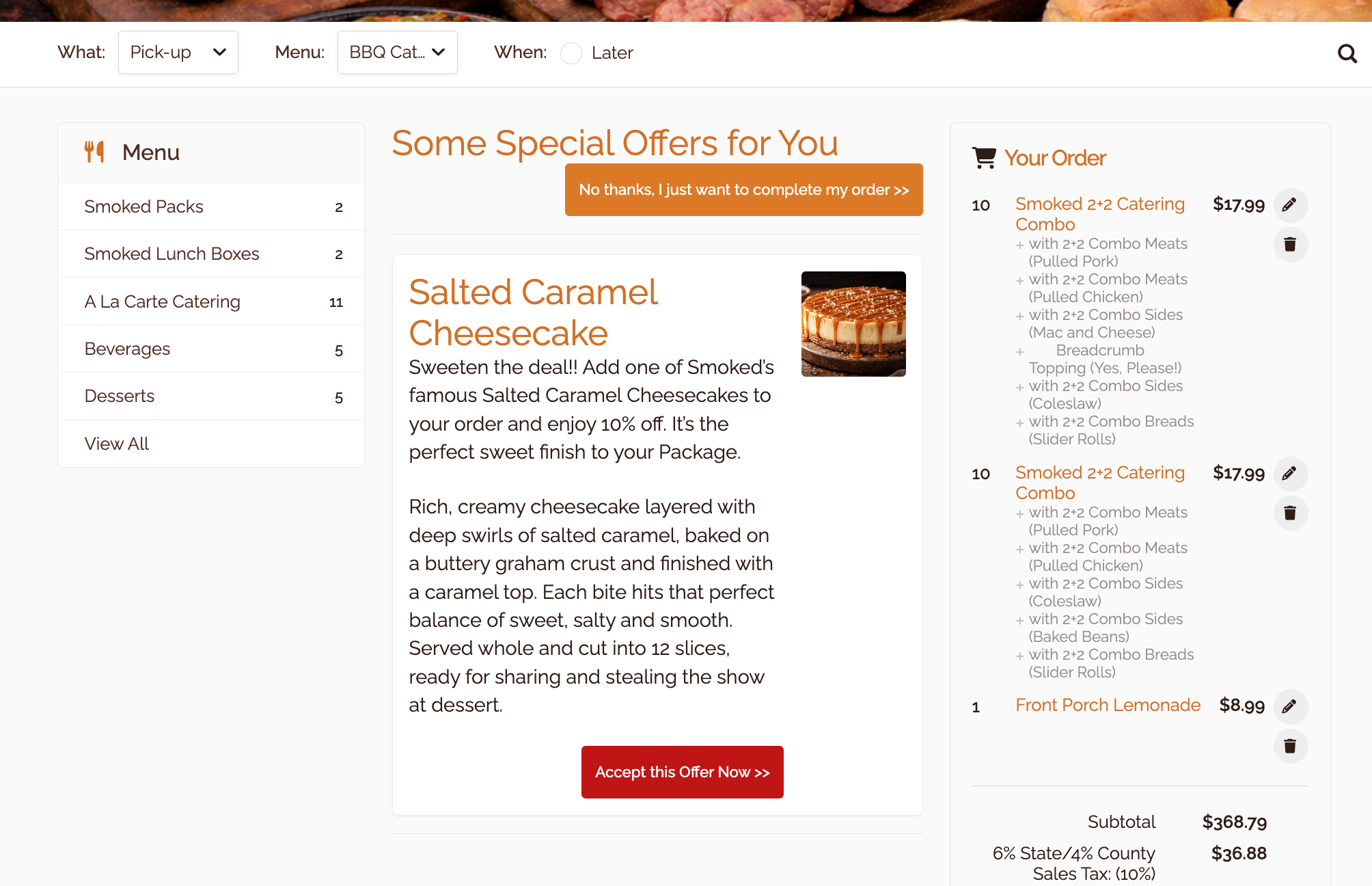
When a Customer selects a triggering menu item, CaterZen may display a prompt such as:
“Some Special Offers for You”
For each upsell item, the Customer can:
Skip the upsell entirely
Add the item to their order
See pricing and any applied discount
Tracking Upsell Performance
Once Upsell Menu Items are live, you can track their performance using the Upsell Item Report.
This report shows:
Which upsell items are being offered
How often each upsell is added to orders
Overall upsell effectiveness
Best Practices
Use upsells sparingly and intentionally
Promote items that naturally pair with the triggering item
Avoid overwhelming Customers with too many prompts
If changes do not appear right away, you may be prompted to clear your menu cache.
Troubleshooting
If an upsell does not appear:
Confirm the upsell item has pricing on the menu
Confirm the item is not a prep or internal-only item
Confirm the upsell was saved successfully
Refresh your browser
Clear the menu cache if prompted
Related Articles
Support
For additional help, refer to the CaterZen Support Center or contact our CaterZen Support Team.
Not a CaterZen customer yet? Discover how our catering software can streamline your business — click here to learn more!