
Overview
Sometimes you need to “comp” an order or an item, meaning you provide it at no charge to the Customer. You might offer a complimentary meal to resolve a Customer issue, thank a loyal Customer, provide a tasting for a prospective Customer, or support a community event.
In CaterZen, you can comp individual items or an entire order while keeping the order in your records and available for kitchen production and delivery. This is especially important for future orders that still need to be prepared and fulfilled.
There are several ways to apply a comp. The best choice depends on the reason for the comp and what you want the Customer to see on their invoice.
Interactive Guide
Follow the interactive guide below to learn how to comp an order.
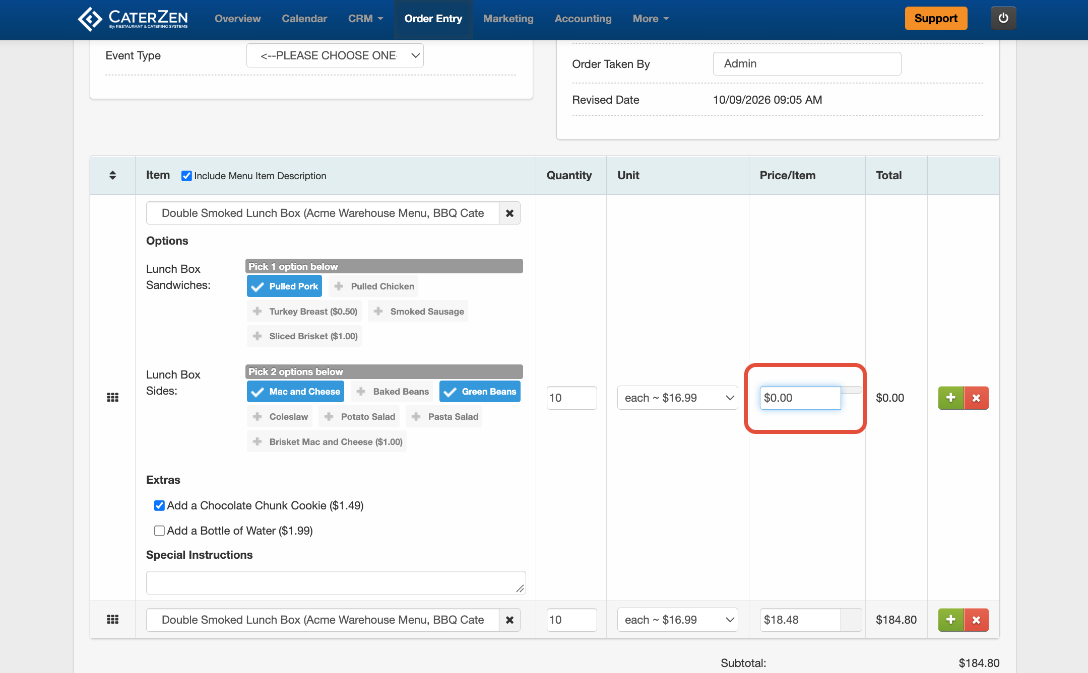
Option 1: Change the Item Prices to $0
When to Use This Option
Use this option when you want the items to appear at no charge and do not need to show their original prices. For example, you might use this for an internal staff meal or a complimentary replacement item.
What the Customer sees: The comped items display a price of $0. Their original prices are no longer shown.
Steps
- Open the order for editing.
- Locate the item you want to comp.
- Enter $0 in the item’s price field.
- Press Enter and wait to confirm the price updates before moving to the next item.
- Repeat for any other items you want to comp.
- If you are comping the entire order, remove any delivery or other additional fees and confirm the final total is $0.
- Save your changes.
The items and quantities remain on the order for kitchen production and delivery.
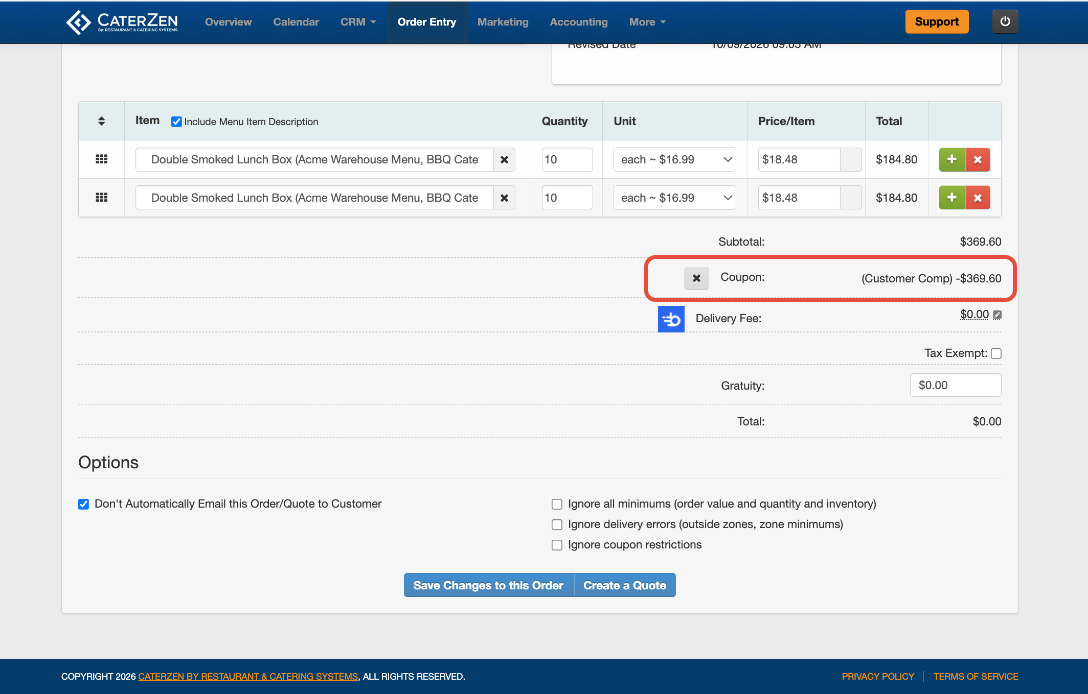
Option 2: Apply a Coupon
When to Use This Option
Use this option when you want the Customer to see the original item prices and a final total discount reflecting the comp. For example, you might use this to thank a loyal Customer or provide a complimentary meal or item while showing the value of the food.
What the Customer sees: The original item prices remain visible, with the comp shown as a coupon discount in the order totals.
Steps
- Open the order for editing.
- Leave the original item prices unchanged.
- Locate the Coupon field.
- Enter the Coupon name and dollar amount you want to comp.
- Press Add Discount to apply the coupon and verify the discount is applied and the total updates.
- If you are comping the entire order, remove any delivery or service fees.
- Review the final total. For a fully complimentary order, confirm it is $0.
- Save your changes.
For a partial comp, enter only the amount you want to deduct. The remaining balance will still be due.
For help setting up a coupon, see Admin – Create a Coupon.
Option 3: Add an Open Menu Item With a Negative Amount
When to Use This Option
Use this option when you want to keep the original item prices visible and show the comp as a separate line item with a description.
For example, you might use Customer Comp for a service issue, Complimentary Tasting for a prospective Customer, or Community Event Donation for a donated order.
What the Customer sees: The original item prices remain visible, with a separate negative line item showing the amount and description of the comp.
Steps
- Open the order for editing.
- Leave the original item prices unchanged.
- Add an Open Menu Item to create the comp.
- Give the item a clear description explaining the adjustment.
- Enter the amount you want to comp as a NEGATIVE price. For example, enter -100.00 and quantity of 1 to deduct a flat $100 or -$18.48 and quantity of 5 to show 5 individual meals at $18.48 each.
- Review taxes, delivery charges, and other fees. Remove any additional fees you intend to waive.
- For a fully complimentary order, confirm the final total is $0.
- Save your changes.
For a partial comp, use the negative amount to deduct only the value you want to provide at no charge.
For full instructions on enabling and adding an Open Menu Item, see Menu Settings: Open Menu Item.
Add Internal Notes
Add an internal note explaining what was comped and why. Include the order number so your team can easily identify the related order. This gives your team a clear reference when reviewing the order later.
For example:
“Order #3782258: Full order comped as a Customer courtesy due to an issue with the previous delivery. Prepare and deliver as scheduled.”
For help managing Customer notes, see CRM – Notes List: Maximizing Efficiency.
Review Before Finishing
After saving, review the order and Customer invoice to confirm:
- The items and quantities needed for production and delivery are correct.
- The comp appears the way you want the Customer to see it.
- Any fees you intended to waive have been removed.
- The final total is correct, including any remaining taxes or fees.
- The order remains an order so it can be prepared and fulfilled as scheduled.
Support
Need help choosing the best option? Contact our CaterZen Support Team and we’ll be happy to help!
Not a CaterZen Customer yet? Discover how our catering software can streamline your business — click here to learn more!