
Overview
Menu Item Add-Ons allow Customers and employees to customize menu items during order entry. Add-ons live inside a menu item and are used to offer choices, upgrades, and modifications.
CaterZen supports three types of add-ons:
Options
Extras
Toppings
Each type behaves differently and should be used intentionally.
Before creating add-ons:
A Menu must exist
Categories must be created
Menu items must already be added
Add-ons cannot exist on their own — they must be attached to a menu item.
⚠️ Working in Multiple Browser Tabs
When making menu changes, we recommend working in a single CaterZen tab.
CaterZen can be opened in multiple browser tabs, but making menu changes in more than one tab at the same time can cause changes not to save correctly.
For best results:
Complete your menu changes in one tab
Save your changes and clear your menu cache before navigating elsewhere
Refresh your browser if you switch tasks
Menu Add-On Hierarchy
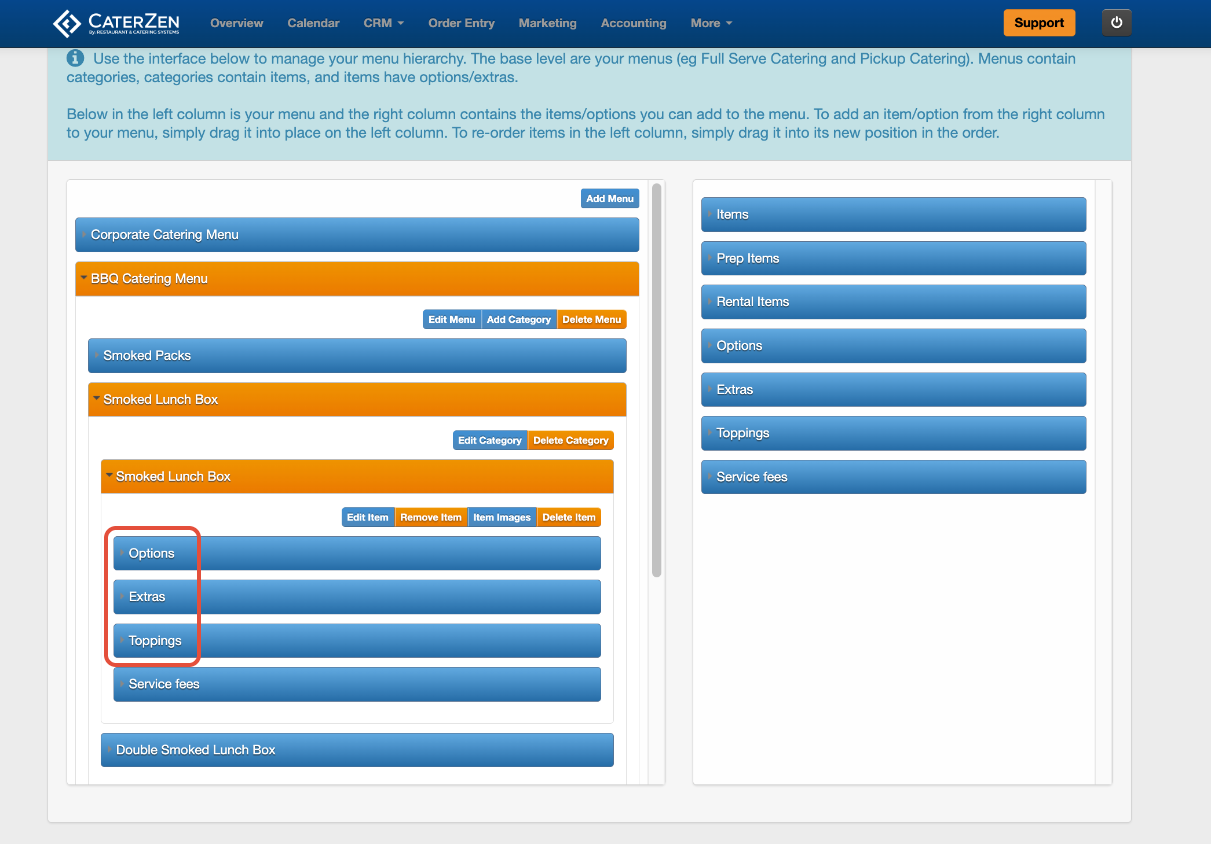
Menu → Category → Menu Item → Add-Ons (Options, Extras, Toppings)
Add-ons inherit visibility, location, and order type rules from the menu item they belong to.
Visual cue:
When you select a menu, category, or menu item on the left, it will highlight in orange. This indicates the active item you are currently editing or assigning to.
Accessing Menu Item Add-Ons
Go to Admin → Menu
Select Menu Manager
Choose the menu
Select the category and menu item
From here, you will see tabs for Options, Extras, and Toppings.
OPTIONS
Creating an Option
Options are used when a Customer must make a structured selection.
Steps
Click the Options tab
Click Create New Option

Option Settings
Option Name
Enter a clear name that explains what the Customer is choosing.
Examples: Choose a Side, Box Lunch Sandwich Choice

Show Percentages (optional)
Enable this if Customers should select percentage-based amounts.
Example: 25% Green Beans / 75% Mashed Potatoes
Show Quantity Fields (optional)
Enable this if Customers need to define quantities for each choice.
Example:
20 Boxed Lunches
– 10 Turkey
– 5 Roast Beef
– 5 Vegetarian
For advanced quantity rules, see:
Option Choices
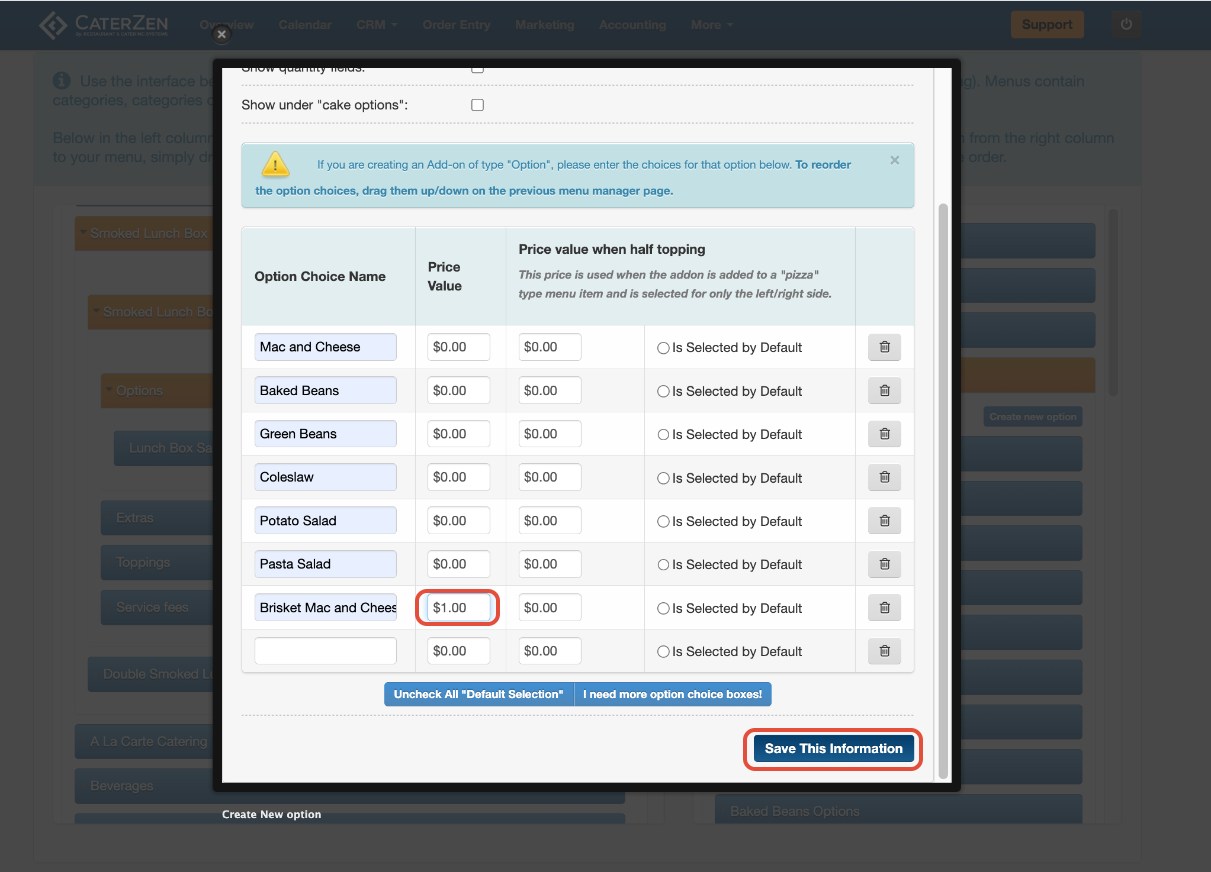
For each choice:
Enter the Option Choice Name
Add a Price Value if the choice costs extra
Enter Half Pizza Pricing (if applicable)
Mark a Pre-Selected Choice if desired (only one per option)
Click I need more option choice boxes to add more choices
Click Save This Information
Assigning an Option to a Menu Item
Creating an option does not automatically attach it to a menu item.
Steps
Click the menu item on the left (it will highlight in orange)
Click the Options tab under the menu item (left side)
Locate the option on the right side
Drag the option into the Options box under the menu item
The option is now assigned.

Configuring Option Multiplicity (Advanced)
If an option needs special selection behavior:
Click the assigned option under the menu item
Select the Multiplicity tab
Choose the appropriate settings
Click Save
For details, see:
→ Menu Options: Multiplicity Settings for Options
EXTRAS
Creating an Extra
Extras are optional add-ons that often include an additional charge.
Steps
Click the Extras tab
Click Create New Extra

Extra Settings
Extra Name
Price (if applicable)
Half Topping Price (if applicable)
Pre-Checked (optional)
Extra Group (optional)
Click Save

Assigning an Extra to a Menu Item
Steps
Select the menu item on the left
Click the Extras tab under the menu item
Drag the extra from the right into the Extras box on the left

TOPPINGS
Creating a Topping
Toppings are simple selections and cannot include pricing.
If a topping needs to add cost, create it as an Extra instead.
Steps
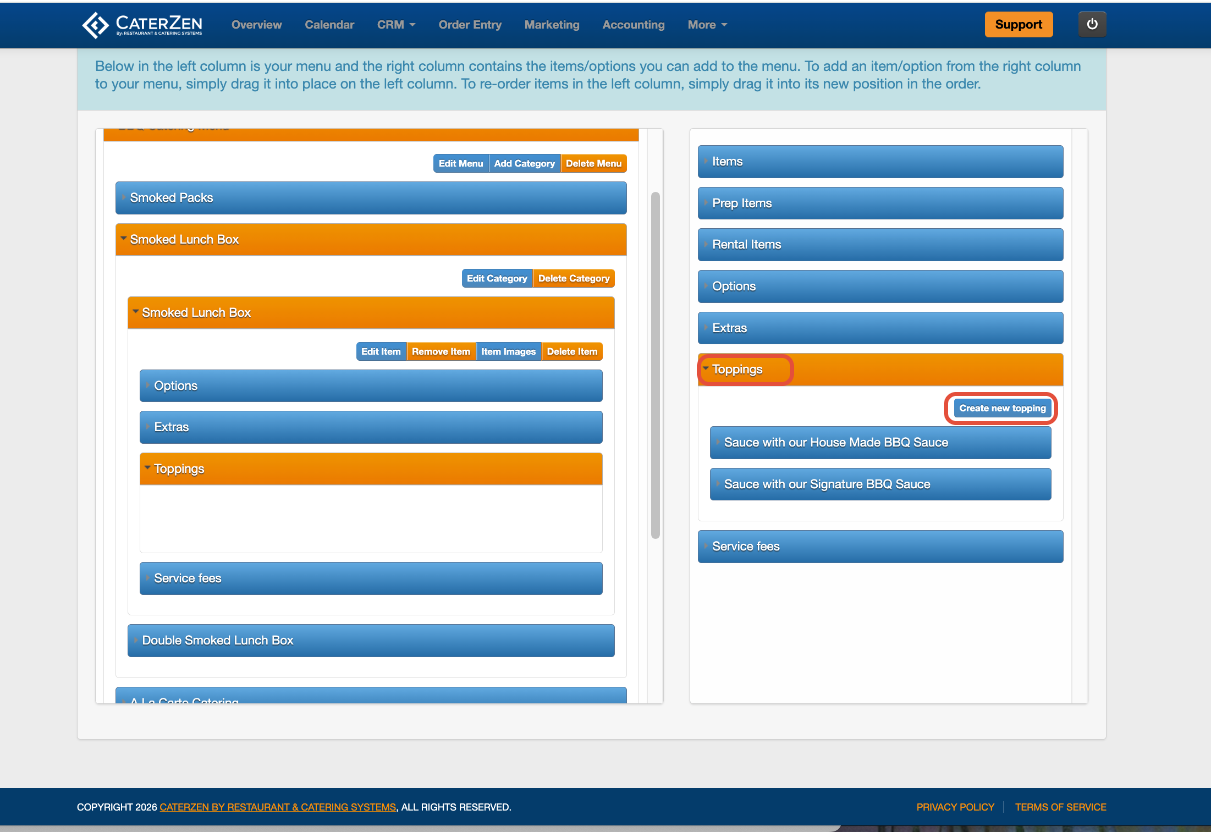
Click the Toppings tab
Click Create New Topping
Topping Settings
Topping Name
Pre-Checked (optional)
Click Save This Information

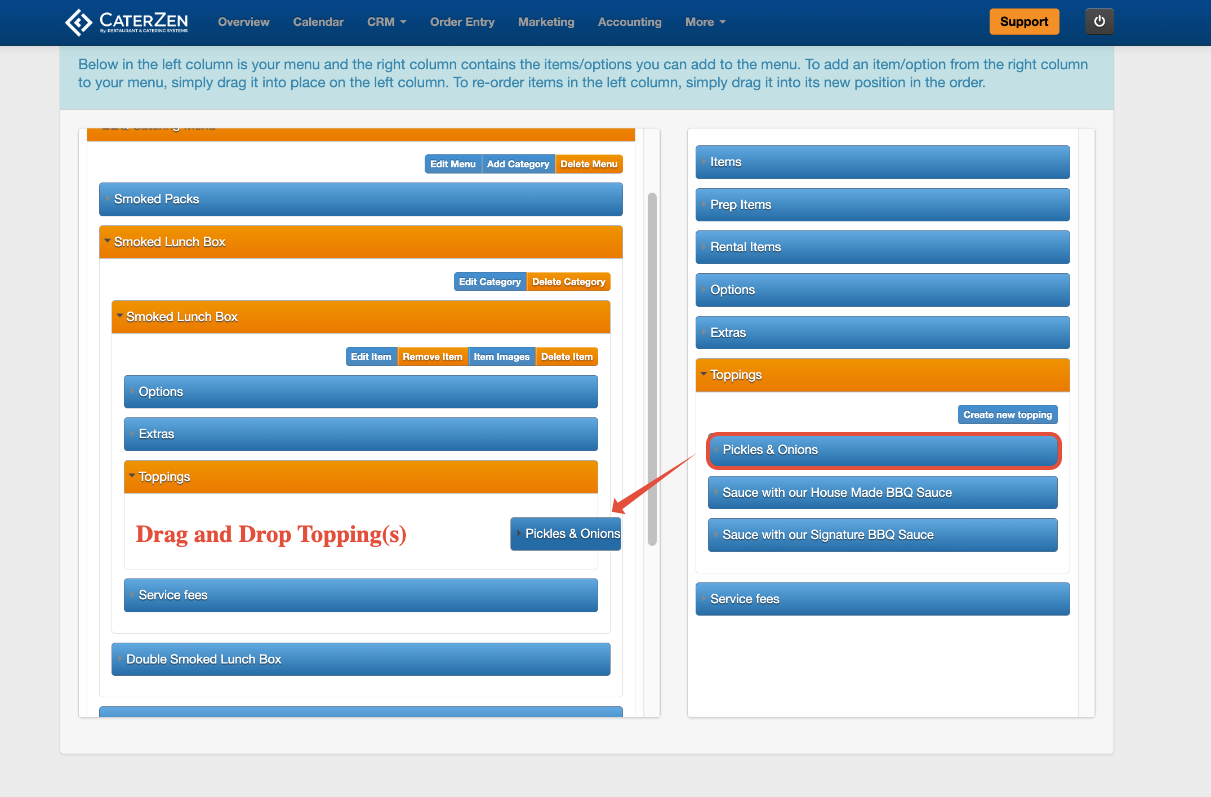
Assigning a Topping to a Menu Item
Steps
Select the menu item on the left
Click the Toppings tab under the menu item
Drag the topping from the right into the Toppings box on the left
Clearing Cache
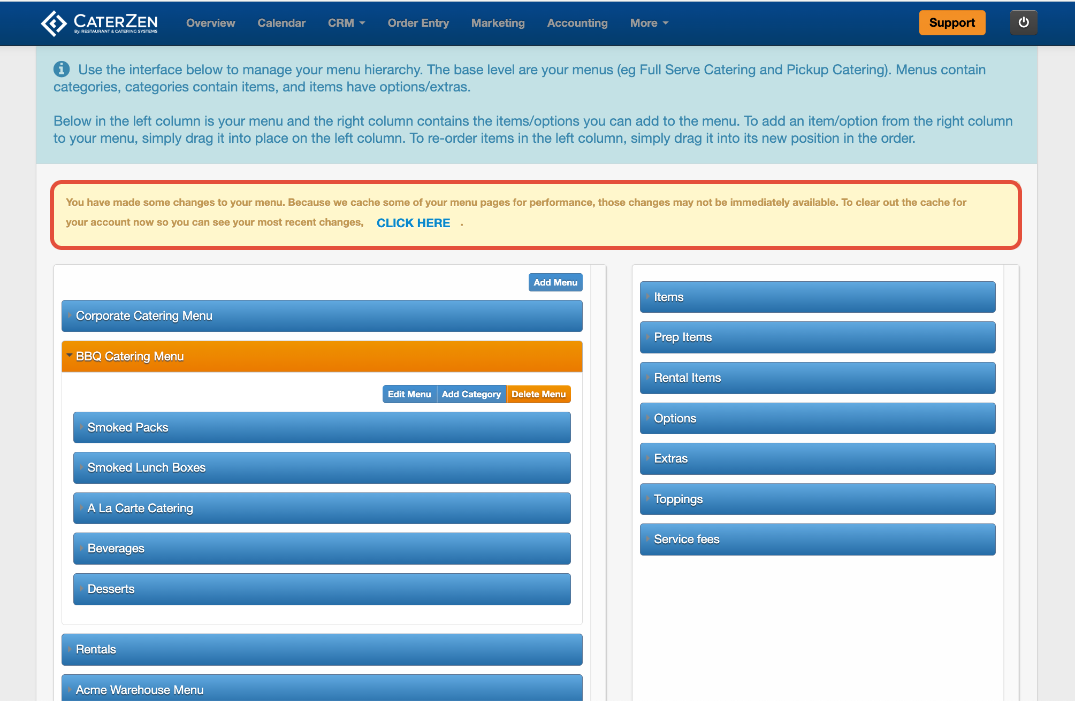
After saving menu changes, you may see a yellow notice at the top of the Menu Manager screen indicating that recent updates may not be immediately visible. This happens because some menu data is temporarily cached for performance. Click CLICK HERE to clear menu cache.
You may need to manual clear the menu cache if you:
Added or updated a menu, category, or menu item
Changed visibility, order types, or permissions
Updated options, extras, or toppings
Adjusted pricing, prep times, or availability
Important Notes
Add-ons must be created first, then assigned
Drag-and-drop is required
Changes apply immediately
Advanced behavior is configured through linked articles
Advanced Add-On Behavior
Add-ons can be configured with advanced rules depending on your needs. These features are covered in separate articles and should be used intentionally.
Advanced features include:
Refer to the related articles below for step-by-step configuration.
Support
If you have questions or you’re unsure which fields to use, CaterZen Support Center can help review your setup.
Not a CaterZen customer yet? Discover how our catering software can streamline your business — click here to learn more!