
Overview
CaterZen has three base order types built in: Dine In, Pick Up and Delivery. Custom Order Types let you create more specific order types that sit underneath one of those three base types. Examples include Full Service Catering, Delivery and Setup, Curbside Pick-Up, or any other order type that fits your operation.
Custom Order Types appear in the Order Type dropdown during Order Entry, giving your team more precise options when placing orders. They also appear on your CaterZen calendar in the colors you choose, making it easier to see what kind of events you have scheduled at a glance.
One of the most useful things you can do with a Custom Order Type is assign it its own service fee. When an order uses that Custom Order Type, its service fee applies instead of the Location Service Fee. This gives you the flexibility to charge different fees for different kinds of work.
Not sure which fee type is right for you? Review Understanding Service Fees in CaterZen for a full overview of all fee types and how they work together.
Important: Custom Order Types vs. Base Order Types
Custom Order Types are built under one of the base order types: Dine In, Pick Up, or Delivery. The base type controls how CaterZen treats the order logistically. For example, a Custom Order Type built under Delivery can still use delivery rules and delivery-related settings.
The base order type does not need to be active for the Custom Order Type to work.
For example, you can create a Custom Order Type called Full Service Catering under the Delivery base type without having generic Delivery appear as an order option.
How to Access Custom Order Types
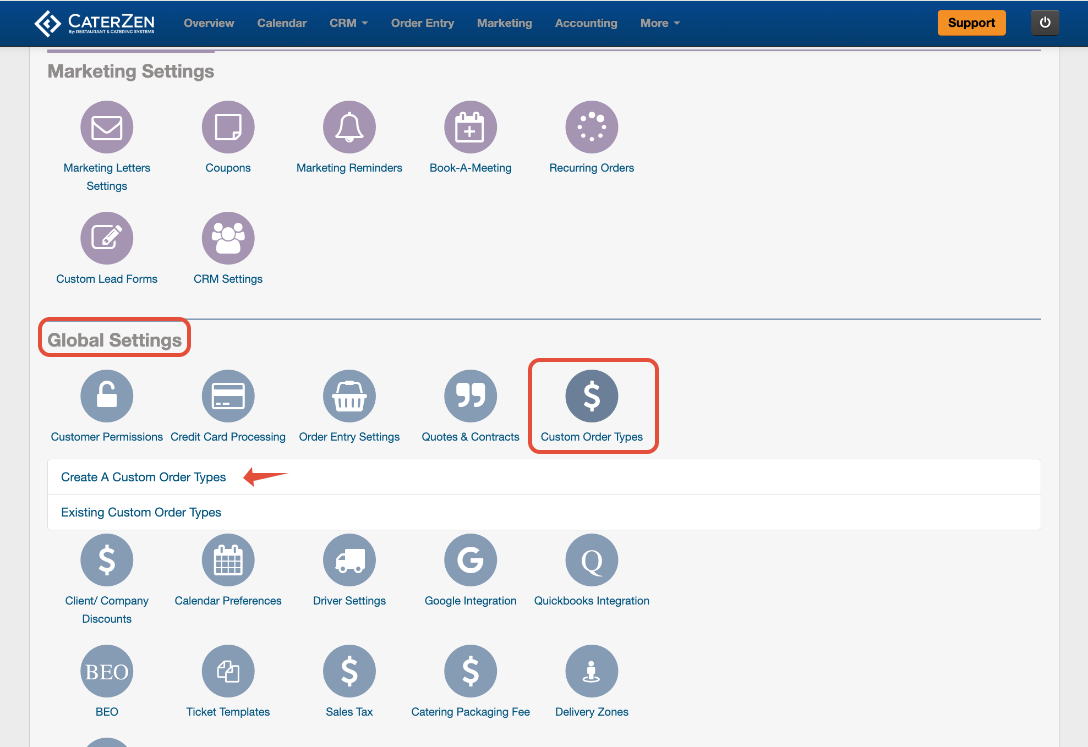
- Go to Admin
- Scroll down to the Global Settings section
- Click Custom Order Types
- Click Create A Custom Order Type
Step-by-Step Instructions
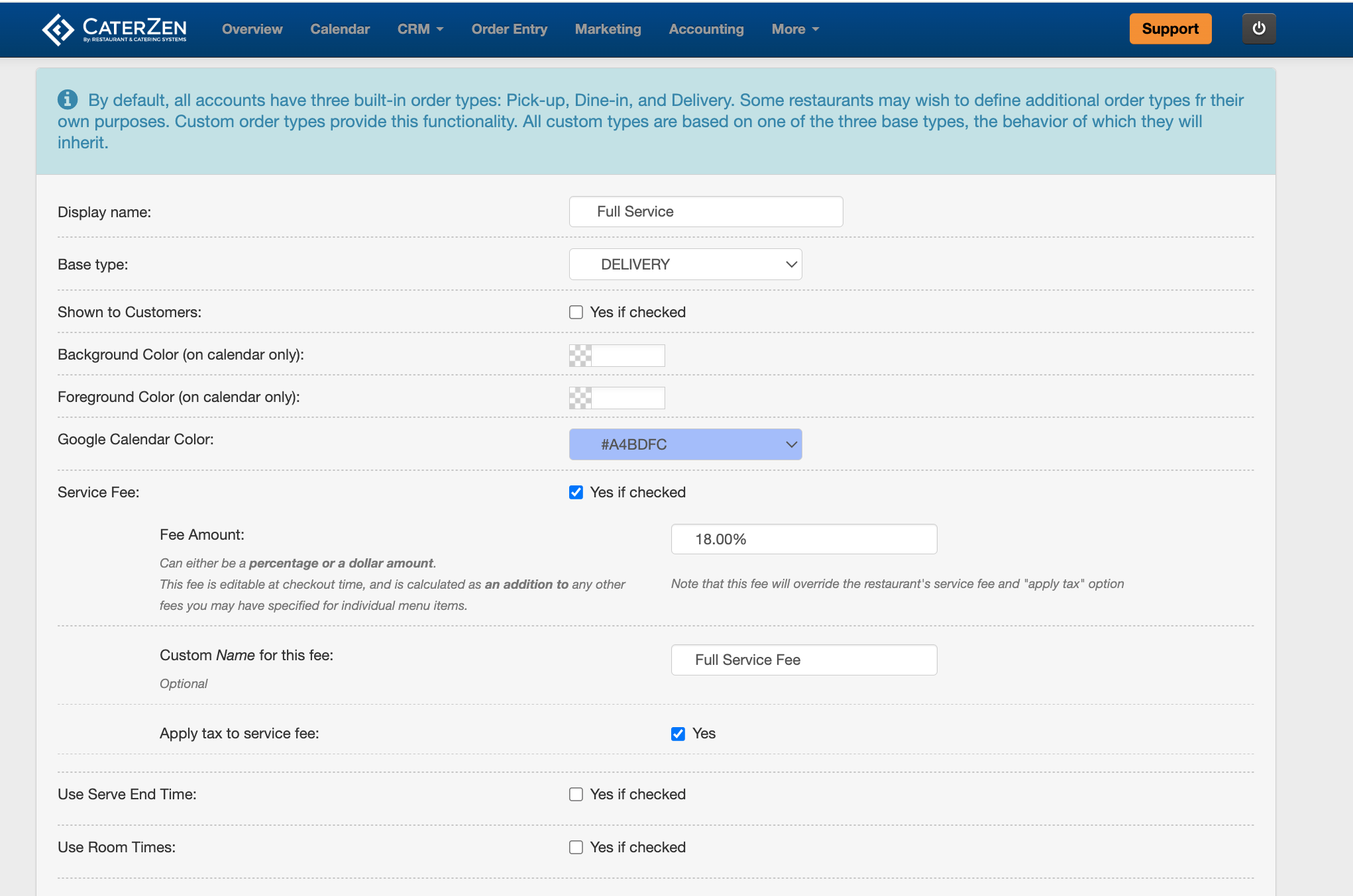
1. Enter the Display Name
- Enter the name you want to appear in the Order Type dropdown during Order Entry and on the calendar
- Keep the name clear and specific so your team can easily select the correct order type
- Examples: Full Service Catering, Drop Off Catering, Curbside Pick-Up, Room Name
2. Select the Base Type
- Choose whether the Custom Order Type falls under: Dine In, Pick Up, or Delivery
- This controls how CaterZen treats the order behind the scenes.
- For example, if the Custom Order Type should follow delivery rules, choose Delivery as the base type
3. Shown to Customers
- Check the Shown to Customers box to make this Custom Order Type available in Customer facing Online Ordering
- If this box is unchecked, the Custom Order Type will will only be available for use by you and your Team only in Order Entry
4. Choose Calendar Colors
- Choose a background color and foreground color for how this Custom Order Type appears on your CaterZen calendar
- If you use the Google Calendar integration, you can also set a Google Calendar color for this order type
- Using different colors can make it easier for your team to quickly identify different types of orders on the calendar
5. Add a Service Fee, If Needed
- If you want this Custom Order Type to have its own service fee, check the Service Fee box
- When this box is checked, additional service fee fields will appear
- Enter the fee amount as either a percentage or a flat dollar amount
- The Custom Order Type Service Fee calculates on the order subtotal only. It does not calculate on delivery fees, other service fees, tax, or gratuity
- You can also enter a custom name for the fee. This is the label Customers will see on their order
- Examples: Full Service Fee, Event Production Fee, Catering Fee, Setup Fee
- If the service fee should be taxed, select the option to apply tax to the service fee.
- Please note that service fee taxability is controlled globally in your Tax Settings and applies to all service fees in your account.
- To review your tax settings, go to: Admin > Global Settings > Sales Tax
Important Notes About Custom Order Type Service Fees
- If a Custom Order Type has a service fee enabled, it will override the Location Service Fee for orders using that Custom Order Type.
- The Custom Order Type Service Fee and Location Service Fee do not stack.
- If a Custom Order Type does not have its own service fee, CaterZen will use the Location Service Fee for that location, if one is set up.
- If the Catering Packaging Fee is enabled, it will calculate on top of the Custom Order Type Service Fee.
Example
A BBQ catering operation has a standard Location Service Fee of 5% that covers most orders.
However, their Full Service Catering events include staffing, setup, and breakdown, so they charge an 18% service fee for those orders. By creating a Full Service Catering Custom Order Type with its own 18% service fee, CaterZen automatically applies the correct fee when that order type is selected.
No manual adjustment is needed.
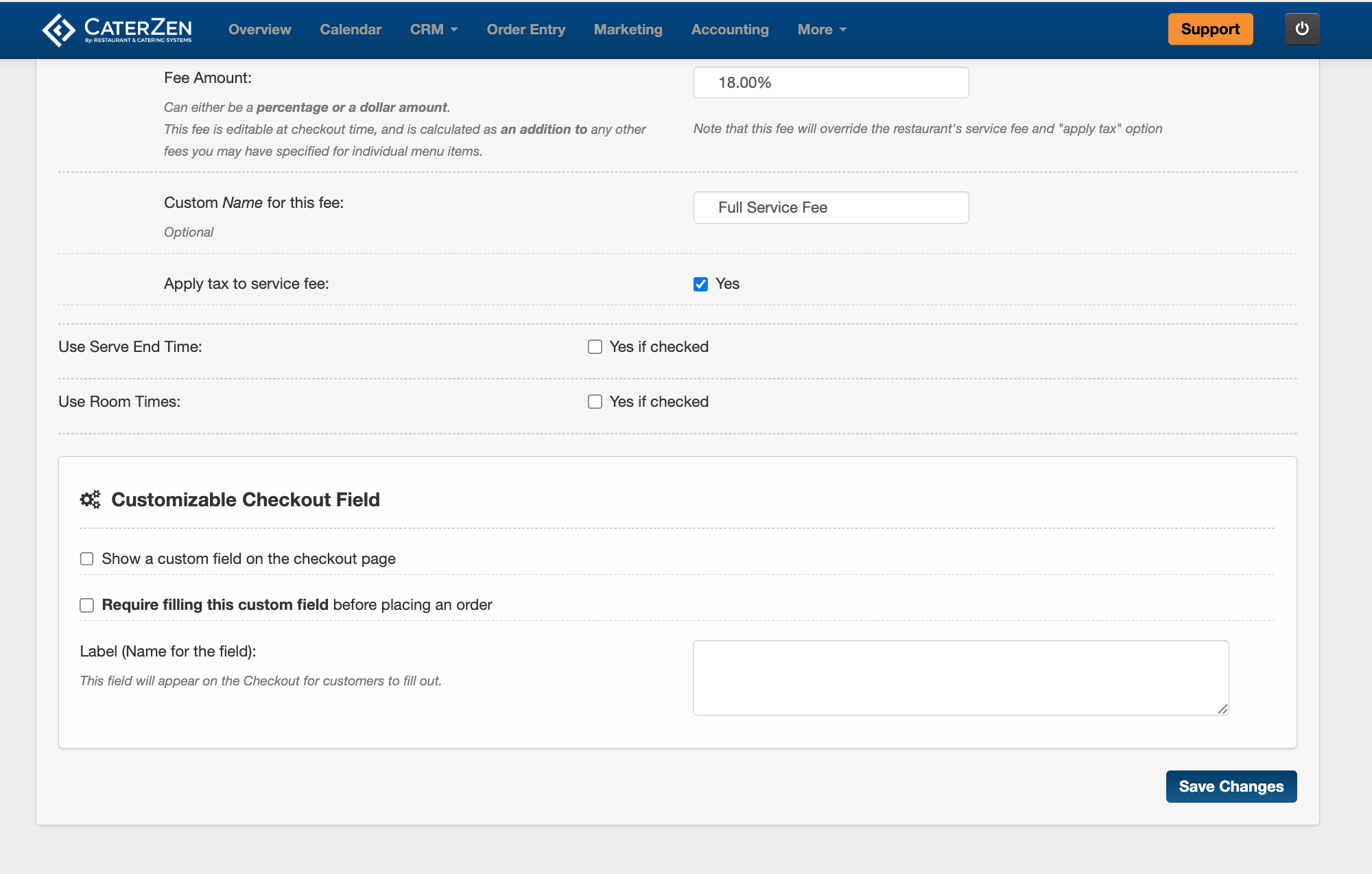
6. Add a Custom Checkout Field, If Needed
- If this Custom Order Type requires a specific piece of information at checkout, you can add a custom checkout field.
- Common examples include: Room Number, Delivery Instructions, Suite Number
Event Contact Name
- Common examples include: Room Number, Delivery Instructions, Suite Number
- You can also make the field required so the order cannot be placed without that information.
7. Save Your Changes
When finished, click Save Changes
Reviewing Existing Custom Order Types
To review or manage your Custom Order Types:
- Go to Admin
- Scroll down to Global Settings
- Click Custom Order Types
- Click Existing Custom Order Types
From this screen, you can review each Custom Order Type’s display name, base type, active status, and available edit or delete options.
Important Notes
- Custom Order Types are global across your account. They are not set up separately by location.
- An inactive Custom Order Type will not appear in Order Entry, but it will remain saved in your settings and can be reactivated later.
- Deleting a Custom Order Type cannot be undone. If you only want to hide it temporarily, uncheck the Active box instead.
- The service fee on a Custom Order Type overrides the Location Service Fee. They do not stack.
Next Steps
After creating your Custom Order Types, place a test order in Order Entry to confirm the order type appears in the dropdown and the correct fee is applied.
If you want to recover costs based on payment method on top of your service fees, review Global Settings: Setting Up the Catering Packaging Fee.
Related Articles
- Understanding Service Fees in CaterZen
- Restaurant Locations: Restaurant Service Fees
- Global Settings: Setting Up the Catering Packaging Fee
Support
For additional help, refer to the CaterZen Support Center or contact our CaterZen Support Team.
Not a CaterZen Customer yet? Discover how our catering software can streamline your business — click here to learn more!