
Overview
The Restaurant Location Service Fee is a default fee that automatically applies to all orders at a specific restaurant location.
You configure it once per location, and CaterZen handles the rest. It can be a flat dollar amount or a percentage, and it calculates on the order subtotal only. It does not calculate on delivery fees, other service fees, tax, or gratuity.
This is the most basic service fee in CaterZen and is a good starting point if you want a consistent fee across all orders for a location. If you need different fees for different types of orders, you can set up Custom Order Types with their own service fees. When a Custom Order Type has its own service fee, that fee overrides the Location Service Fee.
Not sure which fee type is right for you? Review Understanding Service Fees in CaterZen for a full overview of all fee types and how they work together.
How to Access It
- Go to Admin
- Scroll down to the Restaurant Locations section
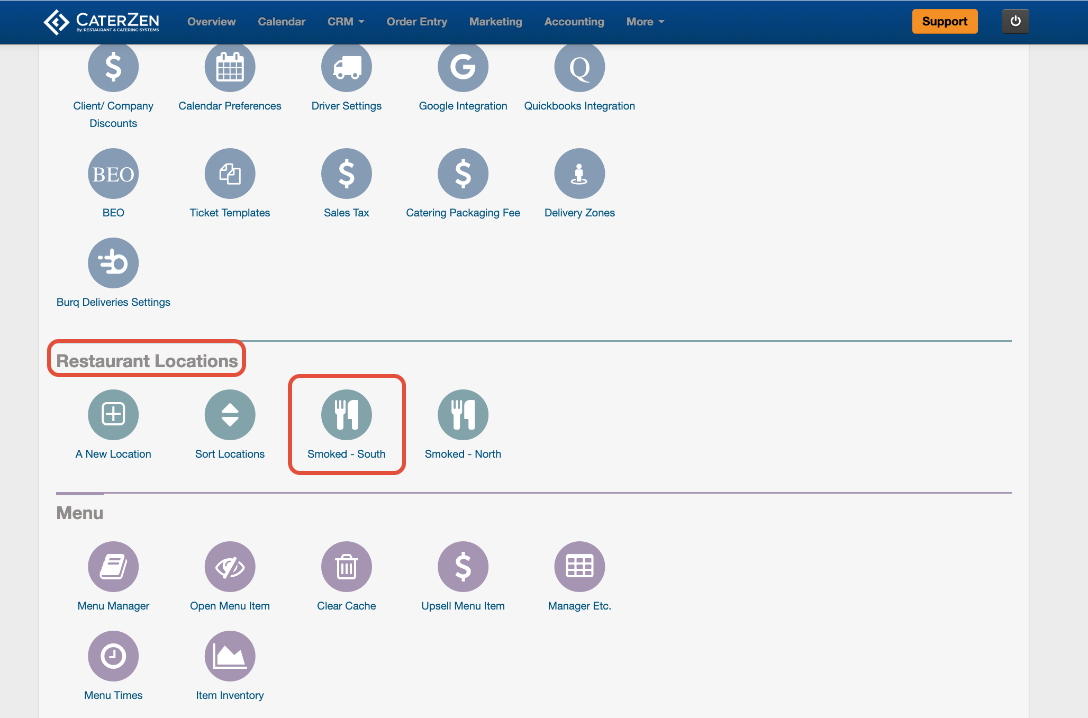
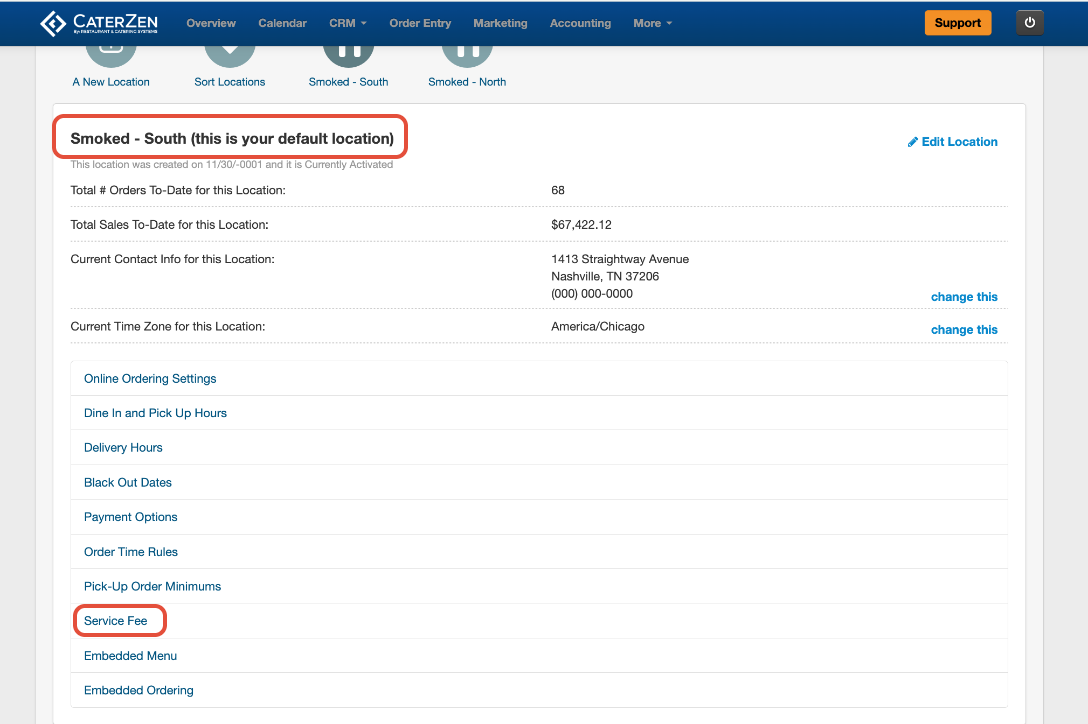
- Click the bubble for the location you want to configure.
- Click Service Fee
Step-by-Step Instructions
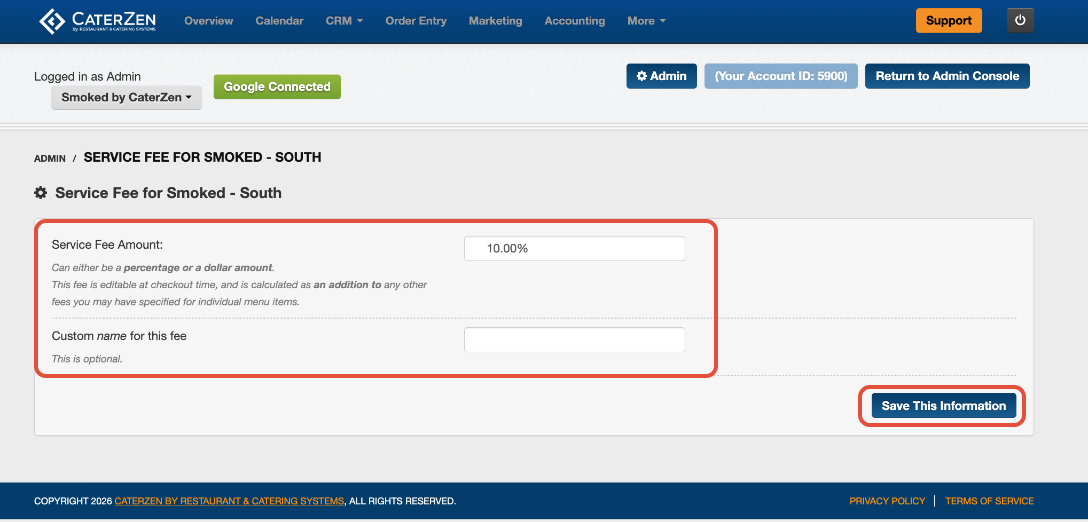
1. Enter the Fee Amount
Enter the fee amount you want to charge.
You can enter either a percentage, such as 5%, or a flat dollar amount, such as $25.00.
The Location Service Fee calculates on the order subtotal only.
2. Give the Fee a Custom Name
By default, this fee displays as Restaurant Service Fee.
If you want Customers to see a different label, enter a custom name in this field.
Examples:
- Admin Fee
- Event Fee
- Catering Fee
- Service Charge
3. Save Your Changes
Click Save This Information.
Once saved, the Location Service Fee will automatically apply to orders for that location.
Overriding the Fee on an Individual Order
If you need to adjust the fee for a specific order without changing your location settings, you can do that from the Order Entry screen.
- Open the order in Order Entry.
- Click on the service fee amount.
- Type the new value.
- Press Enter on your keyboard to save.
Important: Press Enter, not Tab. Pressing Tab will move your cursor without saving the change.
Important Notes
The Location Service Fee applies to all orders and all payment types at that location by default.
Each restaurant location has its own service fee setting. If you manage multiple locations, configure this separately for each location.
If an order uses a Custom Order Type that has its own service fee, the Custom Order Type Service Fee applies instead of the Location Service Fee. The two fees do not stack.
If you use CaterPay and have the Catering Packaging Fee enabled, the Catering Packaging Fee will calculate on top of the Location Service Fee.
Leaving the fee amount blank and saving will remove the fee from orders for that location.
Next Steps
After saving your Restaurant Location Service Fee, place a test order to confirm the fee appears correctly If you manage multiple locations, repeat these steps for each location that needs its own service fee.
If you need different fees for different types of orders, your next step is setting up Custom Order Types with their own Service Fees.
Related Articles
- Understanding Service Fees in CaterZen
- Global Settings: Custom Order Types
- Global Settings: Setting Up the Catering Packaging Fee
Support
For additional help, refer to the CaterZen Support Center or contact our CaterZen Support Team.
Not a CaterZen customer yet? Discover how our catering software can streamline your business — click here to learn more!