
Overview
Once a BEO Template has been created, it can be applied to any order to generate a Banquet Event Order. When applied, the BEO pulls information from the order and allows you to review, edit, and finalize event-specific details.
This article walks through applying a BEO template to an order, completing any remaining sections, and printing or emailing the final BEO.
Apply a BEO Template to an Order
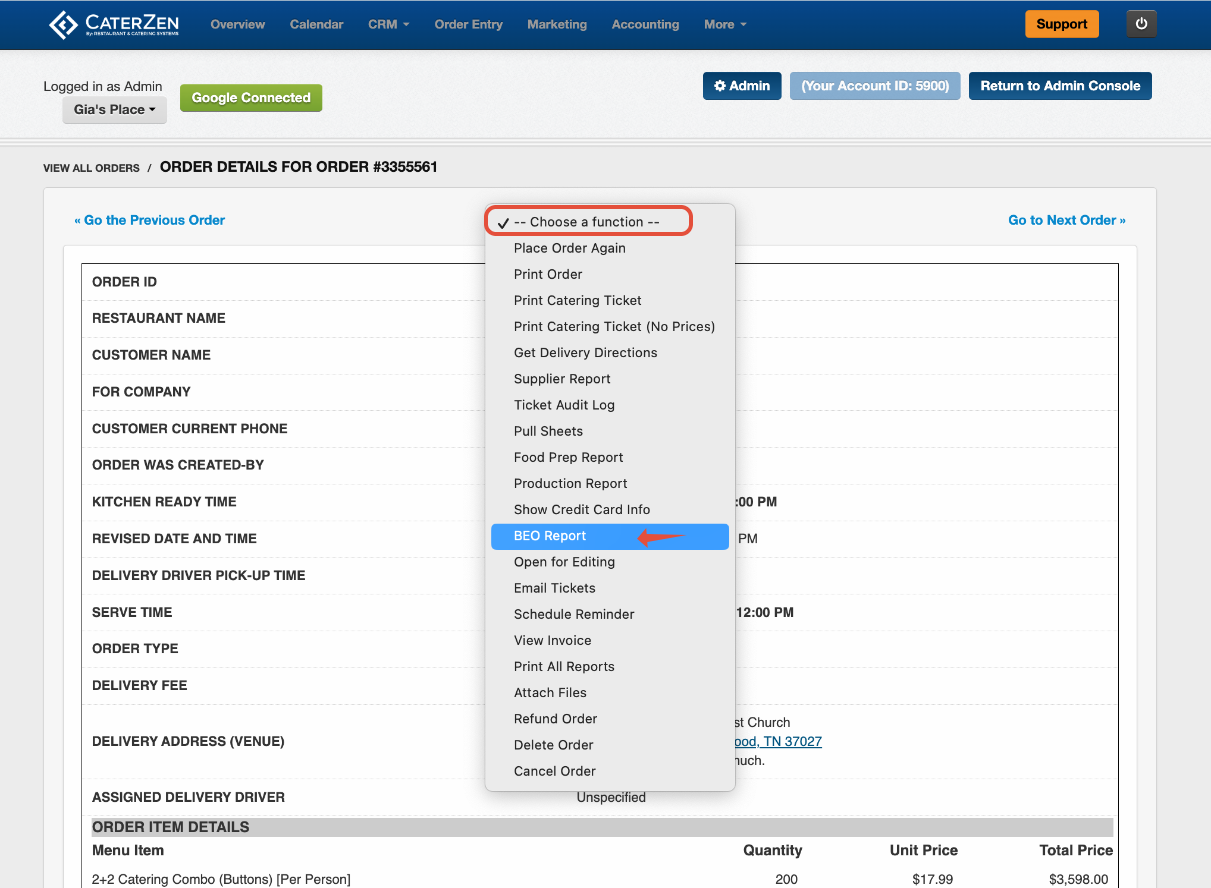
Open the order
On the Order Details page, open the Choose a Function menu
Select BEO Report
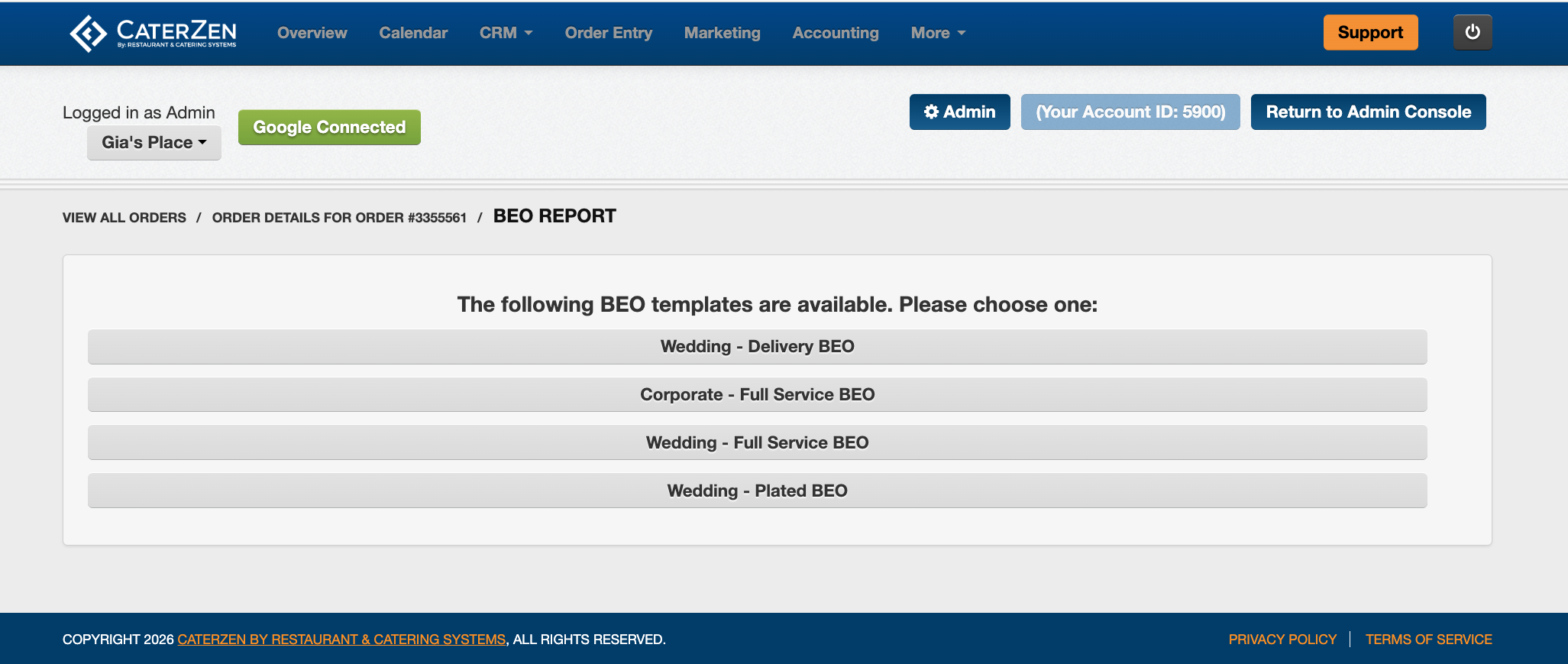
Choose the BEO template you want to use for this order, and the BEO will open in that layout.
If your account only has one template, the system will apply it automatically.
If you have more than one, you’ll be able to choose the one you want each time.
What Is Automatically Filled In
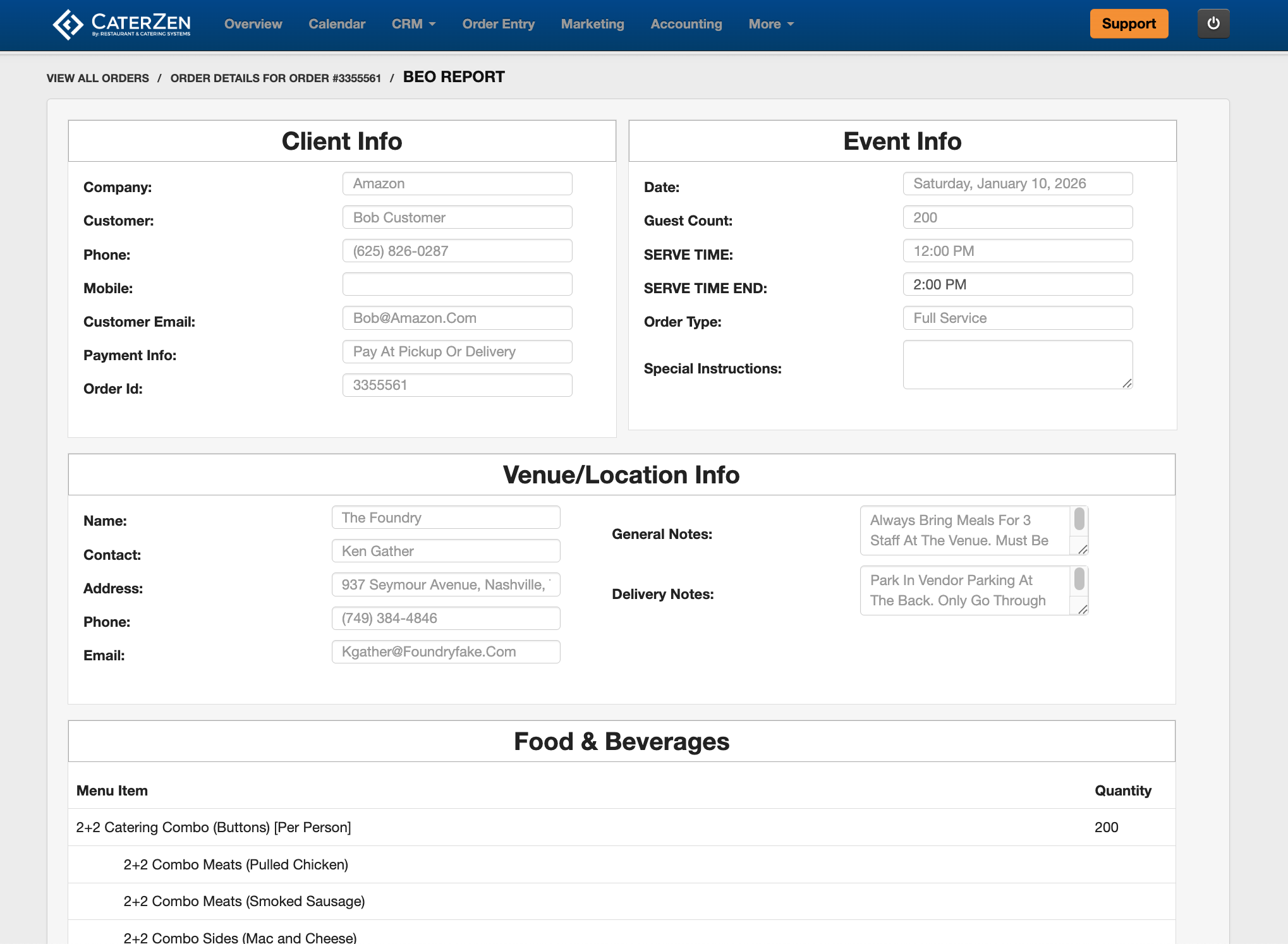
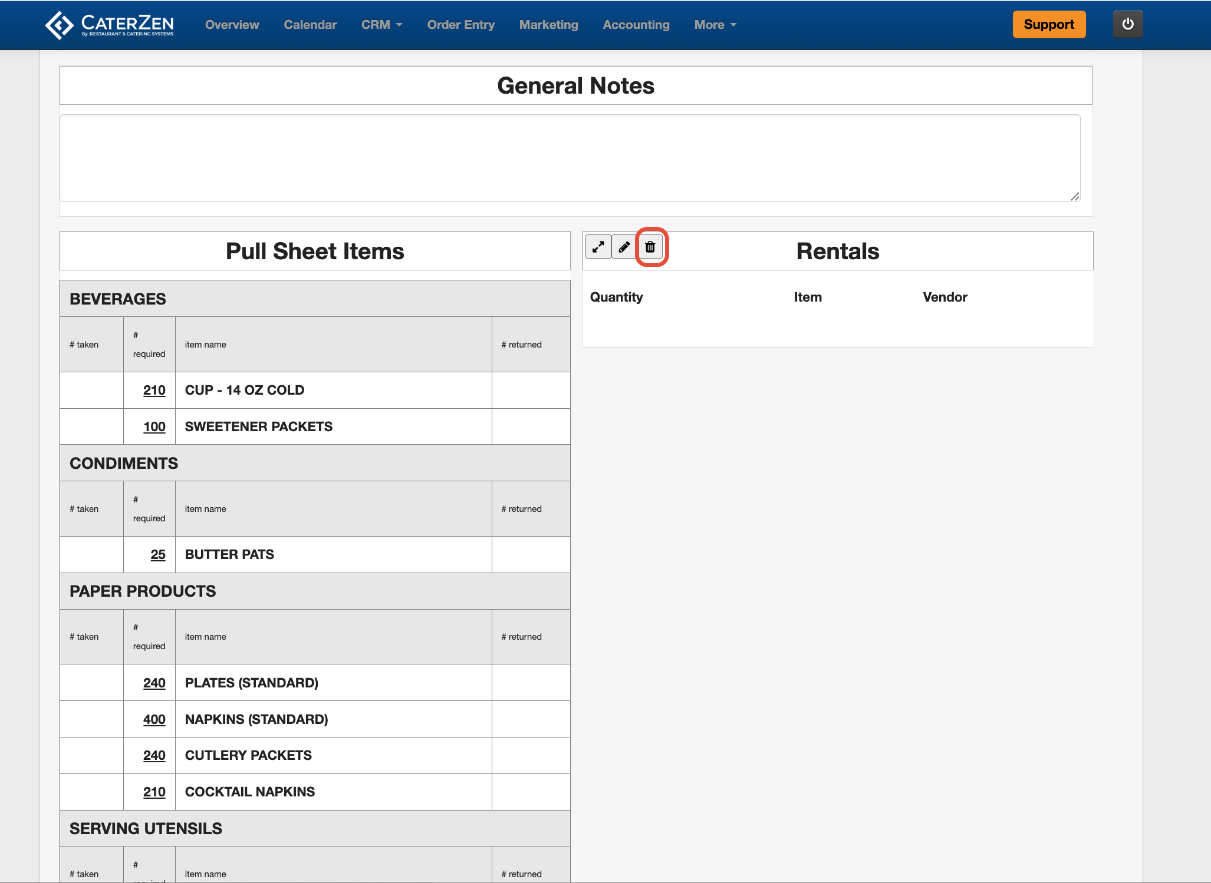
When a template is applied, many sections are pre-filled based on the order.
Automatically Populated Sections
Client Info
Event Info
Venue / Location Info
Food & Beverages
Pull Sheet Items
Rentals (if rental items were added to the order)
If any of this information is missing, it usually means it was not entered on the order or set up elsewhere in CaterZen.
Editing and Overriding Information
All fields on the BEO are editable.
You can:
Update names or contact details
Adjust event times
Override guest counts or service times
Remove fields or sections that are not needed
Edits made on the BEO affect only that order and do not change the template.
Sections Typically Completed Per Order
Some sections are intentionally left blank and completed for each event.
Time Line: Add key event times, setup details, and internal tasks.
General Notes: Use for event-specific instructions or reminders for the team.
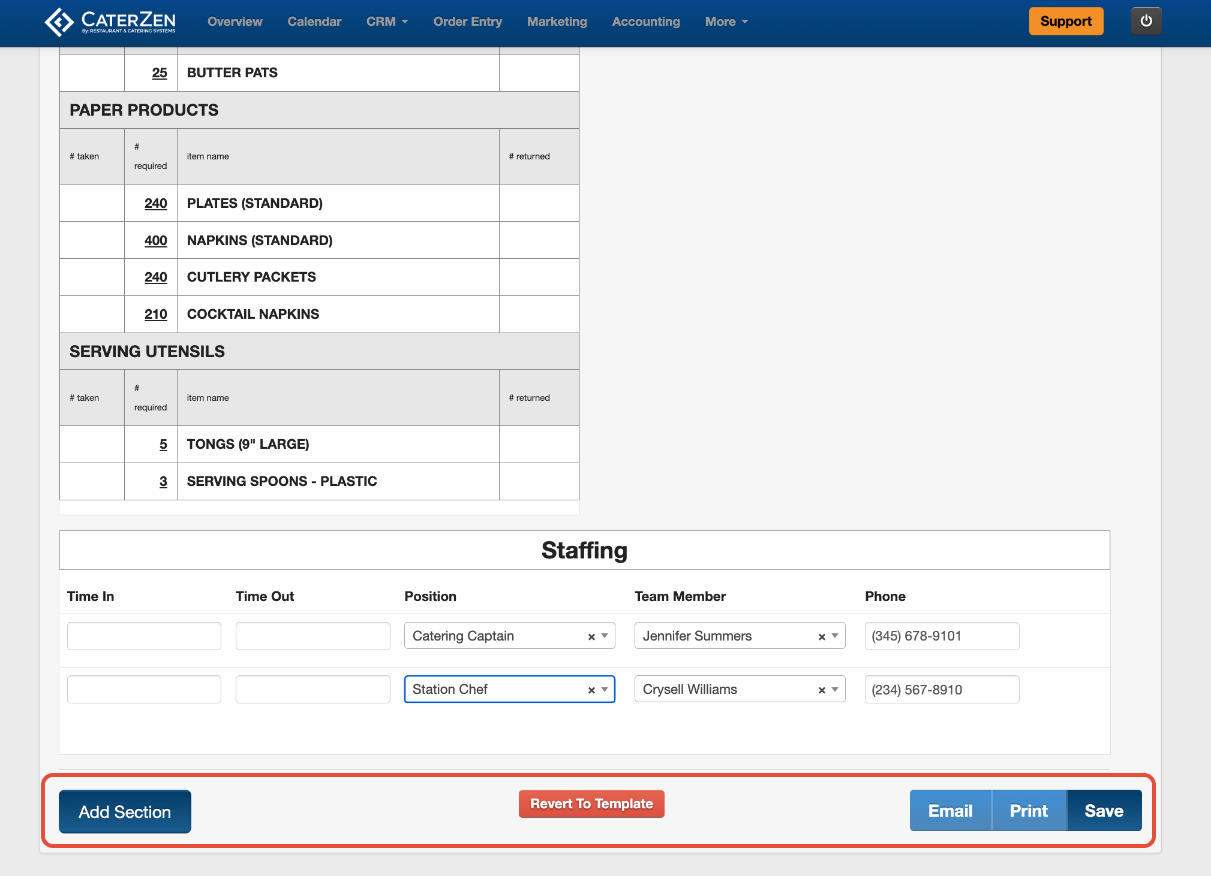
Staffing: Assign staff, positions, and working times for the event.
Extra Sections: Add custom notes or internal checklists as needed.
Signature: Confirm terms and capture company and customer signatures.
Pictures: Upload or drag images such as room diagrams or setup photos.
Removing or Adding Sections
To remove a section, use the Remove Section option within that section
To add a new section, click Add Section at the bottom of the BEO
You can also revert the BEO back to the original template layout if needed.
Saving Your BEO
As you work:
Click Save to keep changes
Saving does not lock the BEO. You can continue editing until the event is finalized.
Printing or Emailing the BEO
Click Print
The BEO will download as a PDF
Open the file to print or save
Click Email
Confirm the recipient and message
Send the BEO directly from CaterZen
Printing Multiple BEOs
To print multiple BEOs at once:
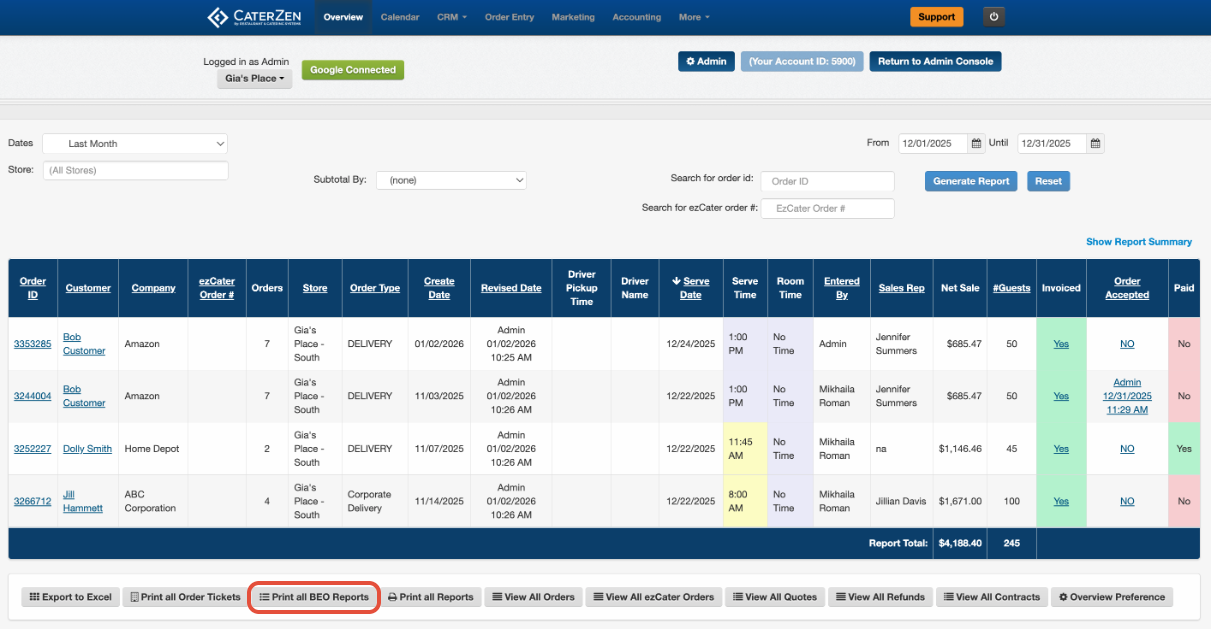
Go to the Overview tab
Choose the date range of the orders you wish to print and click Generate Report
Click Print All BEO Reports
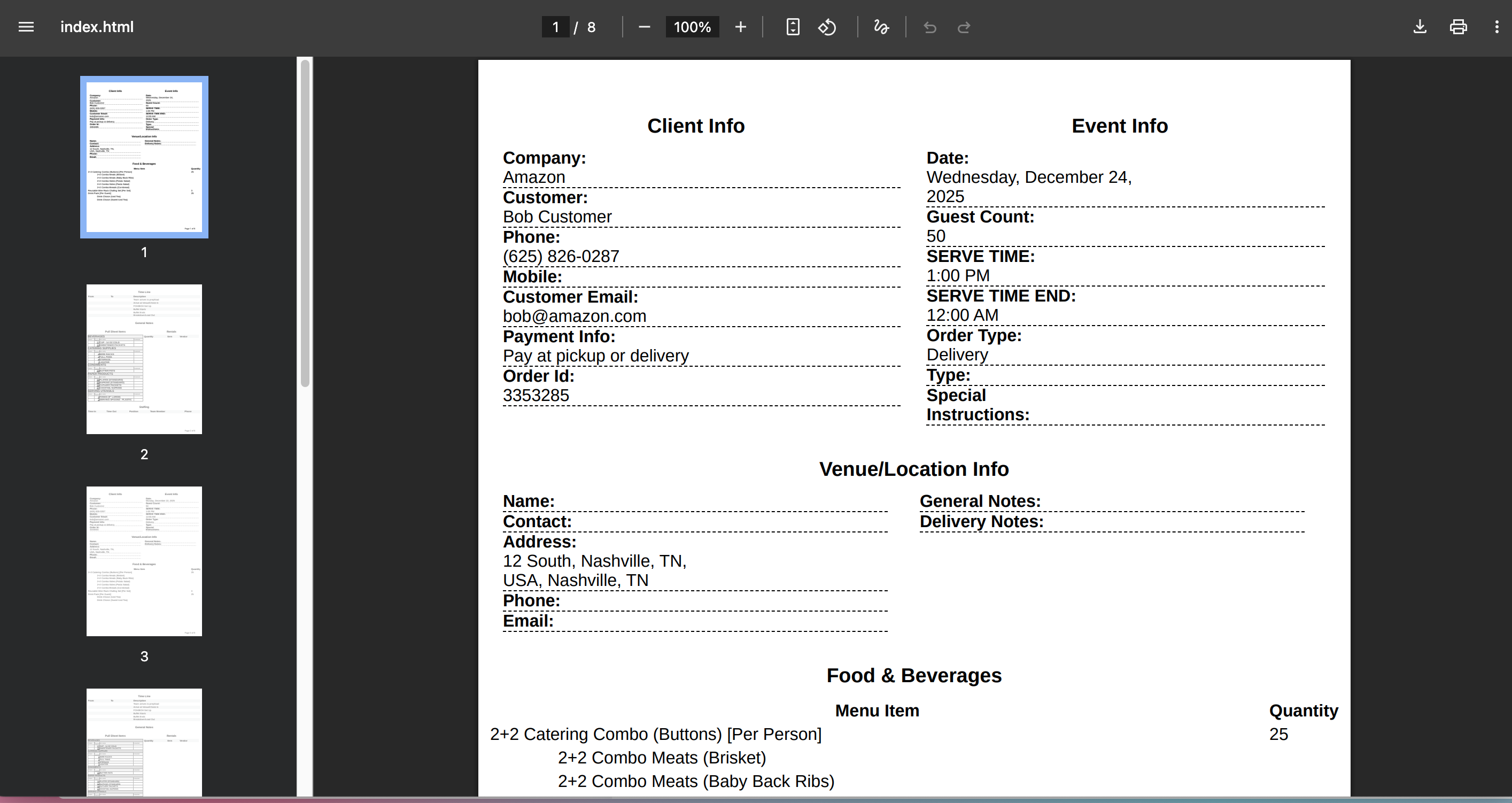
Download the PDF and print as needed
Common Troubleshooting
Missing rentals or pull sheet items
Confirm they were added to the order and set up correctly in Menu Manager.
Staff not appearing as options
Check staffing positions and employee assignments in Admin.
Venue details missing
Confirm the venue is selected on the order and set up in Venue Manager.
Related Articles
Support
If your BEO isn’t displaying correctly or you’re unsure what should be edited on the order versus the template, contact our CaterZen Support Team to let us help walk through it with you.
Not a CaterZen customer yet? Discover how our catering software can streamline your business — click here to learn more!