
Overview
BEO Templates control how your Banquet Event Orders are structured and displayed. A template defines which sections appear on the BEO, the order of those sections, and which fields are included.
Templates are created once and reused across orders. You can create multiple templates to support different event types, service styles, or locations.
This article walks through creating a BEO template and customizing its sections.
Accessing BEO Templates
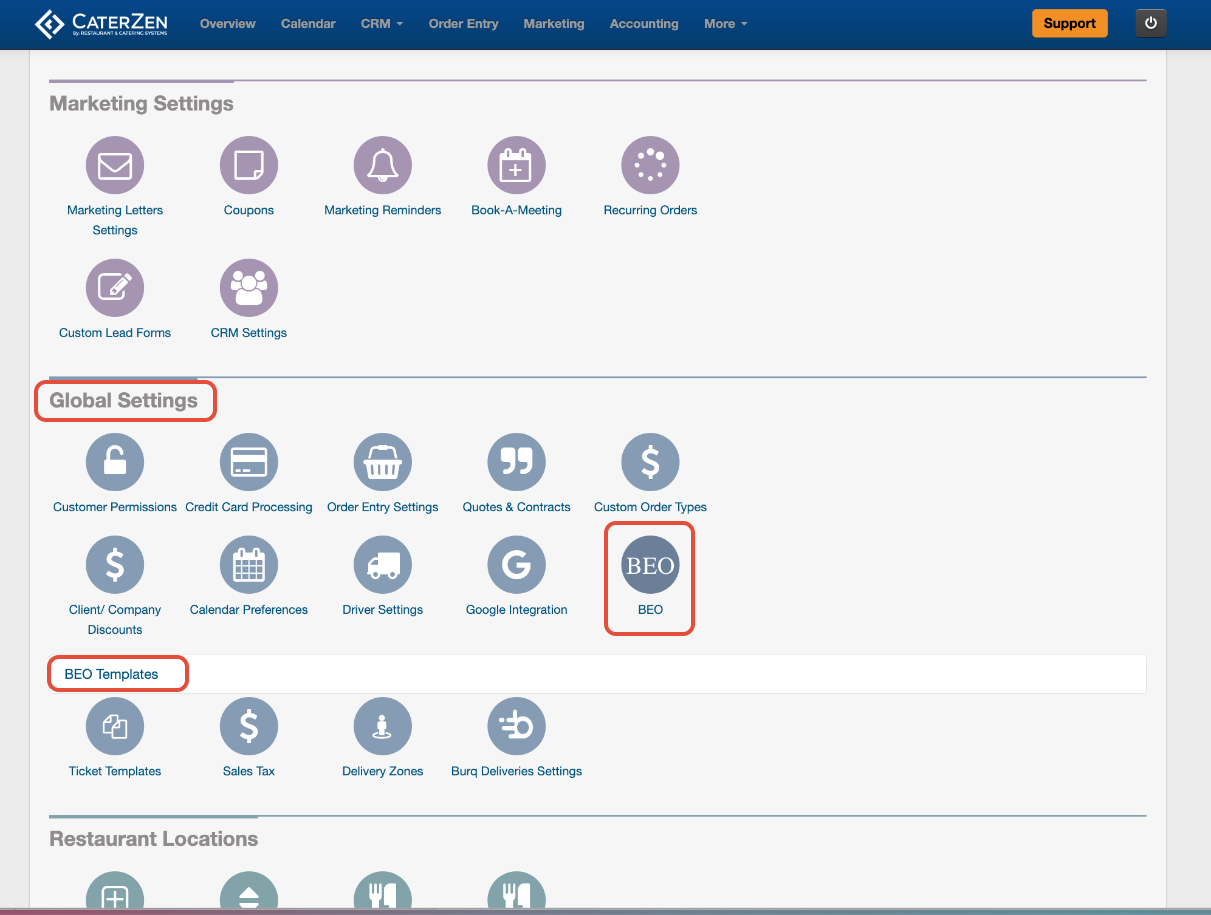
Go to Admin
Scroll to Global Settings
Click BEO
Select BEO Templates
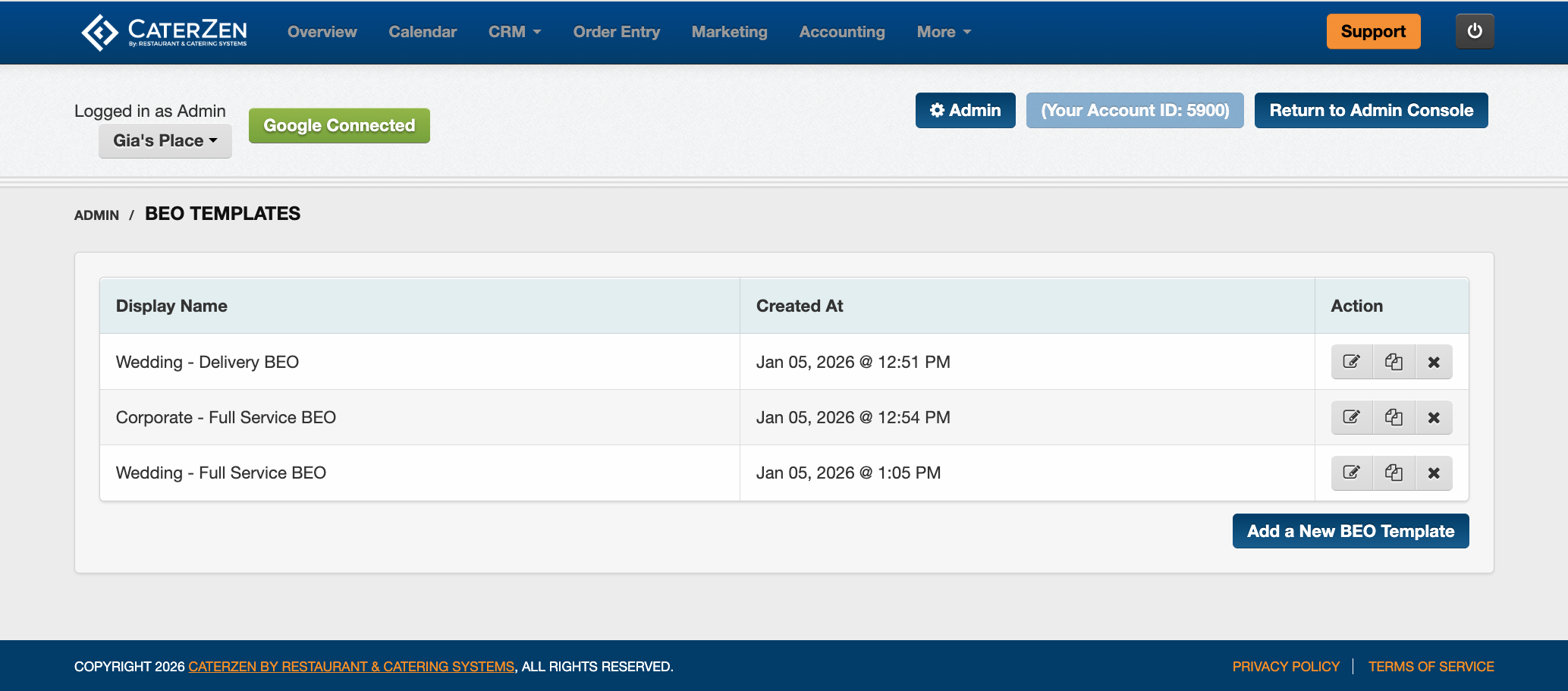
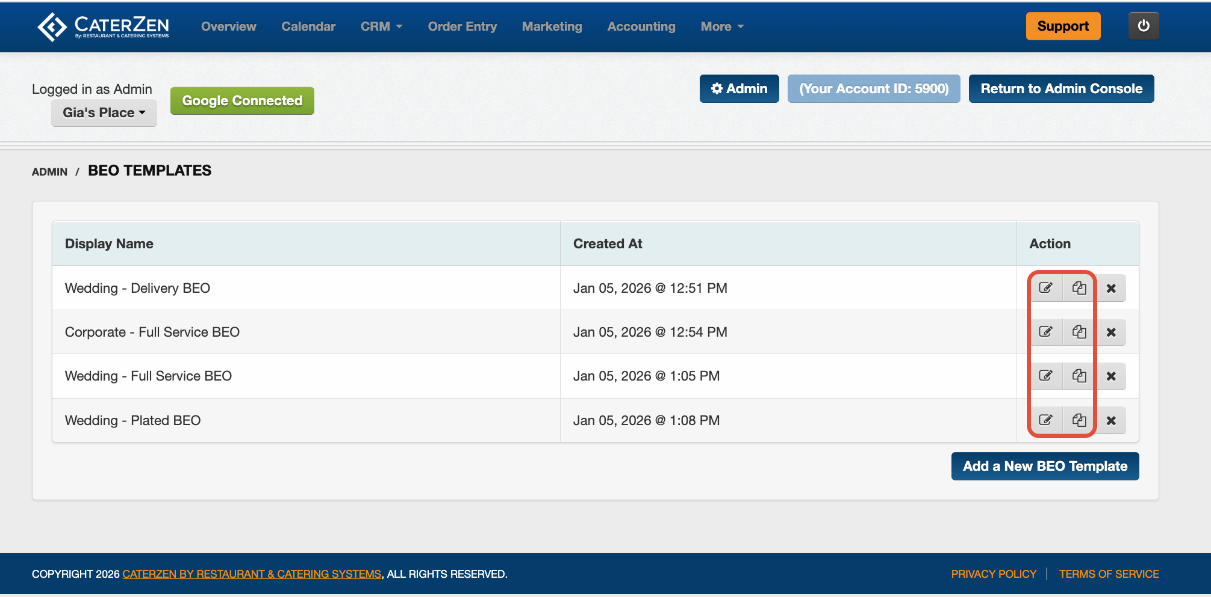
Here you will see a list of any existing templates.
Create a New BEO Template
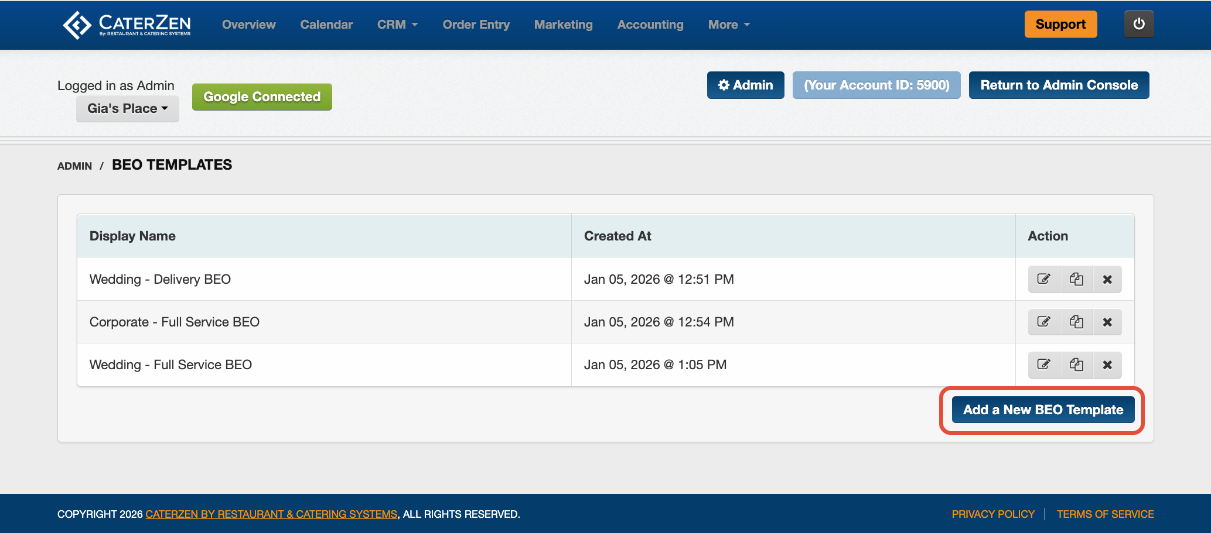
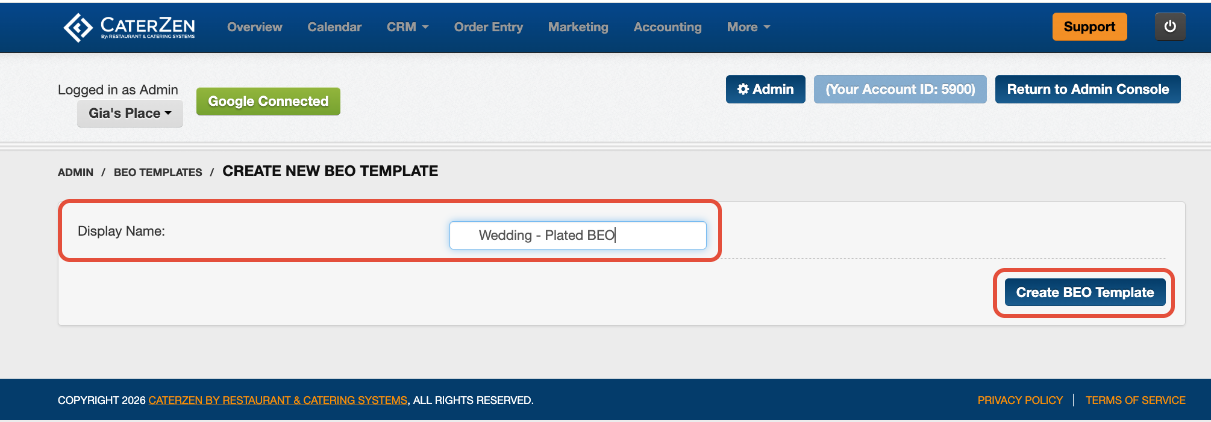
Click Add a New BEO Template
Enter a template name. Example: Wedding, Corporate Drop-Off, Full Service Event
Click Create BEO Template
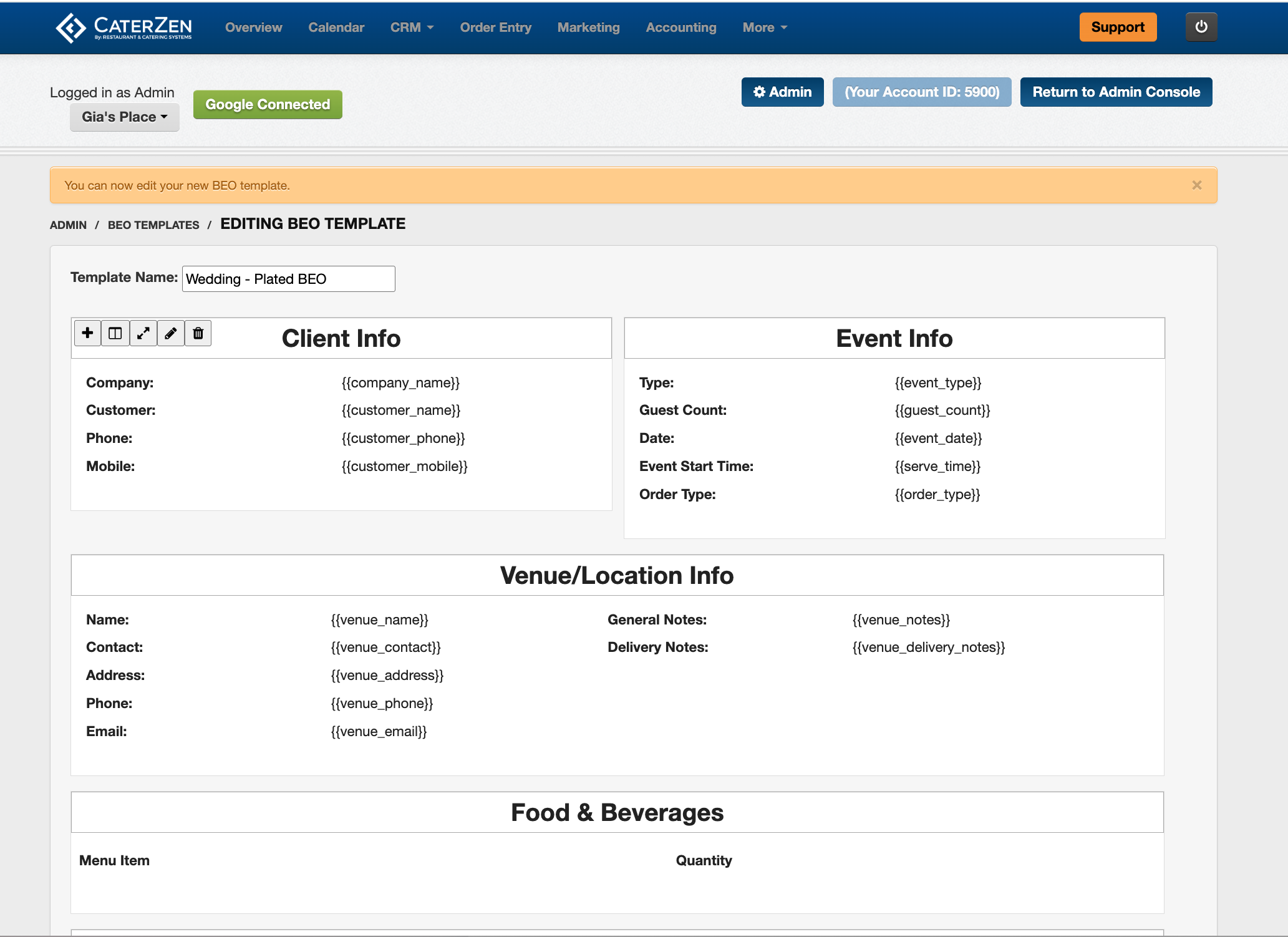
Your new template will open with preloaded sections.
Default BEO Sections Explained
Each new template includes standard sections. These sections can be edited, reordered, or removed.
Client Info: Displays customer and company details pulled from the order.
Event Info: Includes event type, guest count, date, service time, and order type.
Venue / Location Info: Populated from the Venue Manager or Delivery Address. This section displays venue contact details, address, and notes.
Food & Beverages: Automatically lists the menu items and quantities from the order.
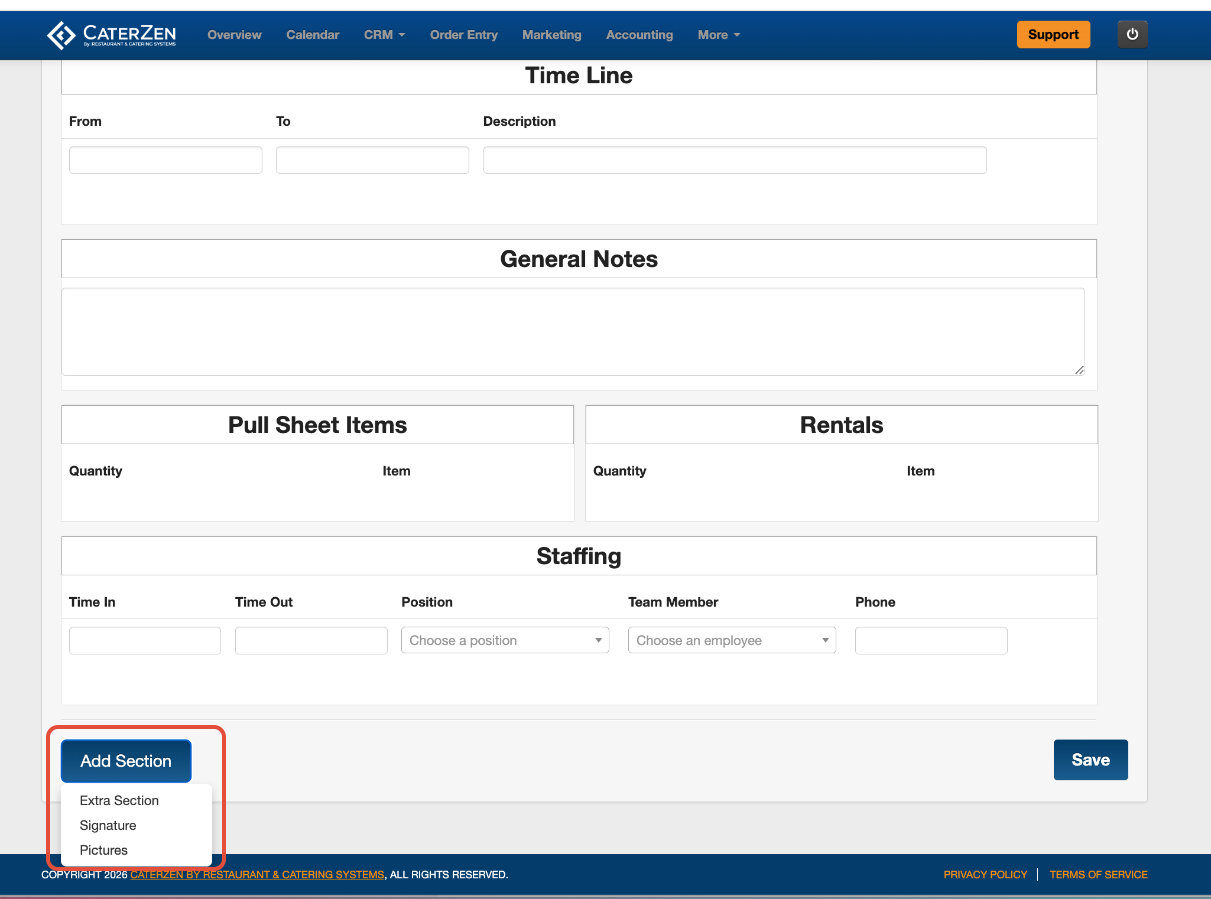
Time Line: Used to document event flow, key times, and internal tasks such as setup, load-out, or service start.
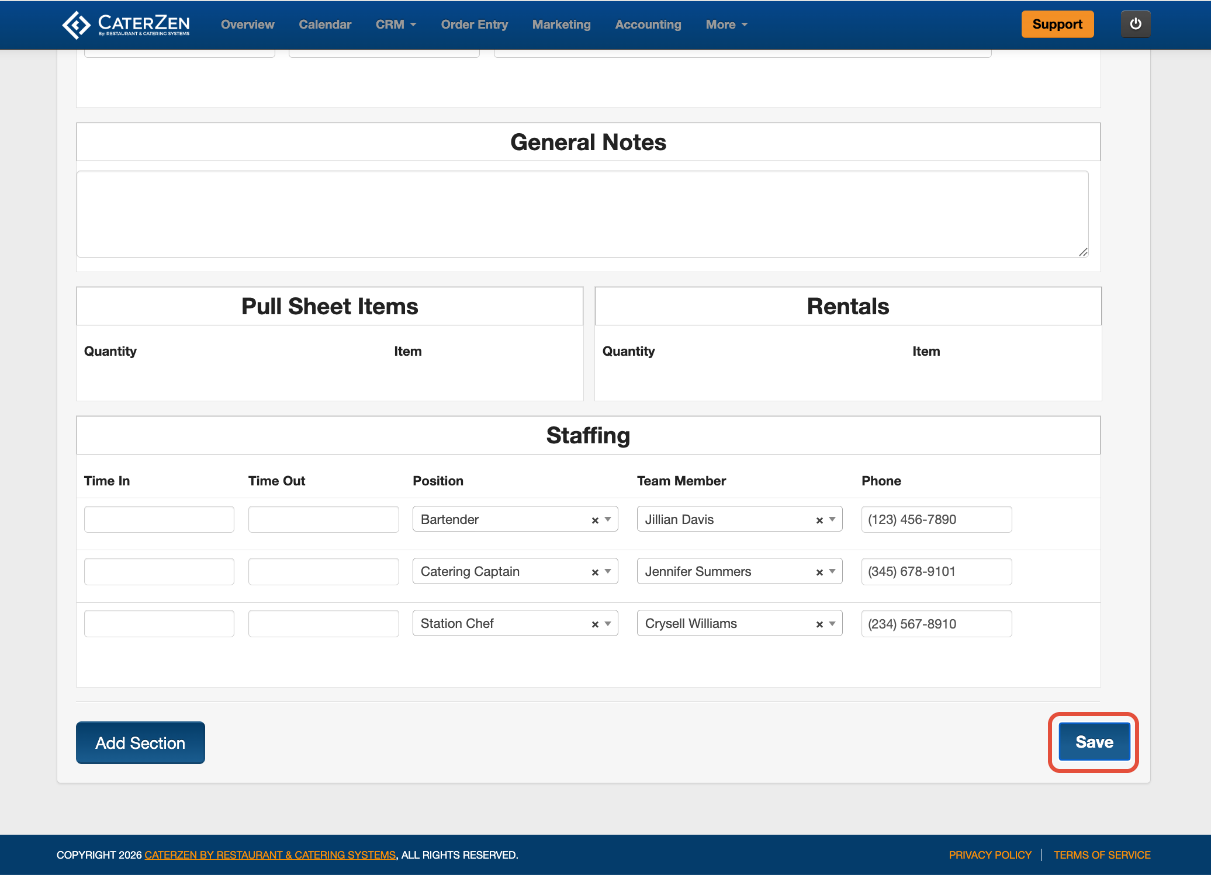
General Notes: Free-form notes for staff instructions or event details.
Pull Sheet Items: Displays items included on pull sheets, based on what was added to the order.
Rentals: Shows rental items that were added to the order and set up as rentals in Menu Manager.
Staffing: Used to assign staff, positions, and working times for the event.
Reordering Sections
You can change the order sections appear on the BEO.
Click and drag a section header
Drop it into the desired position
This allows you to match the BEO layout to how your team works onsite.
Customizing Sections and Fields
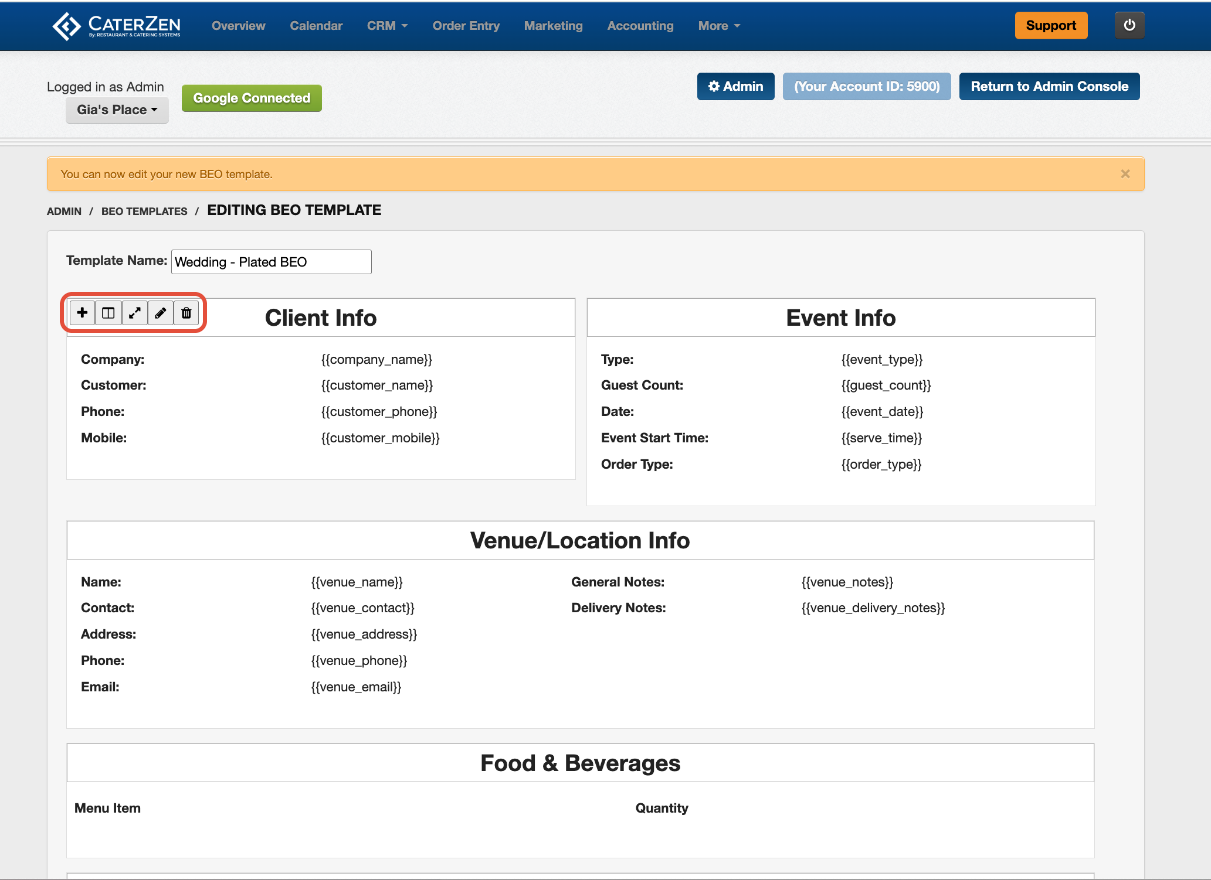
Each section includes tools to control how it displays.
Section Controls
Within a section, you can:
Add new fields
Split content into two columns
Expand fields to full width
Rename the section
Remove the section entirely
Field Editing
Within each section:
Field labels can be renamed
Unneeded fields can be removed
Changes made at the template level apply to all orders that use the template.
Adding Additional Sections
If you need content that is not included by default, you can add new sections.
Click Add Section and choose from:
Extra Section
Use for custom notes, instructions, or internal checklists.
Signature
Adds terms and conditions along with company and customer signature fields.
Pictures
Allows images to be added to the BEO, such as room diagrams or setup photos.
Images can be uploaded or dragged into place and will print on their own page.
Staffing Section Notes
The Staffing section can be pre-filled with positions and roles you commonly use. Employees available for selection are controlled by staffing setup in Admin.
This provides a starting point that can be adjusted per event.
Saving Your Template
Once all edits are complete:
Click Save
Your template is now available to use on orders.
When to Create Multiple Templates
You may want multiple templates if you:
Offer different service styles (drop-off vs full service)
Use different layouts for weddings or corporate events
Need different internal notes for different teams
Templates can be edited or cloned at any time.
Related Articles
Support
If you’re unsure which sections to include or how to structure your templates, Support can help review your setup and make recommendations. Contact our CaterZen Support Team.
Not a CaterZen customer yet? Discover how our catering software can streamline your business — click here to learn more!