
Overview
If a Customer or company qualifies for tax-exempt purchasing, you can save their tax-exempt status in the CaterZen CRM.
Once the company is marked as tax-exempt, new orders created for that company will automatically calculate with 0% sales tax. You can still add tax to an individual order when needed without changing the company’s default tax-exempt status.
You can also record the company’s Tax-Exempt ID Number, add an expiration date, and upload supporting documents to the Customer’s CRM record.
Interactive Guide
Follow the written instructions below, or click through this interactive guide for a visual walkthrough.
Manage a Customer or Company’s Tax-Exempt Status
Mark a Company as Tax-Exempt
Step 1: Open the Customer’s CRM record
Click the CRM tab in the main navigation.
Use the search field to locate the Customer or company.
Click the Customer’s name to open their CRM record.
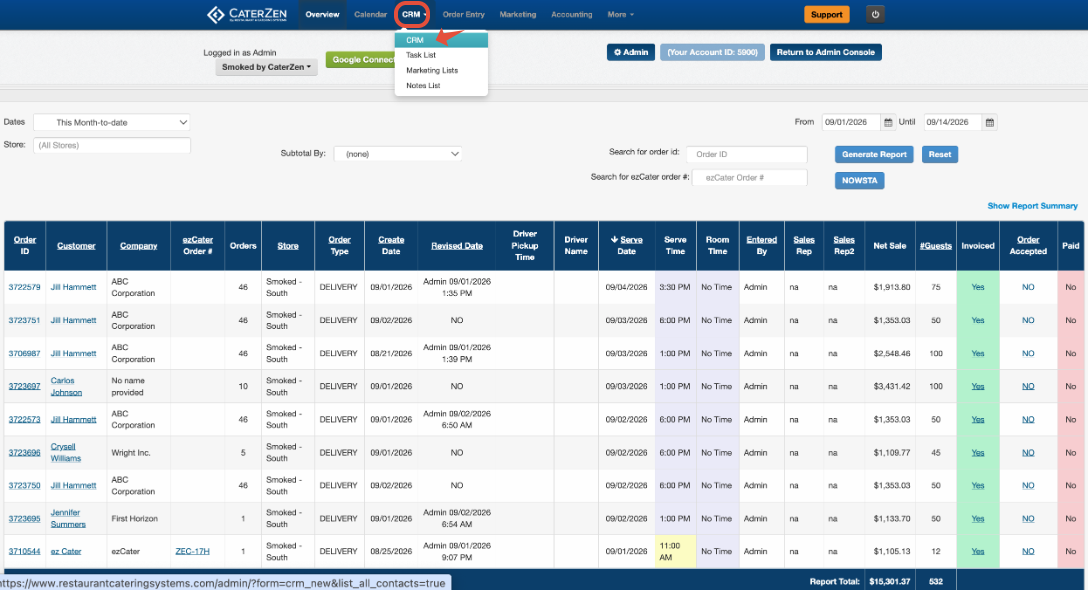
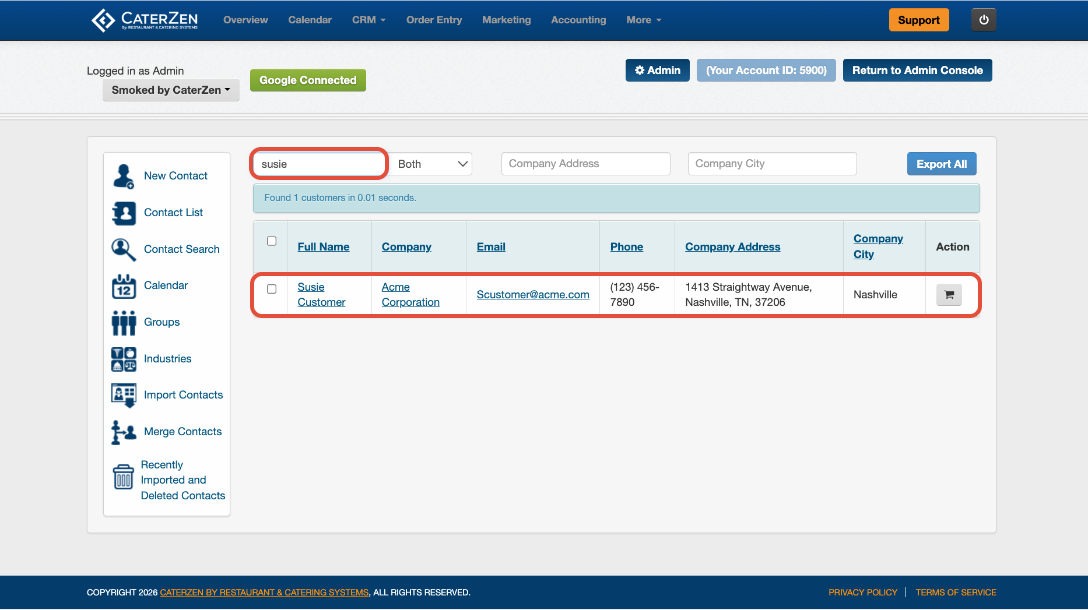
Step 2: Open the Company information
From the Customer’s CRM record, select the Company sub-tab.
Tax-exempt status is saved at the company level. This allows the setting to apply to new orders associated with that company.
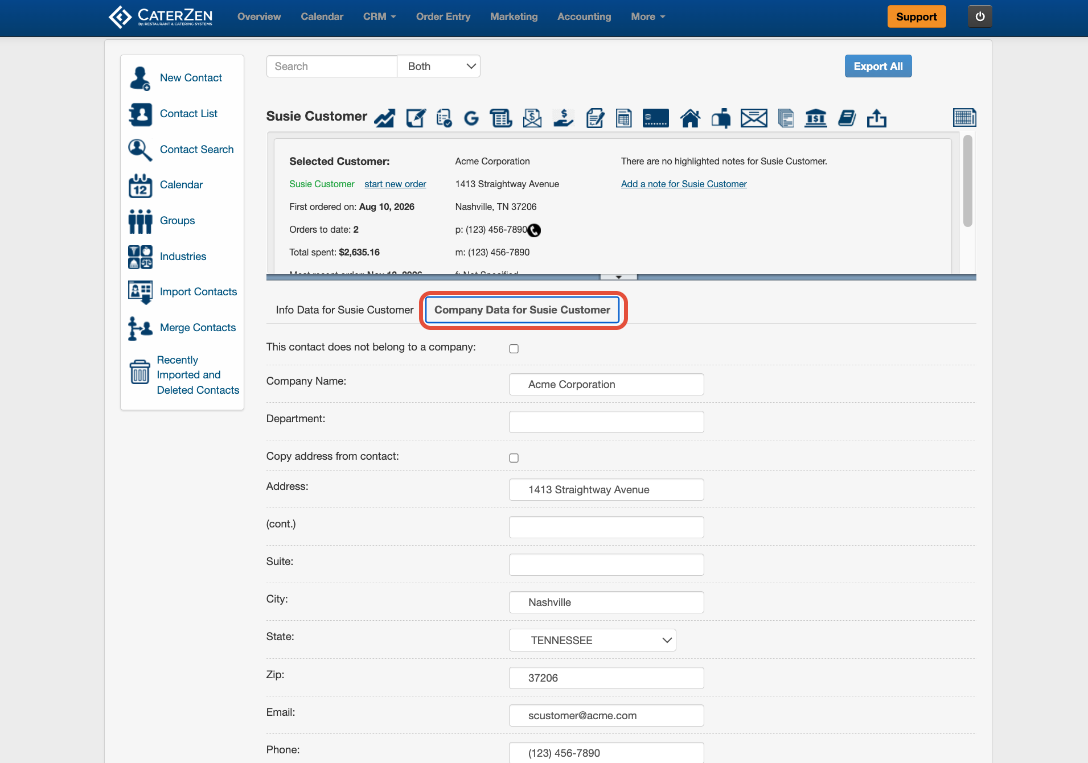
Step 3: Enable Tax Exempt
Locate the Tax Exempt setting and change it from No to Yes.
Step 4: Enter the tax-exempt information
Enter the company’s Tax-Exempt ID Number.
You may also enter an expiration date for your records.
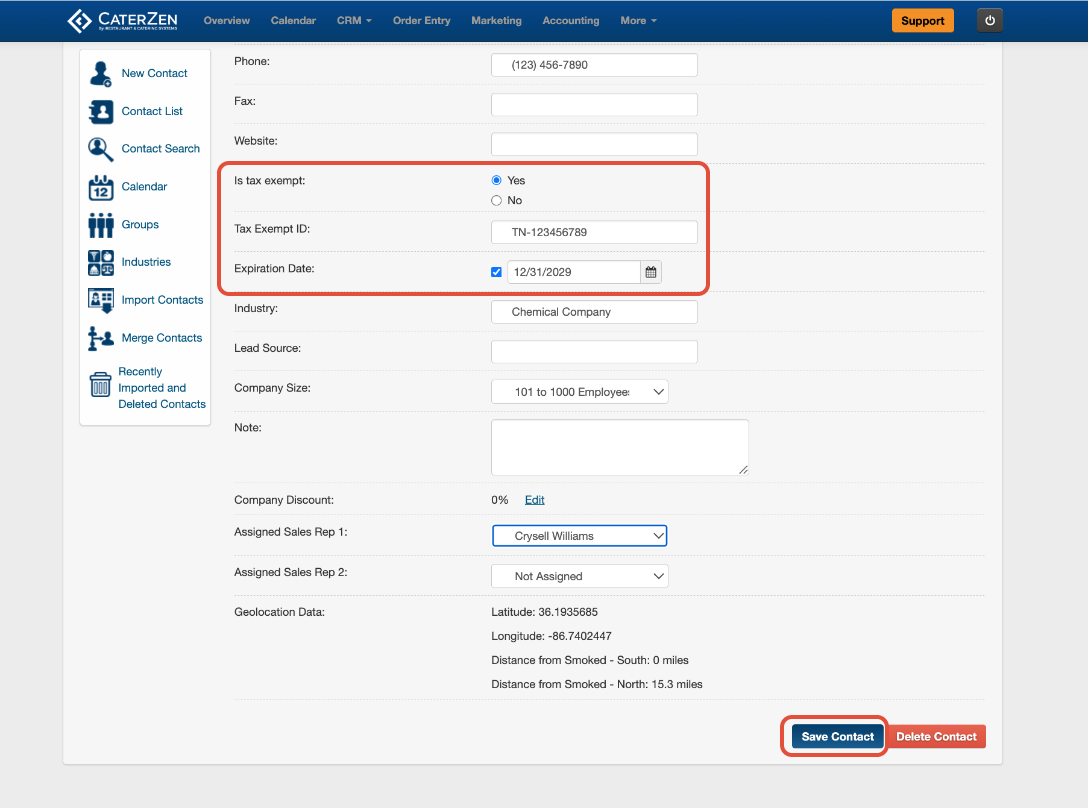
Step 5: Save the changes
Click Save to update the company’s CRM record.
New orders created for the company will now automatically calculate with 0% sales tax.
Upload Tax-Exempt Documentation
You can upload the Customer’s tax-exempt certificate or other supporting documentation to their CRM record. Keeping the documentation with the Customer’s record makes it easier for your team to locate and review when needed.
For complete instructions, see CRM: Upload Documents to a Customer Record.
Apply Sales Tax to an Individual Order
A company may generally be tax-exempt while still having an individual order that should be taxed.
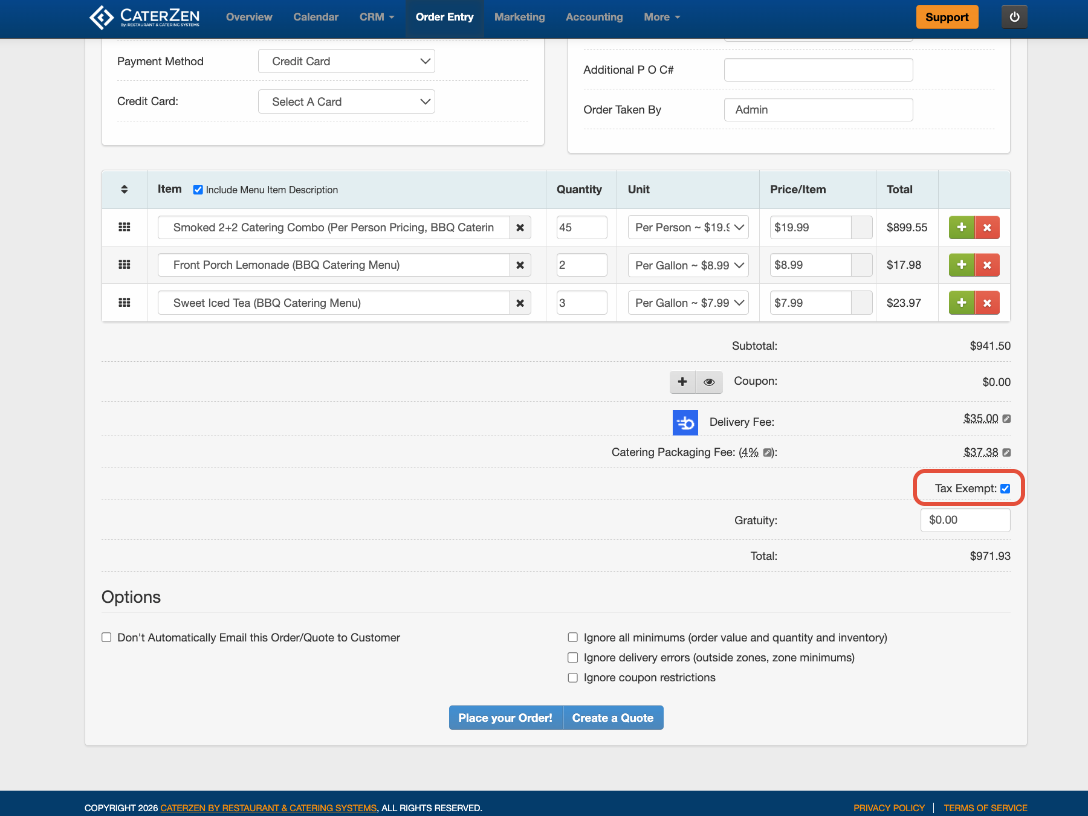
When creating or editing the order, locate the tax-exempt setting in Order Entry and remove the tax-exempt selection for that order. CaterZen will then calculate the applicable sales tax.
Changing the setting on an individual order does not remove the company’s tax-exempt status from the CRM. Future orders will continue to use the tax-exempt status saved for the company.
Update or Remove Tax-Exempt Status
If the company’s tax-exempt information changes or is no longer valid:
Open the Customer’s CRM record.
Select the Company sub-tab.
Update the Tax-Exempt ID Number or expiration date as needed.
To remove the status, change Tax Exempt from Yes to No.
Click Save.
Frequently Asked Questions
Q: Where is tax-exempt status saved?
A: Tax-exempt status is saved under the Company sub-tab of the Customer’s CRM record.
Q: What happens after I mark a company as tax-exempt?
A: New orders created for that company will automatically calculate with 0% sales tax.
Q: Can I apply tax to one order without changing the company’s tax-exempt status?
A: Yes. You can remove the tax-exempt selection from an individual order in Order Entry. This allows CaterZen to calculate tax on that order without changing the company’s default setting in the CRM.
Q: Can I enter the company’s Tax-Exempt ID Number?
A: Yes. CaterZen provides a field for the company’s Tax-Exempt ID Number and an optional expiration date.
Q: Can I save a copy of the Customer’s tax-exempt certificate?
A: Yes. You can upload the certificate or other supporting documentation to the Customer’s CRM record.
Q: Does changing tax-exempt status update existing orders?
A: Tax-exempt status determines how sales tax is calculated when a new order is created. Review any existing orders separately if the company’s tax-exempt status changes.
Support
For additional help, refer to the CaterZen Support Center or contact our CaterZen Support Team.
Not a CaterZen Customer yet? Discover how our catering software can streamline your business — click here to learn more!