
Overview
Important: The Credit Card Requested payment method is available exclusively to CaterZen Customers who process credit card payments through CaterPay. To learn more about CaterPay, please contact the CaterZen Support Team.
The Credit Card Requested payment method allows your team to securely request a Customer’s credit card while creating or updating an order.
When you select Credit Card Requested, CaterZen sends the Customer a secure email with a link to add their card. Once submitted, the card is:
Securely stored in the Customer’s CRM record
Automatically connected to the order that generated the request
Available for your team to process according to your normal CaterPay payment schedule
This eliminates the need to send the request manually from the CRM and then return to the order to select the card after the Customer submits it.
Important: Selecting Credit Card Requested does not immediately charge the Customer’s card or mark the order as paid. Once the Customer submits the card, it is automatically connected to the order and will follow any automatic credit card processing settings configured for your account, including applicable pre-authorization and payment-processing schedules.
Interactive Guide
Follow the written instructions below, or click through this interactive guide for a visual walkthrough.
Request a Credit Card While Creating an Order
Step 1: Create or edit the order
From the Order Entry tab, begin creating a new order or open an existing order that needs a credit card. Complete the Customer, event, menu, and order details as usual.
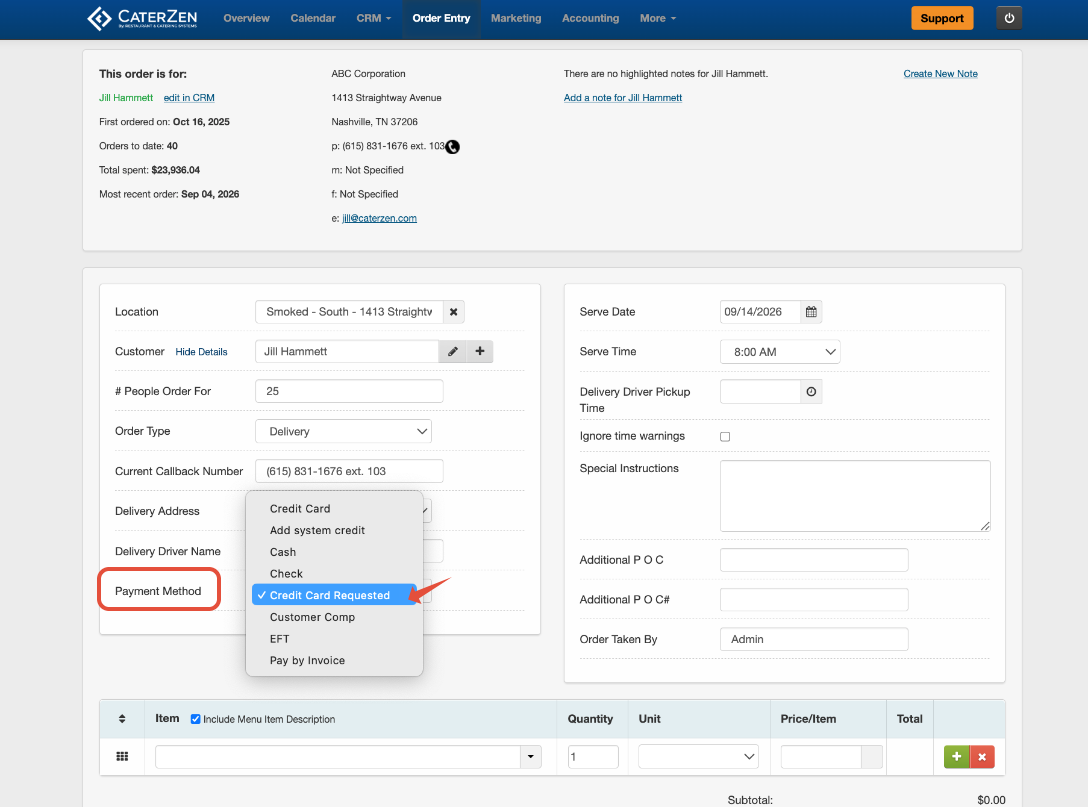
Step 2: Select Credit Card Requested
Locate the Payment Method dropdown and select Credit Card Requested.
This payment method indicates that:
A credit card has been requested from the Customer
A payment has not been collected
The order is waiting for the Customer to submit a card
Step 3: Save the order
Save the order according to your normal Order Entry process.
CaterZen will send the Customer a separate email containing a secure link to add their credit card.
The request is connected to the specific Customer, order, and location from which it was sent.
What the Customer Receives
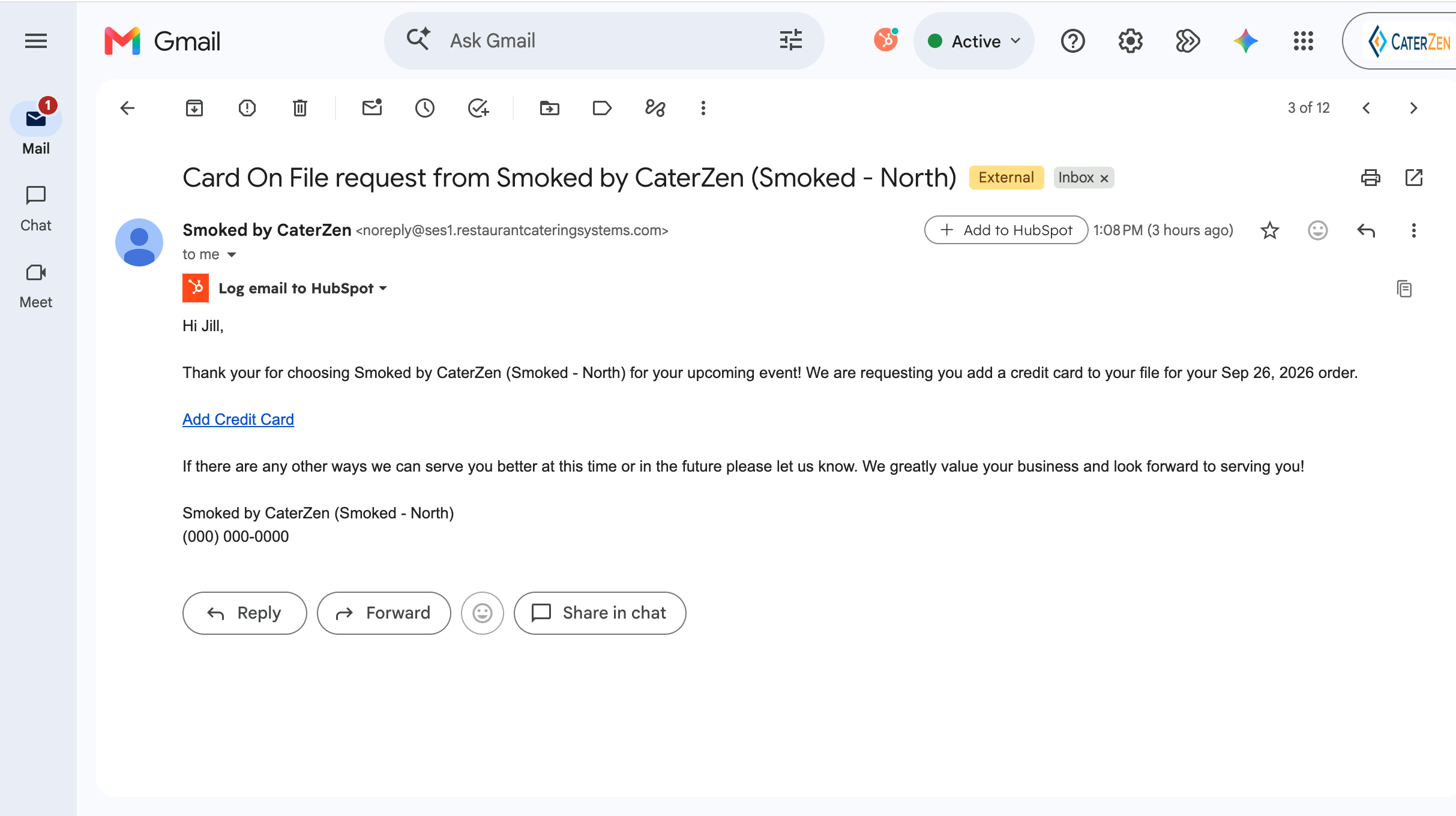
The Customer receives an email containing a secure link to submit their credit card information.
The Customer will:
Open the email.
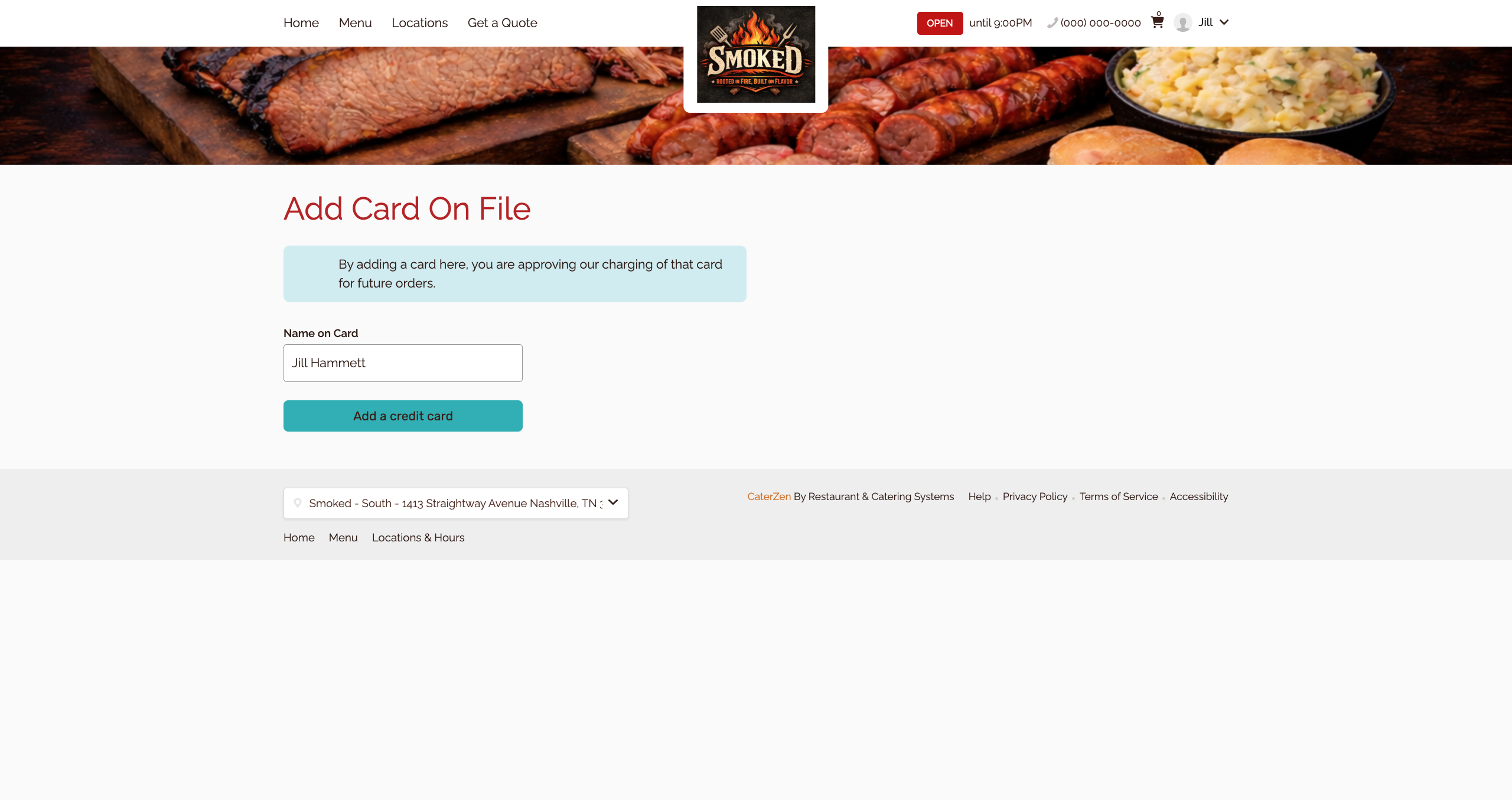
Click the link to add a credit card.
Enter the requested card and billing information.
Submit the card securely.
The Customer is only providing a card for future payment processing. Their card is not charged when they complete the request.
What Happens After the Customer Adds the Card
Once the Customer successfully submits the card:
The card is securely saved to the Customer’s CRM record.
The card is automatically connected to the order that generated the request.
The order’s payment method updates to show the saved card and its last four digits.
The activity is recorded in the Ticket Audit Log.
The appropriate team members receive a notification that the card was added.
You do not need to reopen the order and manually select the newly stored card.
The order is now ready for the card to be processed through your normal CaterPay payment workflow.
Important: The order is not considered paid until the card is processed and the payment is successfully collected.
Resend a Credit Card Request
If the Customer did not receive the original email or has not yet submitted a card, you can resend the request from the order.
Step 1: Open the order
Locate and open the order connected to the original request.
Step 2: Open Order Functions
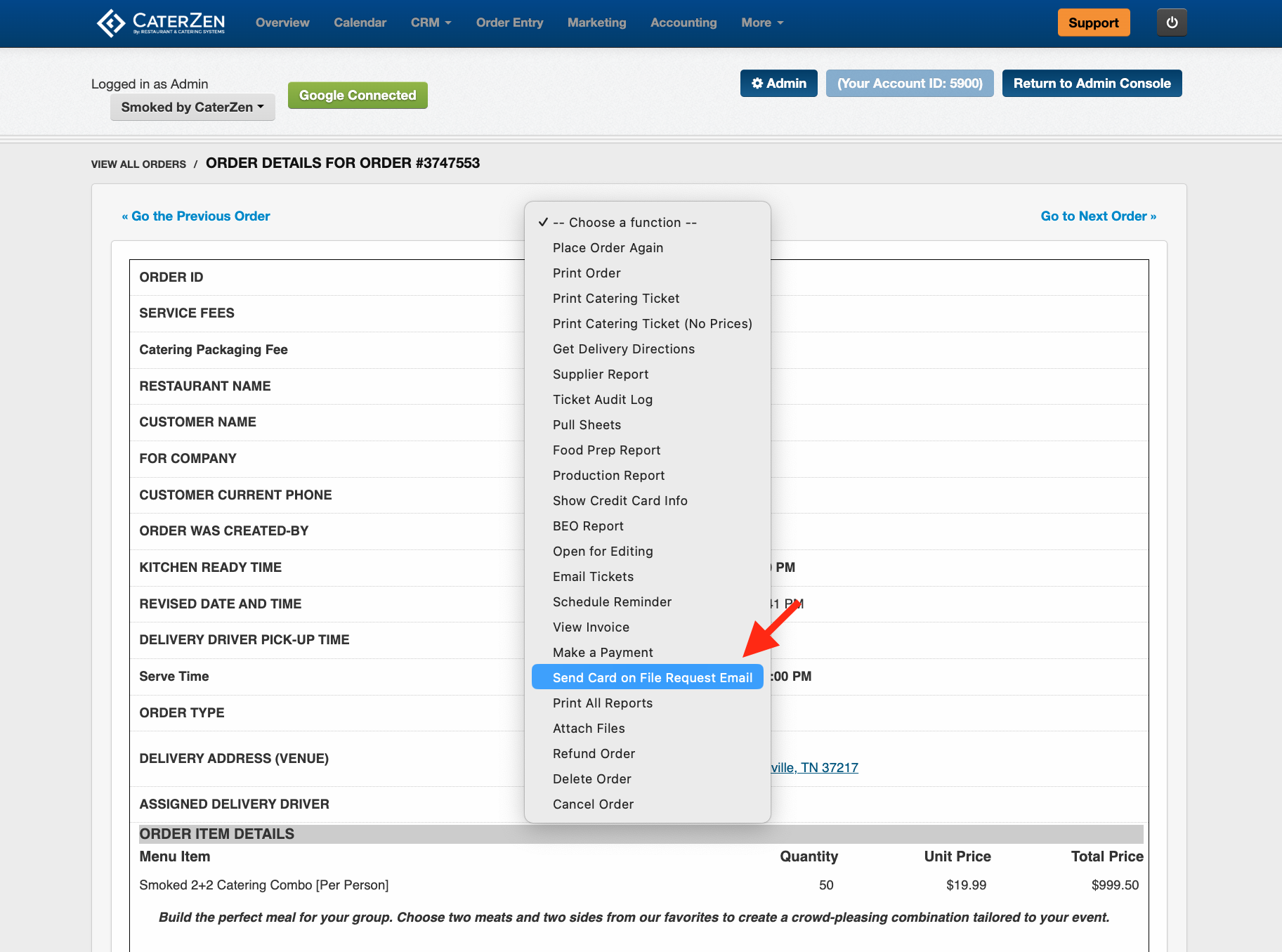
Click the Order Functions dropdown.
Step 3: Resend the request
Select Send Card on File Request Email.
CaterZen will send the Customer another email containing the secure card-entry link. Before resending the request, confirm that the Customer’s email address is correct.
Daily Email Report for Outstanding Card Requests
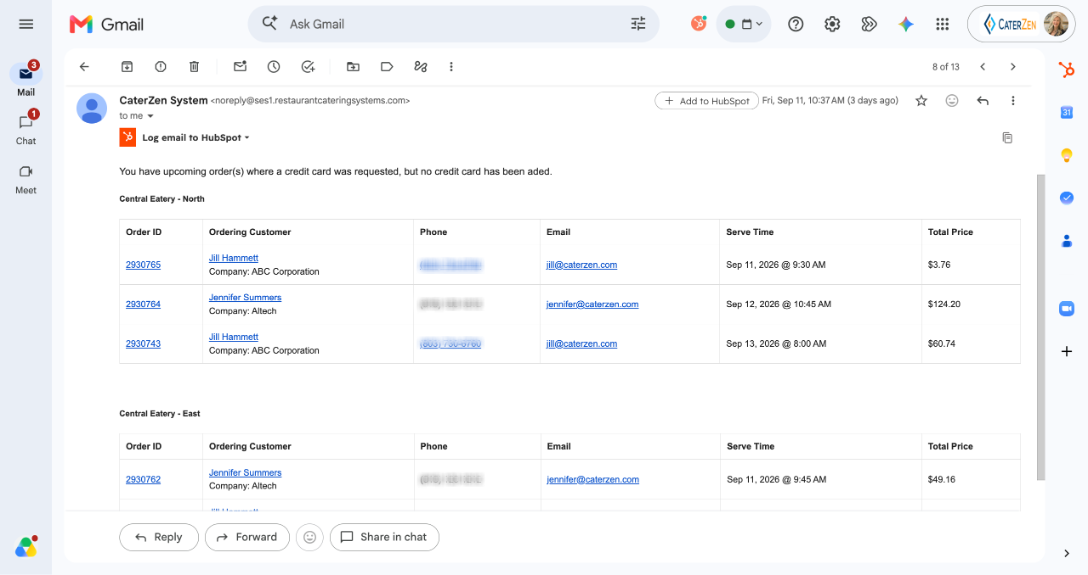
CaterZen sends a daily email report listing upcoming orders that still have Credit Card Requested selected but do not yet have a card on file. The report includes qualifying orders scheduled within the next two days, giving your team time to follow up with Customers before their events.
The report follows the same location-specific recipient settings used for your other credit card notifications. Each recipient will receive information for the locations they are configured to receive. When a Customer submits a card and it is automatically connected to the order, that order will no longer appear as waiting for a card on the report.
Credit Card Requested Versus a Processed Payment
Credit Card Requested means the Customer has been asked to provide a card. It does not mean that a payment has been collected.
The order will move through the following stages:
Credit Card Requested: The secure request has been sent, but the Customer has not submitted a card.
Card on File: The Customer has submitted the card, and it has been connected to the order.
Payment Processed: Your team has processed the card, and the payment was successfully collected.
CaterZen will continue to follow your configured credit card processing settings. Use your standard payment notifications and reports to monitor successful payments, declines, and any orders requiring attention.
Frequently Asked Questions
Q: Is Credit Card Requested available to every CaterZen Customer?
A: No. The Credit Card Requested payment method is available only to CaterZen Customers who process credit card payments through CaterPay.
Q: Does selecting Credit Card Requested charge the Customer?
A: No. Selecting Credit Card Requested only sends the Customer a secure request to add a card. The card is not charged until your team processes the payment.
Q: Where is the submitted card stored?
A: The card is securely stored with the payment provider and appears as a saved card in the Customer’s CRM record. CaterZen does not display or store the Customer’s full credit card number.
Q: Will the card automatically be connected to the order?
A: Yes. When the request originates from an order using Credit Card Requested, the submitted card is automatically connected to that specific order.
Q: Do I need to reopen the order and select the card?
A: No. CaterZen automatically connects the newly submitted card to the order that generated the request.
Q: What if the Customer does not receive the email?
A: First, confirm the email address saved for the Customer. You can then open the order and select Send Card on File Request Email from the Order Functions dropdown.
You may also ask the Customer to check their spam or junk folder.
Q: What if I want to request a card without connecting it to an order?
A: You can send a general Card on File Request Email from the Customer’s CRM record. Cards submitted through a general CRM request are stored in the CRM but are not automatically connected to a specific order. See Request and Manage a Customer’s Stored Credit Cards for instructions.
Q: Is the order paid after the Customer submits the card?
A: No. Submitting the card only makes it available as the order’s payment method. The card must still be processed successfully before the order is considered paid.
Support
For additional help, refer to the CaterZen Support Center or contact our CaterZen Support Team.
Not a CaterZen Customer yet? Discover how our catering software can streamline your business — click here to learn more!