
Overview
Use these steps when a Burq order has already been completed and you need to adjust the invoice and issue a refund to the Customer.
Because the order was submitted through Burq, certain charges, including the original Burq delivery fee and driver tip, cannot be edited directly on the order. Instead, you will add negative line items to clearly document each part of the refund, adjust the invoice balance, and then return the appropriate amount to the Customer’s original payment method.
This process only handles the Customer’s refund within CaterZen. If Burq or the Delivery Service Provider is reimbursing you for any portion of the order, you must work with that provider separately. A refund completed in CaterZen for your Customer does not automatically request or process a reimbursement from Burq.
Follow the written instructions below or use the interactive walkthrough:
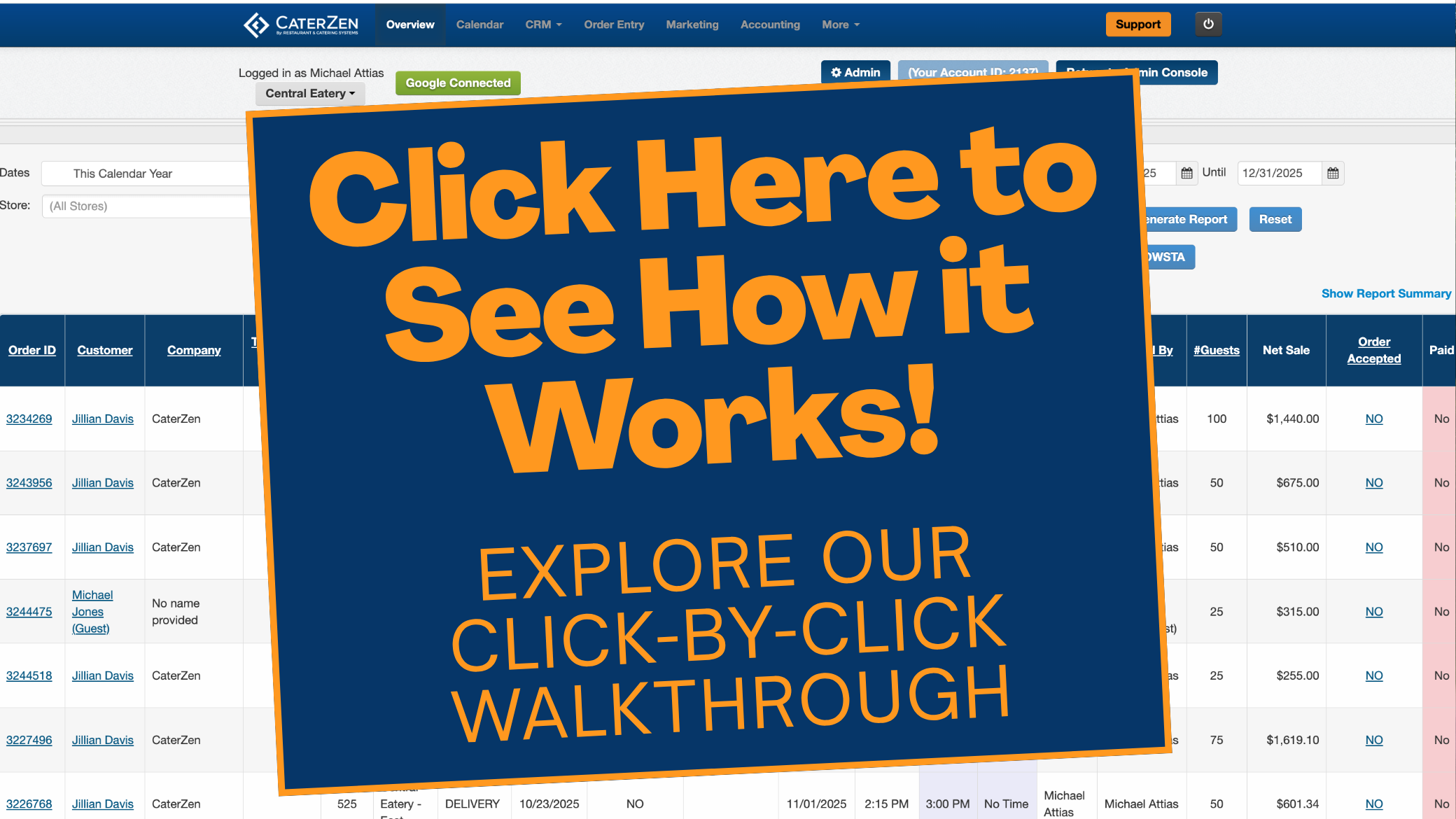
Locate the Burq order
- Click the Order ID to open the order you wish to issue a refund on.
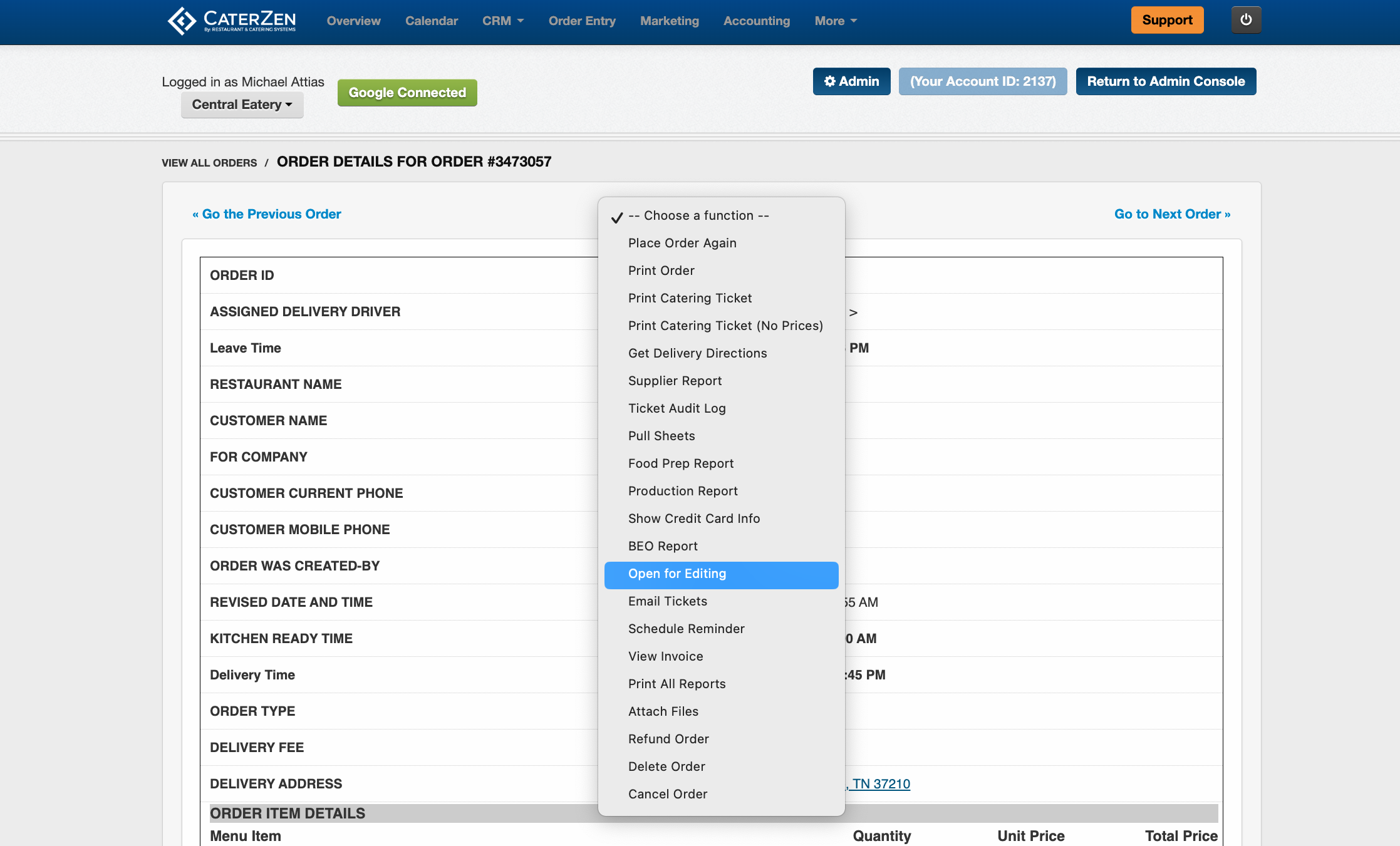
- From the Choose a Function menu, select Open for Editing.
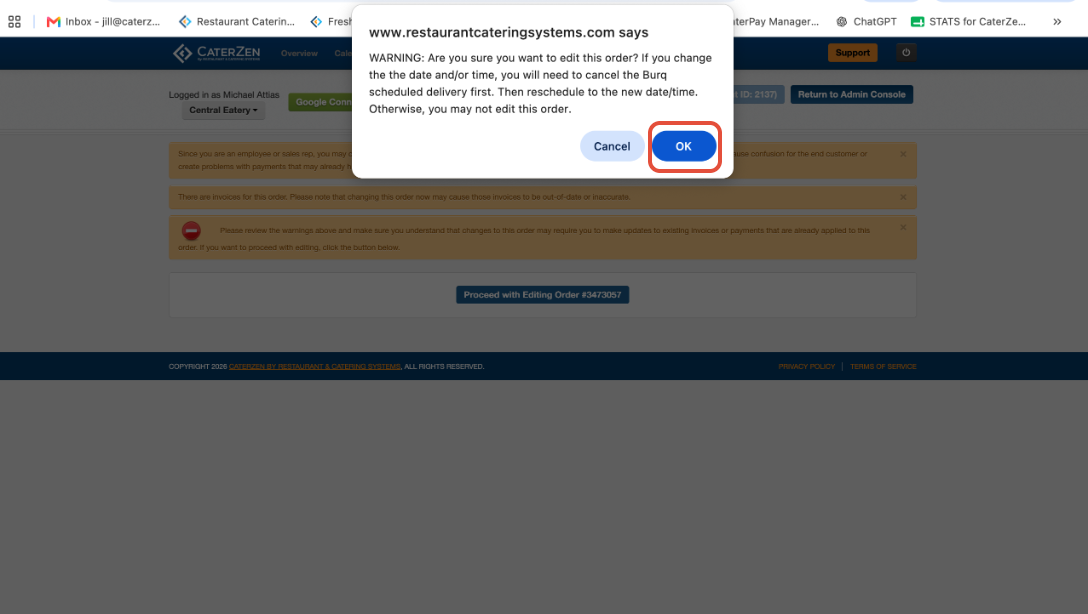
- Click Proceed with Editing Order.
- Because this is a Burq order, you will see an additional warning. Click OK to continue.
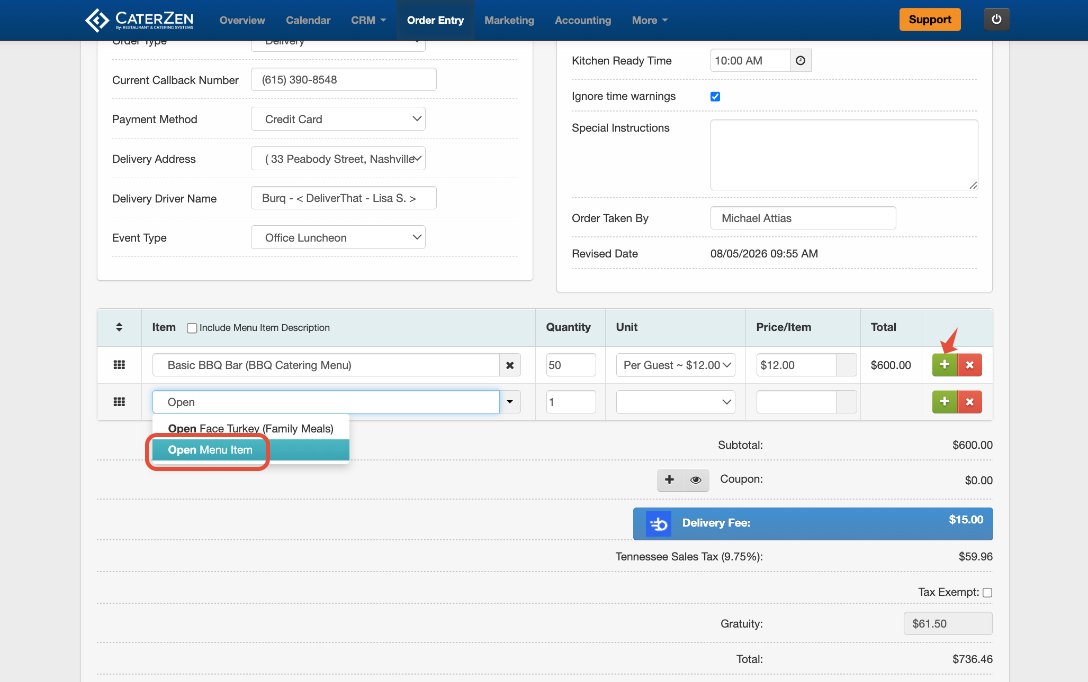
Add a New Line Item to refund
- Click the Plus Sign to add a new line item.
- Search for and select Open Menu Item.
- Under Item Name, enter a clear description of what is being refunded, such as “Burq Delivery Fee Refund” or “Driver Tip Refund.”
- Choose whether the refund should reduce the sales tax originally charged:
- Select Yes under Taxable if the Customer should also receive a refund for the tax associated with this amount.
- Select No if you are refunding only the entered amount and do not want the order’s sales tax adjusted.
- Enter the refund amount as a negative number. For example, enter -$15.00 to refund $15.00.
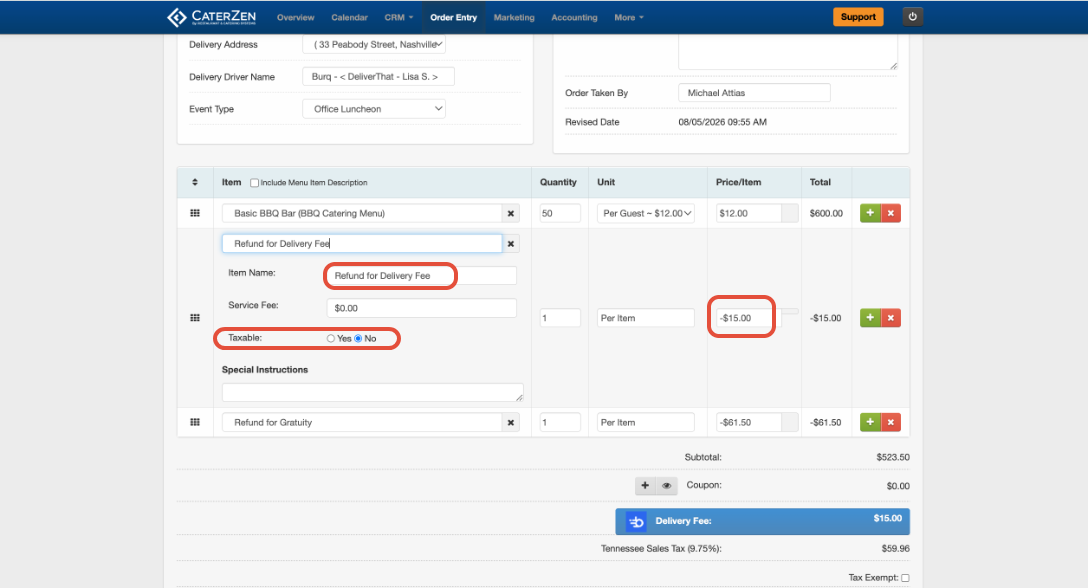
Repeat these steps to add a separate negative line item for each part of the refund. Using separate line items creates a clear, itemized record on the Customer’s invoice, particularly when refunding charges such as the Burq delivery fee or driver tip that cannot be changed directly.
Refunding an Original Menu Item
If you are refunding a menu item that was originally included on the order, you have two options:
- Remove the original item: Click the red X beside the menu item. If the item was taxable, the applicable sales tax will automatically be adjusted.
- Add a negative line item: Leave the original item on the order and add a separate negative line item to clearly document the refund on the Customer’s invoice.
Once all refund adjustments have been entered, save the changes to the order.
Adjust the Invoice
- Select the green box Adjust the Total Due on This Invoice and Adjust Payments.
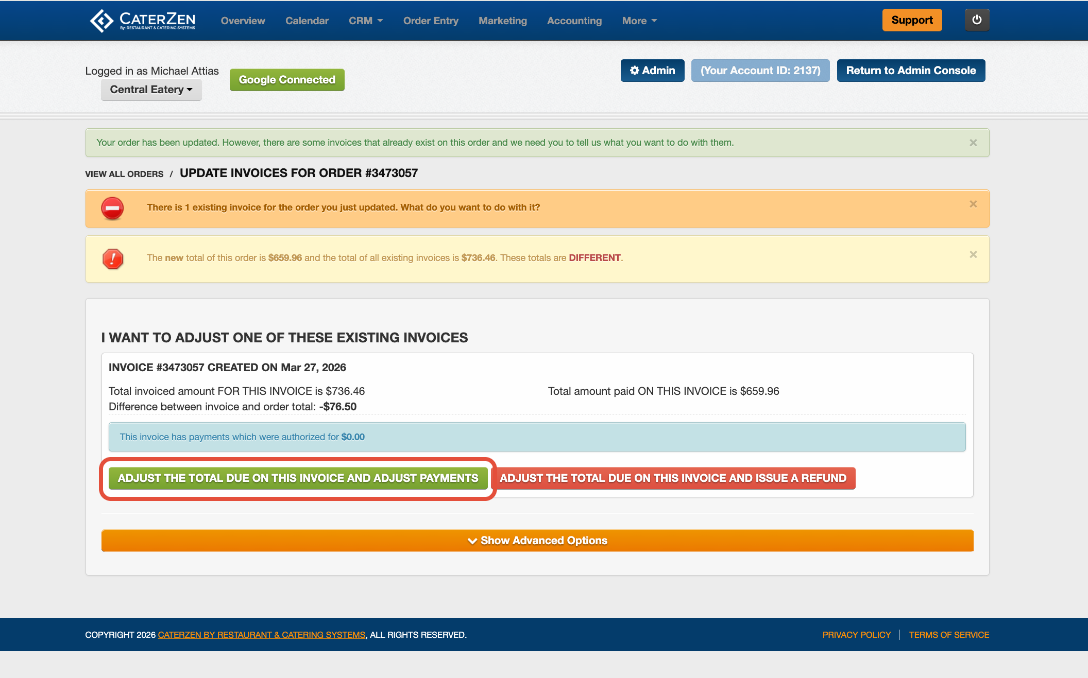
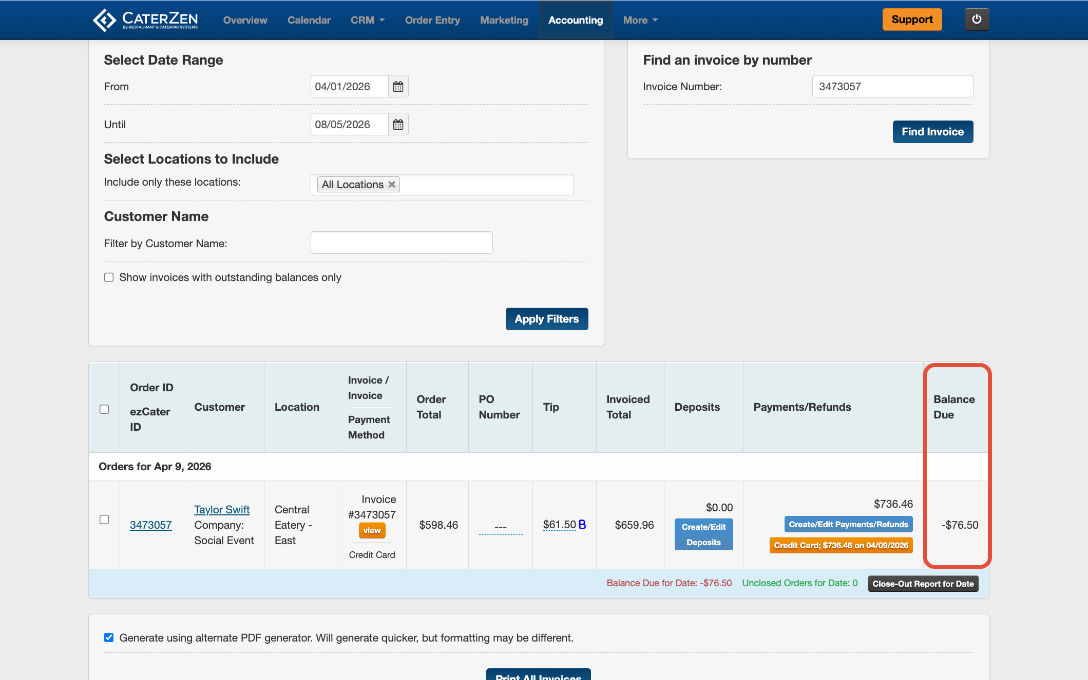
- The amount owed back to the Customer will appear as a negative balance due, indicating an overpayment.
- Verify that the negative balance matches the exact amount you intend to refund.
Issue the Refund
- Click Create/Edit a New Payment/Refunds.
- Click Create a New Refund.
- Enter the exact amount being returned to the Customer. This amount should match the negative balance due.
- Select the Customer’s original payment method. If the original payment was made by credit card, select Credit Card.
- Confirm the date you want recorded for the refund.
- Add a note explaining the reason for the refund, if needed.
- Click Save This Refund.
- Confirm that the refund appears with the Customer’s original payment.
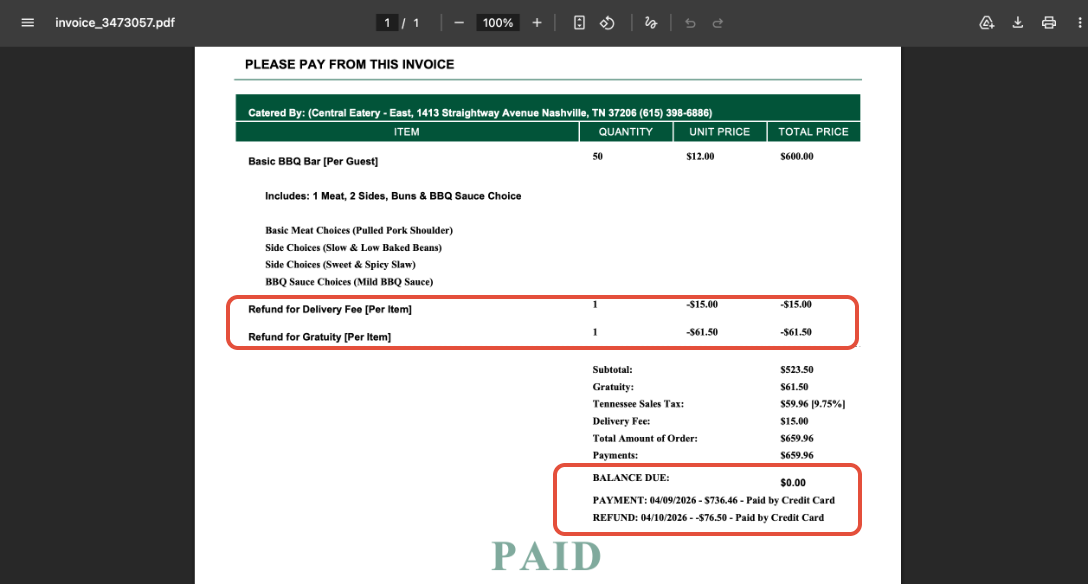
Return to the Invoices tab and verify that both the original payment and the refund are listed on the order. The Balance Due should now be $0.00.
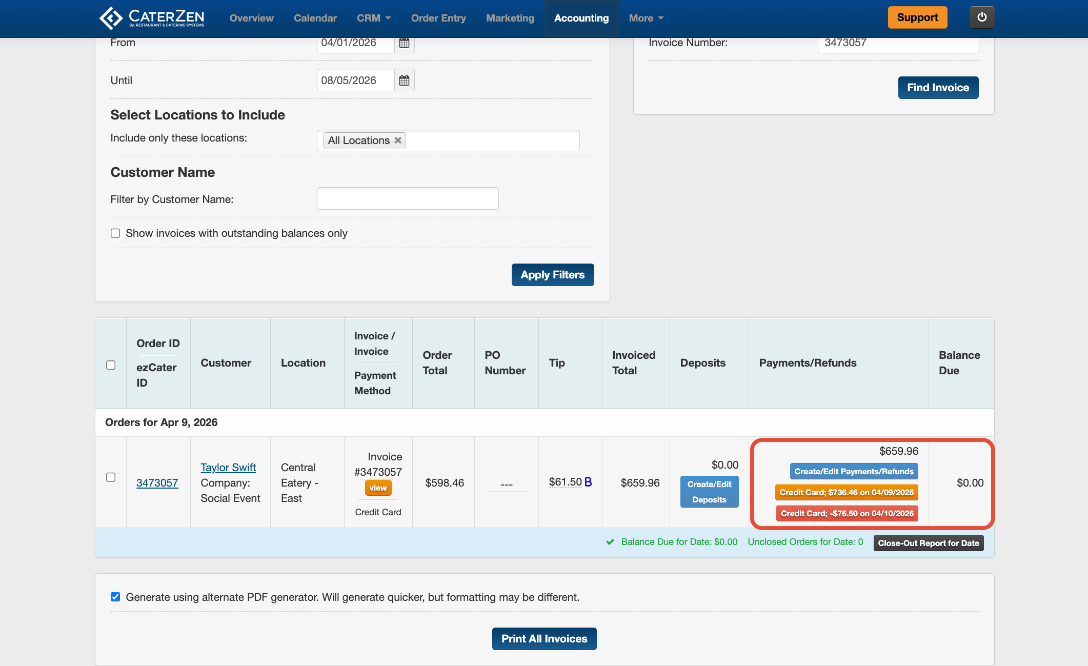
The updated Customer invoice will show:
- Each negative refund line item
- The Customer’s original payment
- The refund issued
- A remaining balance of $0.00
Refund Complete!
Your Customer’s invoice has been adjusted, the refund has been returned to the original payment method, and the balance is now $0.00.
Important: This process handles the Customer’s refund within CaterZen. You must still work directly with Burq or your Delivery Service Provider for any funds they are reimbursing to your business.
Support
For additional help, refer to the CaterZen Support Center or contact our CaterZen Support Team.
Not a CaterZen customer yet? Discover how our catering software can streamline your business — click here to learn more!