
Overview
Catering labels help your team organize prep, packing, and production by clearly identifying items for each order.
Labels can be used for box lunches, packaged meals, prep items, sides, sauces, dressings, modifiers, toppings, extras, and formula-based production items.
Please note: Catering labels require a separate CaterZen-compatible label printer. This is different from the receipt printer used to print sales receipts. Before creating labels, you will need to purchase and connect a supported Star Micronics label printer.
Purchasing a CaterZen-Compatible Label Printer
Before you can create and print catering labels, you will need a CaterZen-compatible Star Micronics label printer. Customers can order supported receipt and label printers through POSGuys.
You can order directly here:
https://posguys.com/caterzen.asp
You can also contact POSGuys directly for help ordering the correct printer and label supplies:
David Villalta
POSGuys.com - Sales Representative
Toll Free: (800) 903-6571, Ext. 149
Fax: (360) 738-3530
Email: dvillalta@posguys.com
Website: www.POSGuys.com
When ordering, let POSGuys know you are purchasing the printer for use with CaterZen so they can help make sure you receive the correct printer and supplies.
Setting Up Your Label Printer
Before you can print labels, your label printer must be connected to CaterZen.
If you have not connected your printer yet, please follow the steps in the Connecting and Setting Up Your CaterZen Receipt or Label Printer article first. Once your printer is connected and set up as a label printer, you can create your label layout and begin printing labels.
Create a New Label Layout
Click the Admin tab
Under Global Settings, click the Star Printers icon
Click Layouts
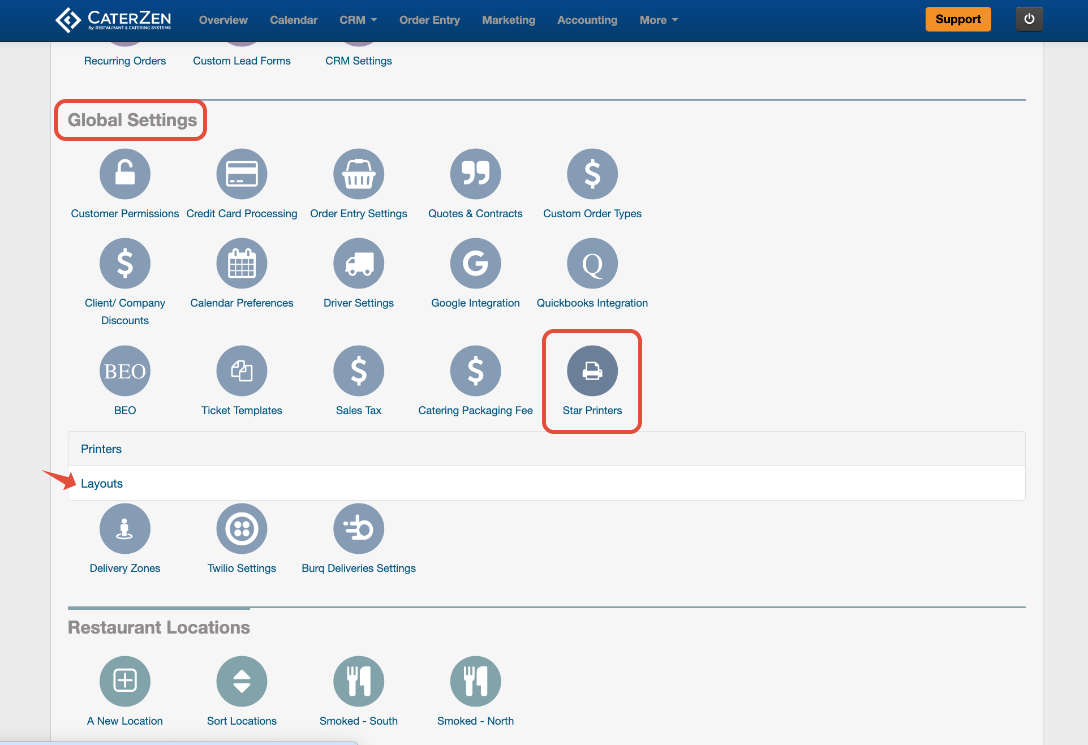
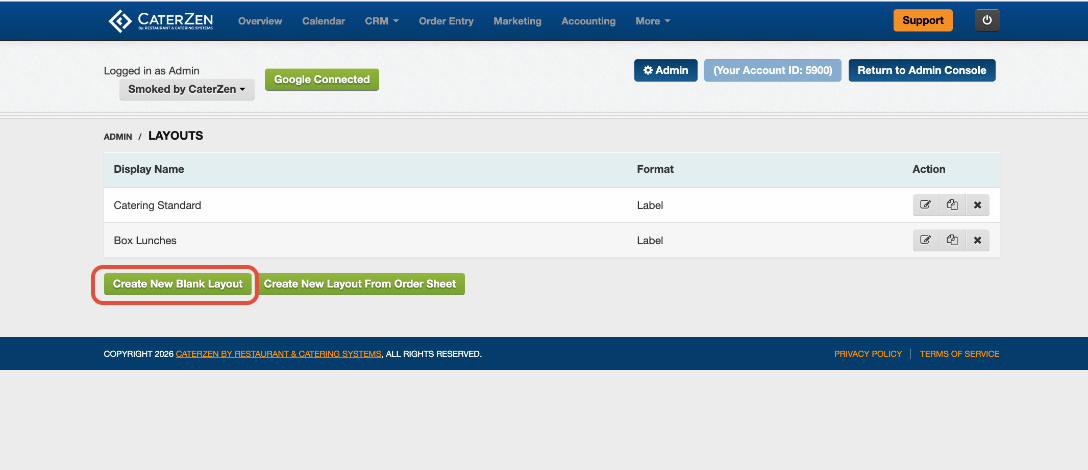
Any existing layouts will appear
Click Create New Blank Layout
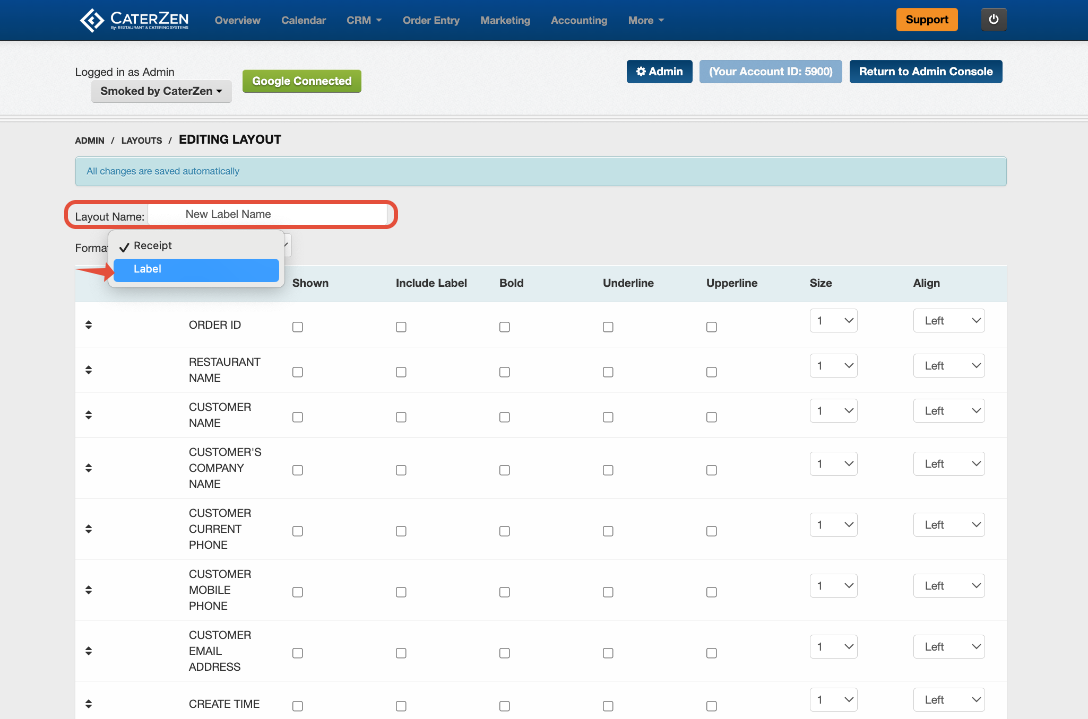
Enter a name for the label in the Layout Name field
Examples: Box Lunch Labels, Prep Item Labels, Kitchen Labels, etc
In the Format dropdown, choose Label
Choose What Prints on the Label
The label layout screen allows you to choose which fields will appear on the printed label.
For each field, you can update the following settings:
Shown: Check this box if you want the field to appear on the label.
Include Label: Check this box if you want the field name to print with the field. *Note if you check this box off then you do not have option to choose the Alignment.
Bold: Check this box if you want the field to print in bold.
Underline: Check this box if you want the field to be underlined.
Upperline: Check this box if you want a line to appear above the field.
Size: Choose between 1, 2 or 3 font size for the field.
Align: Choose whether the field should align left, right, or center.
You can also move fields into a different order by dragging them.
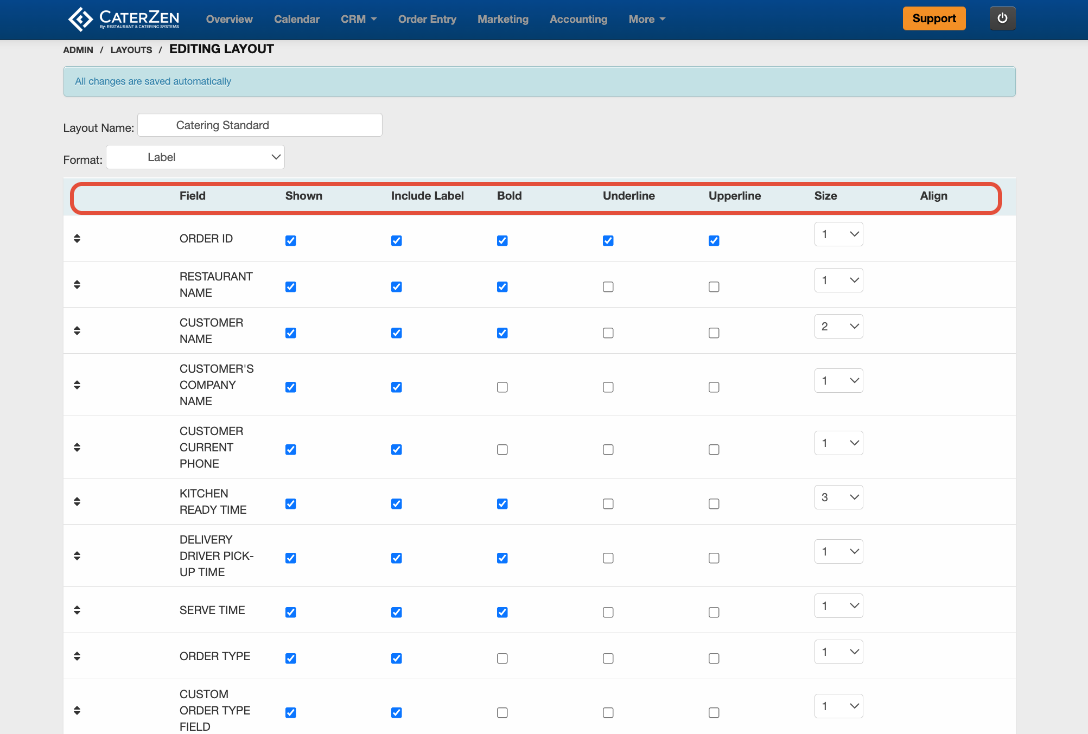
Once you have selected and formatted the fields you want on the label, you can navigate back and your changes are saved.
After the label layout is created, you can edit, clone, or delete it later if needed.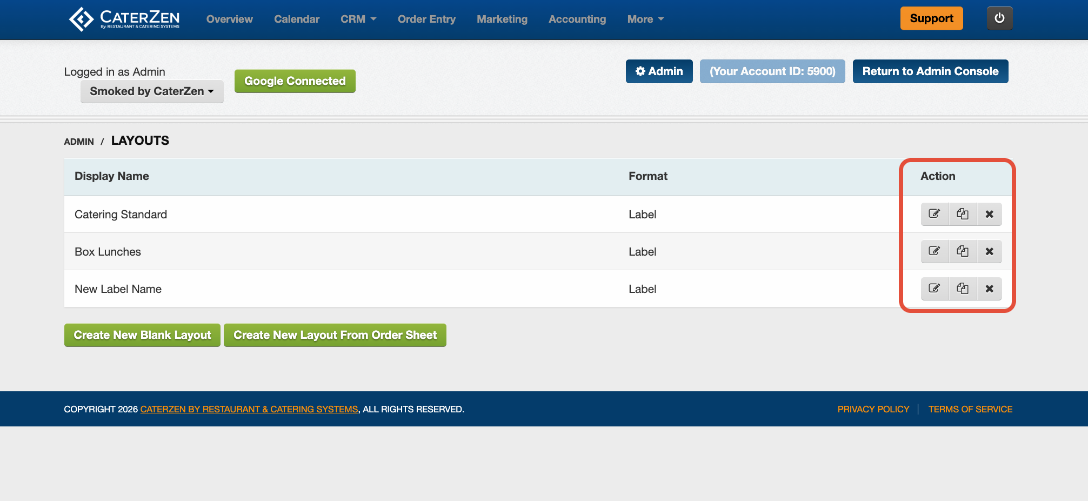
How to Print Catering Labels
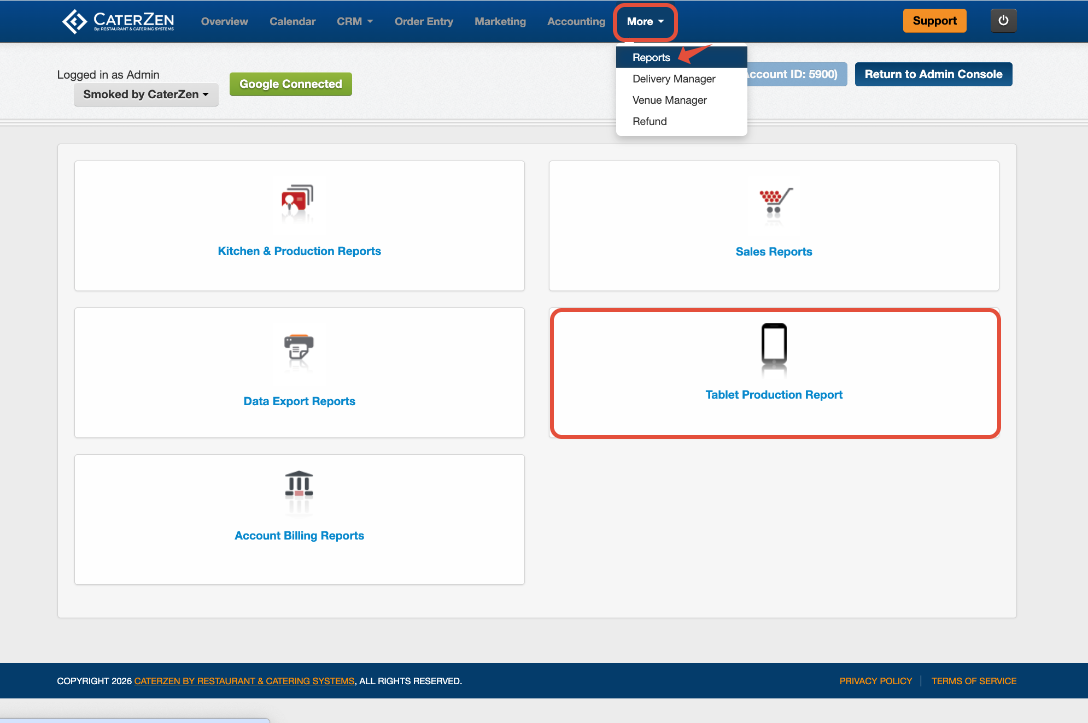
Click the More tab
Click Reports
Click the Tablet Production Report tab
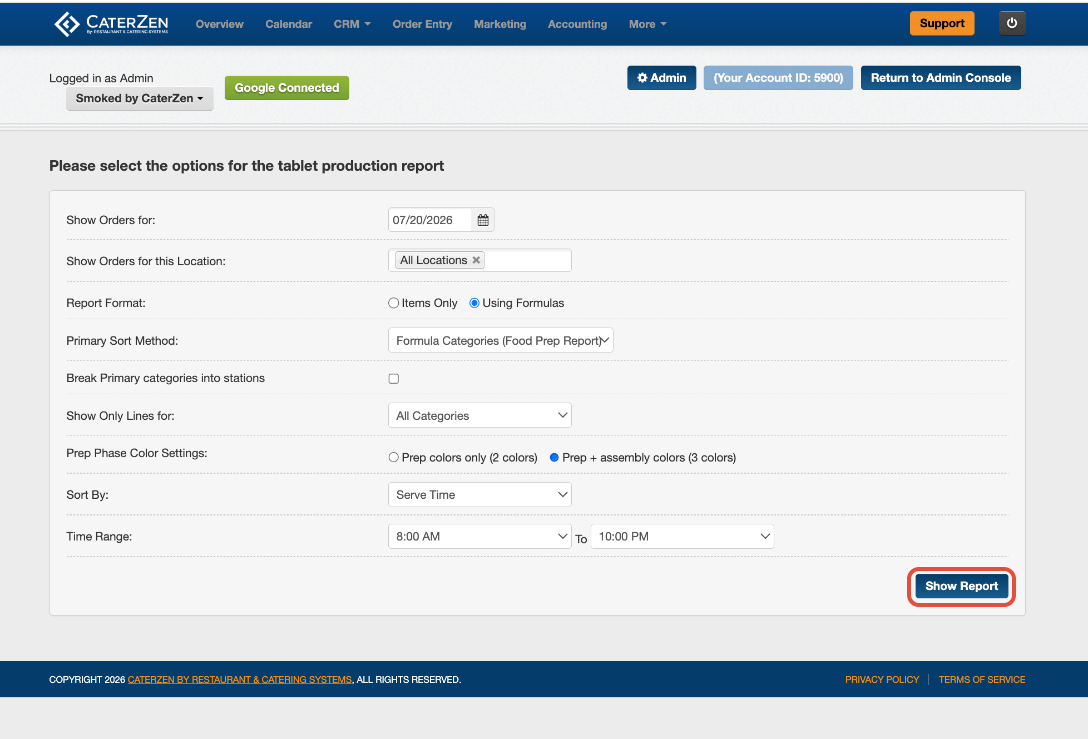
- Choose the date you want to print labels for under Show Orders for
- Choose the location you want to view under Show Orders for this Location
- If you have more than one location, you can select a specific location or choose All Locations.
- Under Report Format, choose how you want the report to display
- Items Only: Use this if you want to print labels based on the items ordered
- Using Formulas: Use this if you want to print labels based on your production formulas
- Click Show Report
Your orders for the selected date and filters will appear
- Click the order you want to print labels for
- A Label button will appear beside items that can be printed as labels.
- Click Label next to the item, formula, modifier, topping, extra, or option choice you want to print.
Label Printing Options
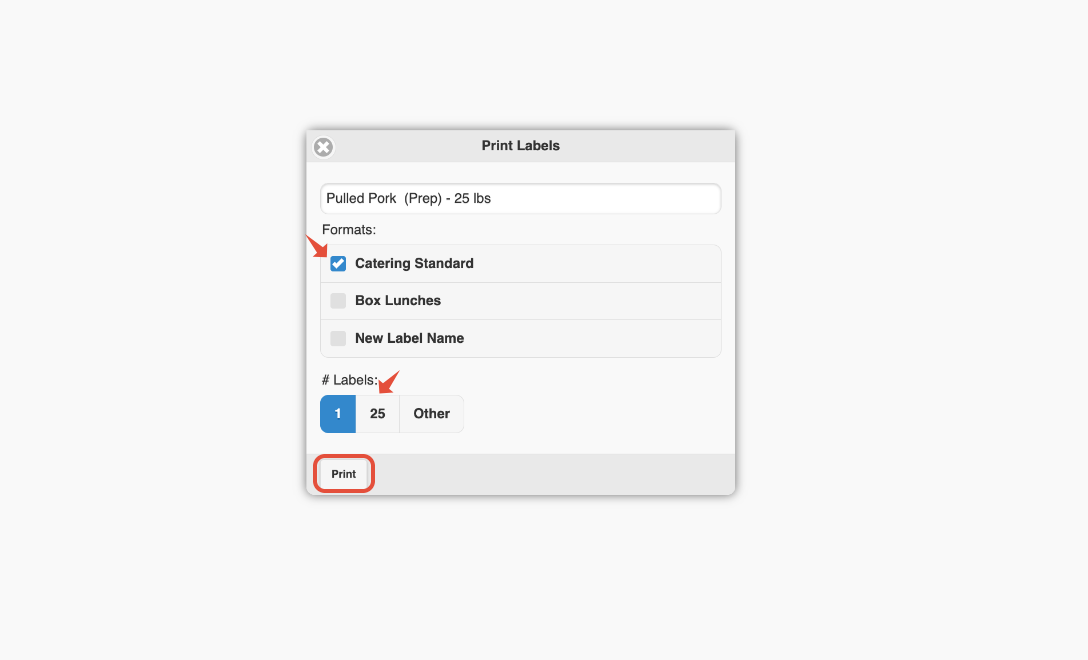
After clicking Label, a label printing window will appear.
From this window, you can:
Edit the item name before printing
Select the label format you want to use
Choose whether to include modifiers (if printing "Items Only")
Select which modifiers should print (if printing "Items Only")
Choose the number of labels to print
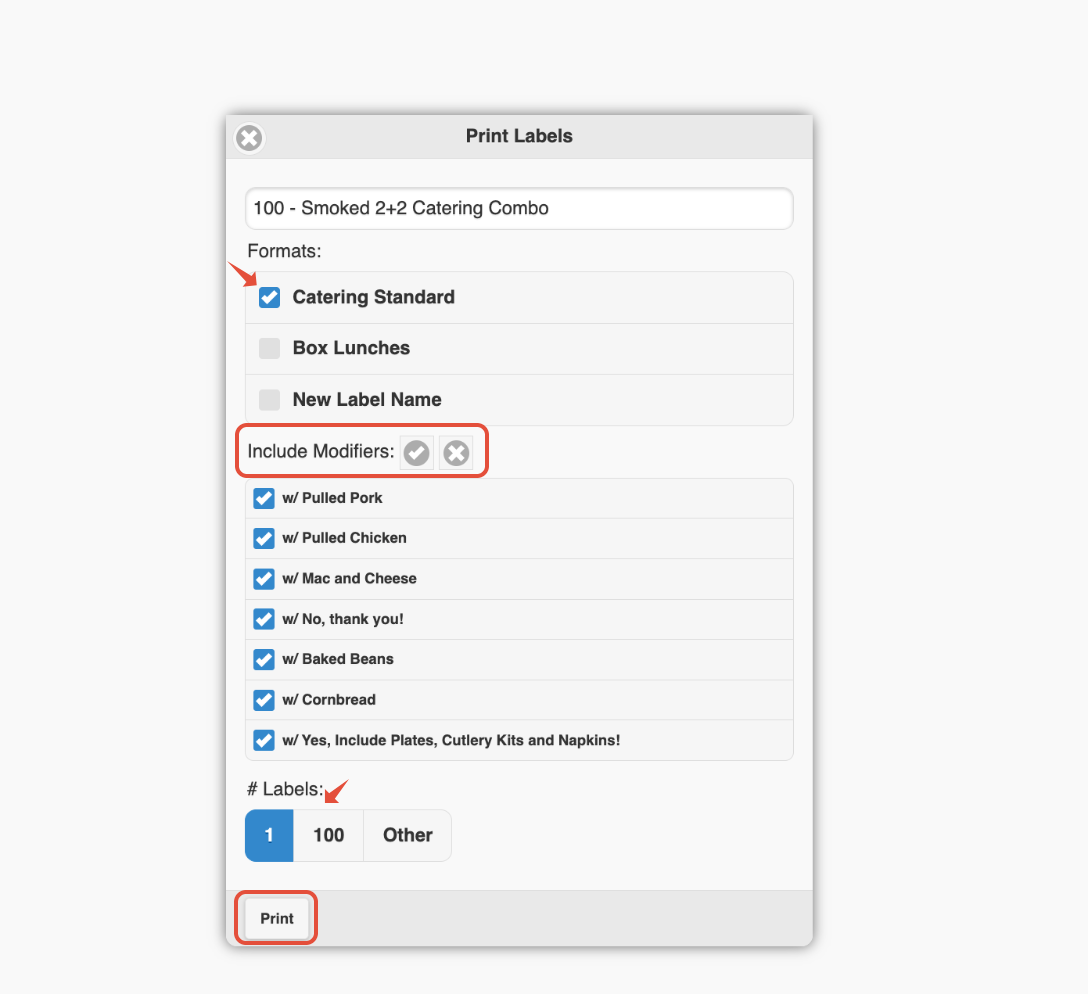
The label quantity will default based on the quantity ordered. You can keep the default quantity, print one label, or enter a custom quantity.
When you are ready, click Print.
Printing Modifier Labels
If you only want to print a label for a modifier, topping, extra, or option choice, click the Label button beside that specific modifier.
This is helpful when you need separate labels for individual sides, sauces, dressings, toppings, proteins, or other prep items.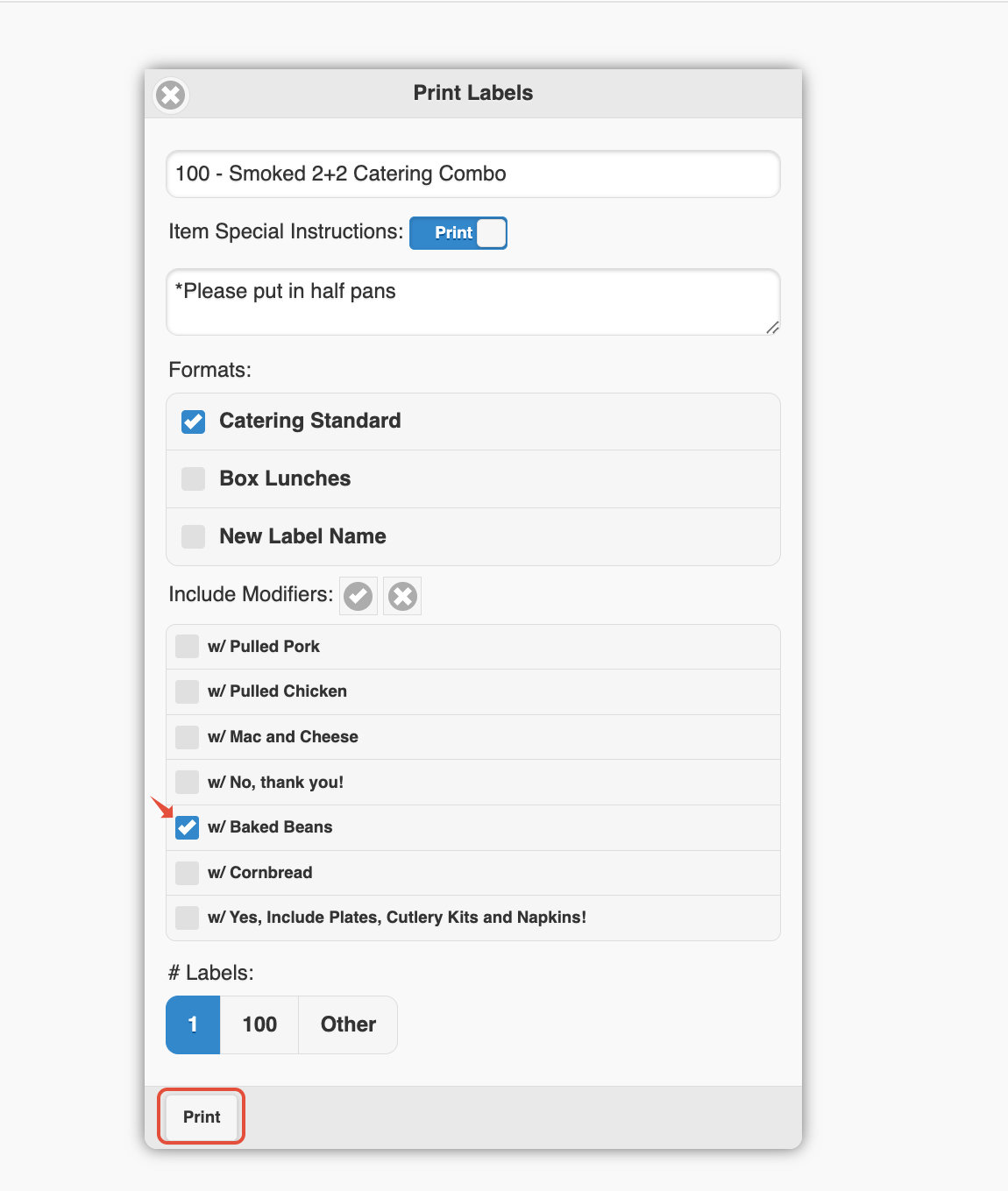
Label Notes
Labels print as sticky labels directly from the printer. There is nothing additional to peel off or attach.


Support
For additional help, refer to the CaterZen Support Center or contact our CaterZen Support Team.
Not a CaterZen Customer yet? Discover how our catering software can streamline your business — click here to learn more!