
Overview
Sales receipts give your team a smaller printed receipt option that can be attached to to-go orders, catering orders, or other production paperwork.
Before printing sales receipts, you will need a connected Star Micronics CaterZen-compatible receipt printer and at least one sales receipt layout. The layout controls which order details print on the receipt, such as Customer information, order details, delivery information, notes, and other selected fields.
Sales receipts can be printed automatically when orders are placed, or they can be printed on demand from the Tablet Production Report.
For printer setup and automatic receipt printing, please see the Connecting and Setting Up Your CaterZen Receipt or Label Printer article.
Creating a New Sales Receipt Layout
Click the Admin tab
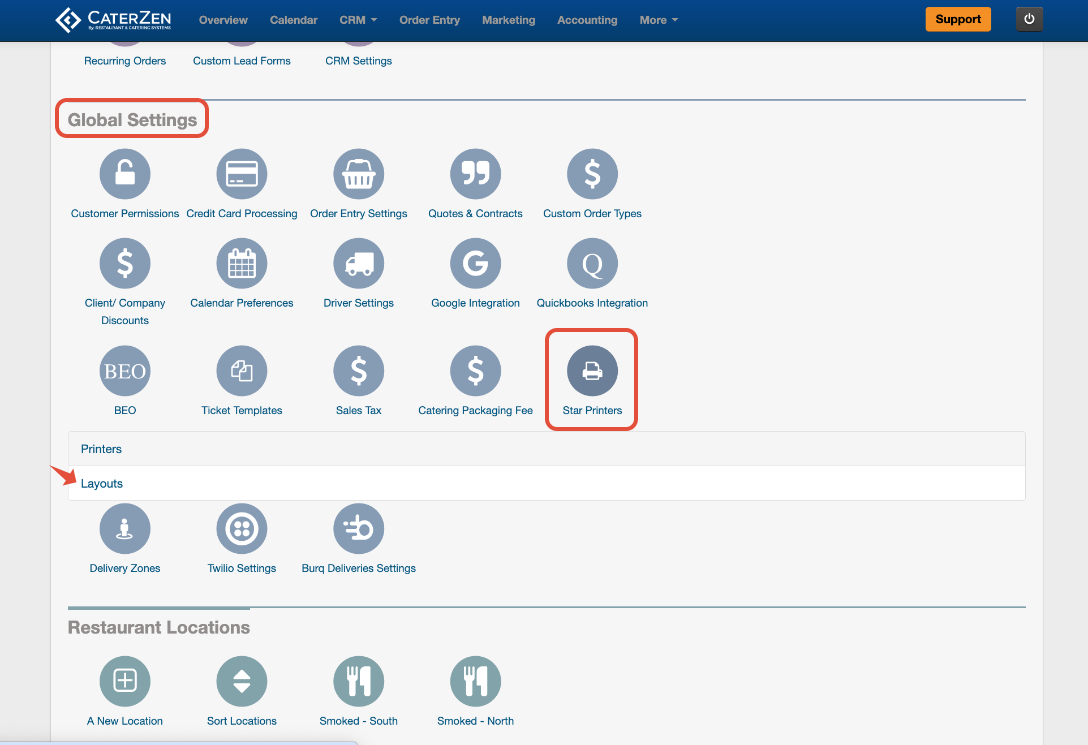
Under Global Settings, click the Star Printers icon
Click Layouts
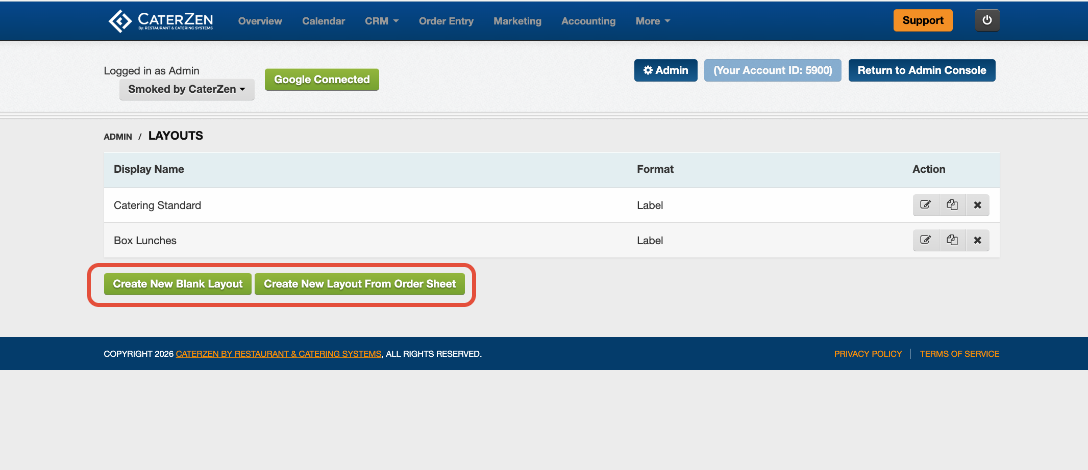
Click Create New Blank Layout
You can also choose Create New Layout From Order Sheet if you want CaterZen to pre-select the fields currently used on your Order Sheet
Enter a name for the layout in the Layout Name field
Choose a name that will be easy to identify when assigning the layout to a printer or selecting it before printing
Examples: Catering Receipt, Kitchen Receipt, Delivery Receipt, To-Go Receipt, etc
Choosing What Prints on the Sales Receipt
The sales receipt layout screen allows you to choose which fields will appear on the printed receipt.
For each field, you can update the following settings:
Shown: Check this box if you want the field to appear on the receipt
Include Label: Check this box if you want the field name to print with the field
Bold: Check this box if you want the field to print in bold
Underline: Check this box if you want the field to be underlined
Upperline: Check this box if you want a line to appear above the field
Size: Choose the font size for the field
Align: Choose whether the field should align left, right, or center
You can also move fields into a different order by using the move icon to the left of the field.
CaterZen saves changes to the layout automatically as you make updates.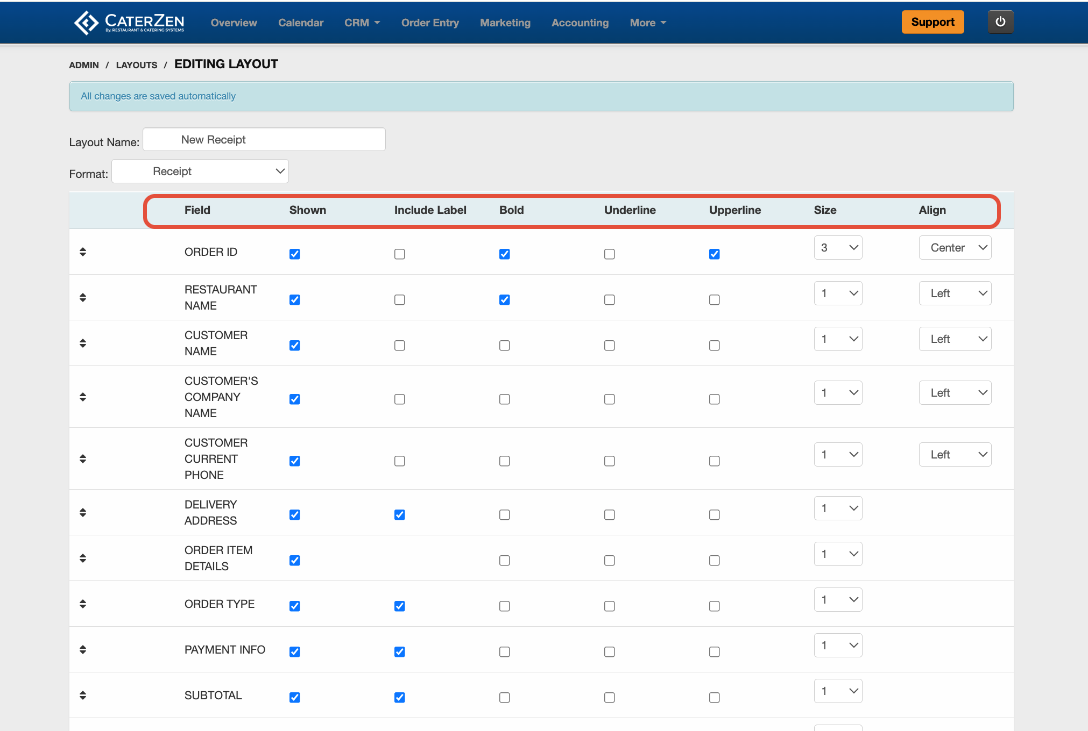
Creating a Layout From the Order Sheet
If you select Create New Layout From Order Sheet, CaterZen will create a receipt layout using the fields already selected on your current Order Sheet template.
This can be a helpful starting point if you want your sales receipt to include similar information to your existing Order Sheet, but in a smaller receipt format. After the layout is created, you can still make changes to which fields appear and how they are formatted.
Editing, Cloning, or Deleting a Sales Receipt Layout
From the Receipt Layouts screen, you can manage your existing sales receipt layouts.
Use the action icons to:
Edit an existing layout
Clone an existing layout
Delete a layout you no longer need
Cloning a layout is helpful when you want to create a similar version without starting from scratch.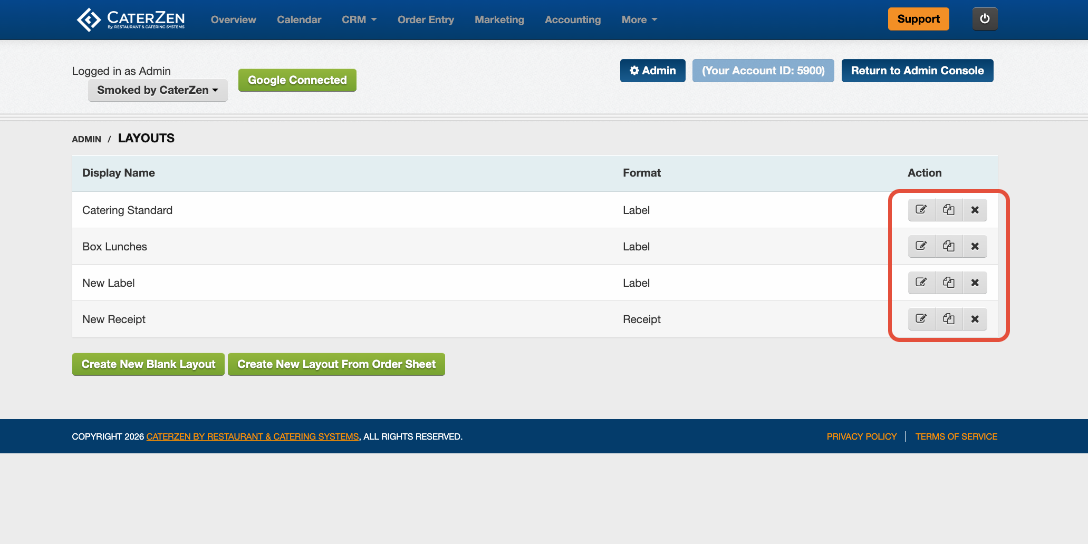
Printing a Sales Receipt on Demand
Sales receipts can be printed on demand from the Tablet Production Report.
Click the More tab
Click Reports
Click Tablet Production Report
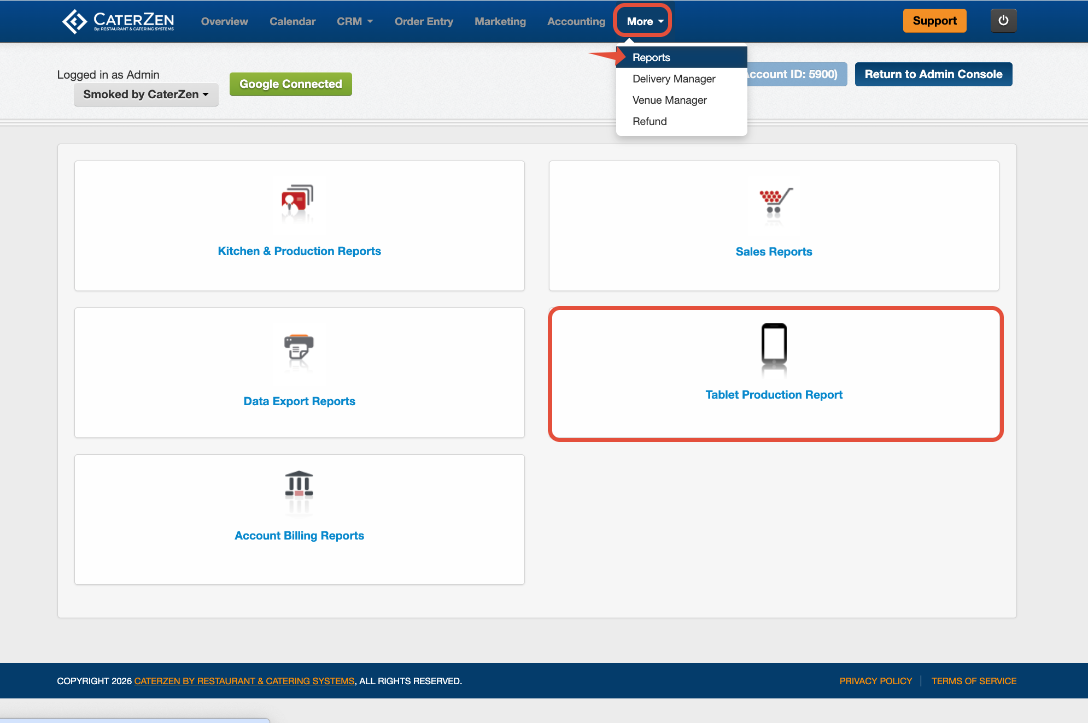
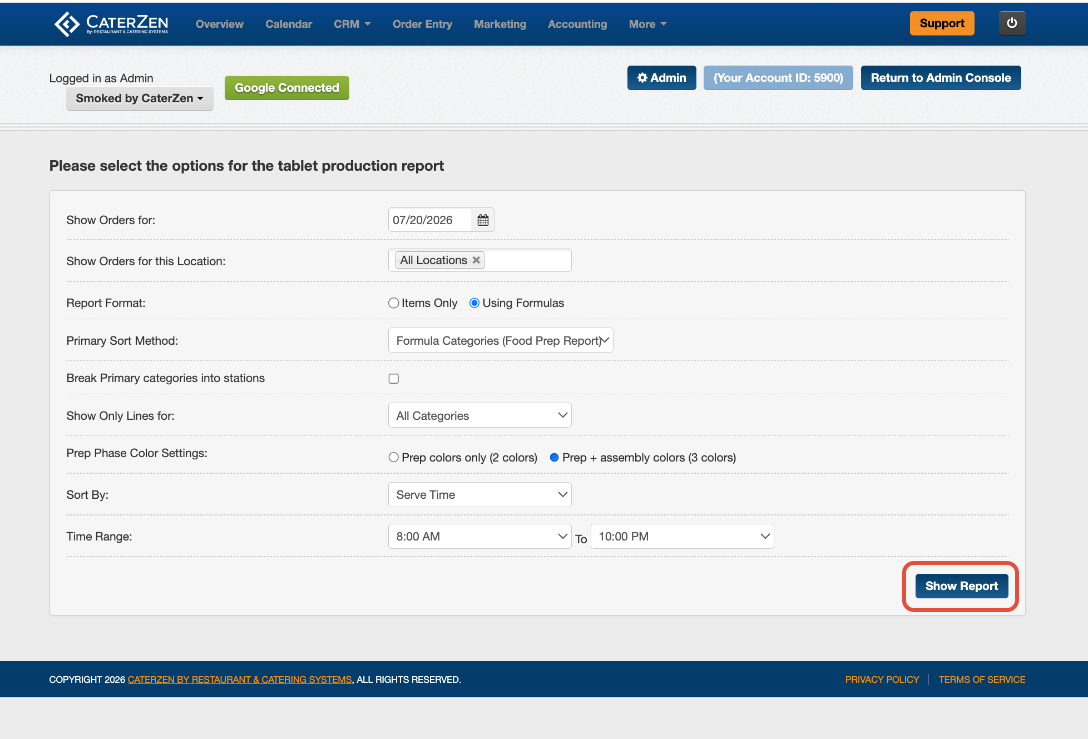
Choose the date you want to view
Select the location, report format, and any additional report options you want to use.
These options allow you to choose how the report displays, whether you are viewing items or formulas, how the report is sorted, which categories appear, and what time range should be included
Click Show Report
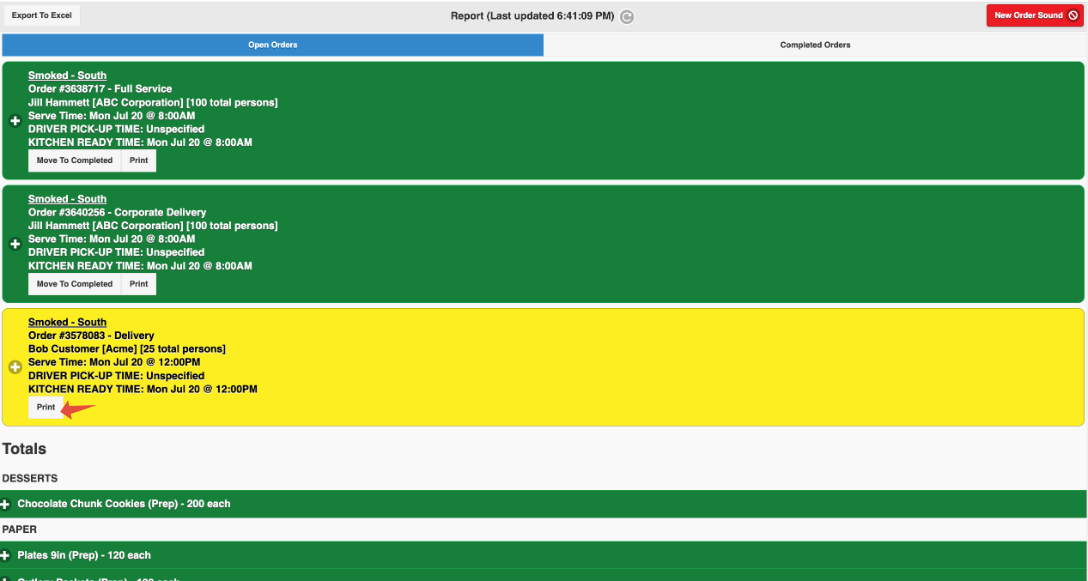
Your orders for the selected date and filters will appear
Find the order you want to print
Click Print
A print window will appear with your available sales receipt layouts
Check the box beside the sales receipt layout you want to use
Click Print
The sales receipt will print using the layout you selected.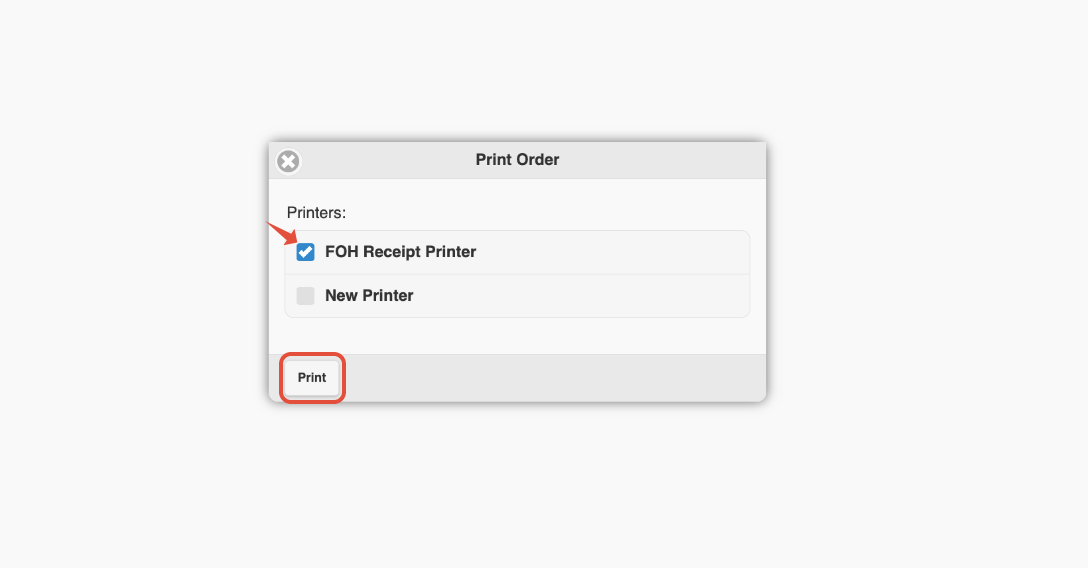
Support
If you need help purchasing the correct printer, contact POSGuys using the information listed above.
If you need help locating your CloudPRNT settings or connecting your printer inside CaterZen, please contact our CaterZen Support Team.
Not a CaterZen Customer yet? Discover how our catering software can streamline your business — click here to learn more!