
Overview
CaterZen supports compatible receipt and label printers that can be connected using CloudPRNT settings from your CaterZen account.
Receipt printers are used to print sales receipts for orders. They can be set to print automatically when new orders are placed, or receipts can be printed on demand when needed.
Label printers are used to print catering labels for prep items, box lunches, modifiers, sides, toppings, extras, and other items that need to be clearly labeled.
Receipt printers and label printers are connected in CaterZen using the same printer setup process. The main difference is how the printer is used after it is connected.
Before setting up your printer, you will need to purchase a Star Micronics CaterZen-compatible printer and have access to your CloudPRNT settings inside CaterZen.
Ordering a CaterZen-Compatible Printer
CaterZen is connected with updated compatible printer options. Customers can order supported receipt and label printers through POSGuys.
You can order directly here:
https://posguys.com/caterzen.asp
You may also contact POSGuys directly for help ordering the correct printer:
David Villalta
POSGuys.com - Sales Representative
Toll Free: (800) 903-6571, Ext. 149
Fax: (360) 738-3530
Email: dvillalta@posguys.com
Website: www.POSGuys.com
When ordering, let POSGuys know you are purchasing the printer for use with CaterZen so they can help make sure you receive the correct printer and supplies.
Before You Begin
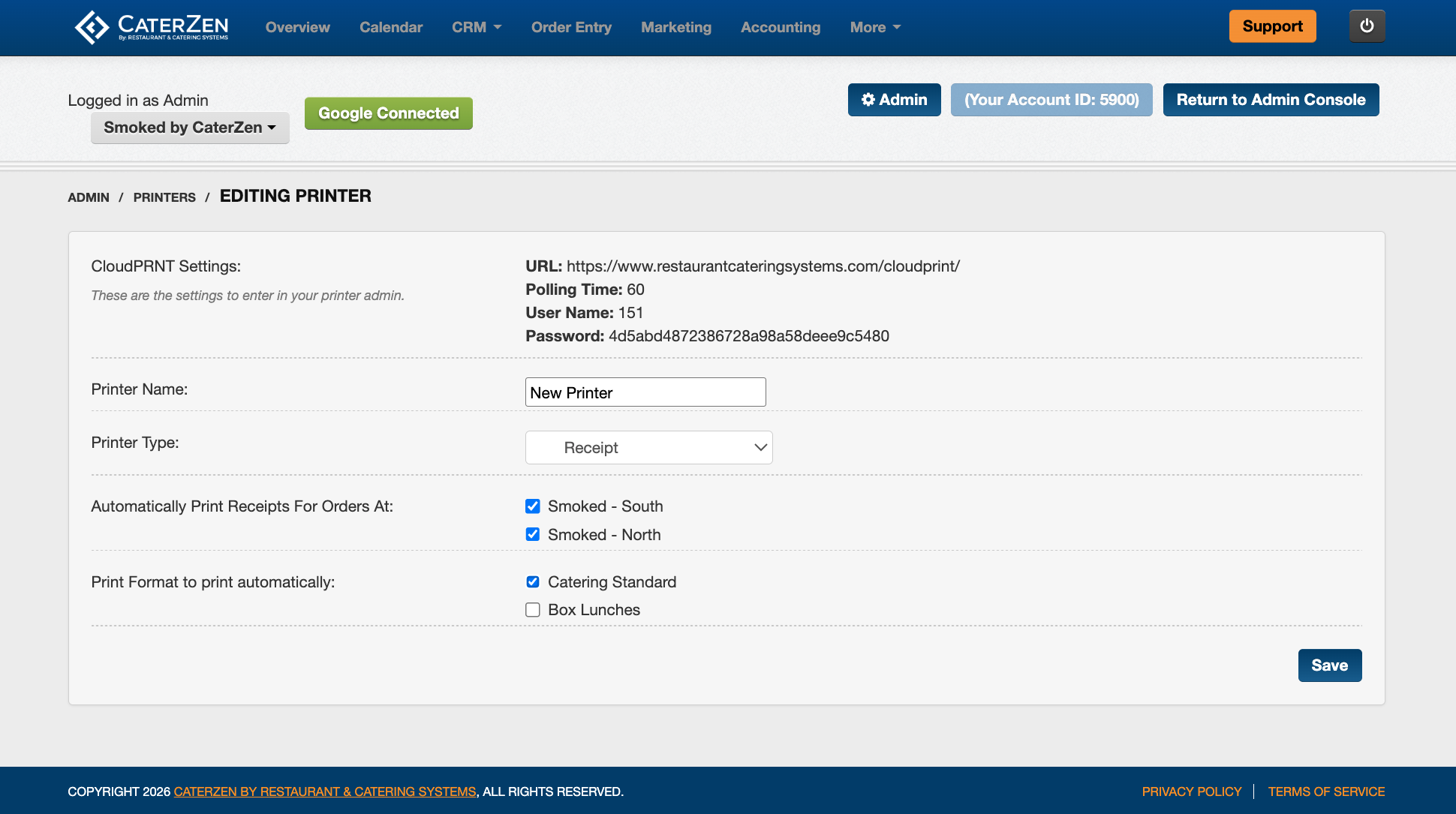
Before your printer can be connected, you will need your CloudPRNT settings from CaterZen.
These settings are found inside your CaterZen account and will be entered into the printer setup.
The CloudPRNT settings include:
URL
Polling Time
User Name
Password
You can ask the CaterZen Support Team to send these settings to you, or you can follow the steps below to locate them yourself.
How to Find Your CloudPRNT Settings and Register Your Printer in CaterZen
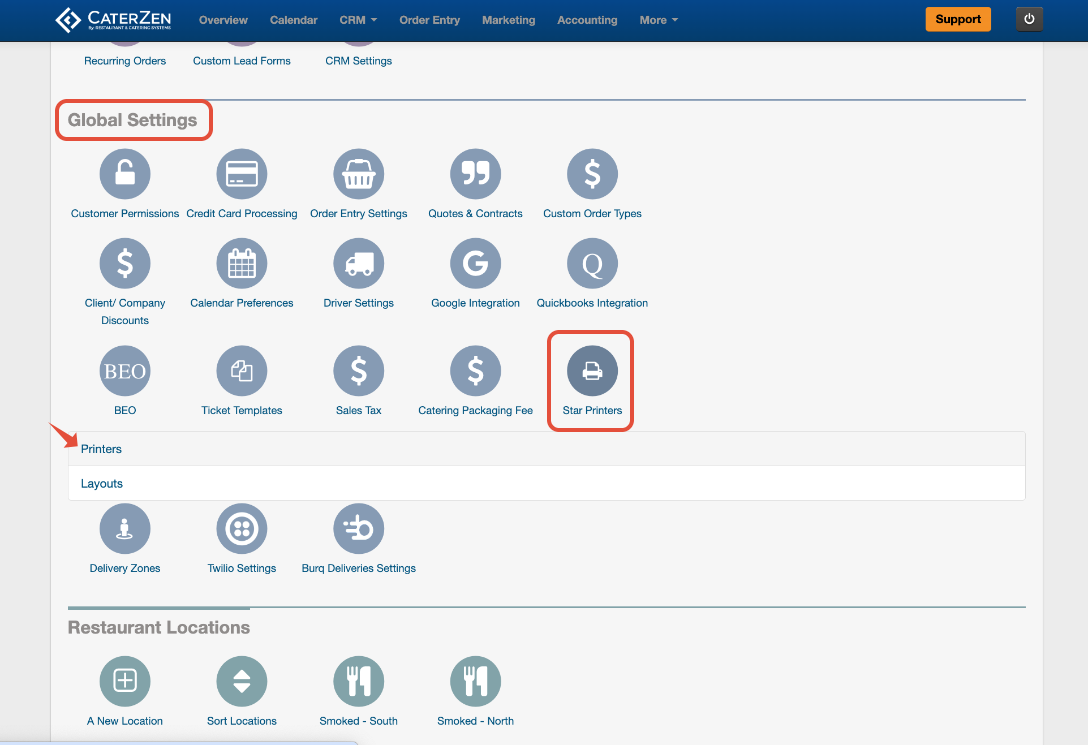
Click the Admin tab.
Under Global Settings, click the Star Printers icon.
Click Printers.
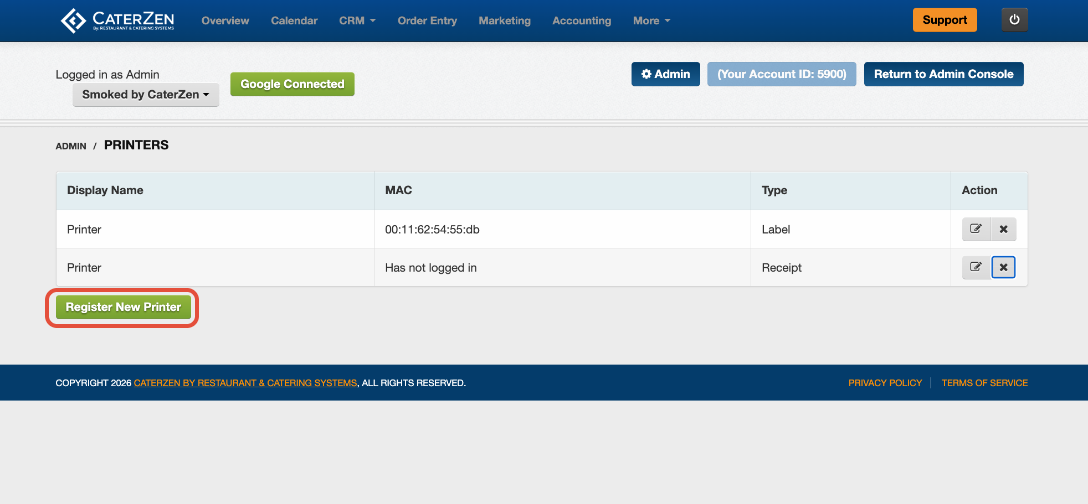
- Click Register New Printer
- Enter a name for the printer in the Printer Name field.
- Examples: Kitchen Printer, Front Counter Printer, Catering Receipt Printer, Catering Label Printer
- Select the printer type
- If Receipt Printer: You can have receipts print automatically when orders are placedat the checked locations.
- If Receipt Printer: Select the receipt layout you want to print
- Note: If no receipt layout appears, you may need to create a receipt layout first.
- Click Save.
- Once saved, your printer will appear in the printer list.
Printing on Demand
After your printer is connected, you can print receipts or labels on demand from inside CaterZen when needed.
Receipt printing is controlled by the receipt layout selected for the printer. Label printing is handled through the label printing tools inside the Tablet Production Report.
Support
If you need help purchasing the correct printer, contact POSGuys using the information listed above.
If you need help locating your CloudPRNT settings or connecting your printer inside CaterZen, please contact our CaterZen Support Team.
Not a CaterZen Customer yet? Discover how our catering software can streamline your business — click here to learn more!