
Overview
The V2 Kitchen Production Report gives your team a clean, simplified prep list for all orders in a selected date range. This report focuses only on the final prep items needed, which makes it ideal for kitchens that do not need to see full menu item details, choices, or modifiers.
You can generate a V2 report for:
A single day to plan daily prep
A multi-day range when organizing ordering or large-volume production
You can also print production reports for individual orders inside the order itself using Print All Reports.
IMPORTANT: You must have formulas set up for Menu Items for this report to work appropriately. If you need help building formulas, schedule a session at BookTimeWithJill.com.
Legacy vs V2 Kitchen Production Reports
CaterZen offers two versions of the Kitchen Production Report. The Legacy report includes the full menu item breakdown, including packages, modifiers, and formula details. The V2 report shows a streamlined, color-coded list of prep items only. You can also choose a totals-only view that removes individual order detail. Open Menu Items or Menu Items without formulas do not show on the V2 report.
Use the Legacy Kitchen Production Report when you need the detailed breakdown of the menu items the Customer actually ordered plus the prep ingredients.
Use V2 Kitchen Production Report when you only need the prep list and totals.
Single-Order Production Reports
If you only need the prep information for one specific order, use the Order Production Report. It can be accessed from the ticket’s Choose a Function dropdown or by using Print All Reports in the Overview tab.
Accessing the V2 Report
Go to More
Select Reports
Click Kitchen & Production Reports
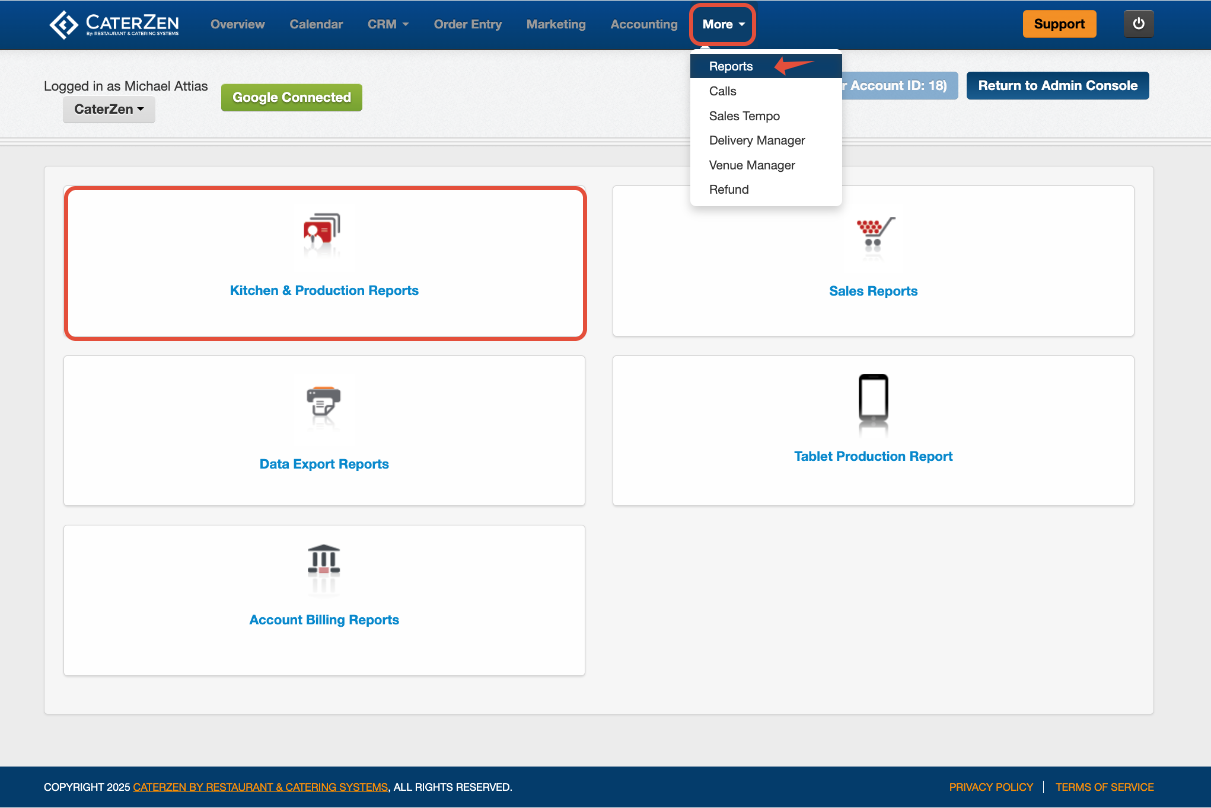
- Choose V2 Kitchen Production Report
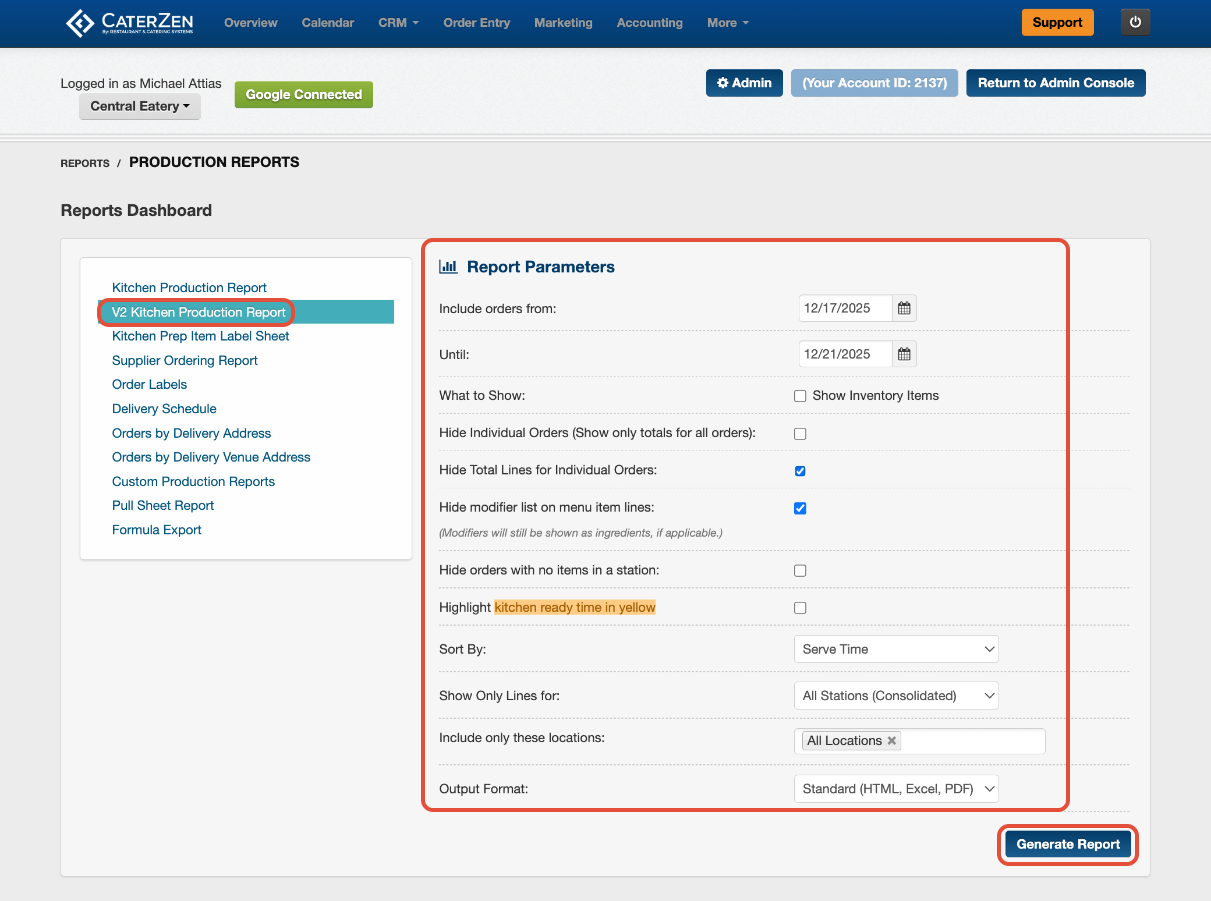
Filter Parameters
Use the options on the report screen to customize your output:
A. Date Range
Choose the dates you want to include.
Use a single day for daily prep
Use multiple days for ordering or high-volume prep periods
B. Show Inventory Items
Check this if you want inventory items included. Inventory items must already be set up.
C. Hide Individual Orders (Show Totals Only)
Check this to hide individual orders and show a single combined total for the selected date range.
D. Hide Total Line for Individual Orders
Check this if you do not want totals displayed for each individual order. Totals for all orders in the date range will still appear.
E. Hide Modifier List on Menu Item Lines
Check this if you do not want modifier or dropdown choices to display.
F. Hide Orders With No Items in a Station
Check this to prevent menu items without an assigned station from appearing on the report.
G. Highlight Kitchen Ready Time
Check this if you want the kitchen ready time highlighted in yellow.
H. Sort By
Choose how items are sorted. Serve Time is the default, with options such as Kitchen Ready Time or Driver Pickup Time.
I. Station Filter
View all stations or limit the report to a single station.
J. Location
Choose one location or view all locations, if applicable.
K. Output Format
Choose HTML, Excel, PDF, or Excel-formatted only.
Click Generate Report once your selections are complete.
Understanding the Report
Order Sections
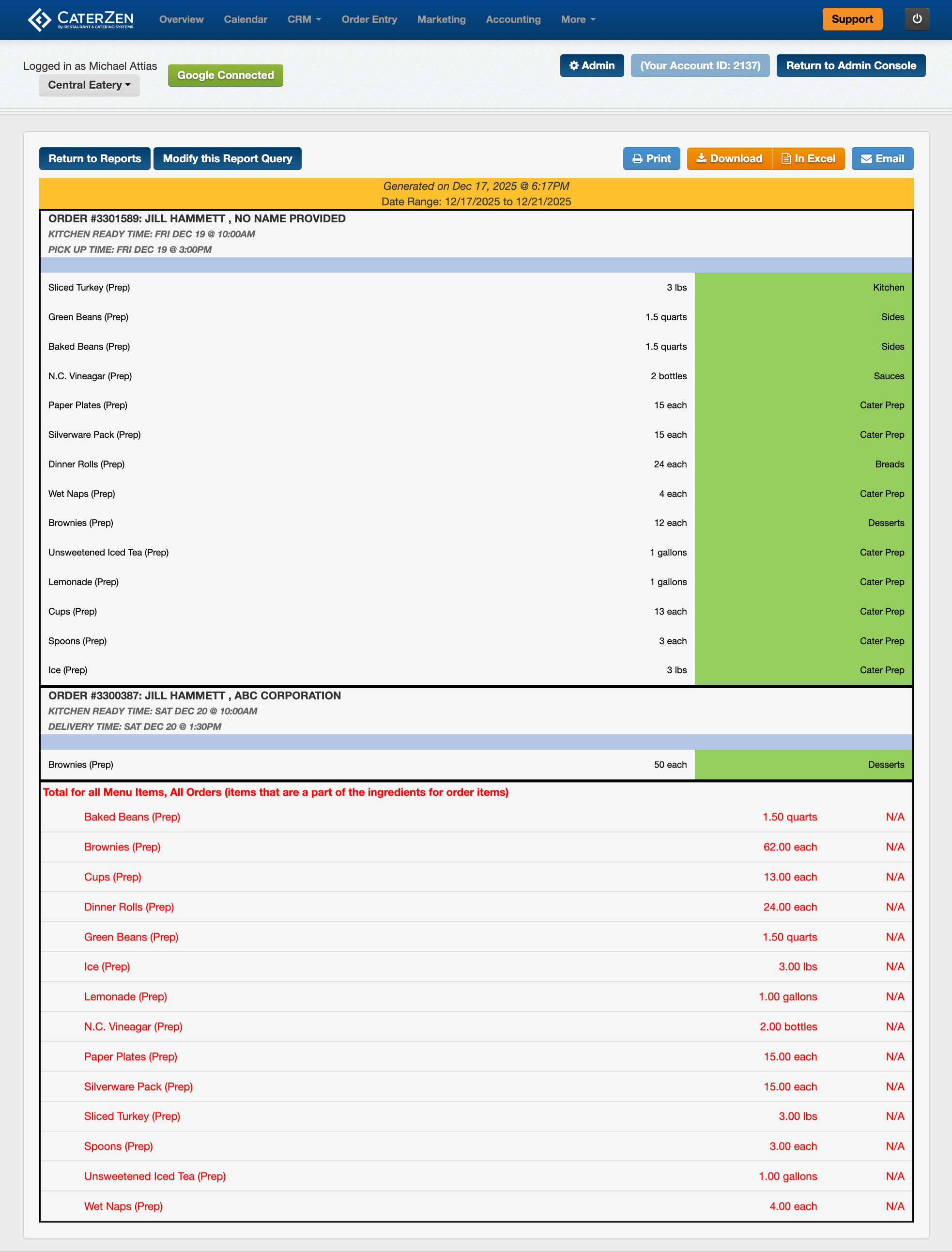
For each order, V2 shows:
Customer name
Company name
Kitchen Ready Time
Delivery or Pickup Time
V2 does not display:
Menu items
Modifiers
Packages
Open Menu Items
It lists only the prep items required from your formulas.
Prep Items
Each order includes:
Prep item name
Quantity
Unit of measure
Assigned production station
Color formatting makes it easier to scan items quickly.
Totals-Only Option
If you select “Hide Individual Orders,” the report:
Removes all order sections
Shows a single combined prep list
Displays total quantities for each prep item across the entire date range
This is ideal for batch prep or ordering.
Report Header
At the top of all V2 reports, you will see:
The Date Range used
The timestamp for when the report was generated
Color-coded prep items
Exporting and Sharing
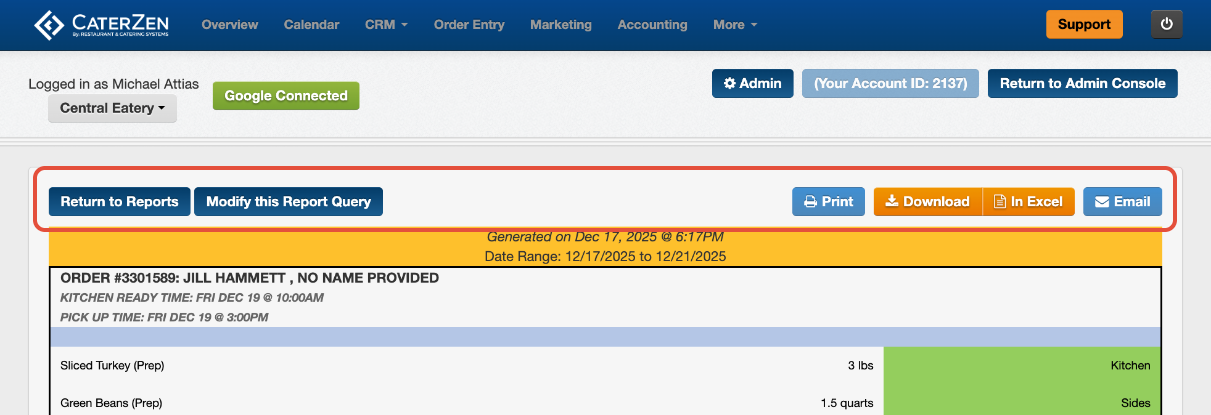
At the top of the V2 report, you can:
Print
Download as PDF
Open in Excel
Email
Modify report criteria
Best Practices
Use V2 daily to give your kitchen a clean, easy-to-read prep list.
Use the totals-only view when cooking or ordering for multiple days.
Assign all prep items to a station to keep the report structured.
Use Excel if you need to filter or sort prep items further.
Related Articles
Kitchen Production Report (Legacy)
Support
For additional help, refer to the CaterZen Support Center or contact our CaterZen Support Team.
Not a CaterZen customer yet? Discover how our catering software can streamline your business — click here to learn more!