
Overview
The Pull Sheet Report helps your team organize and prepare non-food items needed for events, such as paper goods, utensils, and service supplies. Items are grouped into categories so staff can quickly pull everything required before orders go out the door.
Pull Sheets can be:
Printed per individual order or batch printed with other reports from the Overview tab
Included directly on your BEO for a complete event view
Pull Sheet Items can be automatically populated based on menu items when Kitchen Production Formulas are set up. For example, if you sell a disposable wire rack chafing set, the rack, pans, and Sterno can automatically be added to the order’s Pull Sheet. This helps reduce manual work and prevents missed items.
How the Pull Sheet Fits With Other Reports
Pull Sheets work alongside production reports to ensure both food and supplies are covered.
Use Order Production Report for prep tied to a single order
Use Kitchen Production Report (Legacy) or V2 Kitchen Production Report for food prep
Use Pull Sheet Report to organize non-food and service items
Automatic Pull Sheet Items From Menu Items
Pull Sheet items can be automatically associated with menu items using Kitchen Production Formulas.
When formulas are set up correctly, selling a menu item can automatically add the related supplies to the Pull Sheet. This removes the need to manually track service items and keeps your prep accurate as orders are built.
Accessing the Pull Sheet Report
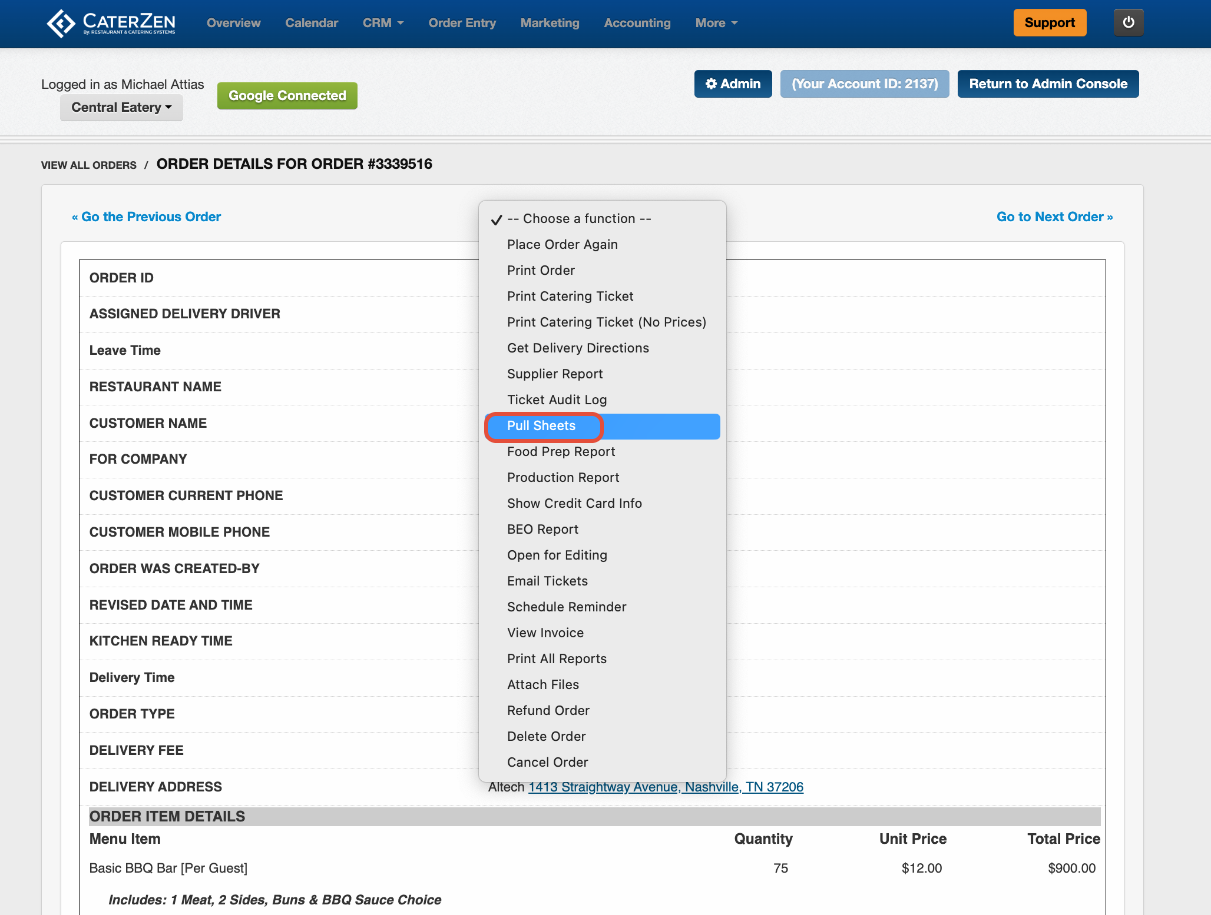
Understanding the Report
The Pull Sheet Report displays items grouped by category, such as:
Paper Products
Serving Utensils
Beverage Supplies
Full Service items
Each item shows the total quantity needed across the selected orders.
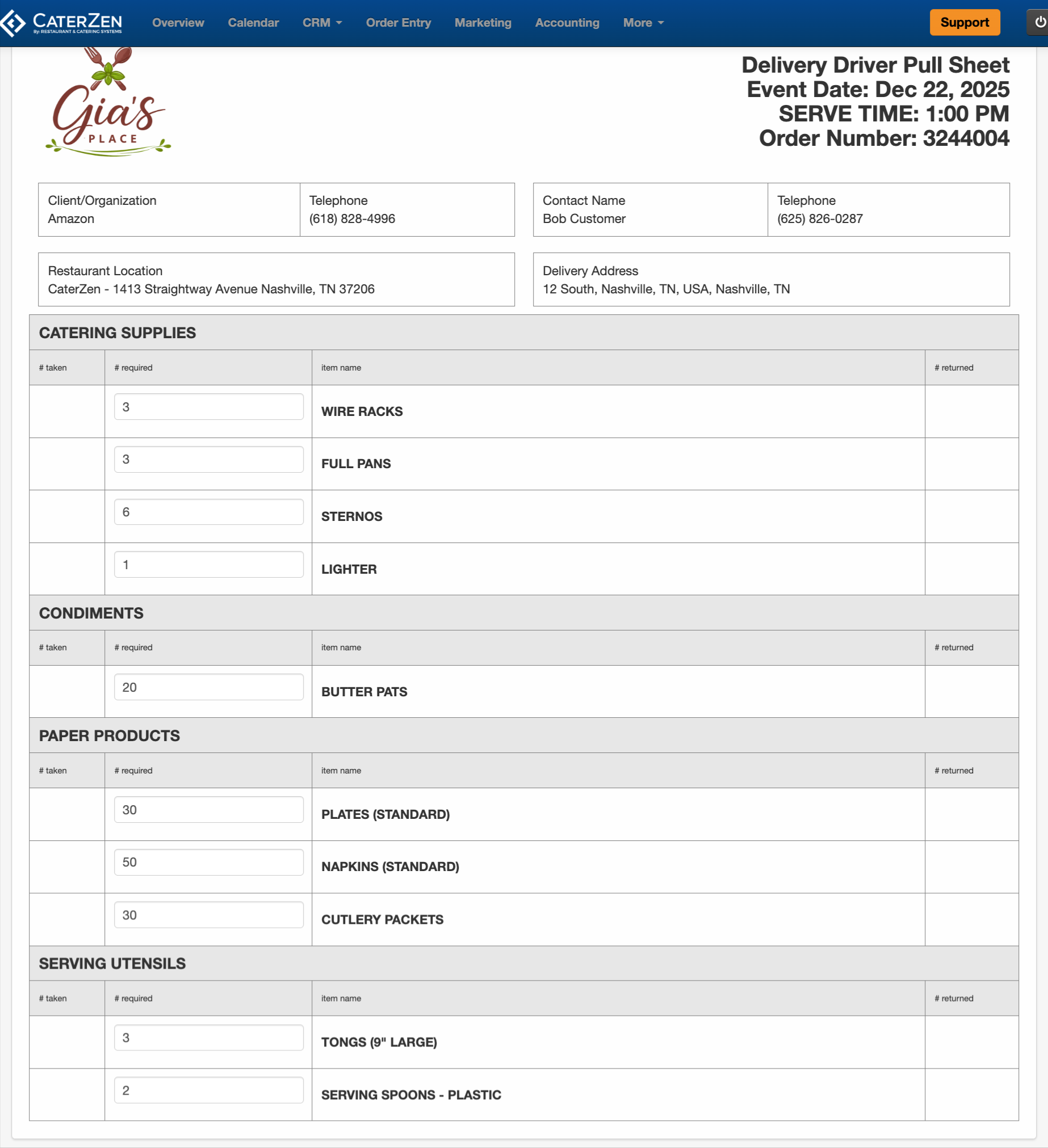
Customizing Your Pull Sheet
You can add, remove, or reorganize Pull Sheet categories and items to match how your team works.
Add or Remove Categories
Use the green plus (+) icon to add a new category
Use the red X icon to delete a category and everything under it
Add or Remove Pull Sheet Items
Use the green plus (+) icon next to a category to add an item
Use the red X icon next to an item to remove it
Changes save immediately, so be cautious when deleting.
Best Practices
Set up Kitchen Production Formulas so needed Pull Sheet items are added automatically when certain menu items are sold.
Use per-order Pull Sheets when packing individual events.
Review Pull Sheet items regularly as menus or packaging change.
Include Pull Sheet information on your BEO to keep food and supplies aligned.
Related Articles
Support
For additional help, refer to the CaterZen Support Center or contact our CaterZen Support Team.
Not a CaterZen customer yet? Discover how our catering software can streamline your business — click here to learn more!