
Overview
Your Account Billing settings contain the payment information used for your CaterZen monthly and variable fees. You can update the credit card on file or switch your payment method to a checking account. Only an employee logged in with the Admin login can access and update this information.
Important: If you see a billing notification at the top of your CaterZen account, notify your Admin immediately. Updating the billing information promptly can help prevent an interruption to your account.

Interactive Guide
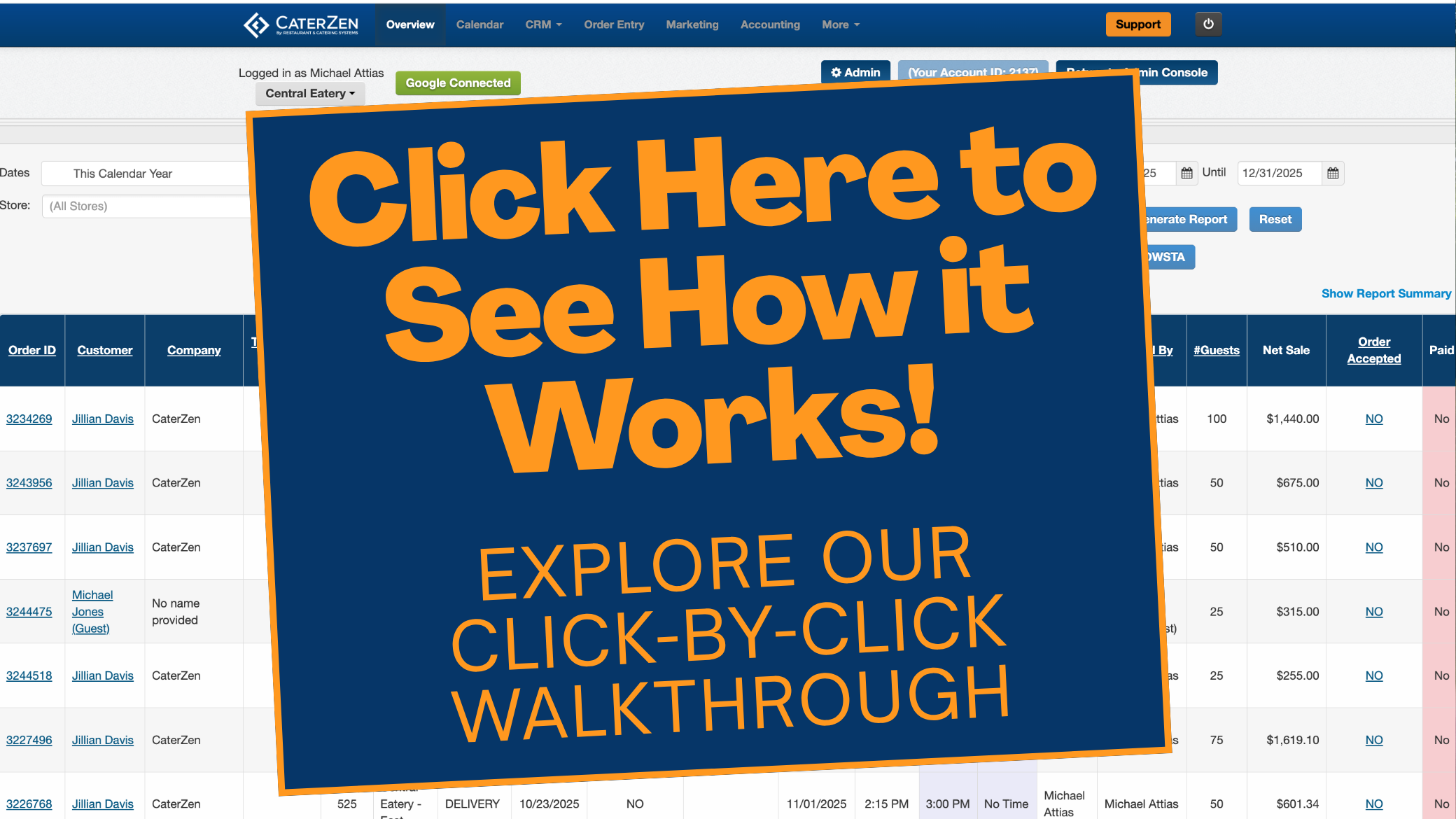
Follow the written instructions below, or click through this interactive guide for a visual walkthrough.
Access Your Account Billing Settings
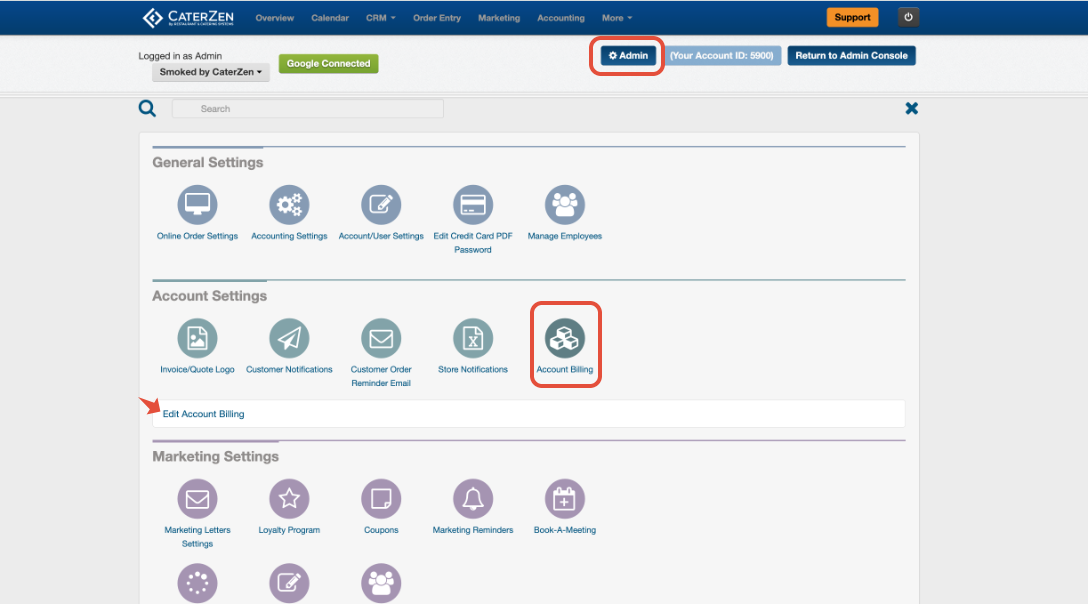
- Log in to CaterZen using the Admin login.
- Select the Admin tab.
- Under Account Settings, locate the Account Billing bubble.
- Select Edit Account Billing.
Update the Credit Card on File
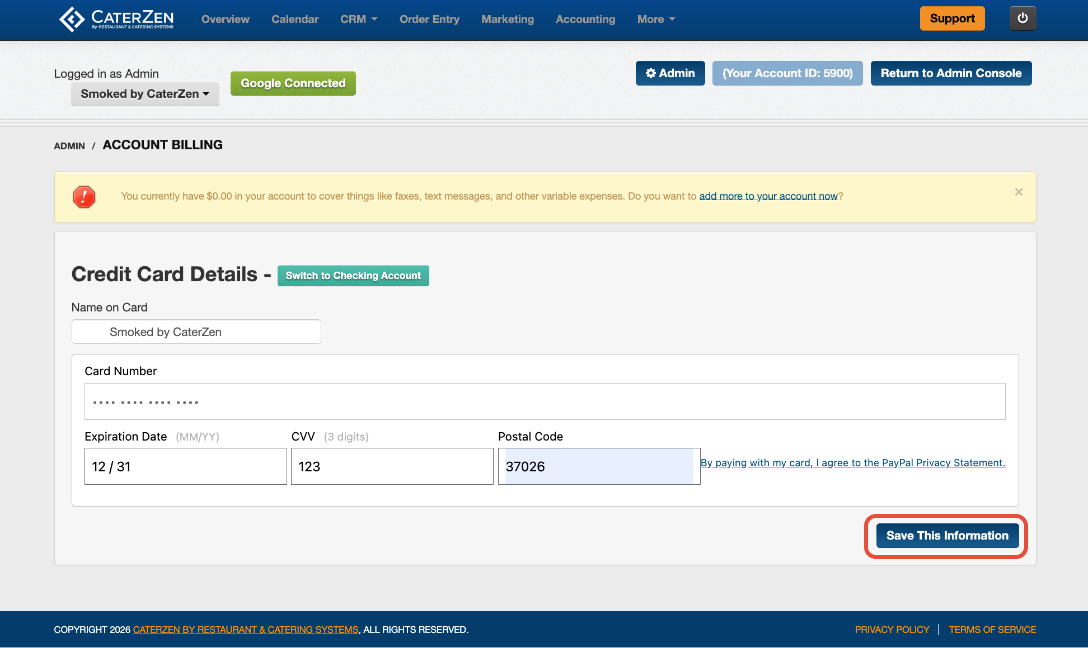
- The credit card option will appear by default when you open the Account Billing page.
- For security and PCI compliance, CaterZen does not display the full credit card number currently stored with the payment processor.
To replace the card on file:
- Enter the new credit card information.
- Enter the billing address associated with the card.
- Confirm that the name and billing information match the information on file with the card issuer.
- Select Save This Information.
Important: Incorrect billing information may cause the payment to be declined.
Switch to a Checking Account
- You can also have your CaterZen fees drafted directly from a checking account.
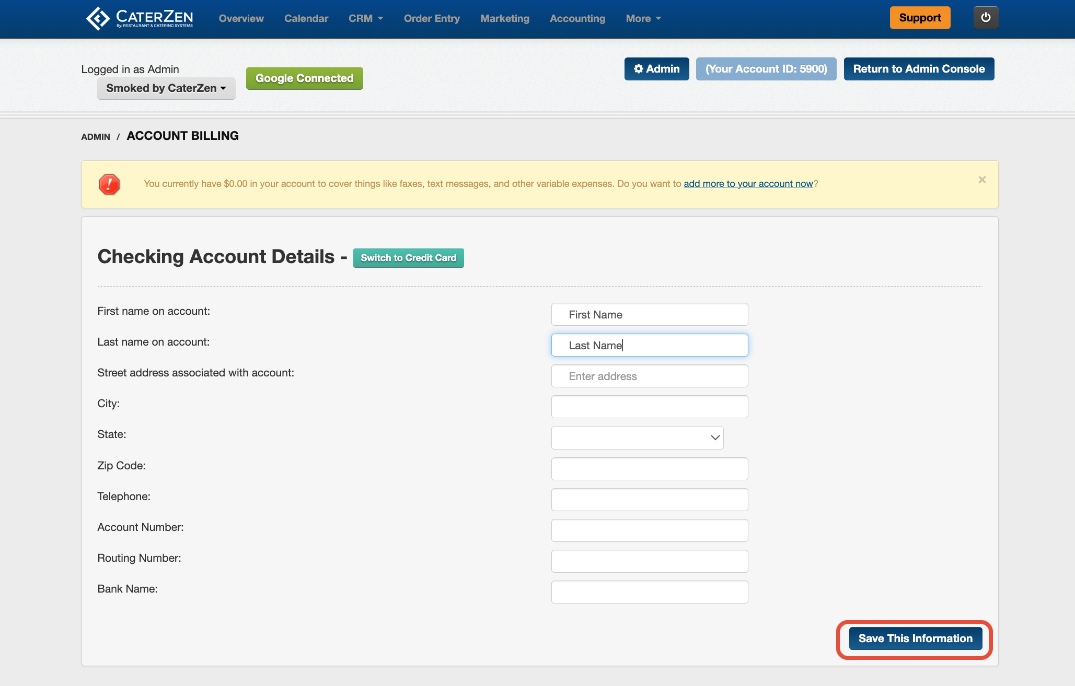
- From the Account Billing page, select Switch to Checking Account.
- Enter the requested checking-account and billing information.
- Review the information carefully to make sure the routing and account numbers are correct.
- Select Save This Information.
What Happens After You Save the Information?
After selecting Save This Information, CaterZen will confirm that your billing information has been saved.
If your account has an outstanding monthly or variable fee, CaterZen will automatically attempt to process the outstanding balance using the new payment information. A message will appear at the top of the page confirming whether the payment was successfully processed. If the payment cannot be processed, you will see a message letting you know that the attempt was unsuccessful.

Common Issues to Watch For
You cannot see the Account Billing settings
Only the Admin login can access Account Billing. Confirm that you are logged in using the account's Admin credentials.
The existing credit card number is not displayed
This is expected. The complete card number is securely stored by the payment processor and is not displayed in CaterZen.
The new credit card is declined
Confirm that the card number, expiration date, security code, name, and billing address were entered correctly. The billing information must match the information on file with the card issuer.
The checking-account payment cannot be processed
Review the routing number and account number for accuracy. You may also need to contact your bank to confirm that electronic drafts are permitted on the account.
An outstanding balance remains after updating the payment method
Review the message displayed at the top of the page. If CaterZen was unable to process the outstanding balance, verify the payment information or use a different payment method.
Support
For additional help, refer to the CaterZen Support Center or contact our CaterZen Support Team.
Not a CaterZen Customer yet? Discover how our catering software can streamline your business — click here to learn more!