
Overview
The Delivery Schedule report provides a clear view of all deliveries scheduled within a selected date range. It is commonly used to manage driver routes, confirm delivery timing, and review delivery details when the Delivery Manager feature is not in use.
This report also includes Delivery Driver names and tip amounts, making it a helpful tool for reviewing and managing driver tip payouts.
This report is ideal for:
Reviewing daily driver schedules
Coordinating multiple deliveries across locations
Printing or sharing delivery details with drivers or managers
Accessing the Report
Go to More
Select Reports
Open Kitchen & Production Reports
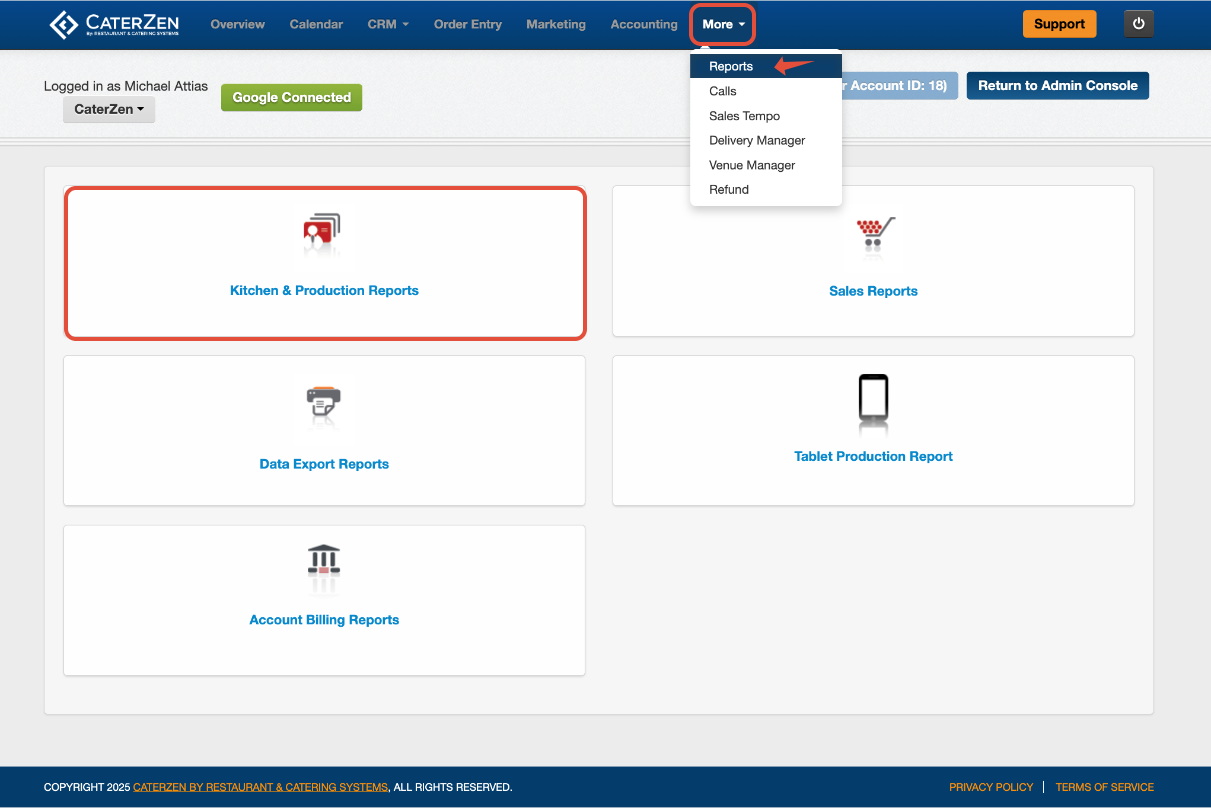
Click Delivery Schedule
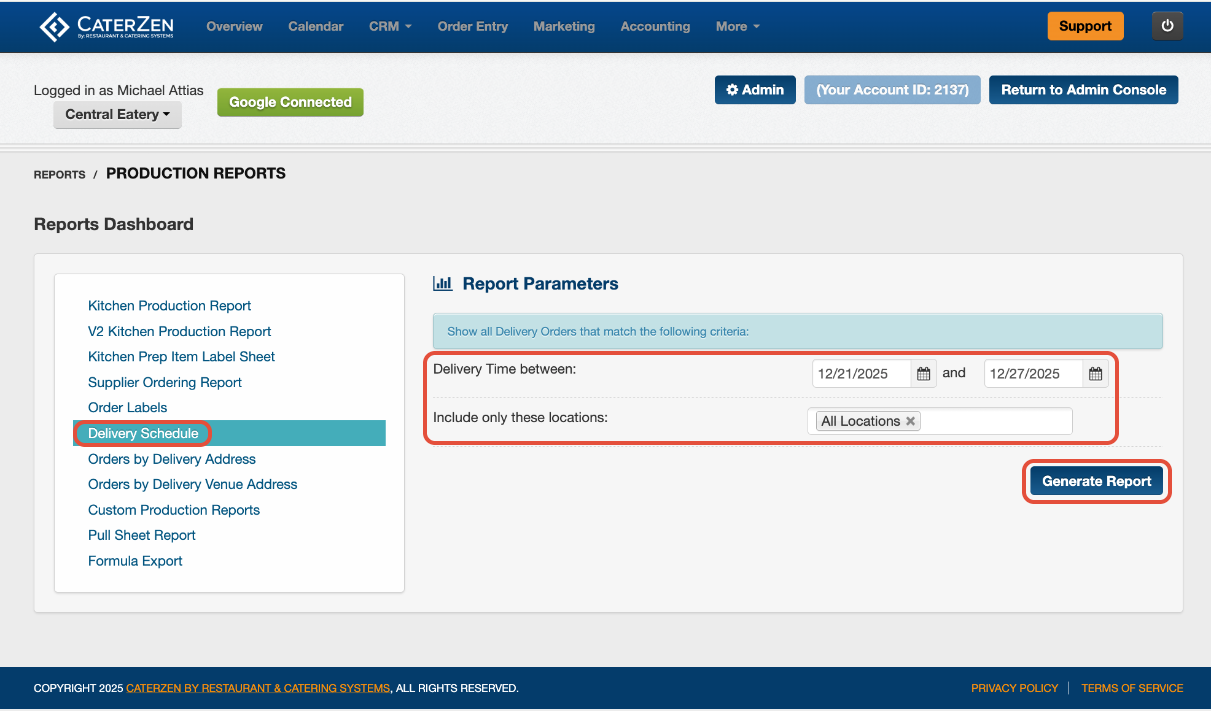
Filter Parameters
Date
Select the date you want to view deliveries for.
Location
Choose one location or include all locations.
Click Generate Report once your selections are complete.
Understanding the Report
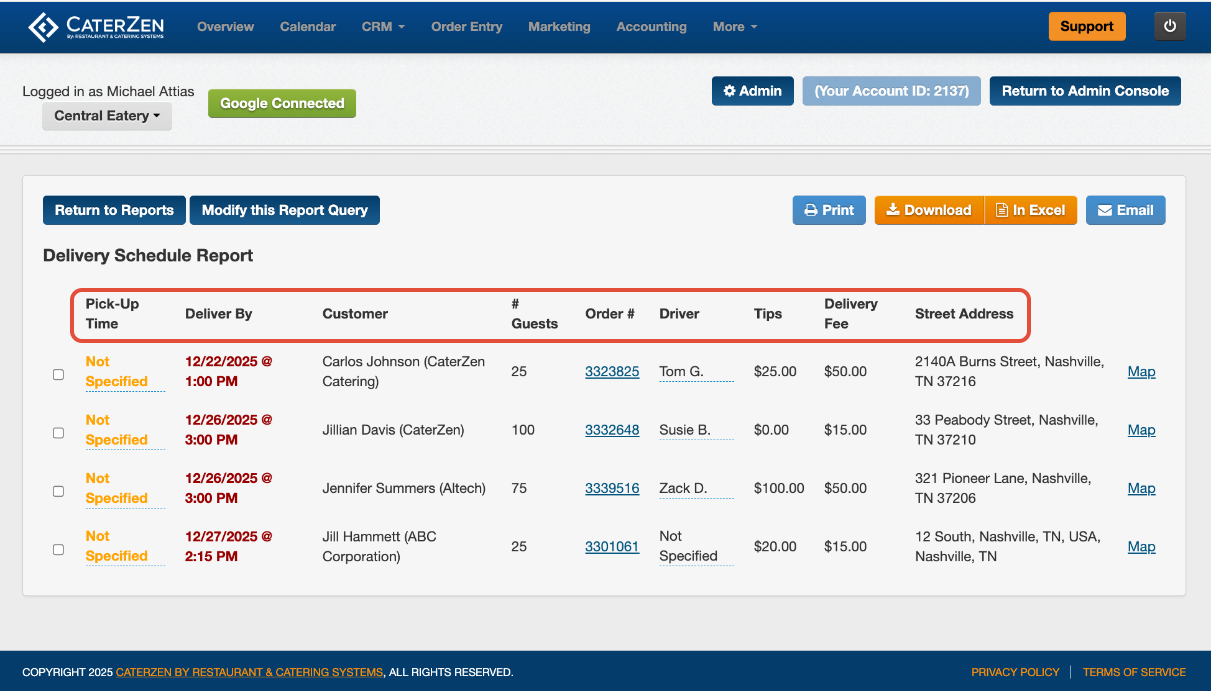
Once generated, the report displays one row per delivery with the following information:
Pickup Time
Deliver By Date and Time
Customer Name
Number of guests
Order number
Assigned Driver
Tip amount
Delivery fee
Delivery address
Link to Google Maps for navigation
Each order number is clickable, allowing you to open the order directly from this report.
Managing Driver Assignments and Tips
The Delivery Schedule is especially useful for managing delivery drivers and tip payouts.
From this report, you can:
Review all deliveries assigned to each driver for the day
See tip amounts associated with each delivery
Use the report as a reference when paying out driver tips
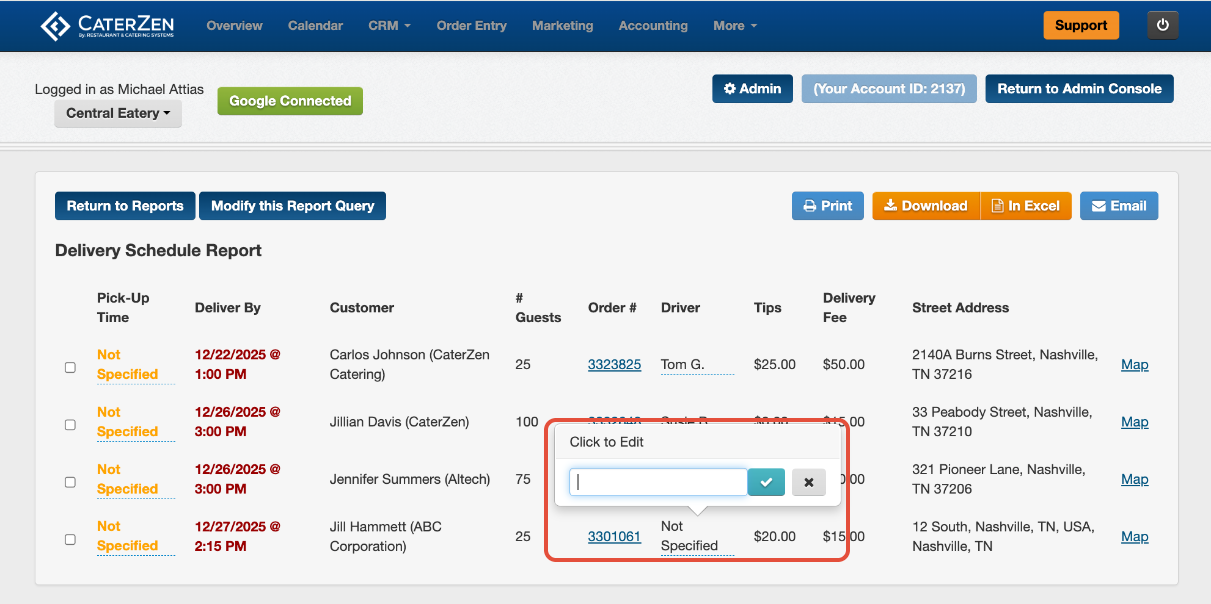
You can also add or update the Delivery Driver name directly from this report. Any changes made here are automatically saved back to the order, so there is no need to open each order individually.
Exporting and Sharing
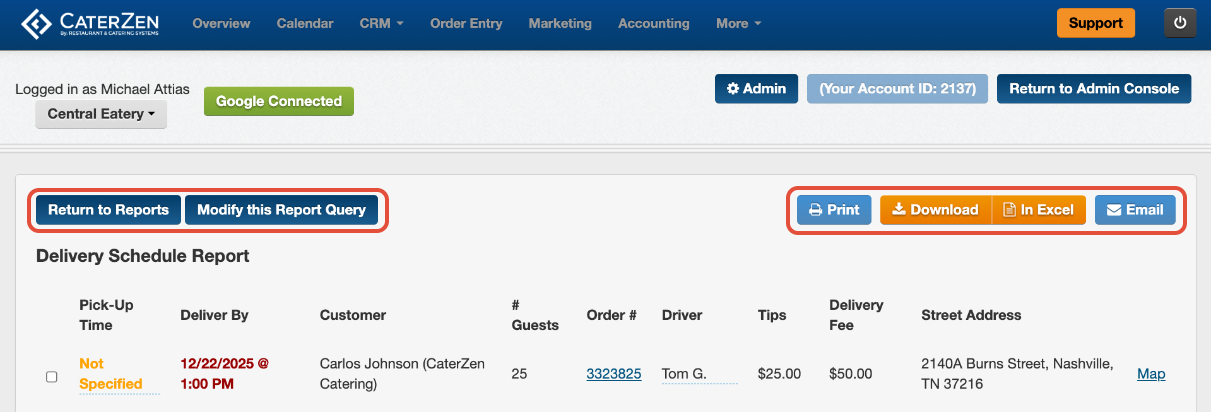
At the top of the report, you can:
- Download as PDF
- Open in Excel
- Email the report
- Modify your selections
Best Practices
Run this report at the start of the day to confirm delivery timing and driver assignments.
Use the Google Maps link to quickly review routes and delivery locations.
Export to Excel if you want to reorganize or annotate delivery details.
Confirm all delivery addresses before sharing with drivers.
Related Articles
Support
For additional help, refer to the CaterZen Support Center or contact our CaterZen Support Team.
Not a CaterZen customer yet? Discover how our catering software can streamline your business — click here to learn more!