
Overview
The Venue Manager allows you to quickly apply a saved delivery location while taking an order. Instead of manually entering an address and delivery instructions, you can select a venue and have those details automatically populate into the order.
This article covers how to select and use an existing venue during order entry. Venues must already be created and assigned to your location before they can be used.
Accessing Venues During Order Entry
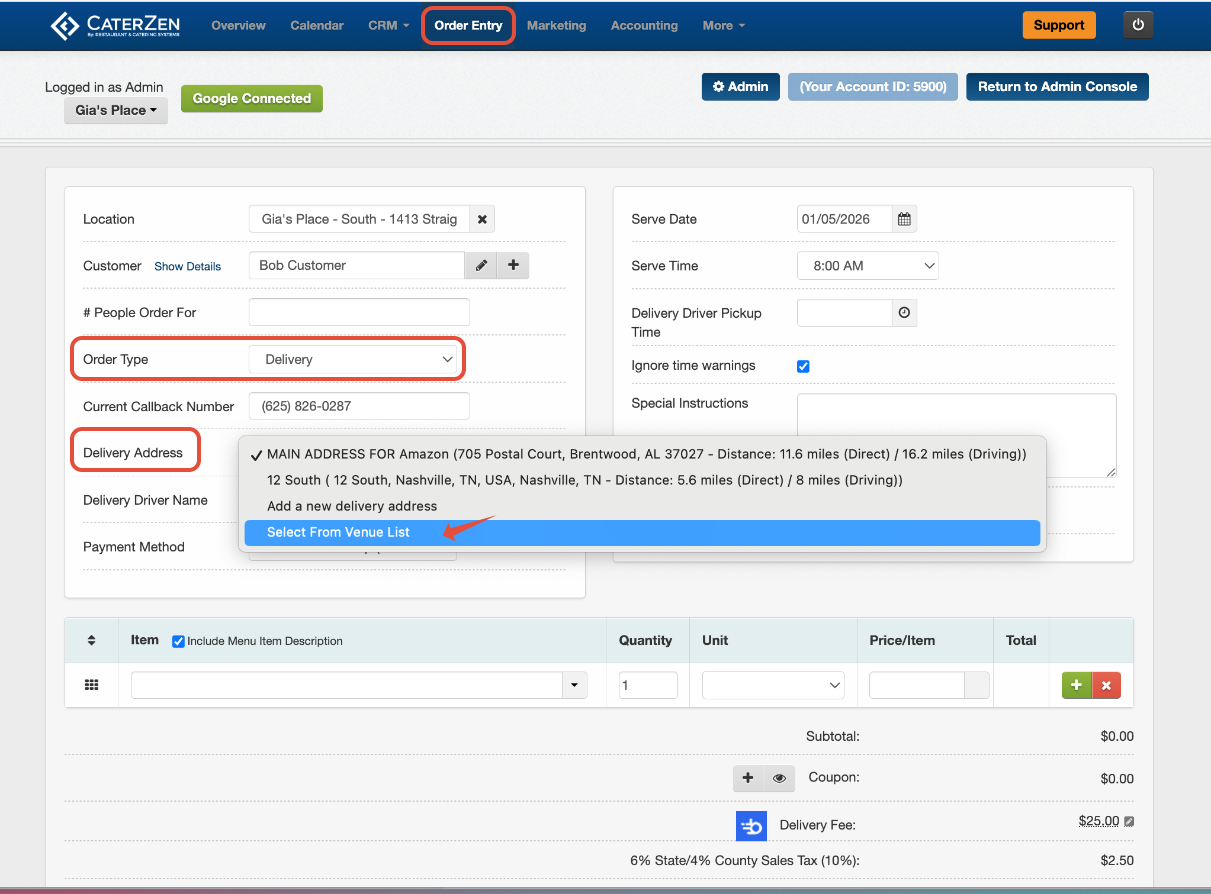
Click the Order Entry tab.
Begin entering the Customer information as usual.
Set the Order Type to Delivery.
Under Delivery Address, click the drop-down menu.
Choose Select From Venue List.
Selecting a Venue
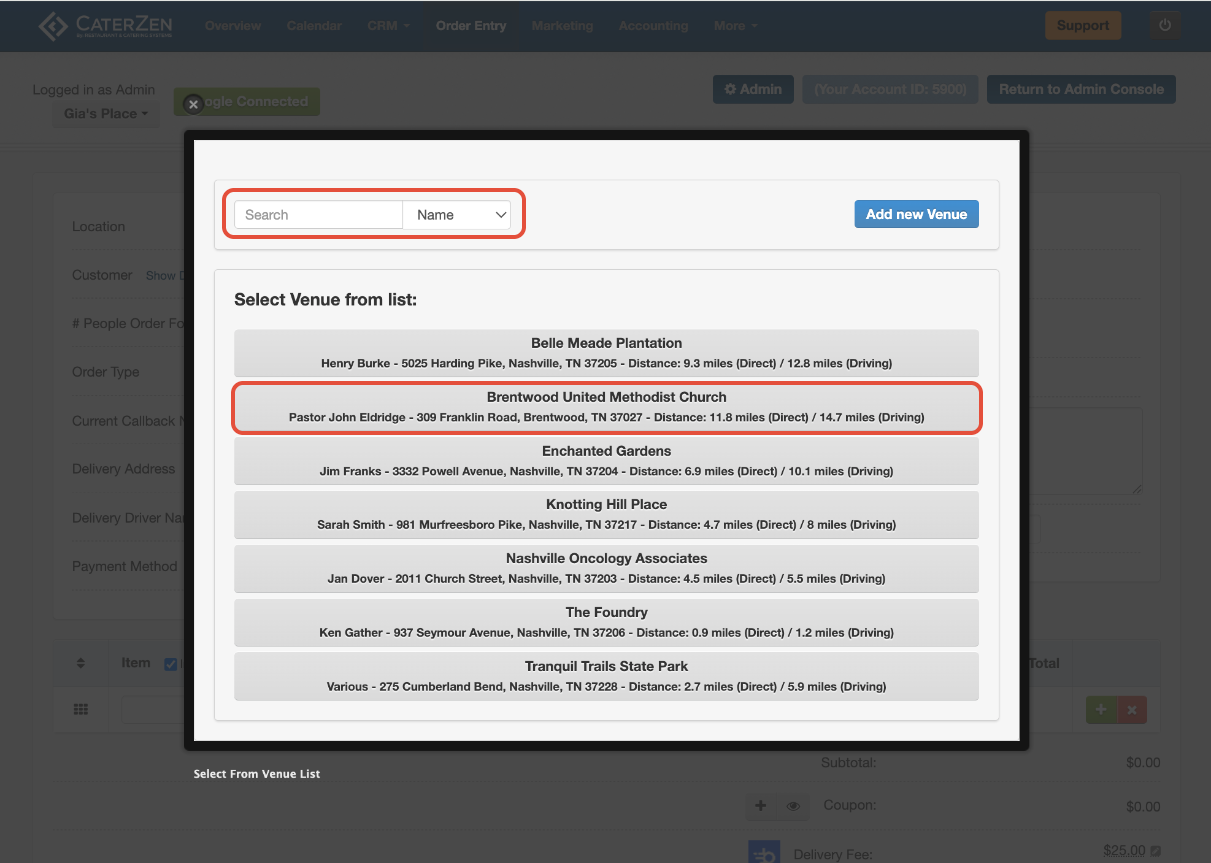
A pop-up window will appear showing all venues available to your location. In the venue pop-up, you can:
Scroll through the list, or search by Venue Name, Contact, or Phone Number
- Click the Venue Name you want to use.
- The venue will immediately populate into the order.
This makes it easy to quickly find frequently used delivery locations.
Completing the Order
After the venue is selected:
Review or adjust any order-specific details
Continue entering items, timing, and payment information
Complete the order as normal
You can still edit order-level fields if needed without changing the saved venue.
What Auto-Fills When a Venue Is Selected
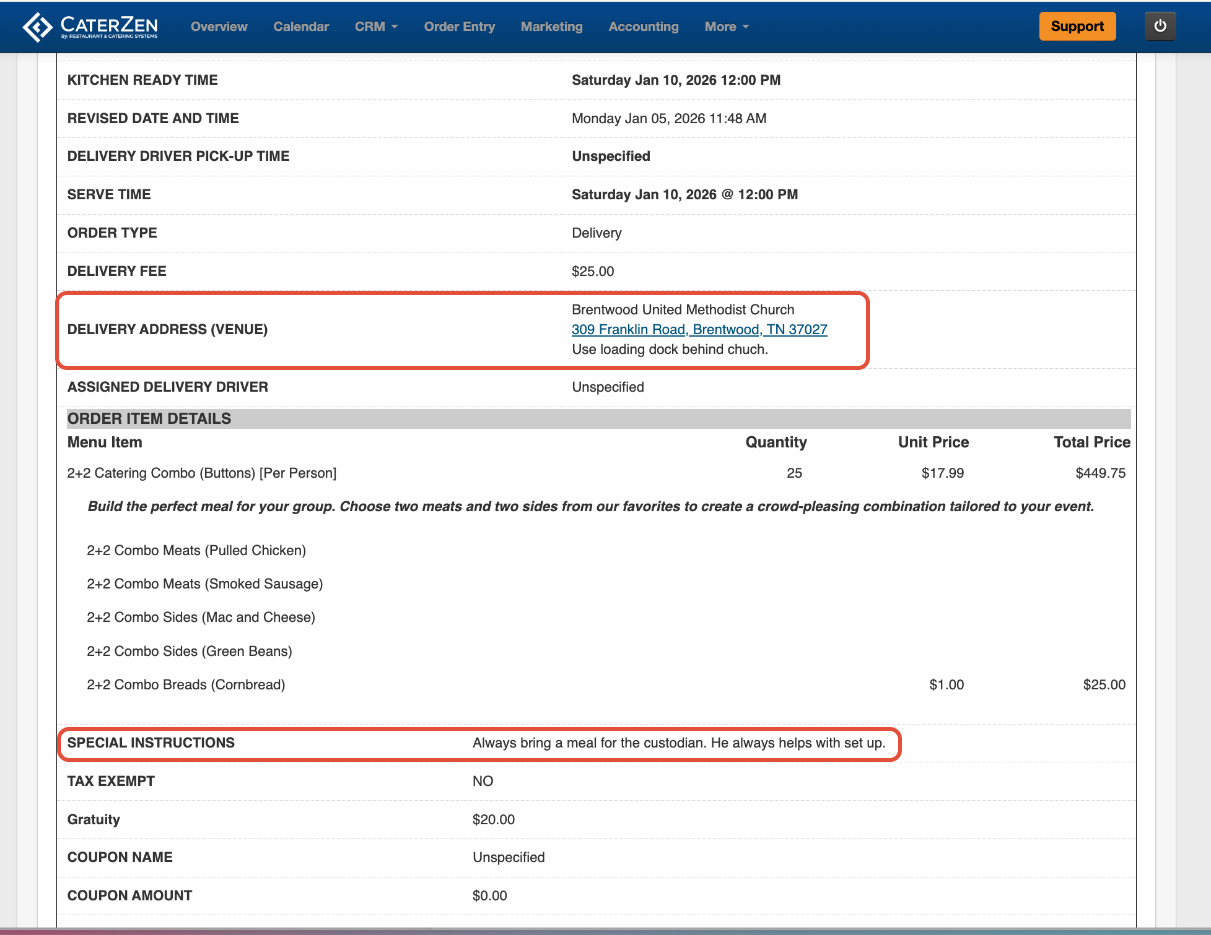
Once selected, CaterZen automatically fills in:
The Delivery Address
Any Delivery Notes tied to the venue
Any General Notes, which appear in the Special Instructions section
This helps ensure consistent delivery details and reduces manual entry.
Helpful Tips
If a venue is missing, it must be created in Venue Manager before it can be selected during order entry.
If you do not see a venue, confirm your location has been assigned to it.
Venue details are shared across Customers but remain editable per order.
Related Articles
Support
For additional help, refer to the CaterZen Support Center or contact our CaterZen Support Team.
Not a CaterZen customer yet? Discover how our catering software can streamline your business — click here to learn more!