
Overview
The Venue Manager allows you to save and manage shared delivery locations that are used by multiple Customers. Instead of retyping the same address over and over, you can select a saved venue during order entry and automatically pull in delivery details and notes.
The Venue Manager is especially helpful for locations like churches, hotels, medical offices, banquet halls, and corporate campuses. Once your venues are created, you can use them directly while taking an order in the Order Entry tab.
Note: Venue Manager is available on the Marketing Pro Plus package.
When Should You Use Venue Manager?
Use Venue Manager when:
You regularly deliver to the same address for different Customers
A location has special delivery instructions that should always be included
Multiple store locations deliver to the same venue
Accessing Venue Manager
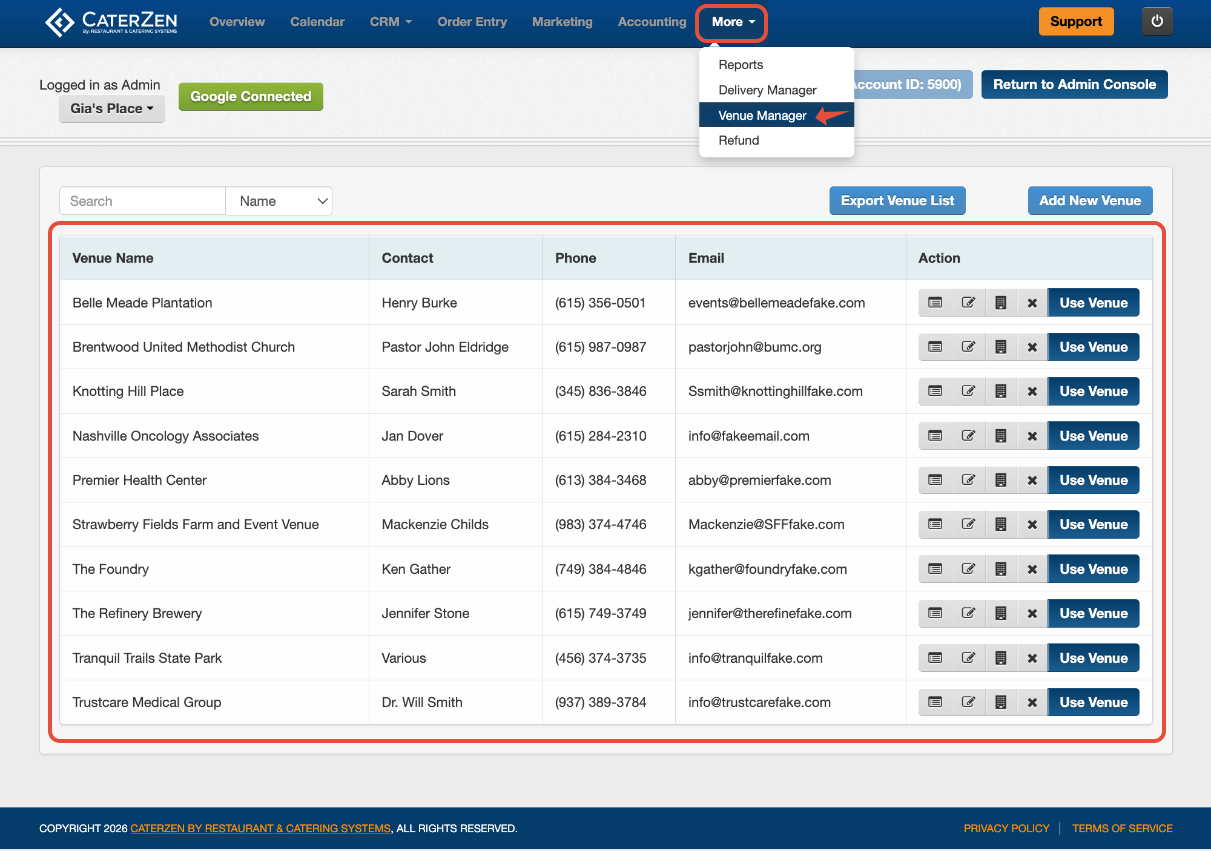
Click the More tab in the top navigation.
Select Venue Manager.
You will see a list of all saved venues in your account.
Searching Your Venue List
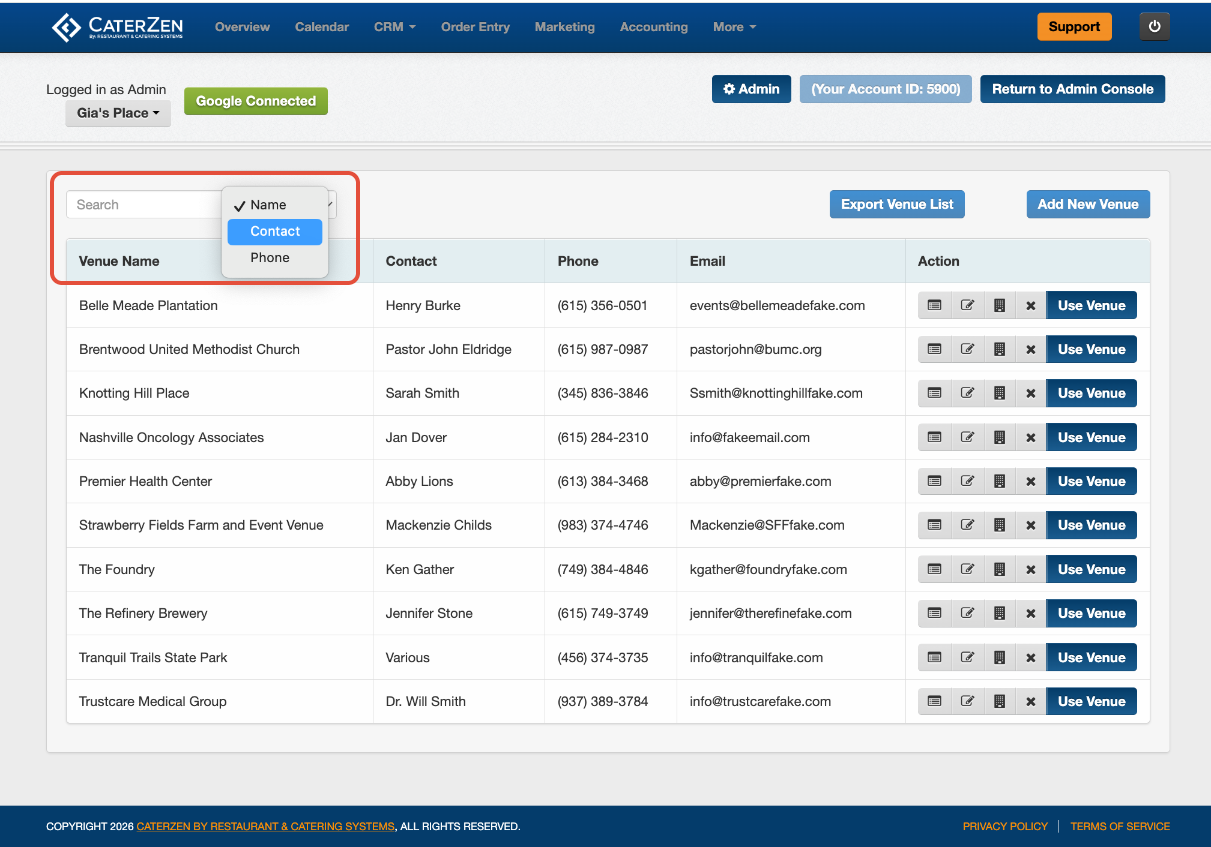
At the top of the Venue Manager page, you can search for an existing venue by:
Venue Name
Contact Name
Phone Number
This is helpful when your list grows or when you want to quickly update an existing venue.
Adding a New Venue
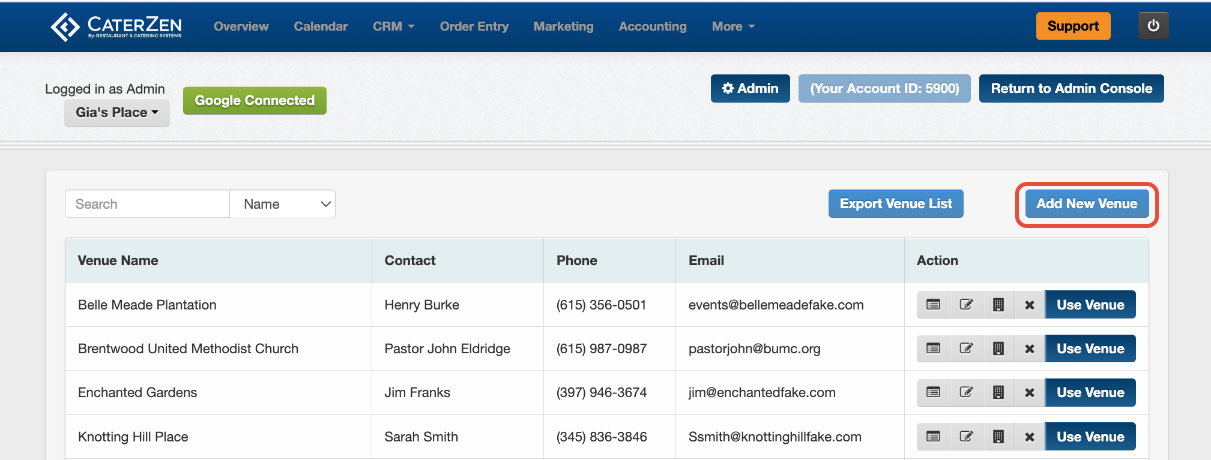
Click Add New Venue.
A pop-up window will appear where you can enter the venue details.
Required Venue Information
Venue Name
Street Address
City, State, Zip
Optional but Recommended
Contact Name
Phone Number
Email Address
Notes Fields
General Notes
These appear in the Special Instructions section in Order Entry and on the Order Details Ticket.Delivery Notes
These appear next to the Delivery Address in Order Entry and on the Order Details Ticket.
Using these notes helps ensure drivers and staff always see important delivery instructions.
Click Save This Information at the bottom of the window.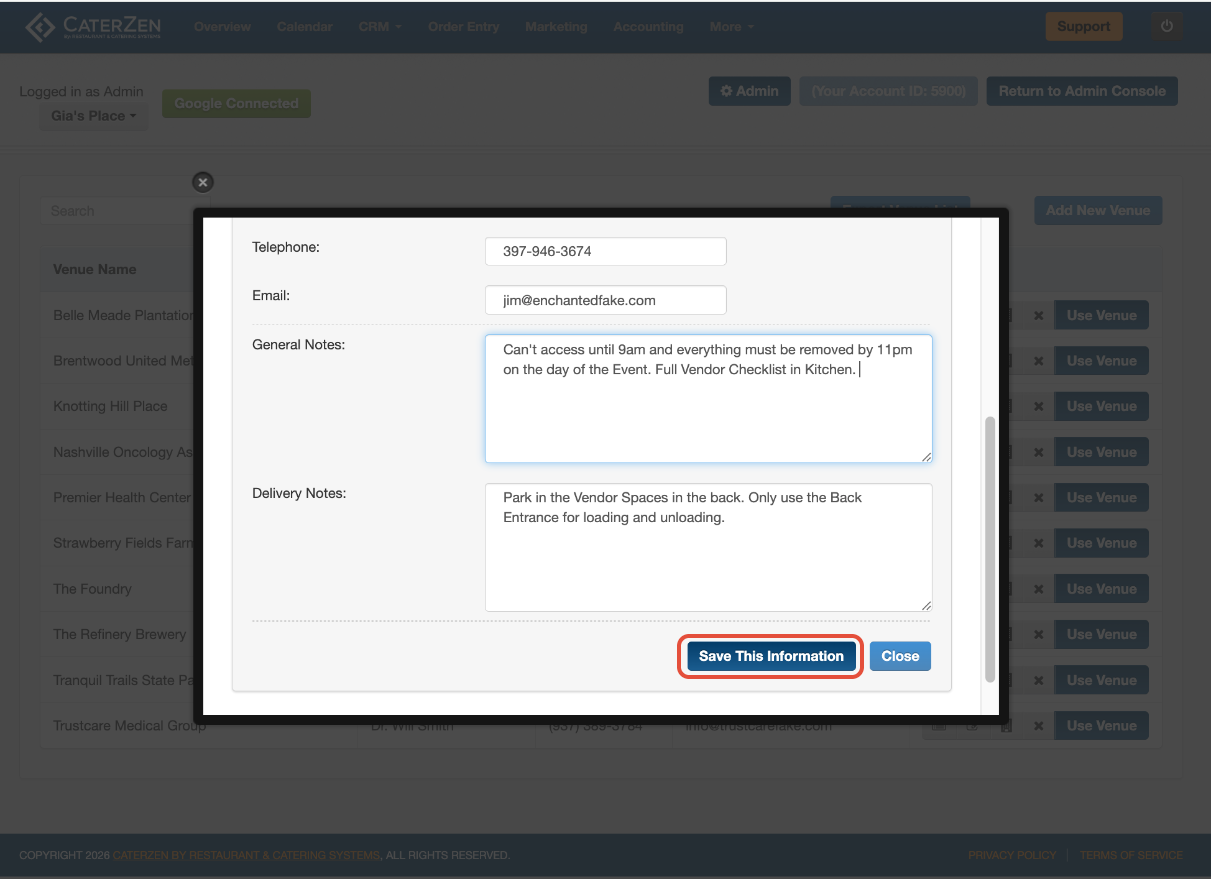
Assigning Locations to a Venue
After creating a venue, you must assign which store locations can deliver to it.
Important: By default, no locations are assigned.
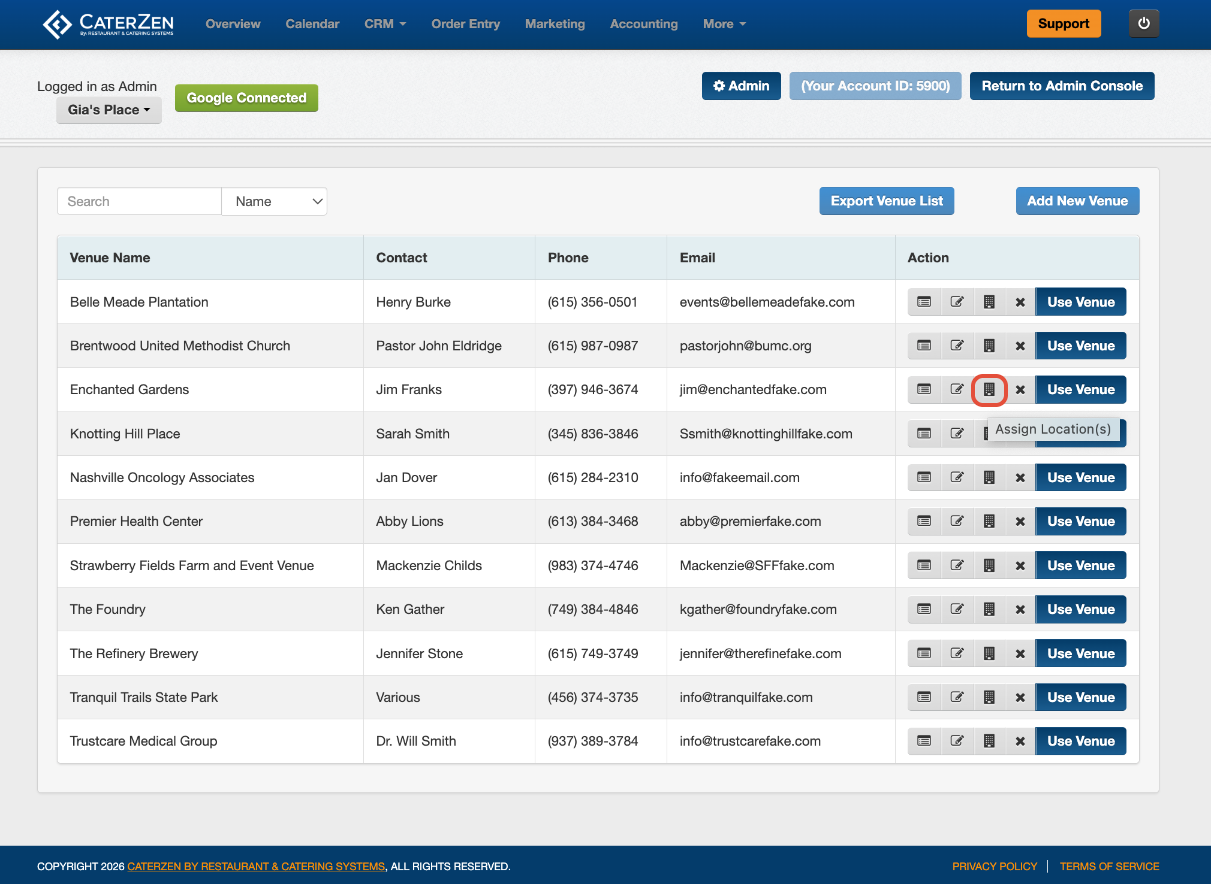
Click the Assign Locations icon next to the venue.
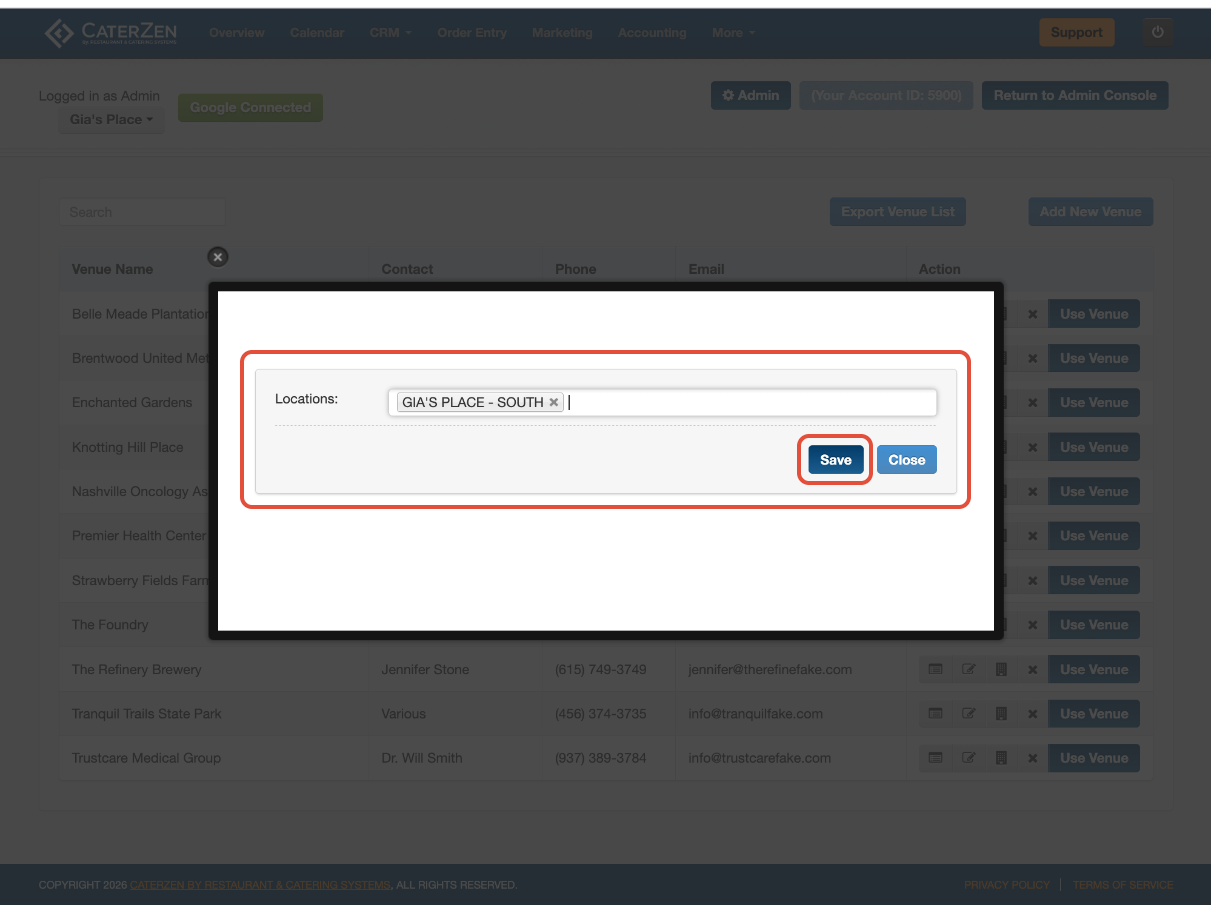
Select the locations that should be allowed to deliver to this venue.
Click Save.
You can:
Remove a location by clicking the X next to it
Add additional locations by clicking inside the field and selecting from the list
Venue Action Icons Explained
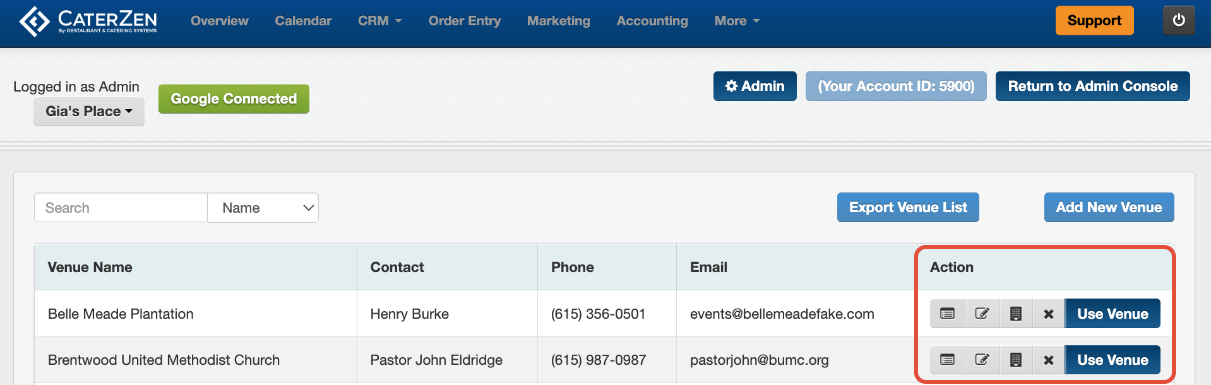
Each venue has several action options available:
View Orders for This Venue
See a history of all orders delivered to this venue. From here you can view order details, print, download, export to Excel, or email reports.View/Edit This Venue
Update venue contact information, address details, or notes.Assign Locations
Choose which store locations can deliver to this venue.Delete This Venue
Permanently removes the venue from your account. A confirmation message will appear before deletion.Use Venue
Starts a new order and automatically takes you to the Order Entry tab with the venue selected.
What Happens When You Use a Venue in an Order?
When a venue is selected during order entry:
The delivery address auto-fills
General Notes populate the Special Instructions field
Delivery Notes appear next to the delivery address
You can still edit order-specific details as needed
Next Step
Once your Venue Manager list is set up, you’re ready to use venues while taking orders.
Next article: Venue Manager: Use Venues in Order Entry
Support
For additional help, refer to the CaterZen Support Center or contact our CaterZen Support Team.
Not a CaterZen customer yet? Discover how our catering software can streamline your business — click here to learn more!