
Overview
The Kitchen Prep Item Label Sheet Report allows you to print labels for menu items and prep items tied to your orders. These labels are commonly used on pans, containers, and packaging so your team and the Customer can quickly identify what each item is without opening it.
This report uses your prep item formulas, so labels will only generate if formulas have already been created. The calculated quantity determines how many labels print. The total quantity does not appear on each individual label.
The report is formatted specifically for Avery 5160 label sheets, which are required for proper alignment when printing.
You can pull this report for:
A single day to support daily prep
A date range when prepping or labeling items in advance
Interactive Guide
Follow the interactive guide below to learn how to use Kitchen Prep Item Labels
Accessing the Report
Go to More
Select Reports
Open Kitchen & Production Reports
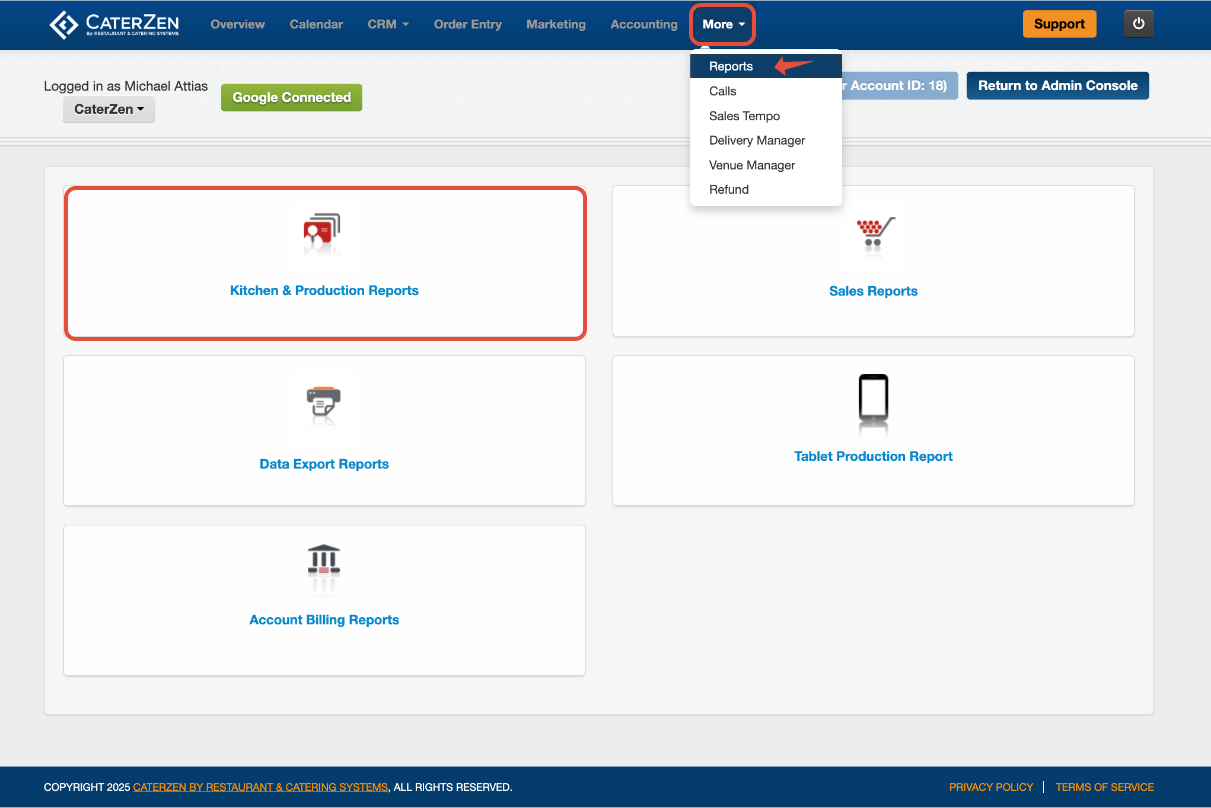
Click Kitchen Prep Item Label Sheet
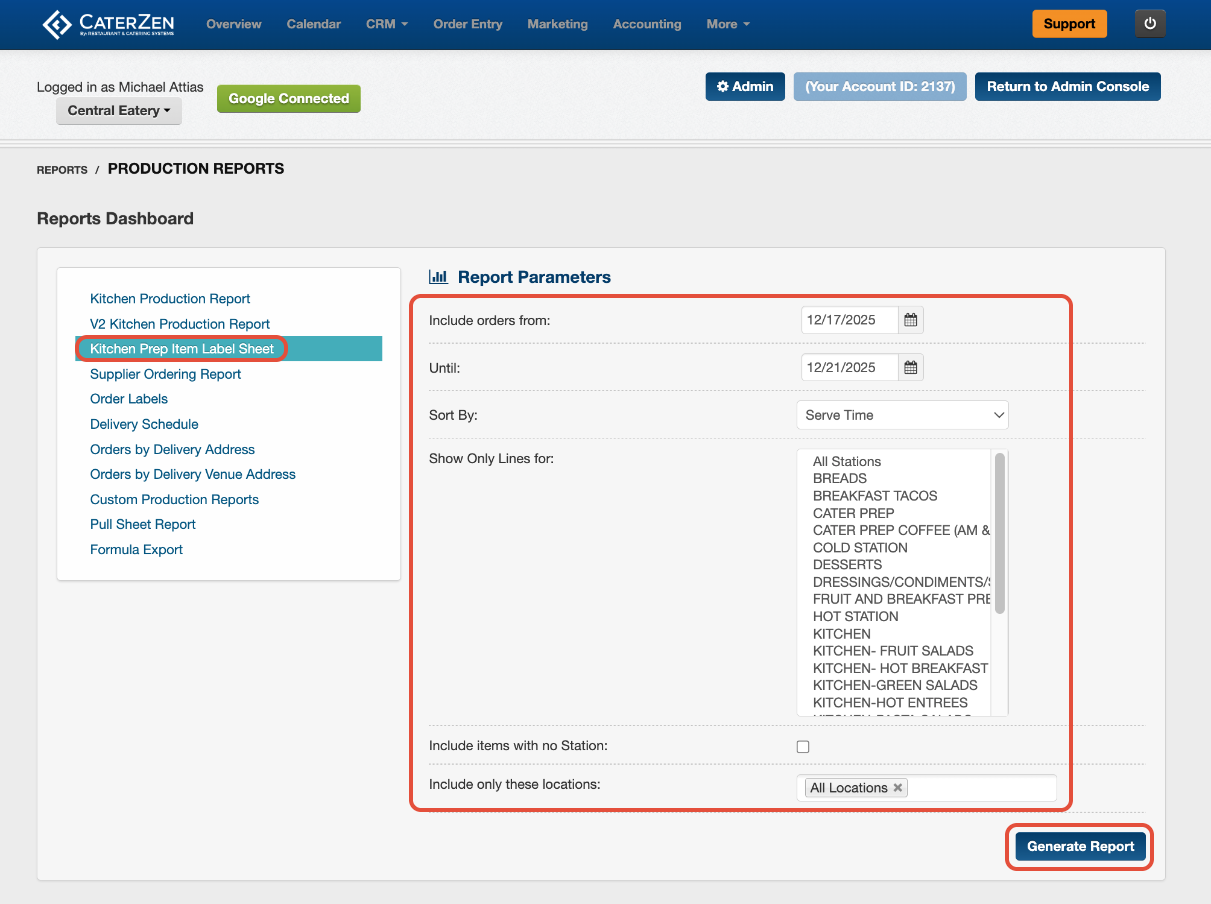
Report Parameters
A. Date Range
Select the dates you want included.
Use a single day for same-day prep
Use a range when preparing or labeling ahead
B. Sort By
Choose how labels are sorted. Serve Time is the default.
C. Show only lines for - Station Filter
By default, all stations appear. Select a station if you only need labels for one prep area.
D. Include Items With No Station Assigned
Check this if you do want items without a station to appear.
E. Include only these locations
If you have multiple locations, choose one location or include all.
Click Generate Report once your selections are complete.
Understanding the Label Sheet
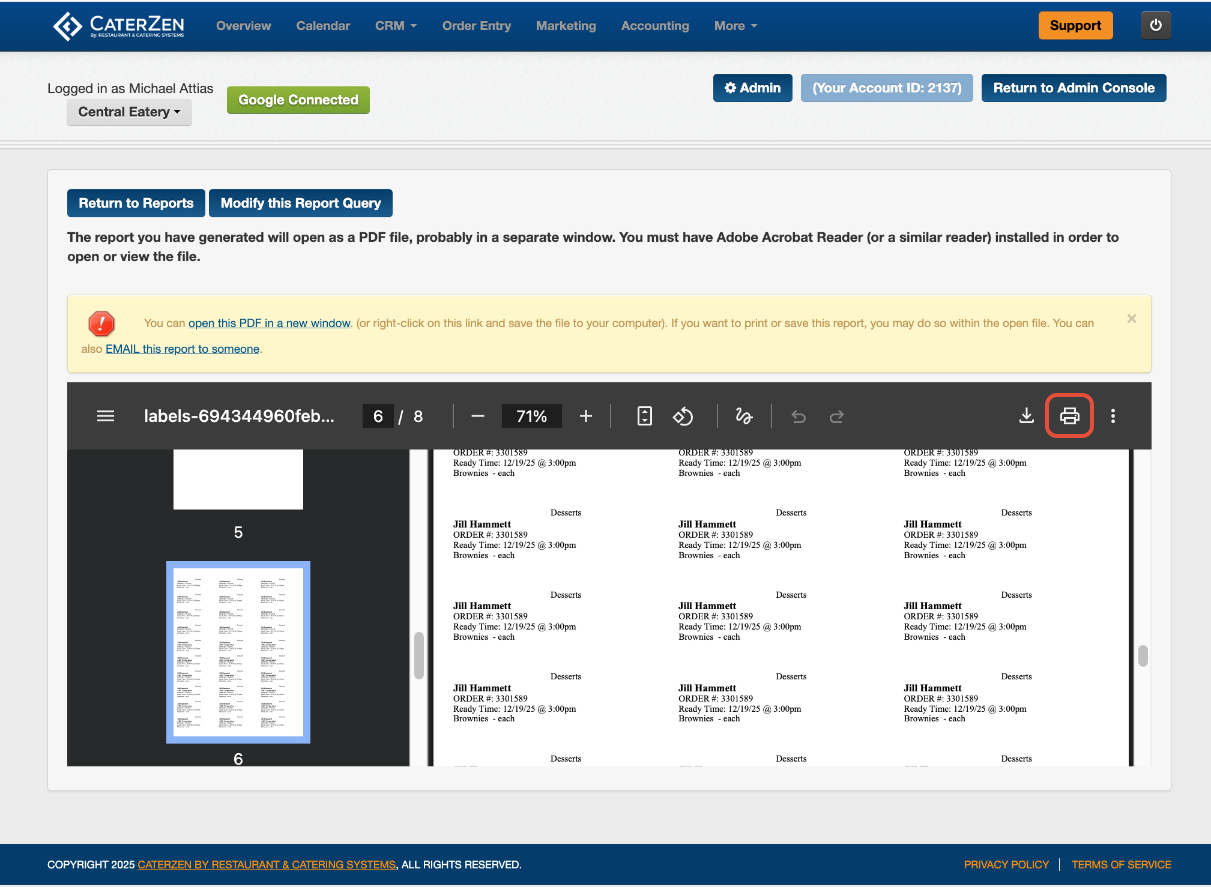
Once generated, the report opens as a PDF formatted for label printing.
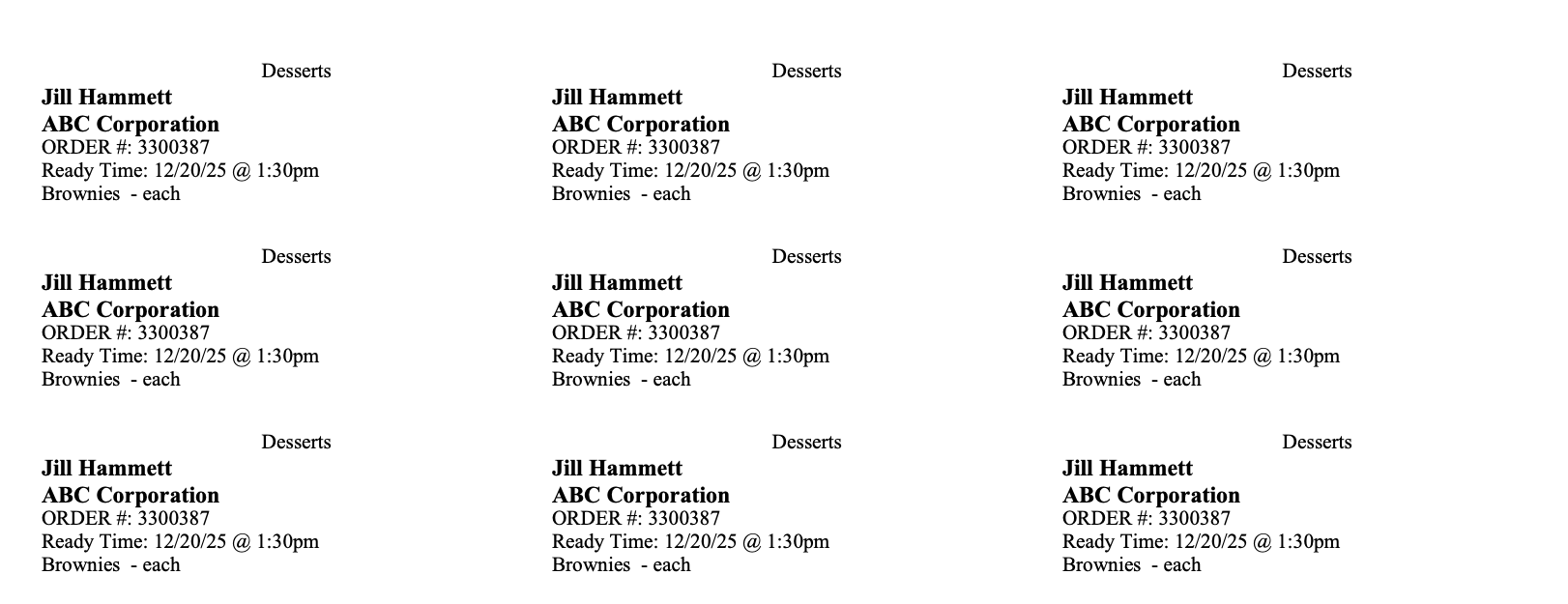
Each label includes:
Prep item name
Unit of measure
Station name
Order context tied to the selected date range
How many labels will print?
The report prints one label for each unit calculated by your prep item formulas.
For example:
10 pounds of chicken: Prints 10 labels, one for each pound. Each label shows “lbs,” rather than “10 lbs.”
3 brownies: Prints 3 labels, one for each brownie.
If you place all 10 pounds of chicken in one container, the report still prints 10 individual labels. It does not combine them into one label showing the total quantity.
At the top of the report, you will see:
The number of label sheets to be printed
Options to refresh, download, or print
Printing Your Labels
This report is designed for Avery 5160 label sheets.
To print:
Load Avery 5160 label sheets into your printer
Open the PDF
Click Print
Confirm your printer settings before printing
Best Practices
Confirm your prep item formulas before generating the report, since the calculated quantities determine the number of labels printed.
Assign stations to all prep items for cleaner, more organized labels.
Run labels after final order cutoffs to avoid reprinting.
Print an extra sheet for last-minute changes or add-ons.
Related Articles
Kitchen Production Report (Legacy)
Support
For additional help, refer to the CaterZen Support Center or contact our CaterZen Support Team.
Not a CaterZen customer yet? Discover how our catering software can streamline your business — click here to learn more!