
Overview
Need to add a tip to an order after it's already been placed and/or paid for? CaterZen makes it easy to add or adjust a tip directly from the Invoices page without having to open the order for editing, save changes, or manually adjust the invoice.
The system automatically updates the invoice total to include the tip. If the order has already been paid, you can then process an additional credit card payment to collect the tip.
Interactive Guide
Follow the written instructions below, or click through this interactive guide for a visual walkthrough.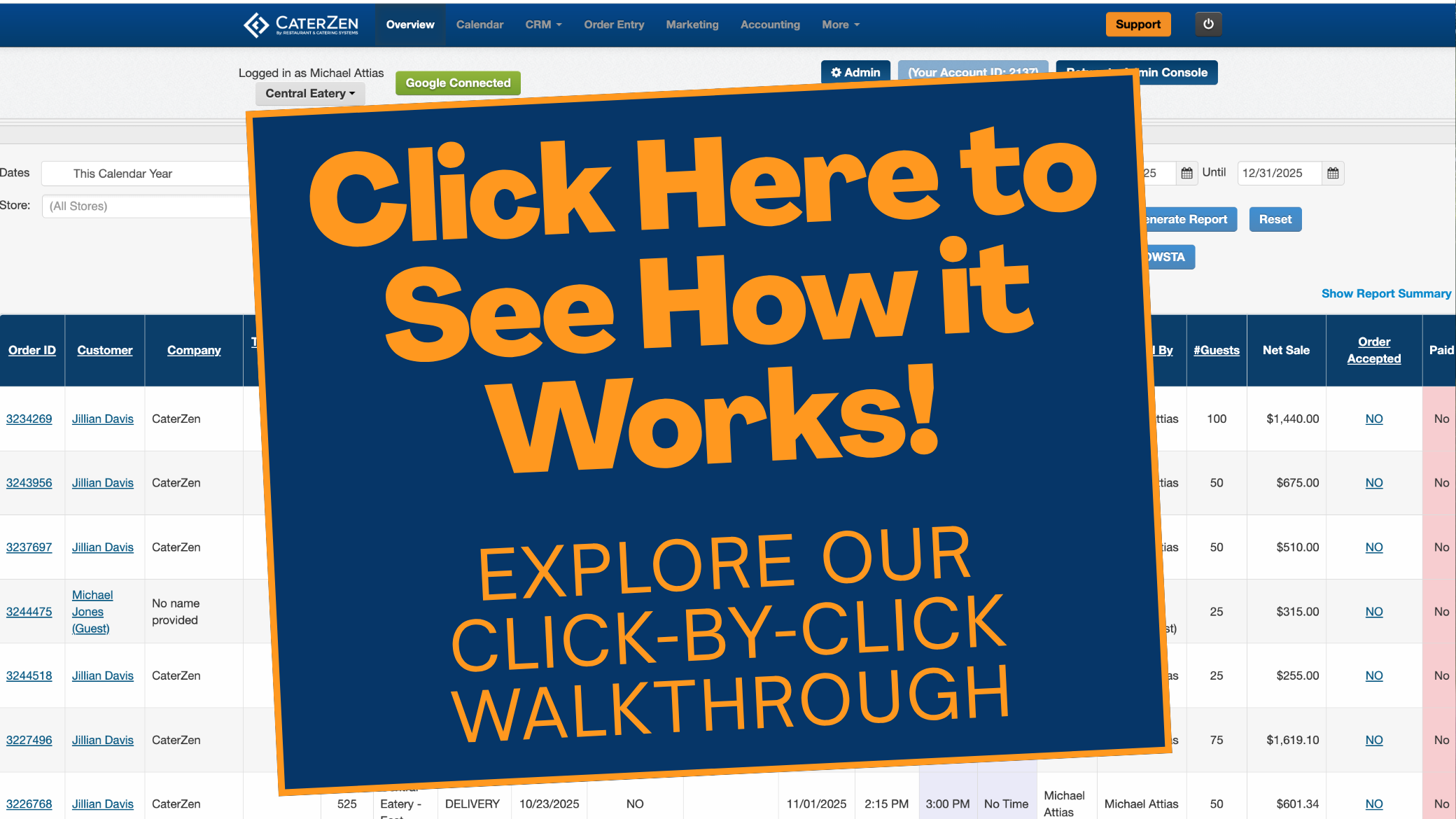
Step 1: Locate the Order
- From the top navigation menu, go to Accounting > Invoices / Catering Tickets
- Select the appropriate date to locate the order.
- Find the order in the invoice list.
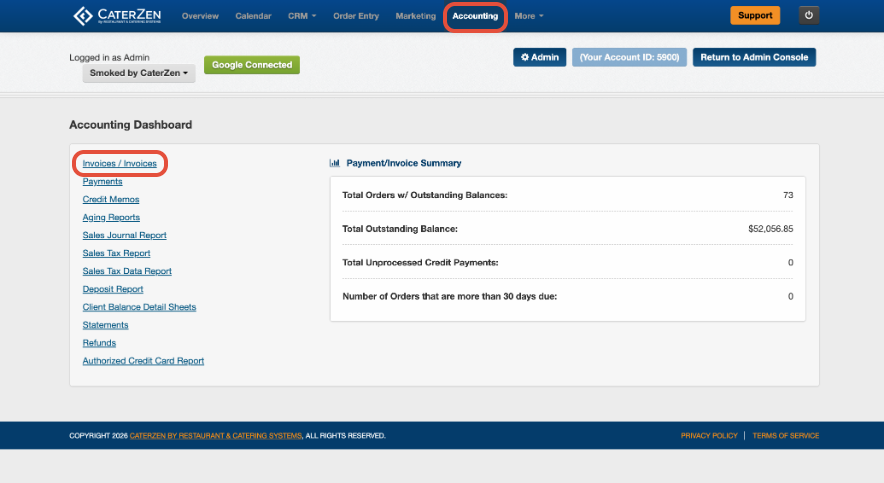
Step 2: Add or Adjust the Tip
- Locate the Tip column for the order.
- Click the tip amount (typically $0.00).
- A small box will appear where you can enter or adjust the tip.
- Enter the desired tip amount.
- Click the teal checkmark to save your changes.
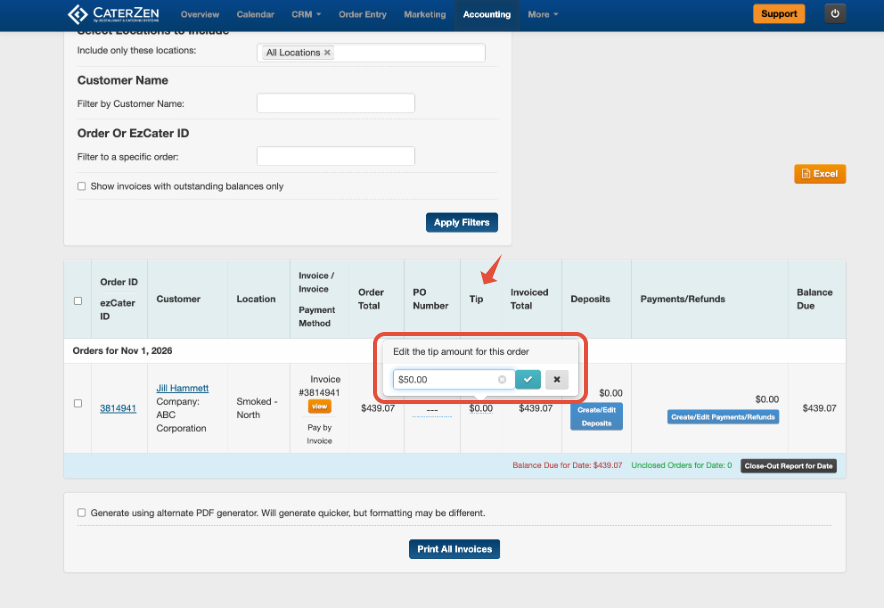
That's it! The tip is now added to the order, and CaterZen automatically updates the invoice total to reflect the new amount.
There's no need to open the order for editing or manually adjust the invoice!
Step 3: Process the Additional Payment (If Needed)
If the order has already been paid in full, adding the tip will create an outstanding balance for the additional amount. You can process a separate credit card payment to collect that balance. Follow our step-by-step walkthrough to see how: How to Process an Additional Credit Card Payment
Once the payment has been successfully processed, the invoice balance will update accordingly.
Important: Adding or adjusting a tip updates the invoice total but does not automatically charge the Customer's credit card for the additional amount.
Additional Tips
- You can use this same process to adjust an existing tip without reopening the order.
- The invoice automatically reflects the updated tip amount.
- If the order has not yet been paid, the updated tip will be included in the outstanding invoice balance.
Support
For additional help, refer to the CaterZen Support Center or contact our CaterZen Support Team.
Not a CaterZen customer yet? Discover how our catering software can streamline your business — click here to learn more!