
Overview
Sometimes a Customer cancels at the last minute, gives you the wrong credit card, or asks to use a different payment method after their card has already been authorized or charged. If the transaction has not yet settled, you can void it directly in CaterZen.
This article walks you through locating the transaction, submitting the void, and confirming it was successful. Once successfully voided, the payment is automatically removed from the invoice.
IMPORTANT: Removing a payment and voiding a transaction are different actions. Submit the void through the transaction details first. Once successfully voided, the payment is automatically removed from the invoice.
Interactive Guide
Follow the interactive guide below to learn how to void a pending authorization or transaction.
Voiding a Pending Transaction
Locate the Payment in Accounting
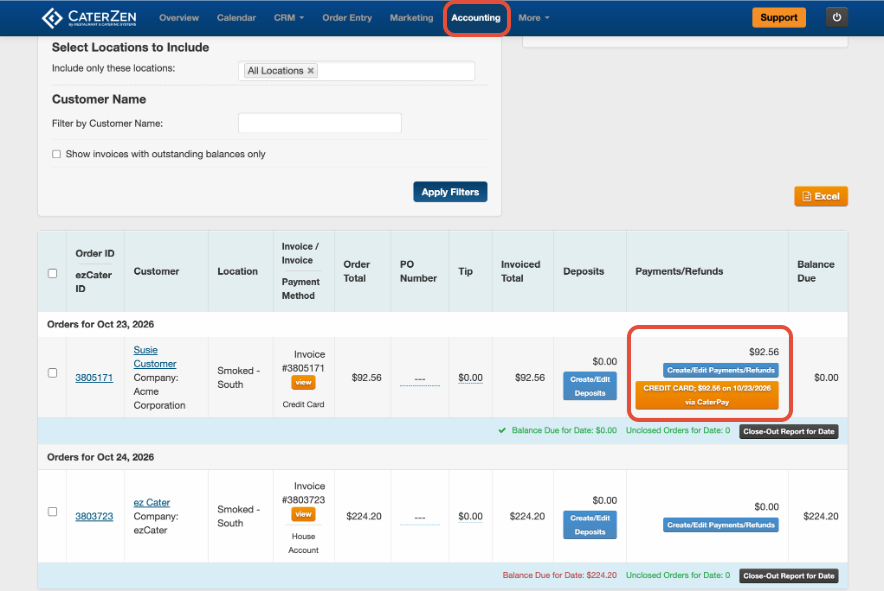
- Click the Accounting tab and locate the order in the Invoices Screen. Adjust the date range or other filters as needed or search by Customer or Invoice Number.
- In the Payments/Refunds column, click the orange or teal credit card payment button for the transaction you wish to void.
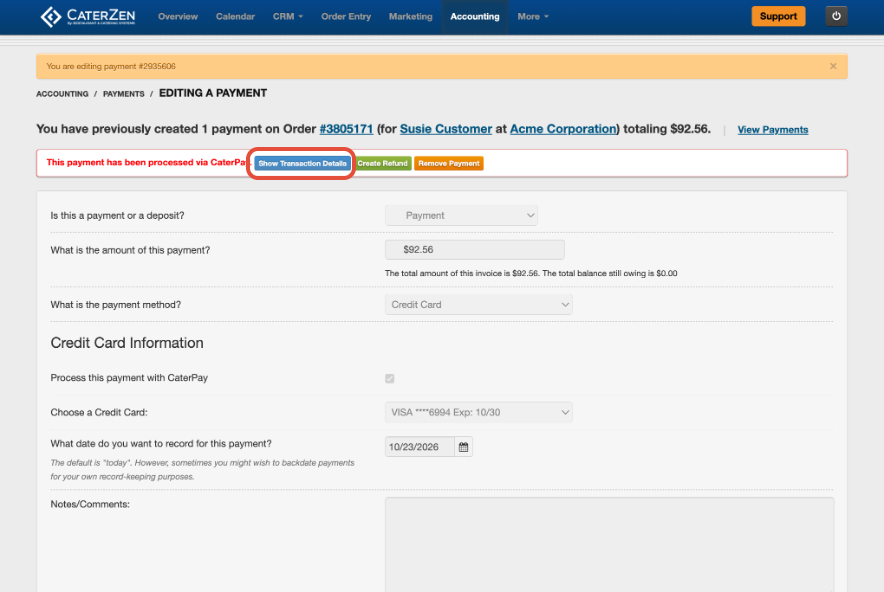
Open the Transaction Details
- On the payment page, click the blue box Show Transaction Details.
Review the Transaction and Click Void
- Check the Order ID and Amount to confirm you are viewing the correct transaction.
- Depending on your credit card processing settings and when the payment is submitted for settlement, you may see:
- Settle Now and Void: The authorization is pending. Settle Now allows you to manually submit it for settlement.
- Void only: The transaction has already been submitted for settlement but can still be voided.
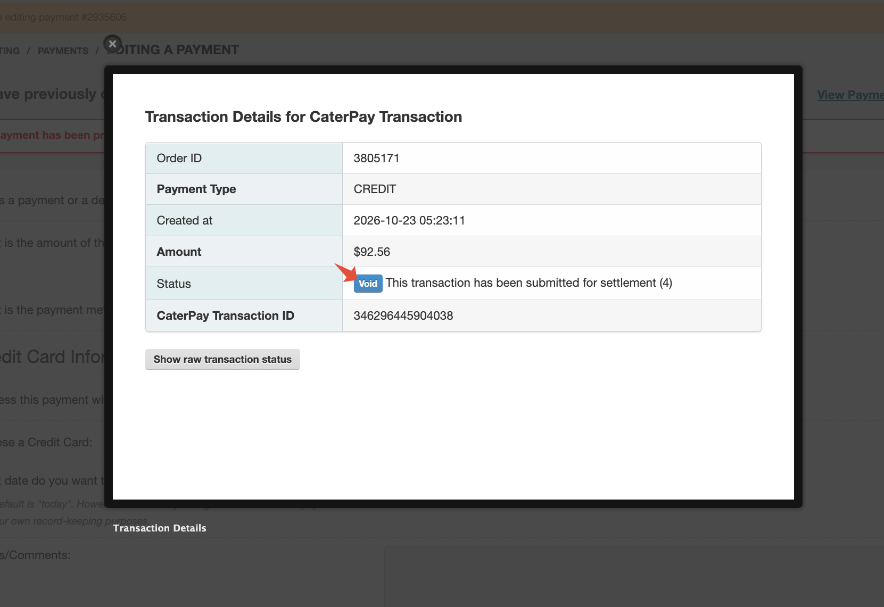
- To cancel the authorization or transaction, click the blue Void button beside its status.
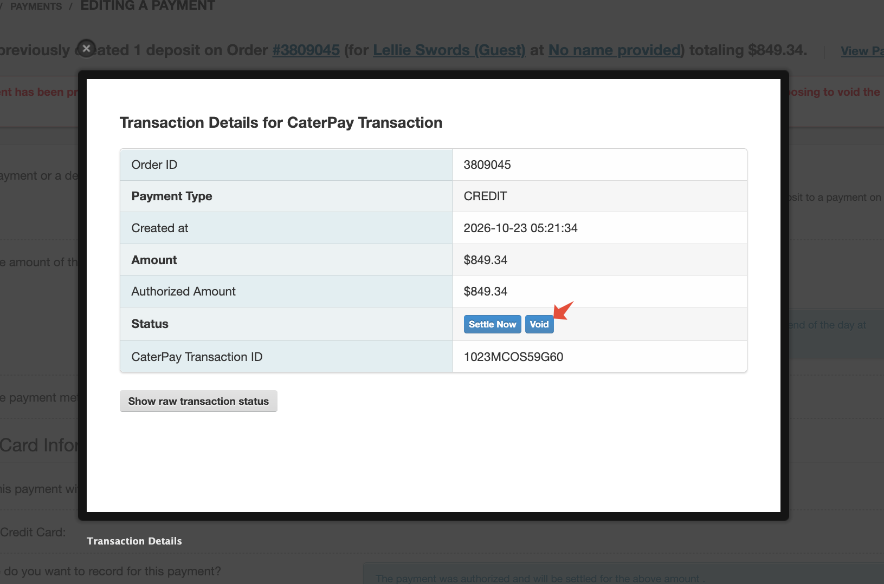
Note: In the example below, the transaction shows “This transaction has been submitted for settlement” and still has a Void button available.
Confirm the Void
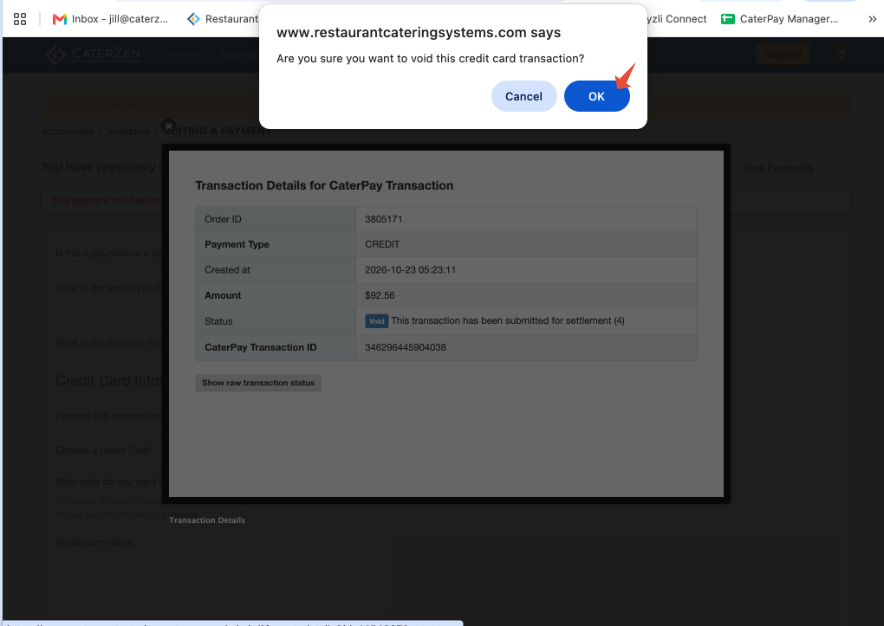
- A confirmation message will ask: “Are you sure you want to void this credit card transaction?”
- Click OK to proceed. Click Cancel if you do not want to void the transaction.
Verify the Void Was Successful
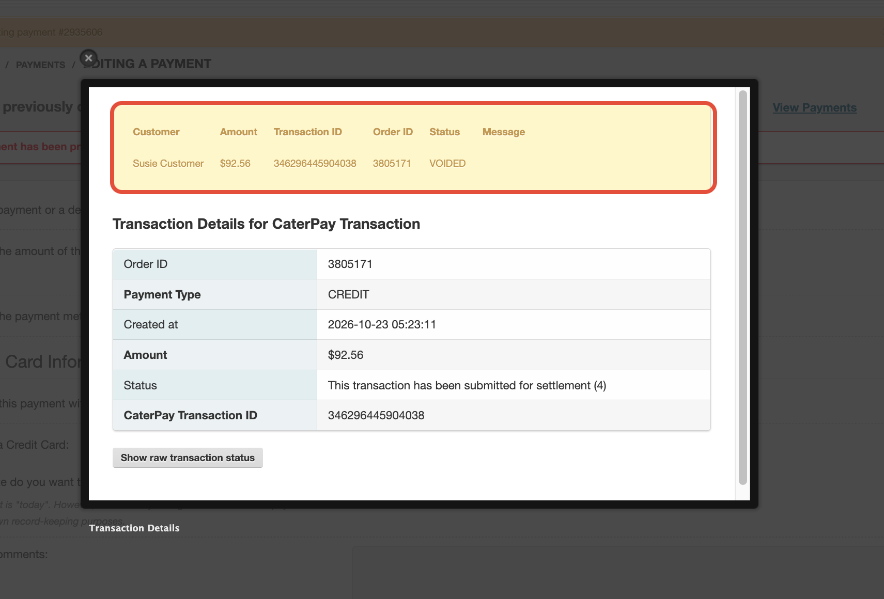
- A confirmation will appear at the top of the transaction details showing the Customer, amount, transaction ID, order ID, and a status of VOIDED.
- Check this confirmation to verify that the void was successful.
What You’ll See in Accounting
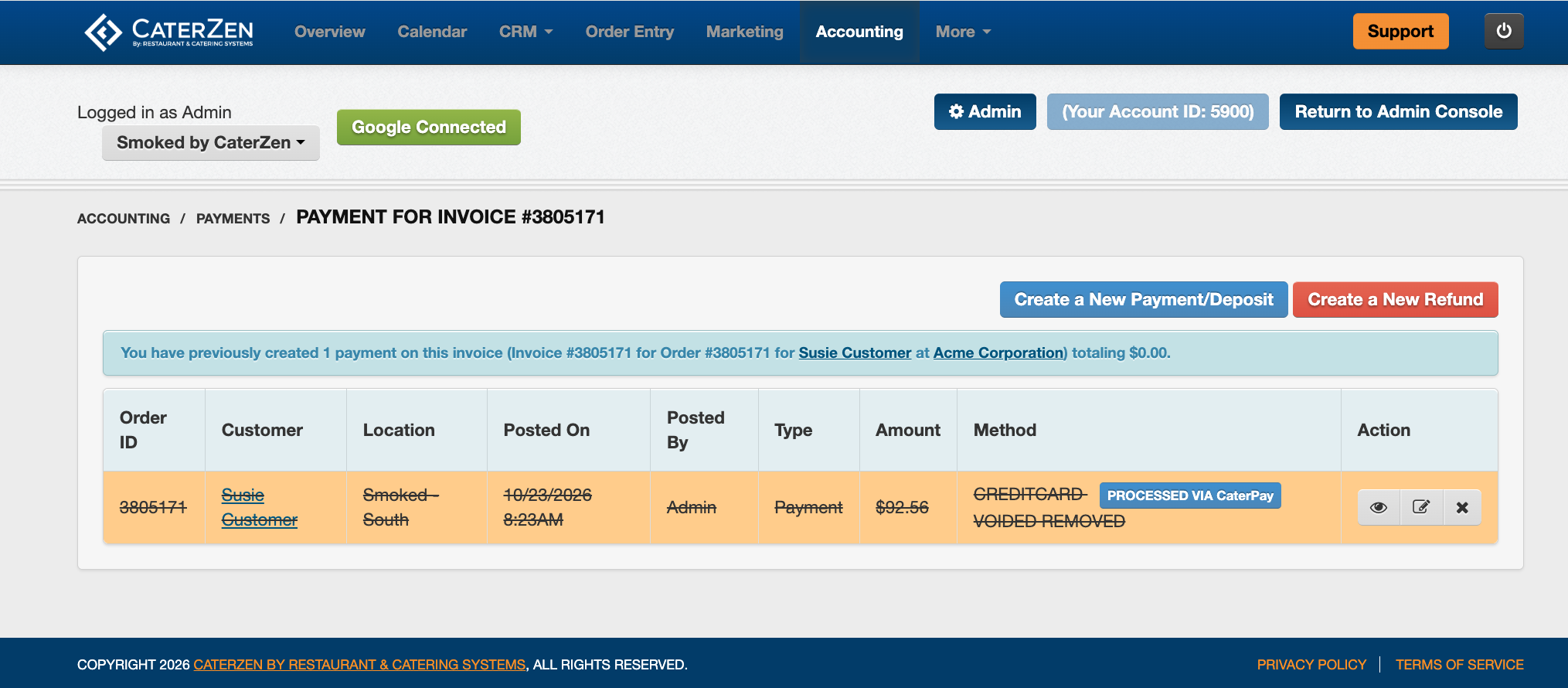
- Return to the invoice’s payment list. The voided payment will appear crossed out and marked VOIDED REMOVED.
- The voided amount will no longer count toward the invoice’s payment total. In this example, the payment total changes from $92.56 to $0.00.
Frequently Asked Questions
Q: What if I do not see the Void button?
A: Once a transaction has settled, the Void button is no longer available. You will need to process a refund to return the money to the Customer.
Follow the instructions in Processing Refunds in CaterZen.
Q: What if I receive an error?
A: Check whether a VOIDED confirmation appeared. If you receive an error or cannot confirm that the void was successful, contact CaterZen Support before attempting another payment.
Q: Is clicking Remove Payment the same as voiding the transaction?
A: No. Remove Payment only removes the payment record from the invoice. It does not void the credit card transaction or return money to the Customer.
Follow the steps above to submit the void and verify the VOIDED confirmation. Once successfully voided, the payment is automatically removed from the invoice.
Support
For additional help, refer to the CaterZen Support Center or contact our CaterZen Support Team.
Not a CaterZen Customer yet? Discover how our catering software can streamline your business — click here to learn more!