
Overview
Marketing Lists allow you to find and group Customers using criteria that matter to your catering business. You can use these targeted lists to reconnect with past Customers, promote seasonal offerings, follow up on sales opportunities, and keep your Team focused on the right contacts.
For example, you could create a Marketing List of Customers who:
Ordered for a specific holiday last year
Purchased a particular menu item
Have not placed an order recently
Belong to a specific Customer or company type
Previously held a certain type of event
After creating your list, you can select the Customers you want to contact and create Call Tasks, create To-Do Tasks, or send a Bulk Email Campaign.
Interactive Guide
Follow the interactive guide below to learn how to create and use a Marketing List in CRM Sales Pro.
[Insert Storylane Interactive Guide]
Access Marketing Lists
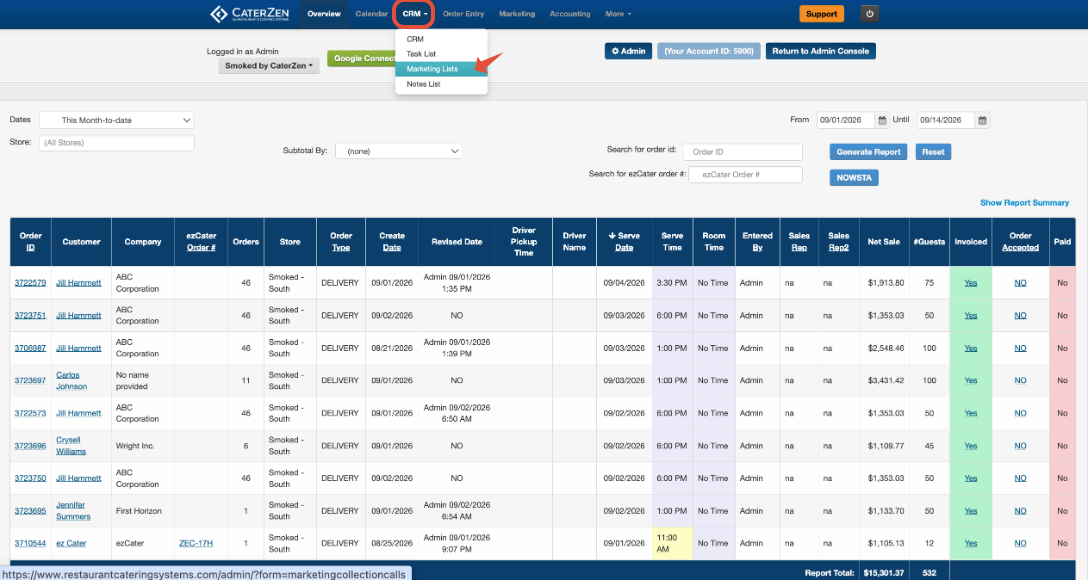
Click the CRM tab.
Click Marketing Lists.
The Marketing Lists page allows you to add filters and create a targeted list of Customers based on their information, order history, or quote history.
Choose Orders or Quotes
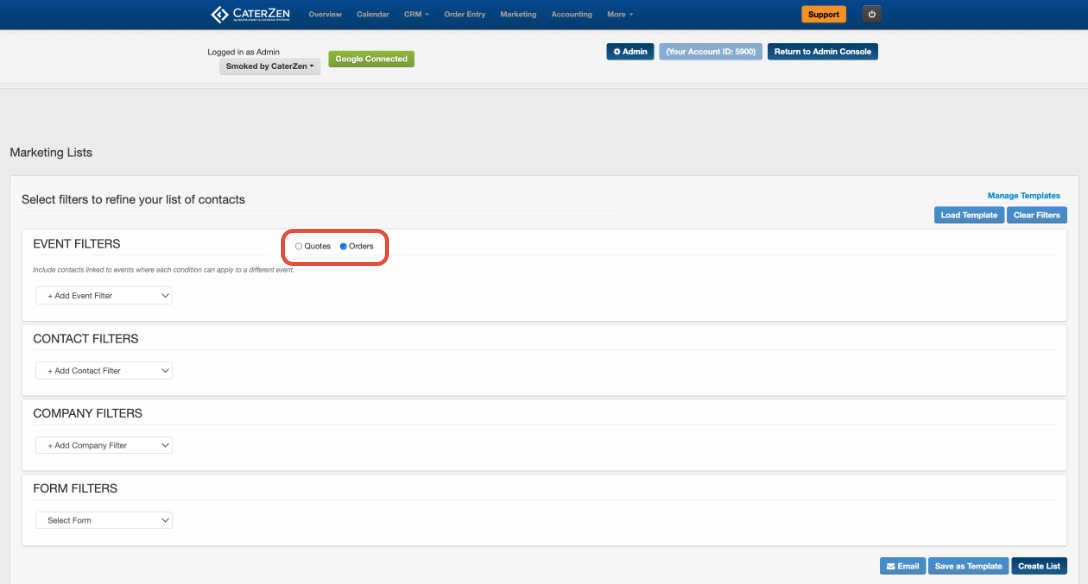
Before adding filters, select whether you want to search using Orders or Quotes.
A Marketing List can search order history or quote history, but it cannot search both at the same time.
Select Orders to find Customers based on completed catering orders and order information.
Select Quotes to find Customers based on their catering quotes and quote information.
Add Filters
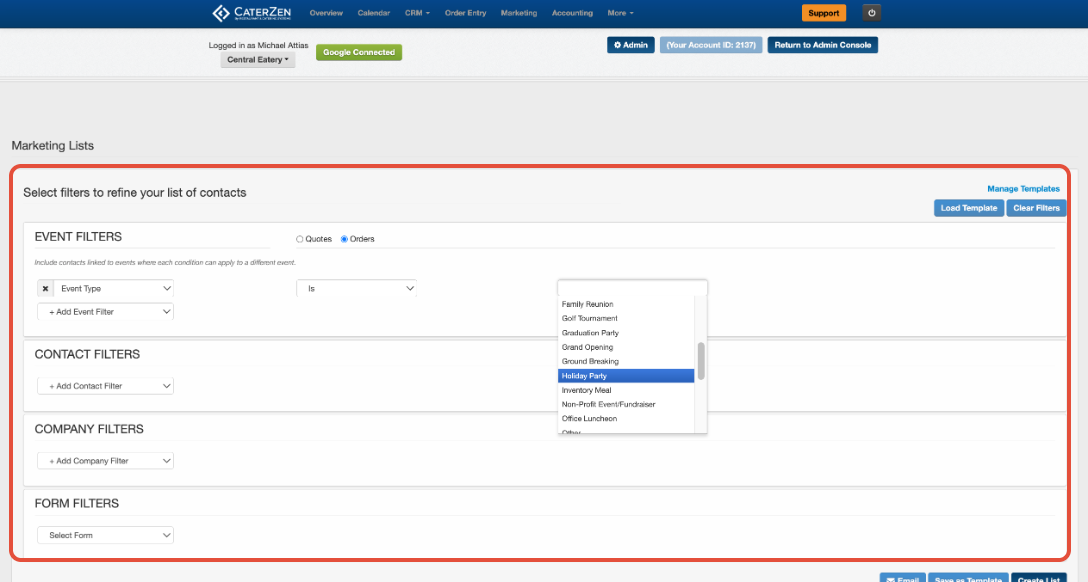
Select the filters you want to use to build your Marketing List. Available filters may include Customer, company, order, quote, and event information. Depending on your account setup, you may be able to filter by criteria such as:
Event Type
Event Date
Order Type
Menu Item
Venue
Coupon Code
Company information
Contact type
Customer activity
Form responses
Some options, including Event Types, Menu Items, Venues, Coupon Codes, and Order Types, are pulled from your account’s existing information. The choices available to you may differ from those shown in this article.
Using Multiple Filters
You can add multiple filters to narrow your results.
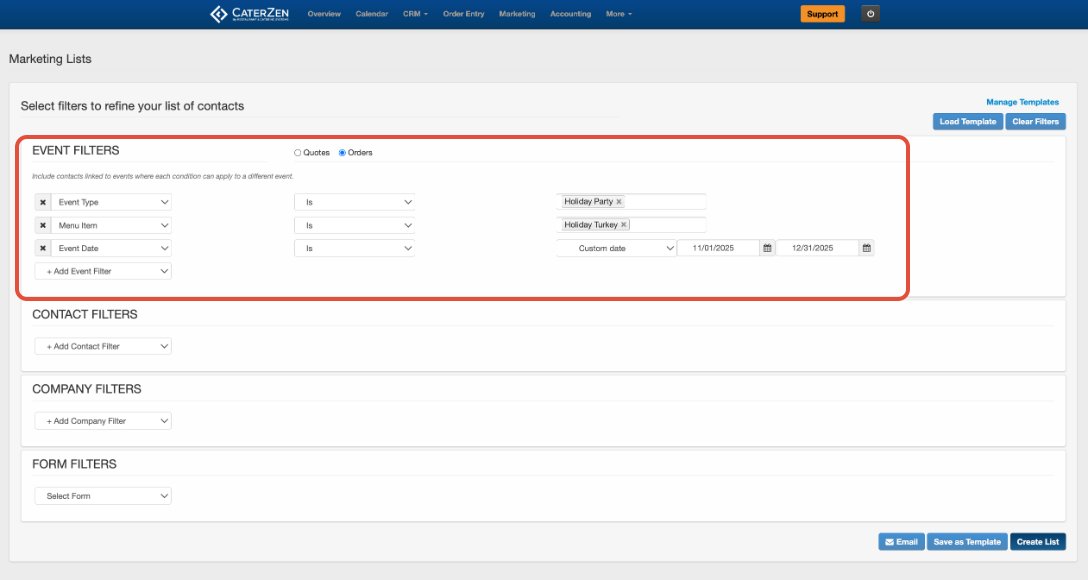
All filters added to a Marketing List work together. This means a Customer must meet every filter you select to appear in the results.
For example, if you select:
Event Type: Holiday Party
Menu Item: Holiday Turkey
Event Date: Last Nov - Dec
The list will include Customers with an individual order that meets all conditions.
Multiple order filters must apply to the same order. The system will not combine information from separate orders to qualify a Customer.
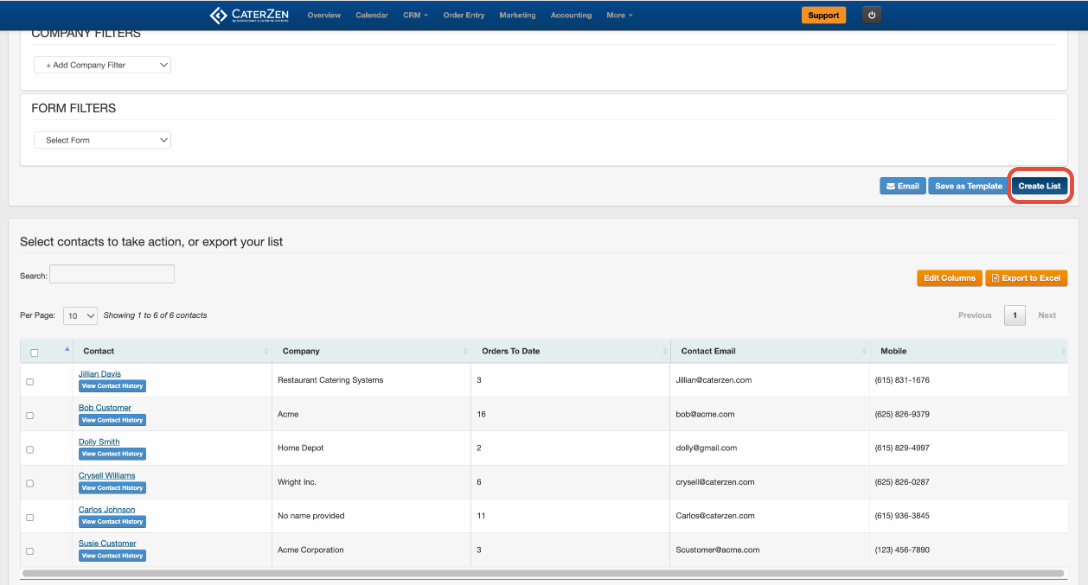
Create the Marketing List
After adding your filters:
Review each filter and its selected value.
Click Create List.
Review the Customers returned in the results.
If the list is too broad or does not return the Customers you expected, adjust your filters and create the list again.
Select Customers
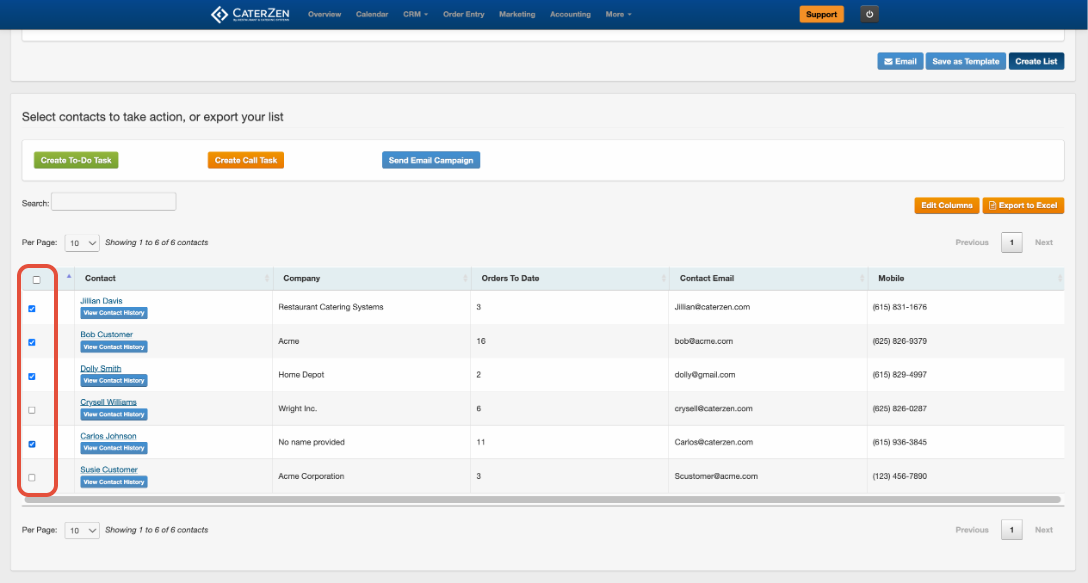
Once the results appear, select the Customers you want to include.
You can:
Select individual Customers
Select all Customers displayed on the current page
Use the option to select all matching Customers across every page
Clear your selections
Be sure to review the number of selected Customers before continuing.
Save Your Filters as a Template
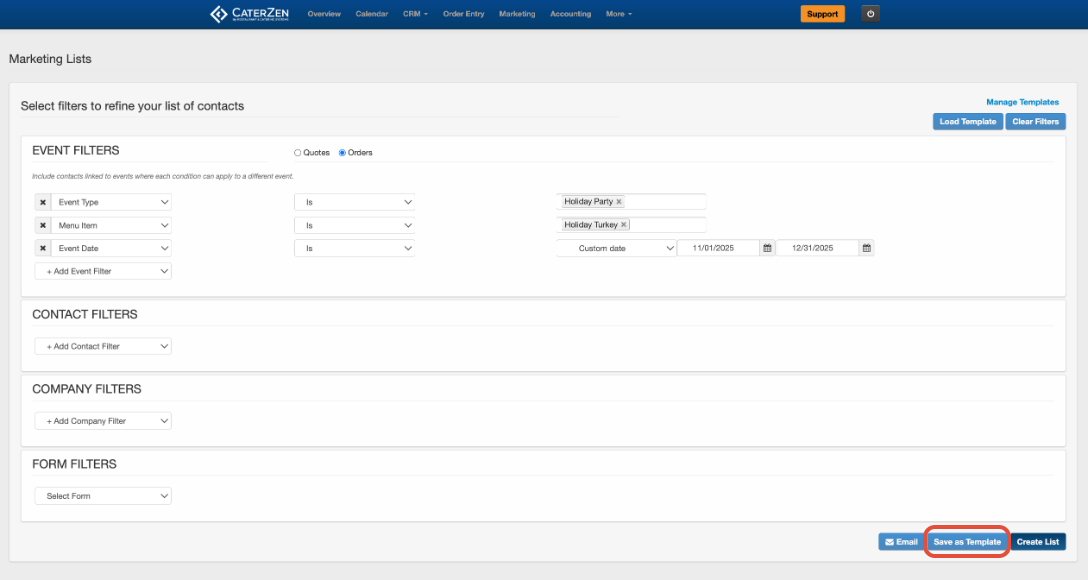
If you plan to use the same filters again, save the filter combination as a Marketing List template.
Saving the template allows you to quickly recreate the list without selecting each filter again. The Customer results will update based on the information in CaterZen when the list is created.
For example, you could save templates for:
Customers who ordered for Thanksgiving last year
Customers who have not ordered recently
High-value corporate Customers
Customers who purchased a holiday package
Customers associated with a particular event type
Name the template clearly so your Team can easily understand its purpose.
Create Tasks From a Marketing List
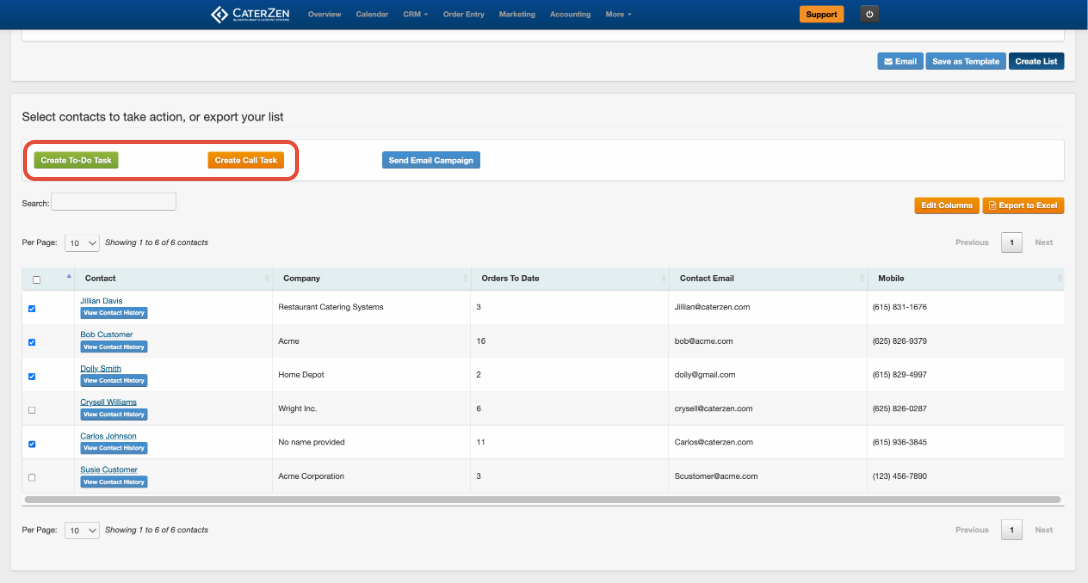
After selecting your Customers, you can create tasks to help your Team complete the follow-up.
Depending on the type of outreach needed, you can create:
Call Tasks for Customers your Team should contact by phone
To-Do Tasks for follow-up activities that do not require a call
Complete the task details, including the assigned employee and due date, before creating the tasks.
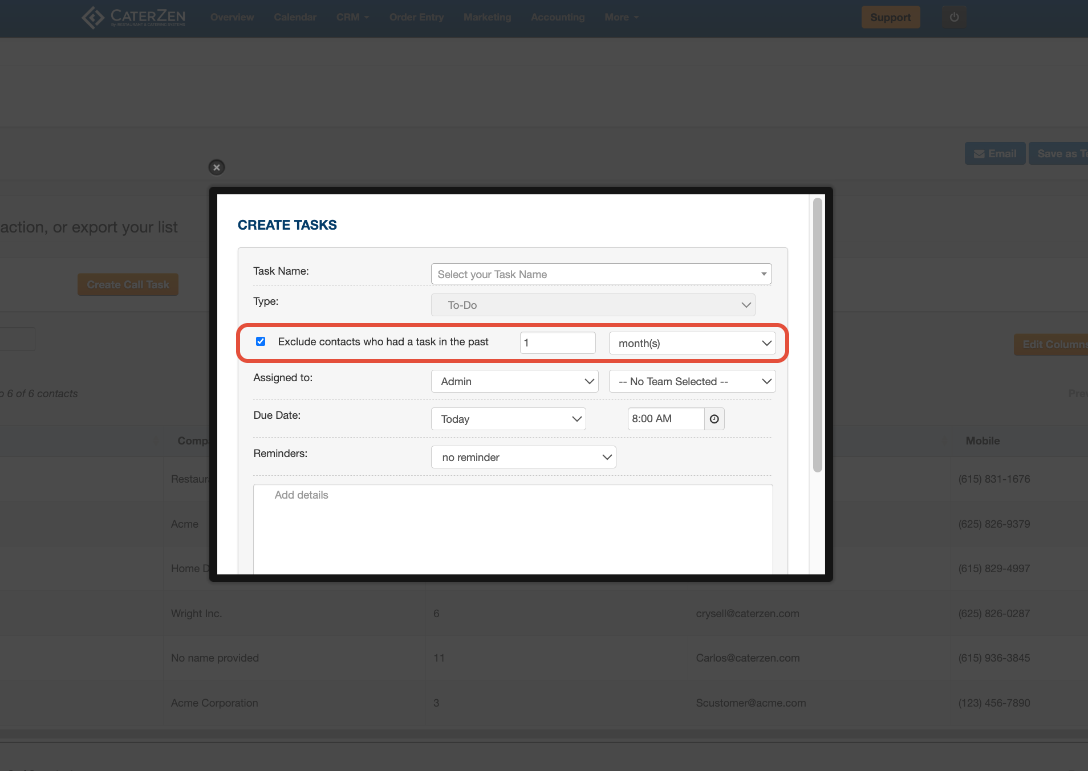
Exclude Customers With Recent Tasks
When creating follow-up activities, you may have the option to exclude Customers who already have a recent task.
This helps prevent multiple employees from contacting the same Customer within a short period and reduces unnecessary or duplicate outreach.
Review the exclusion settings before creating your Call Tasks or To-Do Tasks.
Send a Bulk Email Campaign
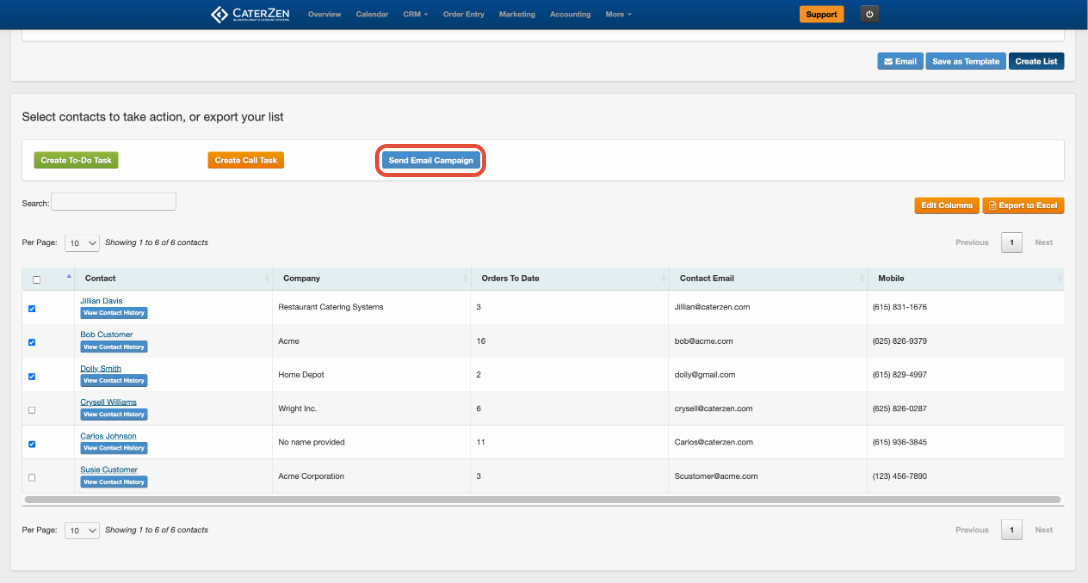
You can also use the selected Customers to create a Bulk Email Campaign directly from the Marketing List.
- Select the Customers you want to include.
- Click Send Email Campaign.
For step-by-step instructions on creating, sending, and tracking the campaign, see Email Marketing: Create, Send, and Track an Email Campaign.
Understanding the Recipient Count
The number of selected Customers may not always match the final number of email recipients.
A selected Customer will not receive the campaign when:
The Customer does not have an email address
The Customer has opted out of marketing emails
The Customer is marked Exclude from Promotions
The email address is otherwise excluded from promotional emails
If multiple Customer records use the same email address, the address is counted only once in the campaign’s recipient list.
Always review the final recipient count before scheduling or sending the campaign.
Marketing List Ideas
Here are a few ways you can use Marketing Lists in your catering business:
Seasonal Rebooking: Find Customers who ordered for a specific holiday or event last year and contact them before the upcoming season.
Customer Reactivation: Find Customers who previously ordered but have not placed another order recently.
Menu Item Promotions: Find Customers who previously purchased a particular menu item, package, or seasonal offering.
Corporate Outreach: Create a list using company information or Customer type to target schools, churches, hospitals, offices, or other organizations.
High-Value Customers: Identify Customers with larger orders or strong ordering histories for personalized follow-up and early access to seasonal offerings.
Quote Follow-Up: Search quote history to identify Customers with previous sales opportunities that may require additional follow-up.
Important Information
Marketing Lists are available through CRM Sales Pro.
You can create and save an unlimited number of Marketing Lists.
A Marketing List searches either orders or quotes, not both simultaneously.
Customers must meet every filter added to the list.
Multiple order filters must be satisfied by the same qualifying order.
Filter options based on Event Types, Menu Items, Venues, Coupon Codes, and Order Types will reflect the information configured in your account.
Review your selected Customers and final recipient count before sending an email campaign or creating tasks.
Support
For additional help, refer to the CaterZen Support Center or contact our CaterZen Support Team.
Not a CaterZen Customer yet? Discover how our catering software can streamline your business — click here to learn more!