
Overview
If you’ve landed here, you’re working through the annual PCI Compliance Survey required by our credit card processing partners. You’re in the right place!
If you use CaterZen to process your Credit Cards, it is through a secure, hosted payment form or iFrame powered by Authorize.Net or Cybersource, so your setup qualifies for SAQ A. That’s the simplest PCI level because your system never touches card data directly.
This guide walks you through exactly what to select, step by step. The survey can look intimidating, but most of the answers are very straightforward when you know what applies to your setup. A click-through guide and screenshots are included throughout this article so you can match what you see on your screen.
Getting Logged in to the PCI Survey
Before you can access the PCI Compliance Survey, you’ll need your Merchant ID from your CaterPay/Payzli account.
Step 1: Open the PCI Compliance Email
- Click the link in the PCI Compliance email you received.
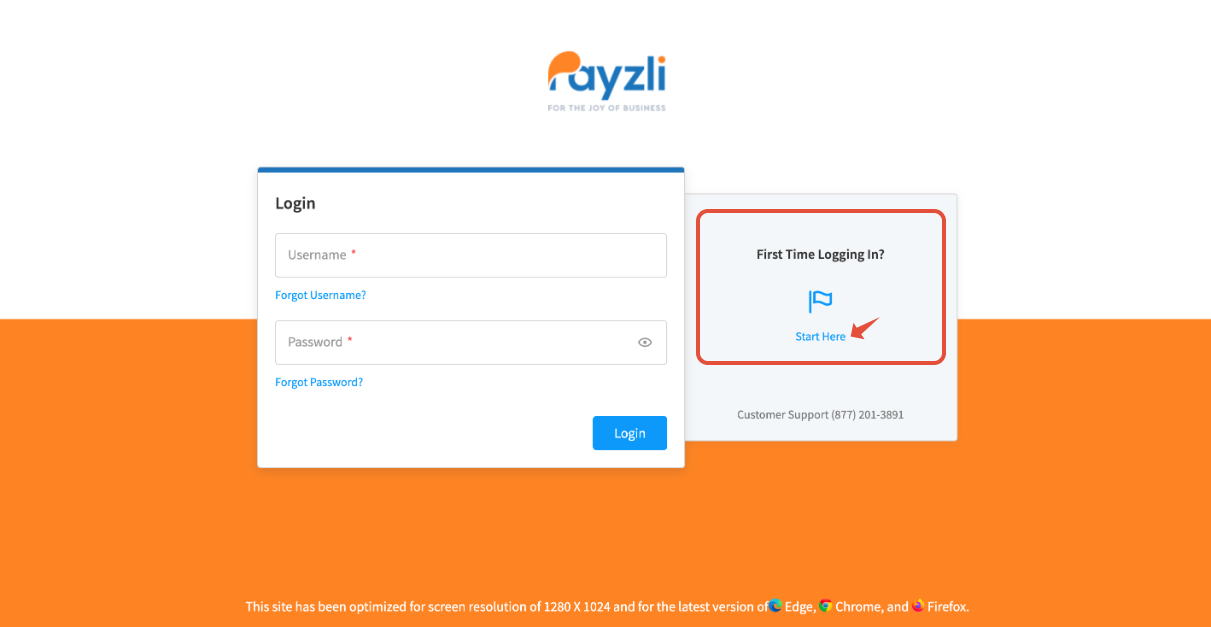
- This link will take you to the PCI Compliance login screen.
- On that screen, look for “First Time Logging In? Start Here” and click that link.
Step 2: Find Your Merchant ID (MID)
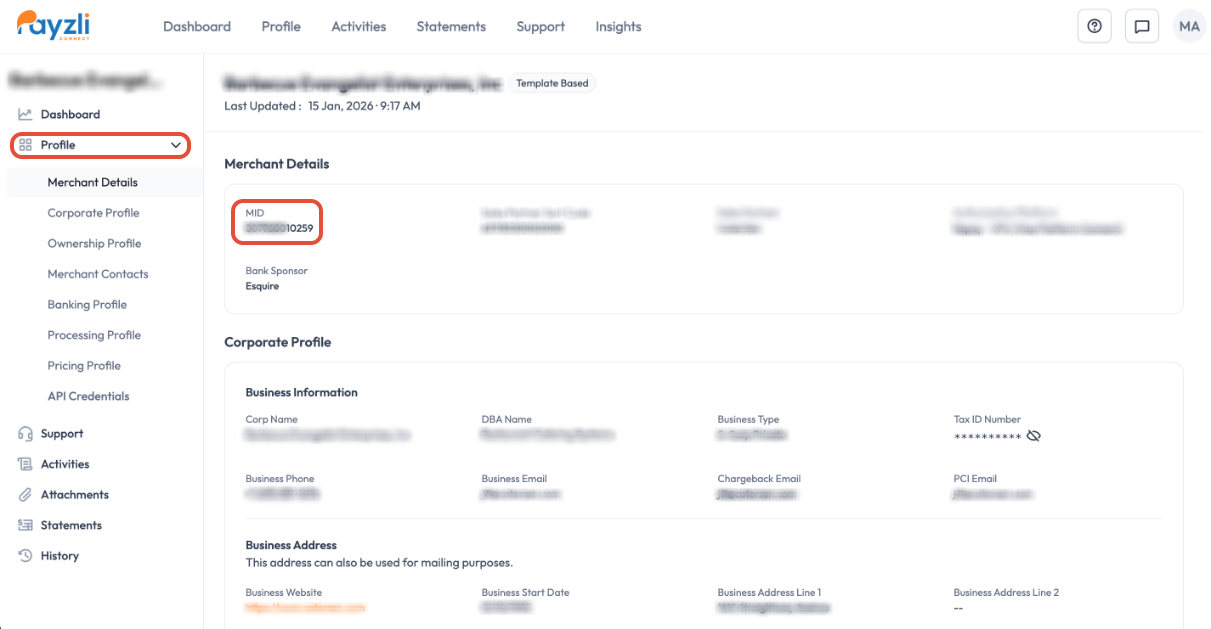
- Log in to your CaterPay/Payzli dashboard.
- Locate your Merchant ID (MID) in your account details.
You’ll use this Merchant ID to log in to the PCI survey.
Step 3: Enter Your Login Credentials
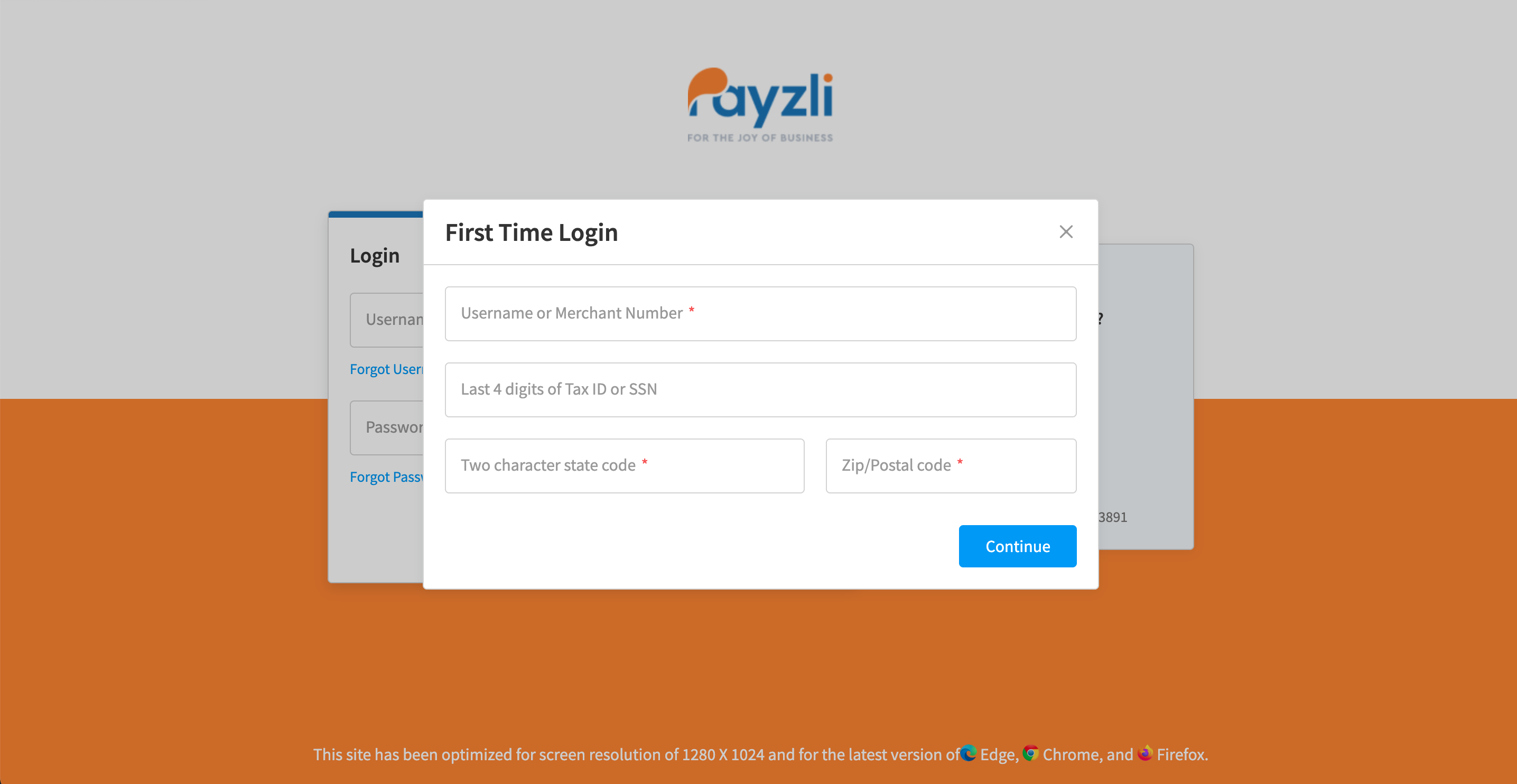
Use the following format when prompted to log in for the first time:
- Username: Your full Merchant ID
- The last 4 digits of Tax ID or SSN
- Two character state code
- Zip/Postal Code
Click Continue.
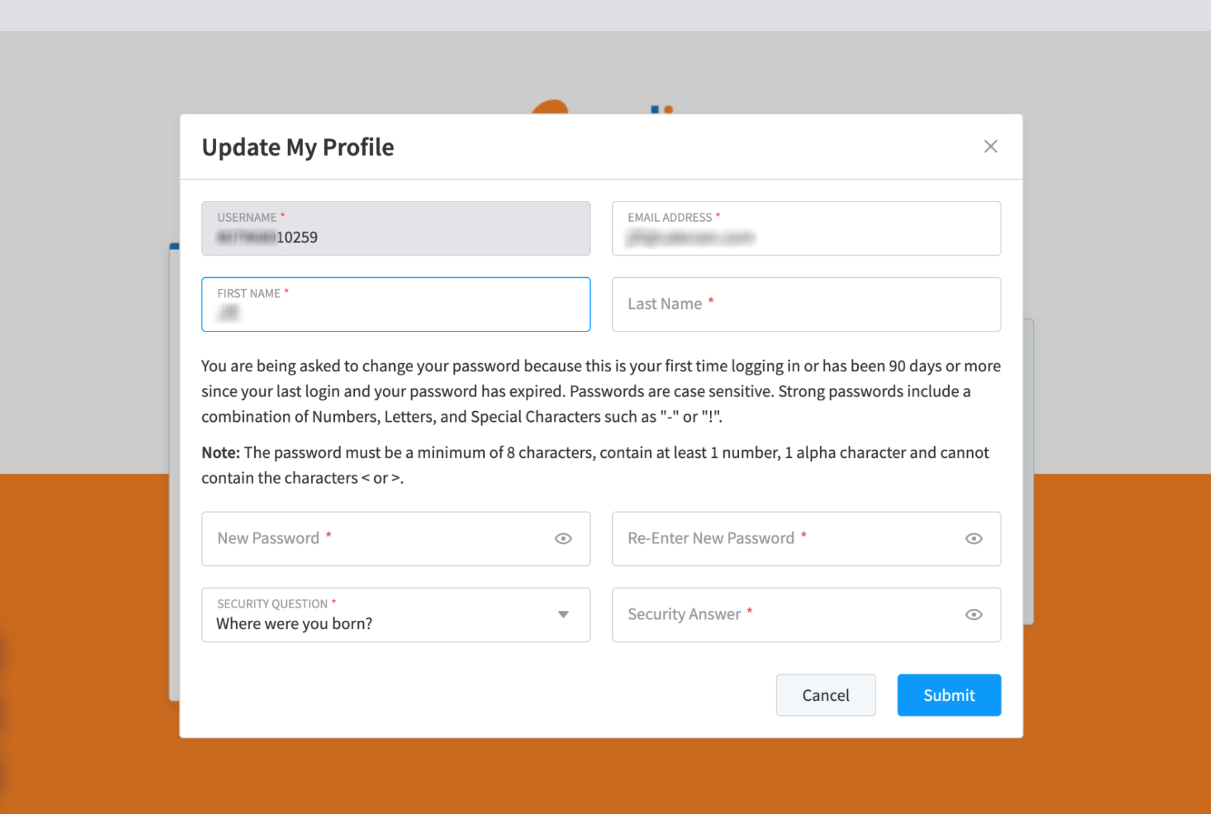
It will prompt you to update your profile and create a password.
Click Submit
Once you’re logged in, you can continue with the PCI Compliance Survey using the steps in the sections below.
Before You Start
A few quick notes before you begin:
- Every required field must be filled in before you can move forward.
- Stick closely to the selections outlined below. Choosing different options can accidentally put you into the wrong PCI category.
- If something doesn’t look right, don’t guess. You can always cancel out and reselect.
PCI Survey
Click Get Started to begin the survey:
Part 1 – Merchant Information
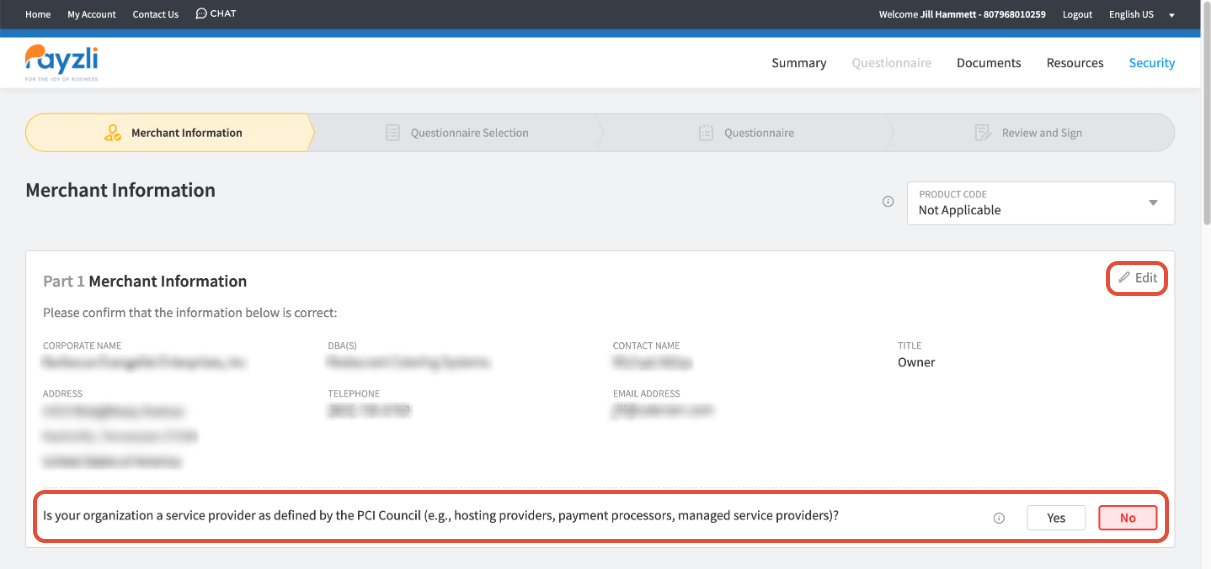
Start by reviewing your business information.
- If anything needs to be updated, click the pencil/edit icon.
- Make sure all required fields are filled in before continuing.
This section is simply confirming who you are as a business.
Part 2 – Merchant Business Payment Channels
This is where many Customers pause, so take your time here.
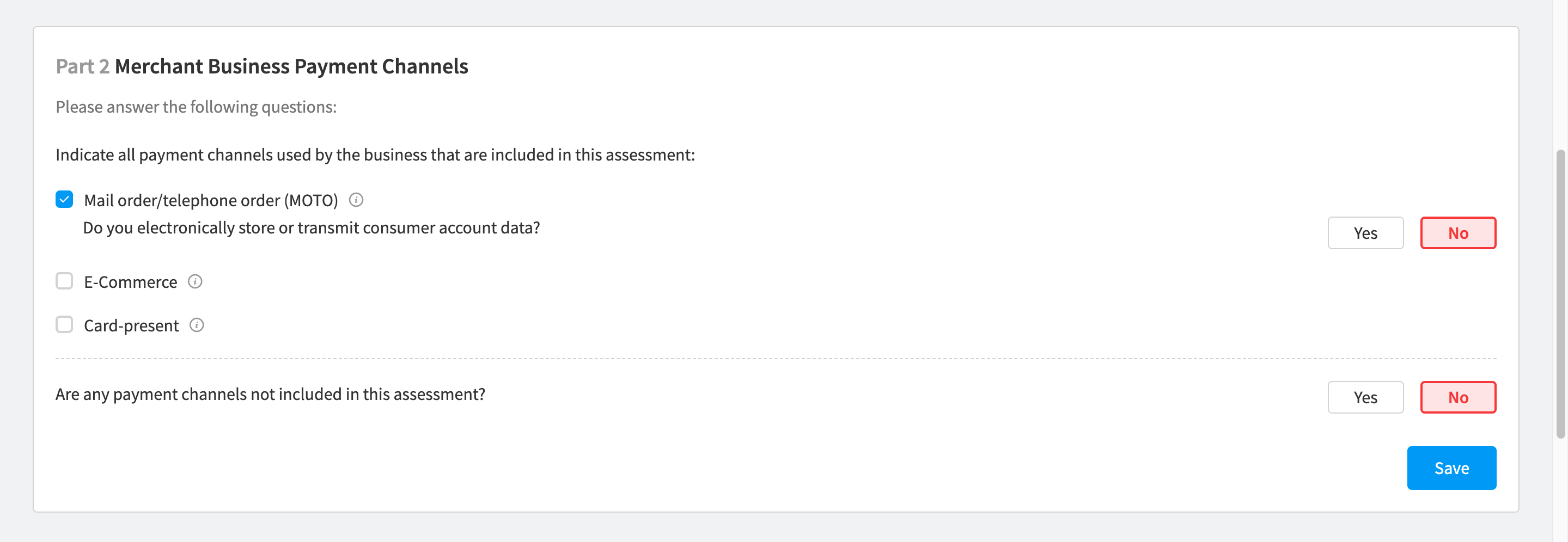
Select only the following option:
- ✅ Mail Order / Telephone Order (MOTO)
Do not select:
- ❌ E-Commerce
- ❌ Card-Present
Then answer the remaining questions exactly as follows:
- Electronically store or transmit cardholder data? → No
- Any channels not included? → No
Even though orders may be placed online, payments are handled through a secure hosted form, which is why MOTO is the correct choice here.
Click Save to move to the next section.
Part 3 – Relationships
This section is asking who helps handle payment data behind the scenes.
Answer as follows:
- Third-party service providers handling account data? → Yes
- Managing system components in PCI scope? → No
- Impacting merchant CDE? → No
Service Provider Information
Add the following:
- Service Provider: Authorize.Net
- Description: Payment Gateway
Click Save to move to the next section.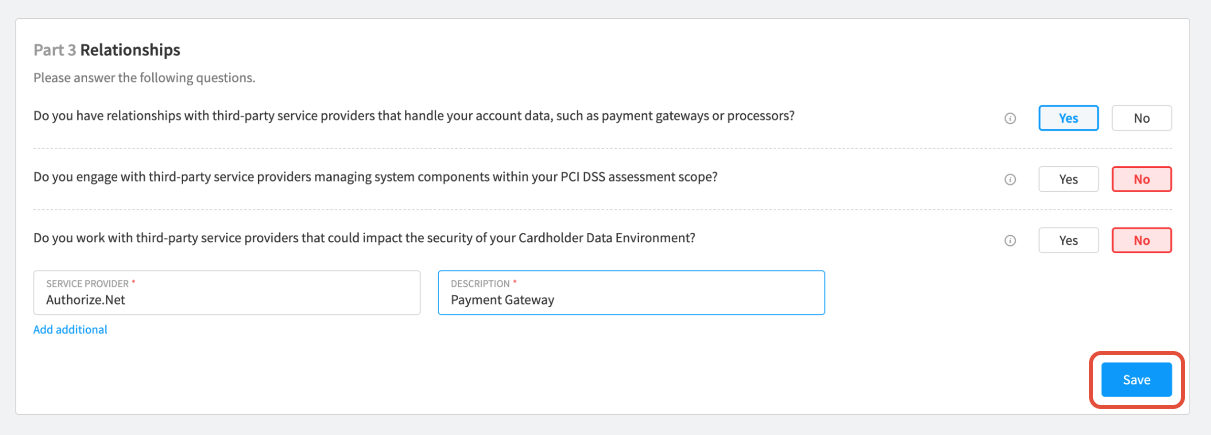
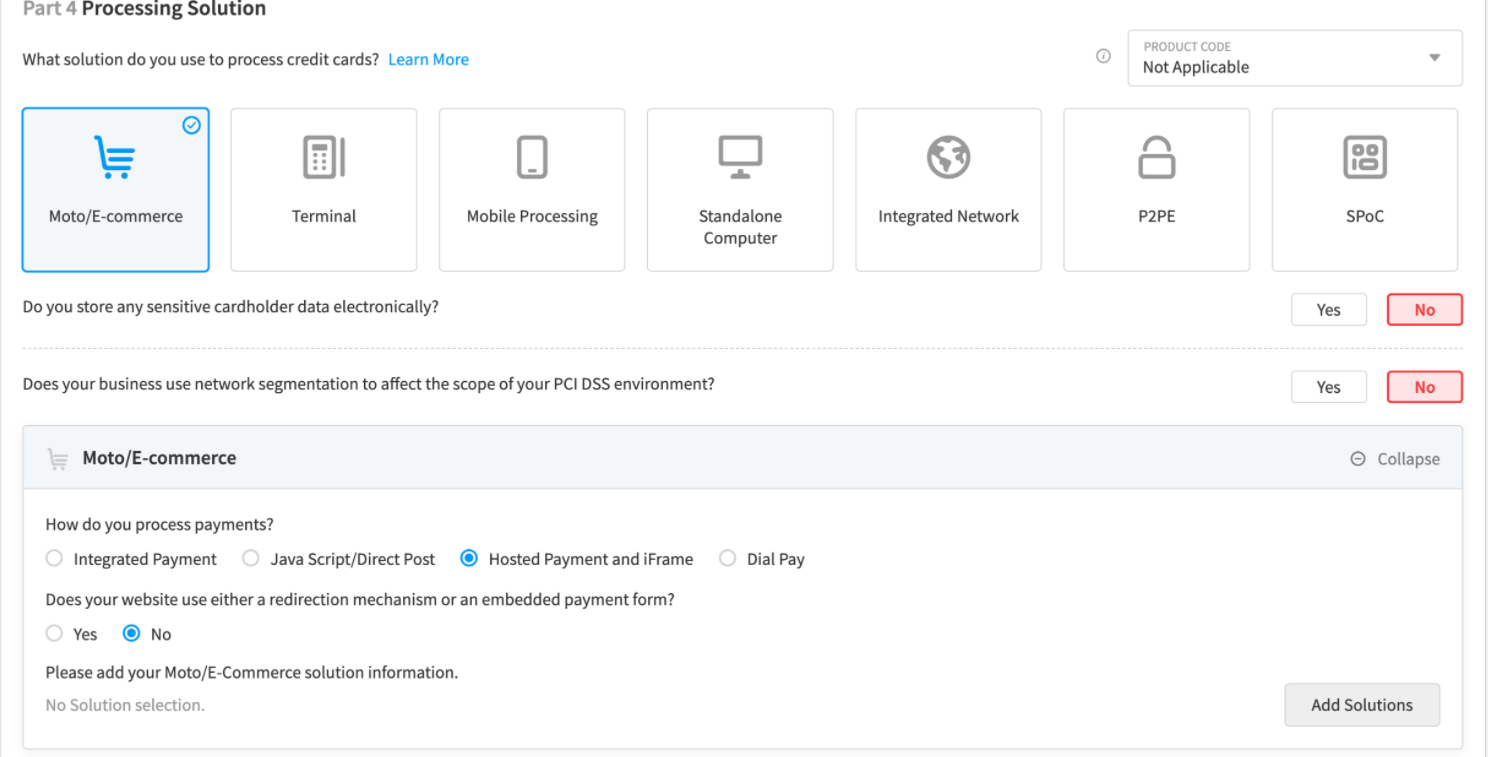
Part 4 – Processing Solution
This section tells the system how payments are actually processed.
Solution Type
Select: ✅ MOTO / E-Commerce
Answer these questions:
- Store sensitive cardholder data electronically? → No
- Network segmentation used? → No
How Do You Process Payments?
Select: ✅ Hosted Payment and iFrame
- IMPORTANT: If Hosted Payment and iFrame does not appear correctly, cancel out, select another option, cancel again, then re-select Hosted Payment and iFrame to refresh the portal.
Then answer:
- Website redirect or embedded payment form? → No
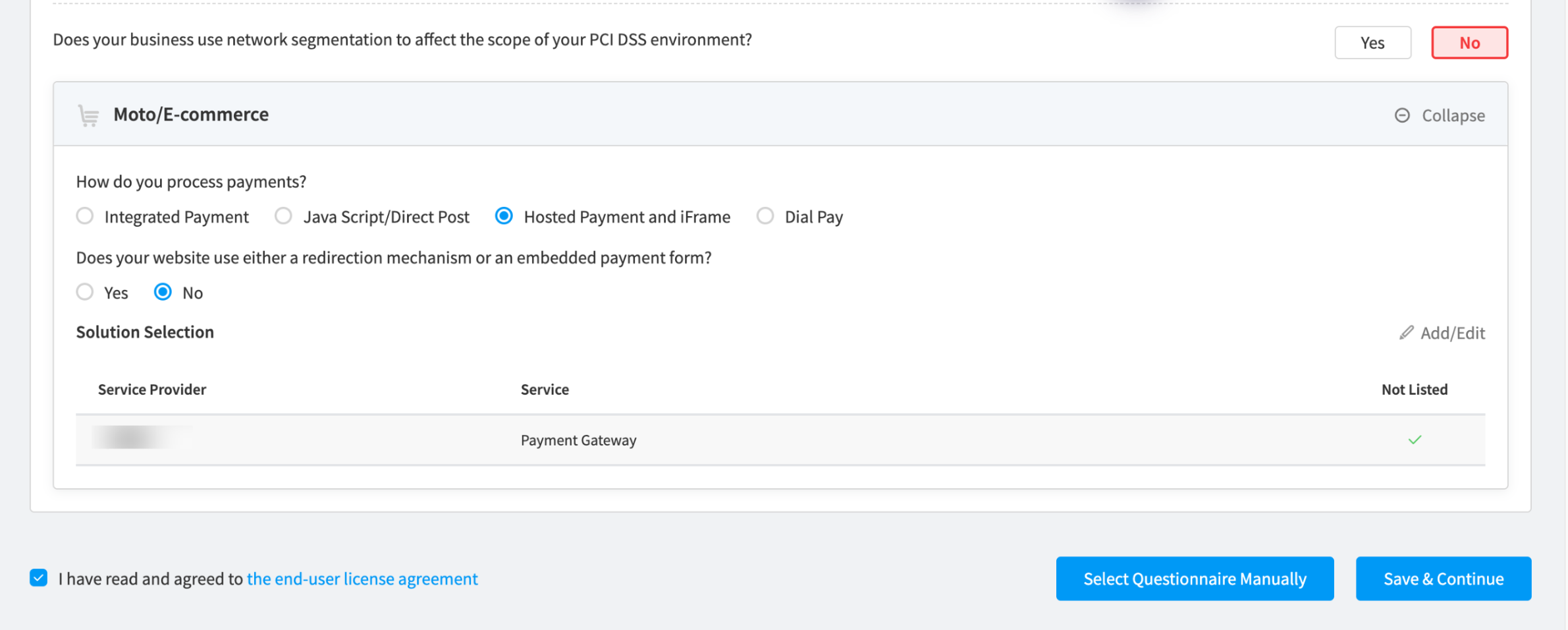
Click Add Solutions
When the Add MOTO/E-Commerce Solution box opens, look for the link that says
“If you don’t see your solution, click here to type it in manually.”
Enter the following:
- Service Provider: Authorize.Net
- Service Name: Payment Gateway
Click Save & Continue to move to the next section.
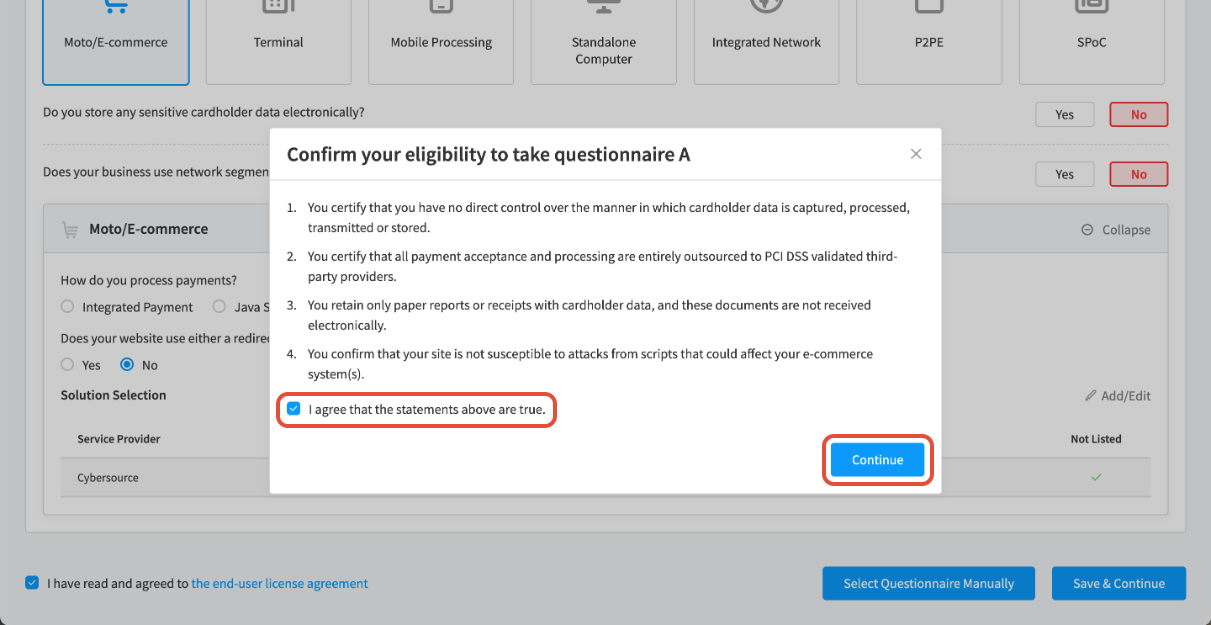
SAQ A Eligibility Confirmation
This page is simply confirming that your setup qualifies for SAQ A.
Check the box to confirm that:
- You do not control how card data is captured, stored, or transmitted
- All payment processing is fully outsourced
- Only tokenized data is retained
- Your system is not exposed to script-based card data risks
Click Continue
Policy Attestations
Click Start Questionnaire
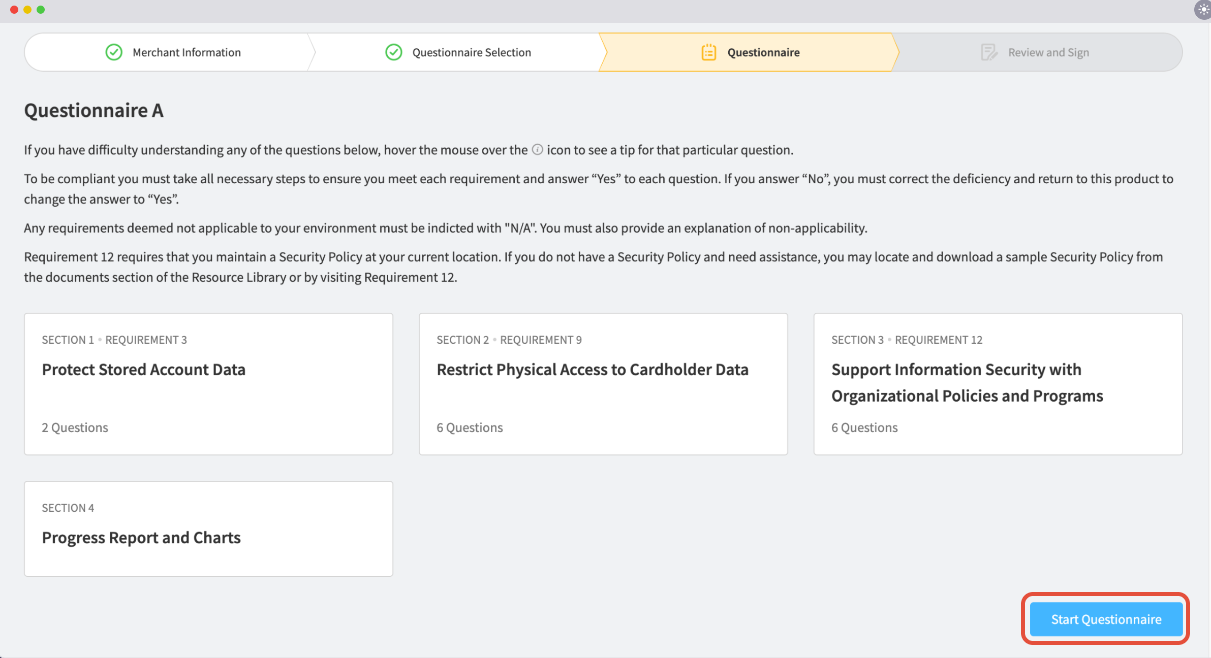
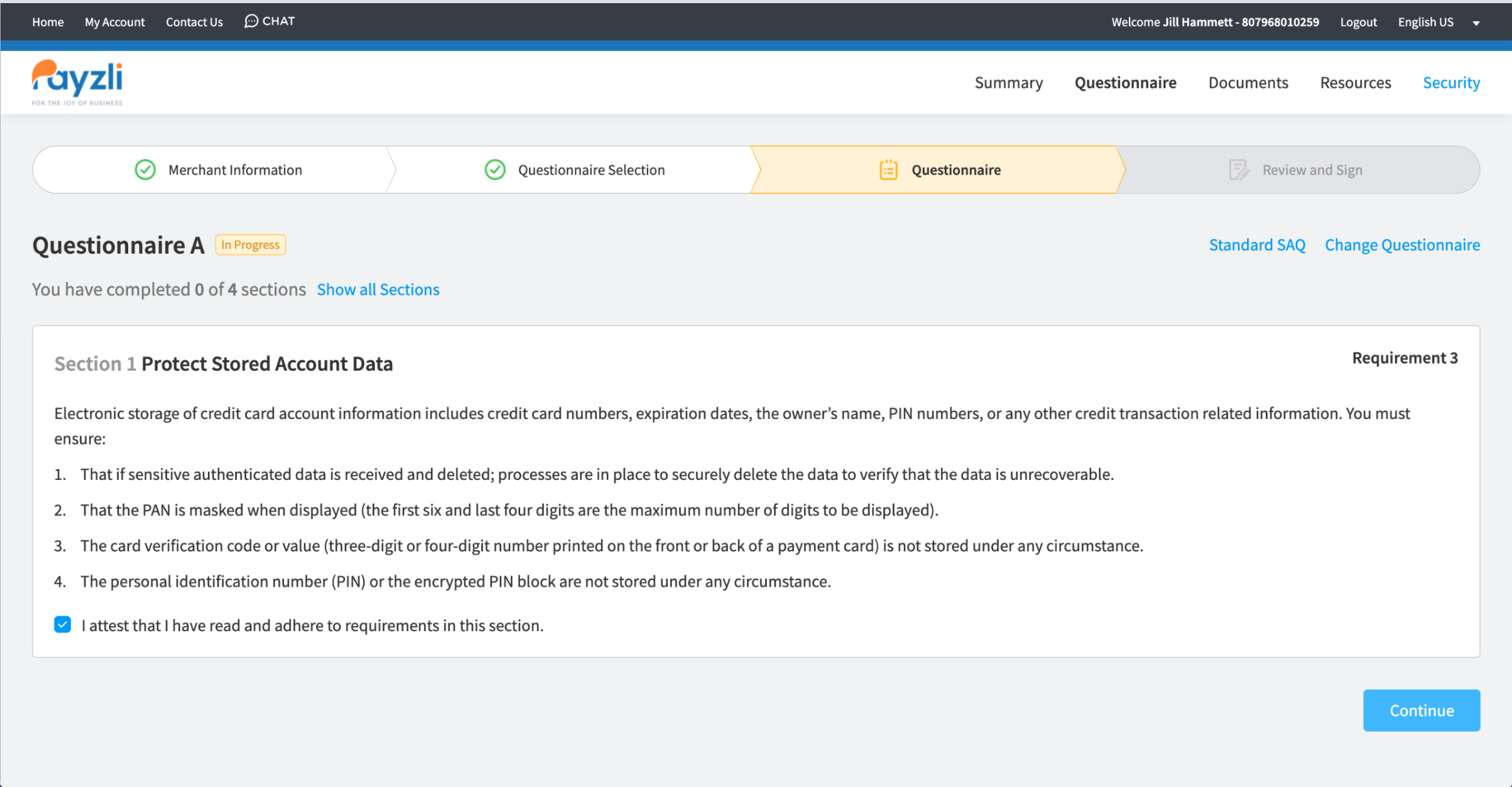
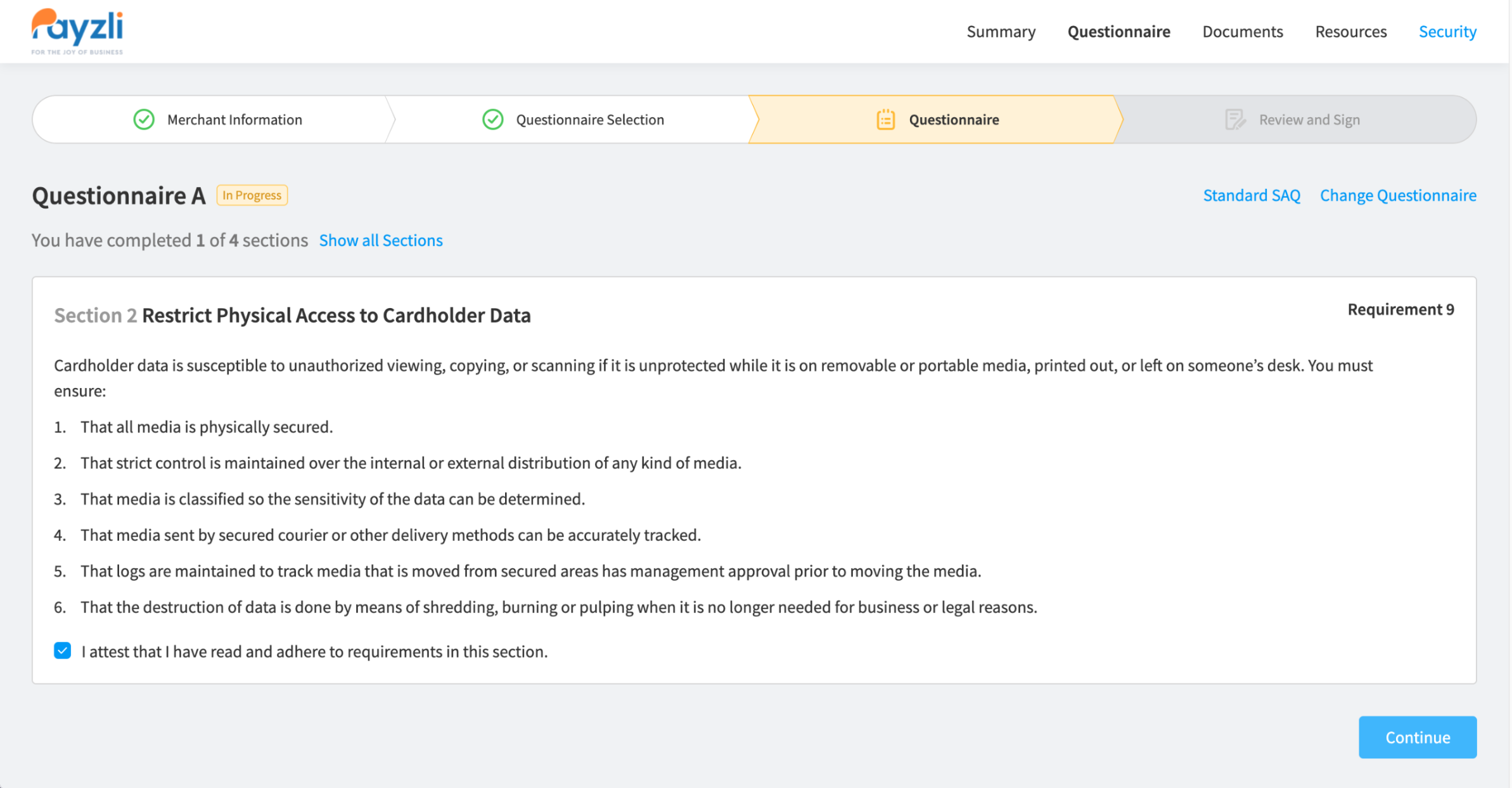
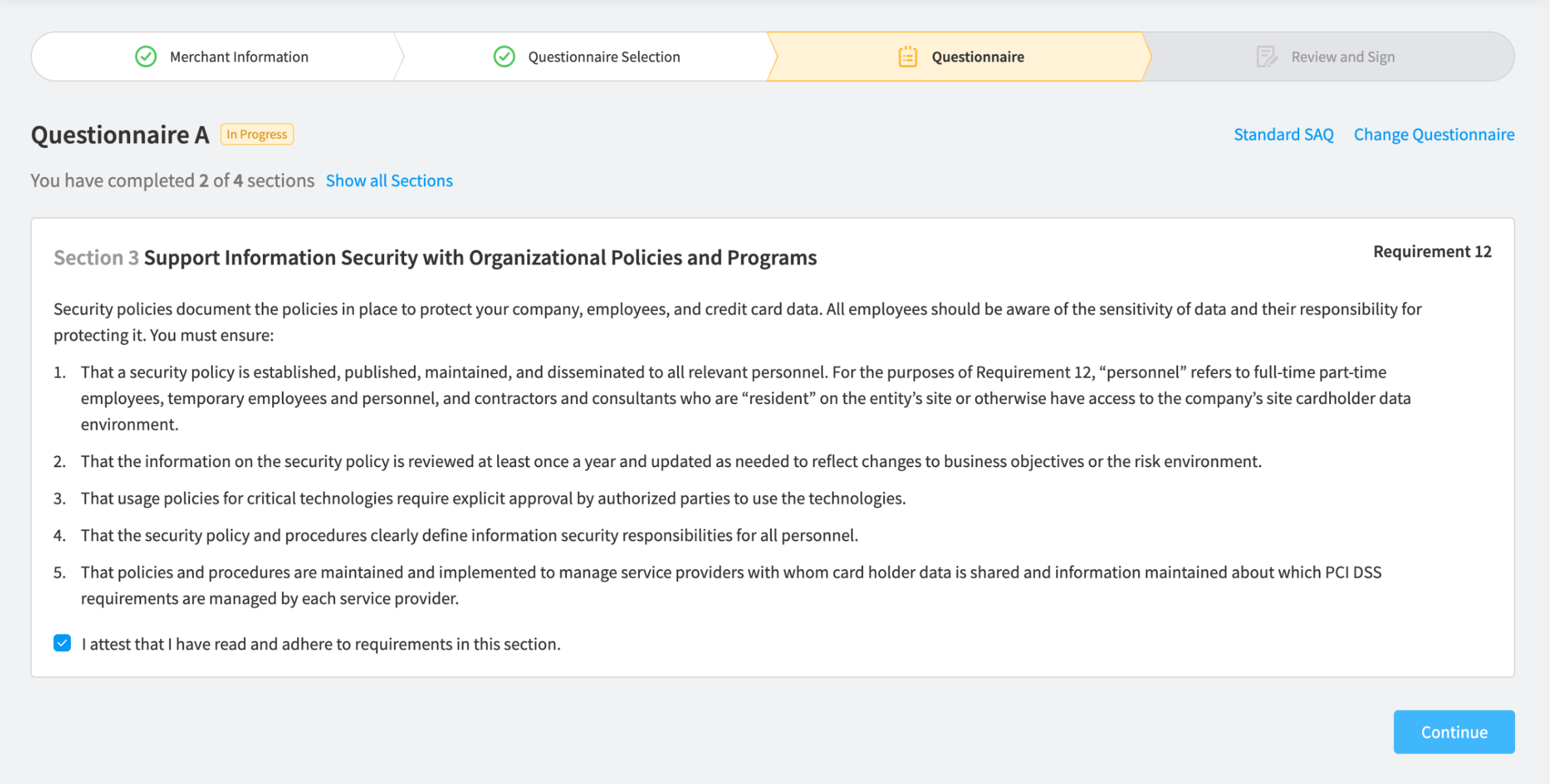
You’ll now review and attest to a few required PCI policies:
- Requirement 3: Protect Stored Account Data
- Requirement 9: Restrict Physical Access to Cardholder Data
- Requirement 12: Maintain an Information Security Policy
Read each section, check the acknowledgment box, and continue.
Final Sign-Off
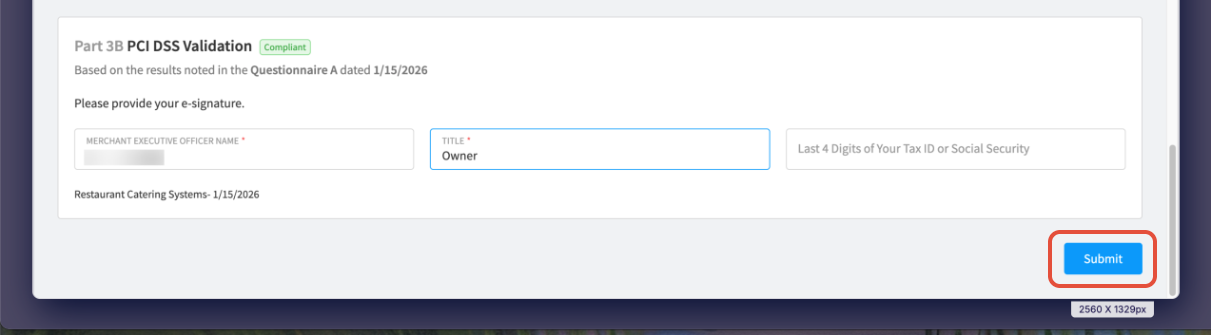
Complete the electronic signature.
Part 3B – PCI DSS Validation
Enter:
- Executive Officer Name
- Title
- Last 4 digits of Tax ID or SSN
- Click Submit
All Done!
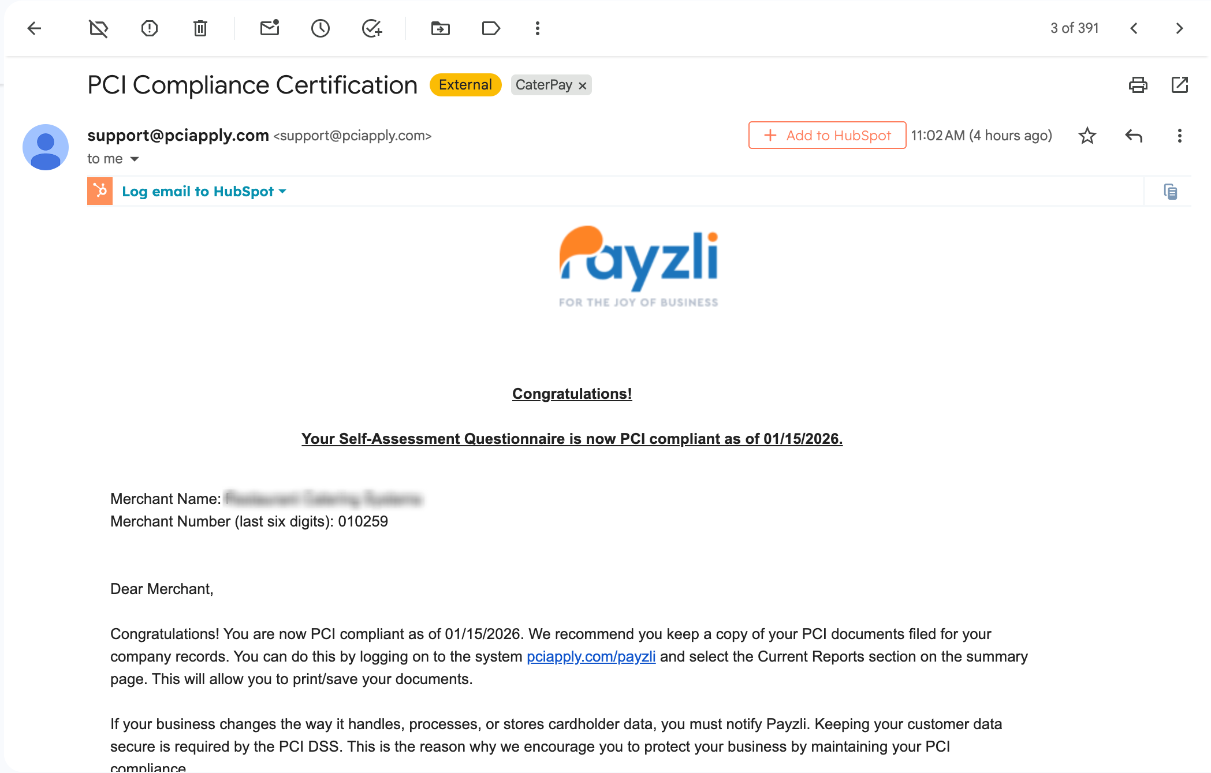
You should had received a confirmation email.
- Valid Date: The day you complete the survey
- Valid Through: One year from that date
Once submitted, your PCI Compliance will be valid for the next year.
Need Help?
If something doesn’t match what you see, an option is missing, or you’re unsure how to answer a question, stop and reach out to our Support Team before submitting. We’re happy to help make sure everything is completed correctly.