
Overview
Automatic credit card processing allows CaterZen to charge a stored card automatically based on your account’s assigned schedule. This helps reduce manual work for your team and supports a more consistent payment workflow for payments. CaterZen also includes related payment tools, such as invoice payments and card-on-file requests, but this article focuses specifically on how automatic processing works.
Before You Begin
Automatic credit card processing settings are managed by the CaterZen Team. If you would like to change your processing workflow or timing, please contact Support.
How Automatic Processing Works
If your account is set up for automatic processing, CaterZen can charge the stored card according to your assigned schedule. This may include charging the card on the day of the catering order, 1, 2, or 3 days after the order, or pre-authorizing the card 1, 2, or 3 days before the order.
Your account may also be set to process transactions at a specific time each day.
Tracking Transactions
Once automatic credit card payments are enabled, you can monitor transactions under the Accounting tab.
Viewing Transactions
- Go to the Accounting tab.
- Click on Invoices/Catering Tickets to view pending, approved, or declined payments based on the date range you filter by.
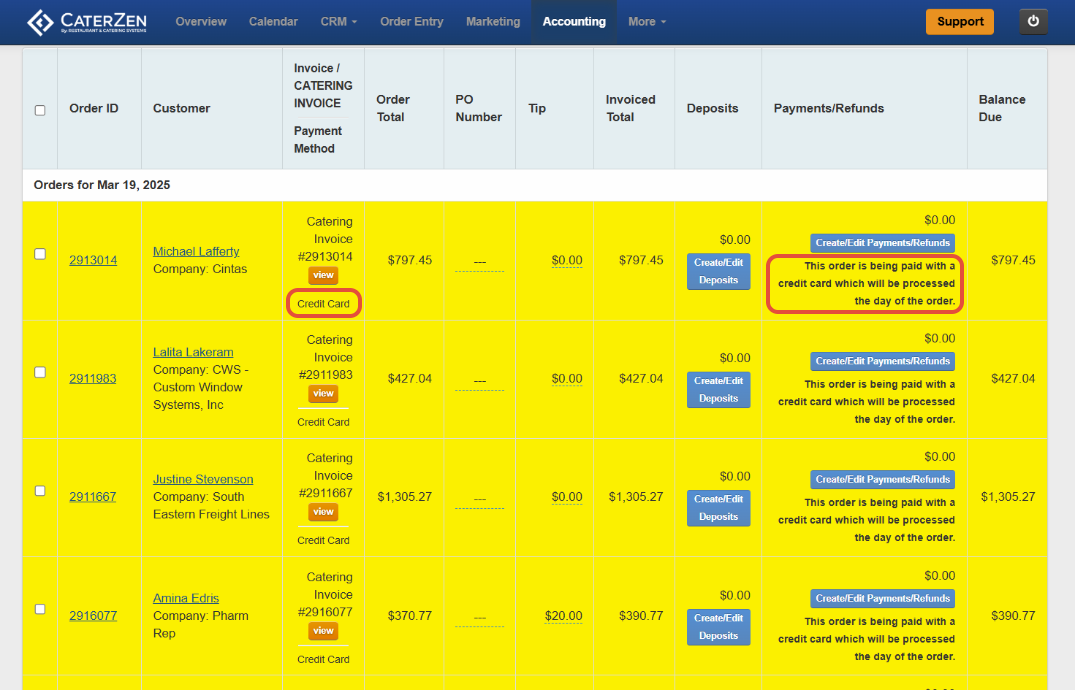
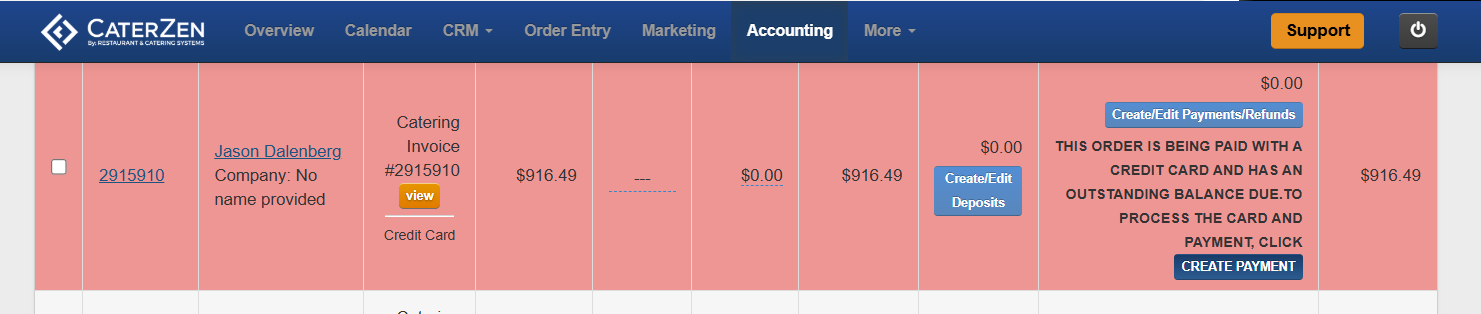
- Orders may display different colors to help your team understand payment status:
- Yellow: A credit card is on file and the order is set to be processed automatically based on your assigned workflow.
- Red or Pink: The payment was declined or failed and needs follow-up.
If an Automatic Payment Fails
If an order shows a failed or declined payment:
- Contact the Customer for updated card information.
- Ask the Customer to store an updated card on file, if needed.
- Once the card information has been updated, manually process the payment from the Accounting tab.
Common Decline Reasons
If a card continues to fail, common reasons may include:
- Expired card
- Insufficient funds or Transaction Limit
- Billing address mismatch
- CVV mismatch
Daily Credit Card Processing Report
If your account is set up to receive credit card processing reports, CaterZen can email a summary of approved and failed transactions after the daily processing run.
In the report:
- approved charges appear in a green section
- failed charges appear in a red section
Refer to the Manage Credit Card Notification and Receipt Settings in CaterZen article.
Automatic Sales Receipt Emails
If your account is set up to send sales receipts automatically, the Customer can receive a receipt email after their card is successfully charged. This receipt will include details of their order and payment confirmation, ensuring a seamless experience for both you and your Customers.
To enable or customize the Sales Receipt Email, refer to the Manage Credit Card Notification and Receipt Settings in CaterZen article.
Support
For additional help, refer to the CaterZen Support Center or contact our CaterZen Support Team.
Not a CaterZen Customer yet? Discover how our catering software can streamline your business — click here to learn more!