
Overview
Manual credit card processing gives you control over when a Customer’s card is charged. Instead of capturing funds immediately at order creation or on a scheduled automatic date, the card is first saved to the Customer’s record and then processed later from the Accounting tab. This is commonly used for deposits, post-event payments, or orders that require internal review.
Important Considerations
Establish a clear internal payment process. Make sure your team knows who is responsible for processing payments and when they should be charged.
To configure your credit card settings, see: Configuring Credit Card Processing Settings in CaterZen
If you prefer automatic charging instead, see: Automated Credit Card Processing in CaterZen
Recording a Manual Credit Card Payment
Access the Order
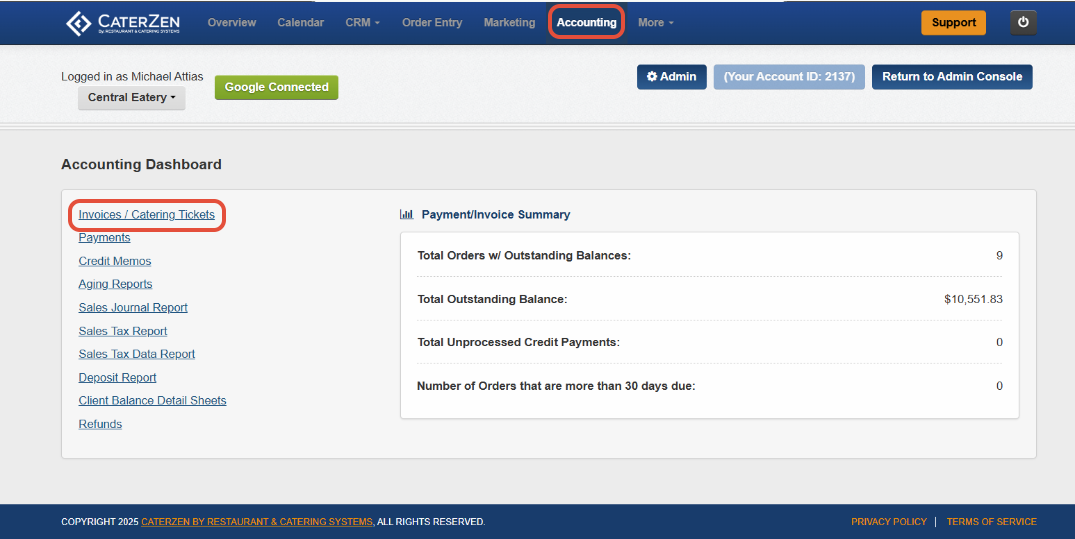
- Go to the Accounting Tab, click Invoices/Catering Tickets.
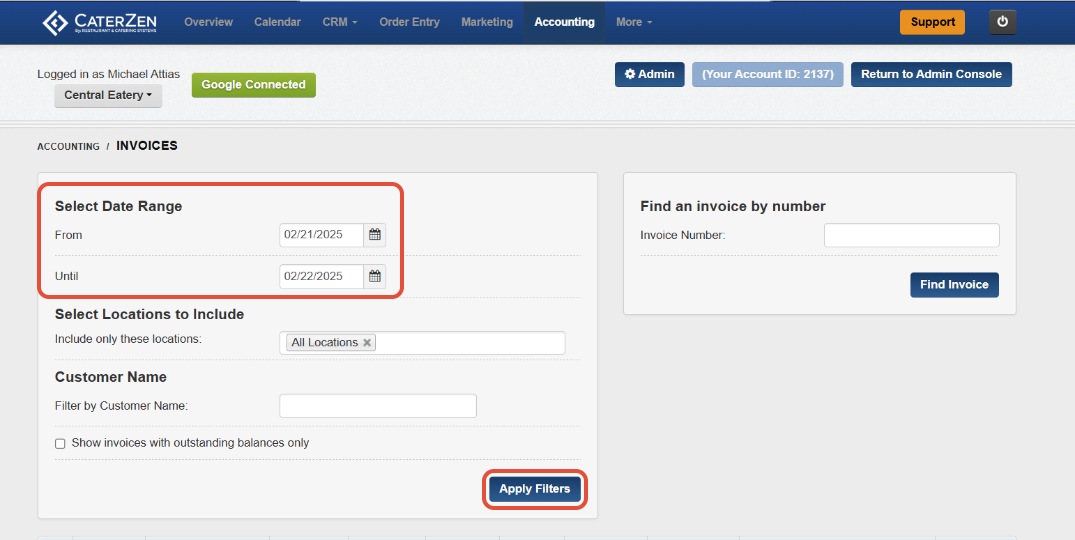
- Select Date Range - Filter by the date of the event for which you want to place a deposit.
- Select Locations to include (if applicable) - Choose the appropriate location(s)
- Click Apply Filters - Apply the selected filters to proceed.
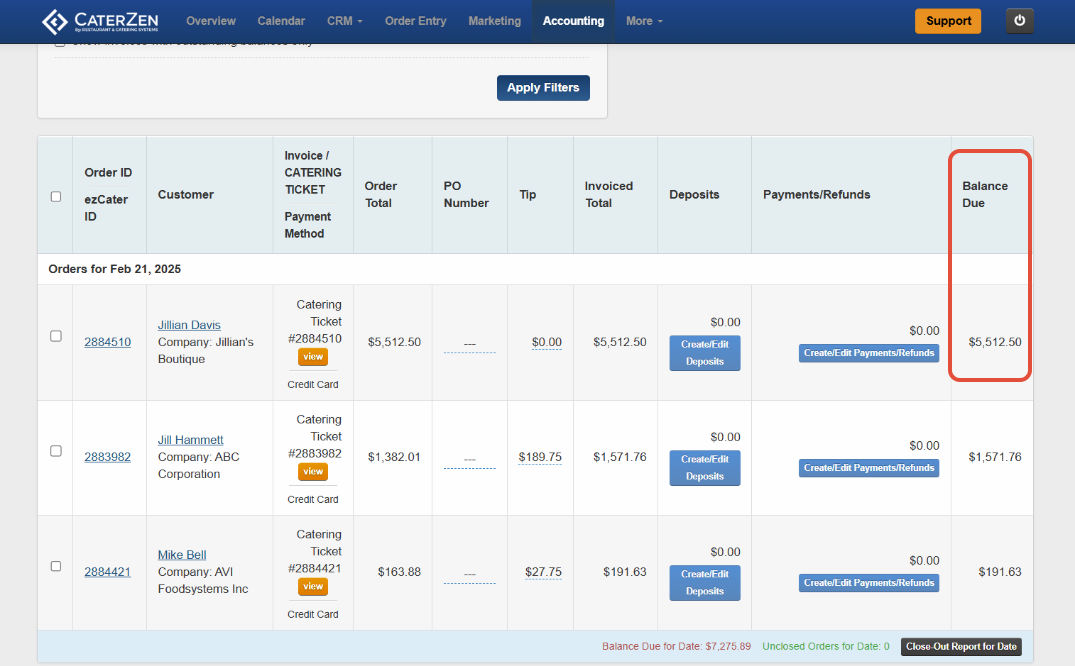
- You will now see a list of orders within your selected date range.
Look at the Balance Due column on the far right to confirm which orders still need payment.
Create the Payment
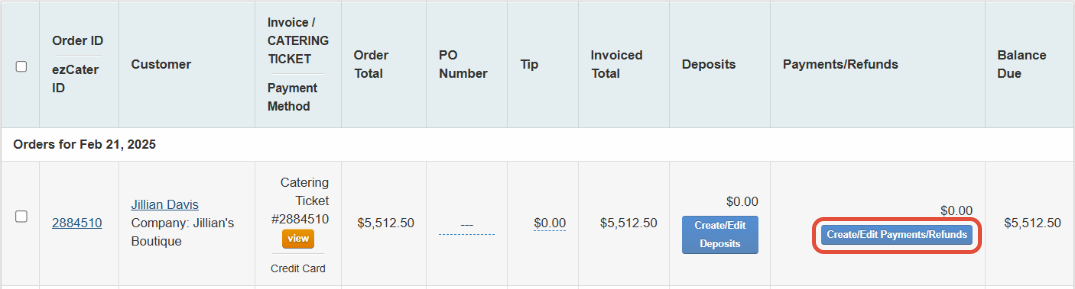
- Find the customer’s order. Under the Payments/Refunds Column, Select Create/Edit Payments/Refunds.
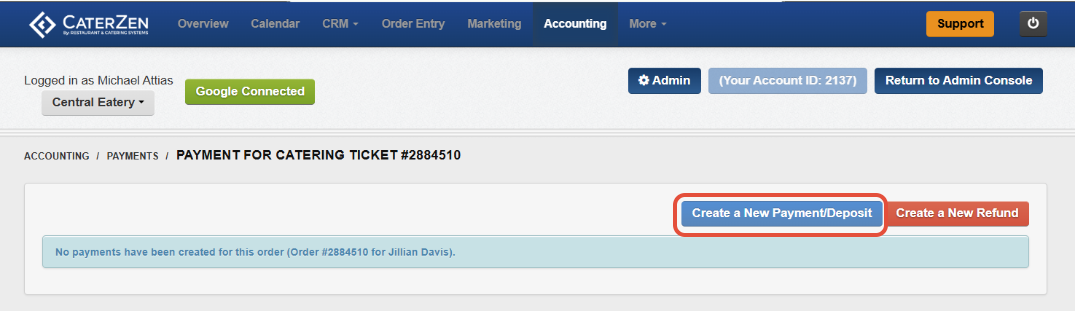
- Select Create a New Payment/Deposit.
Enter the Payment Details on the payment pop up screen:
(1) Is this a payment or deposit?
Choose Payment if the day of the order or after.
Deposit will be your only option if prior to order date.
(2) What is the amount of the payment?
- Enter the total amount you are recording (e.g., $5512.50.)
(3) Payment Method
Select one of your available payment types
If the Customer’s card is already stored, select Credit Card and choose the saved card
Otherwise, add the card under Add a New Card
(4) Process This Payment With… (IMPORTANT)
- ✅ This box must be checked if processing a credit card
- This is what actually sends the charge for processing
(6) What date do you want to record for this payment?
- Confirm the correct date you want recorded for the transaction
(7) Notes/Comments
- Use this for internal tracking
- If multiple team members process payments, record who applied the payment
(8) Save this Payment
- Click Save once all details are correct
Verify the Payment
To view more details about processed transactions:
Go to the Accounting tab
Click Payments
Select your date range based on Payment Date
To view an individual transaction, click the blue bubble next to the payment.
From this screen, you can also manually settle transactions if needed.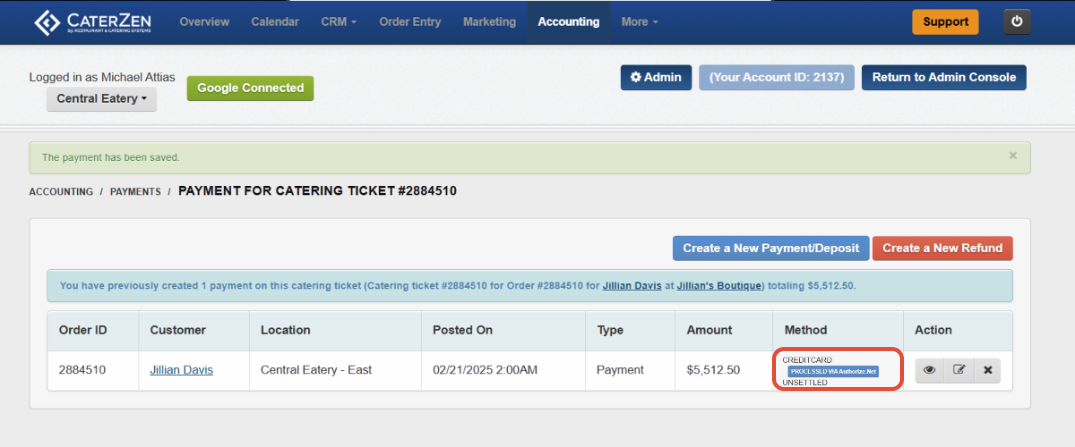
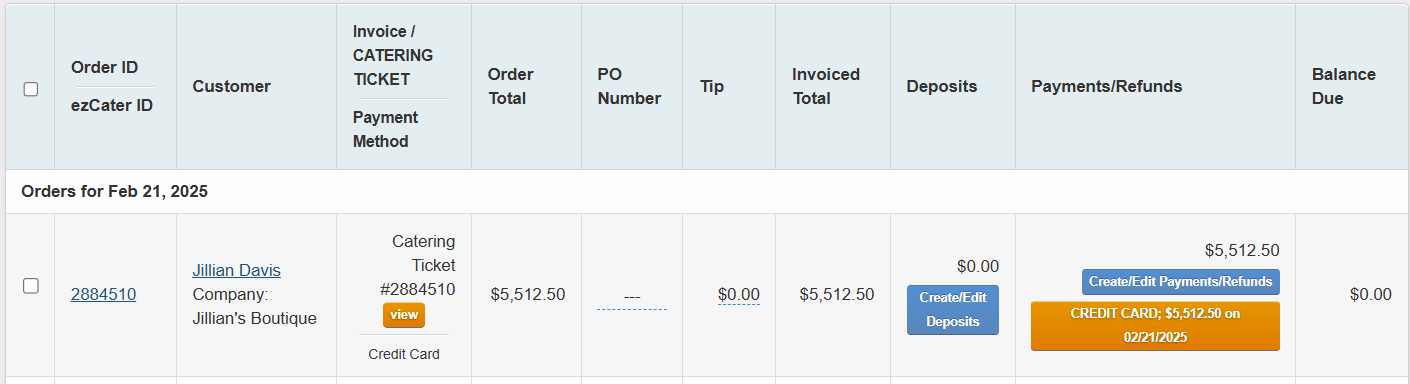
- Back on the Invoices page, you’ll see the payment reflected in the orange box and with a zero balance.
Common Use Cases for Manual Processing
Charging final balances after event completion
Taking deposits but capturing funds later
Internal approval workflows before charging
Phone orders requiring later confirmation
Support
For additional help, refer to the CaterZen Support Center or contact our CaterZen Support Team.
Not a CaterZen customer yet? Discover how our catering software can streamline your business — click here to learn more!