
Overview
The Print All Reports feature allows you to print multiple reports at the same time for a selected date range of orders. Instead of opening and printing each report individually, you can choose exactly which reports you want and generate them together as a single PDF.
This is commonly used for:
Daily prep and packing
Printing production and pull sheets in one batch
Preparing paperwork for drivers or events
Accessing Print All Reports
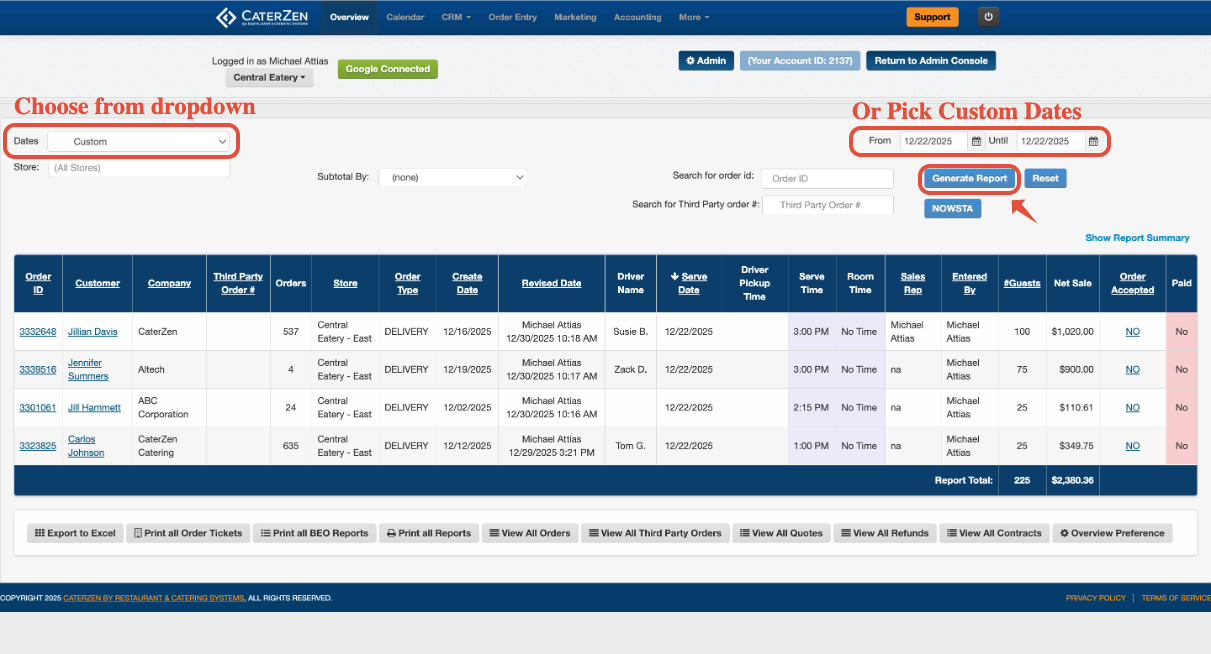
Go to the Overview tab.
Select the date range you want to view using the dropdown, or choose Customize Date Range.
Click Generate Report.
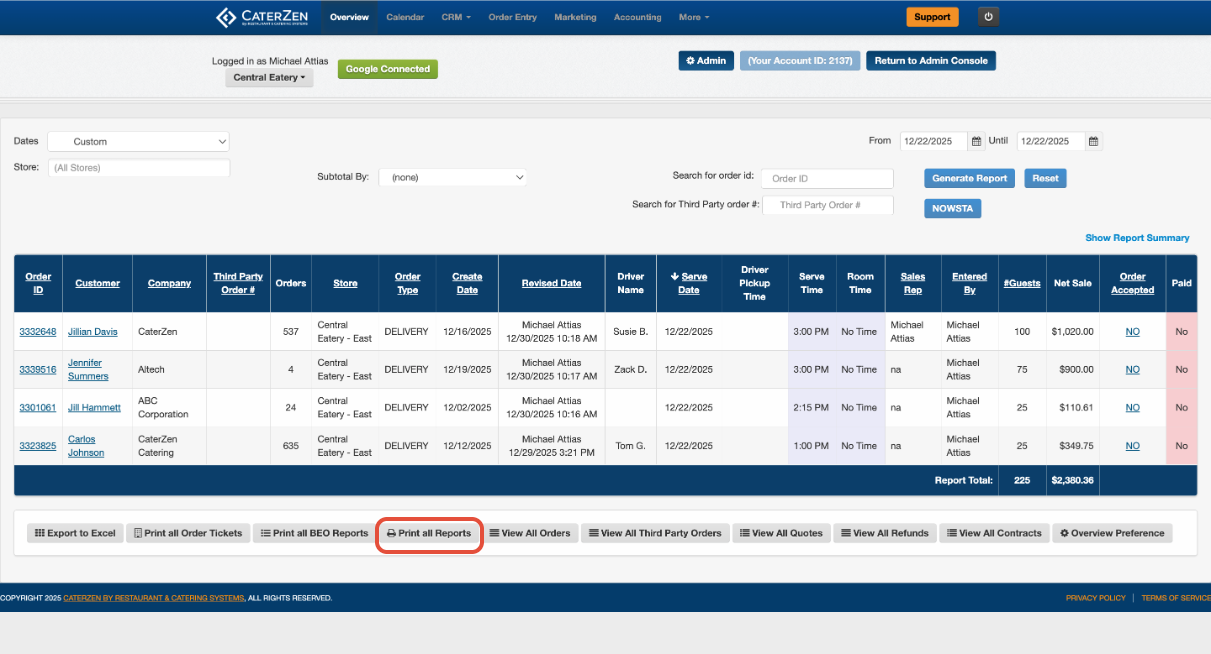
Once your desired orders populate in the list
Click Print All Reports at the bottom of the screen.
Selecting Reports to Print
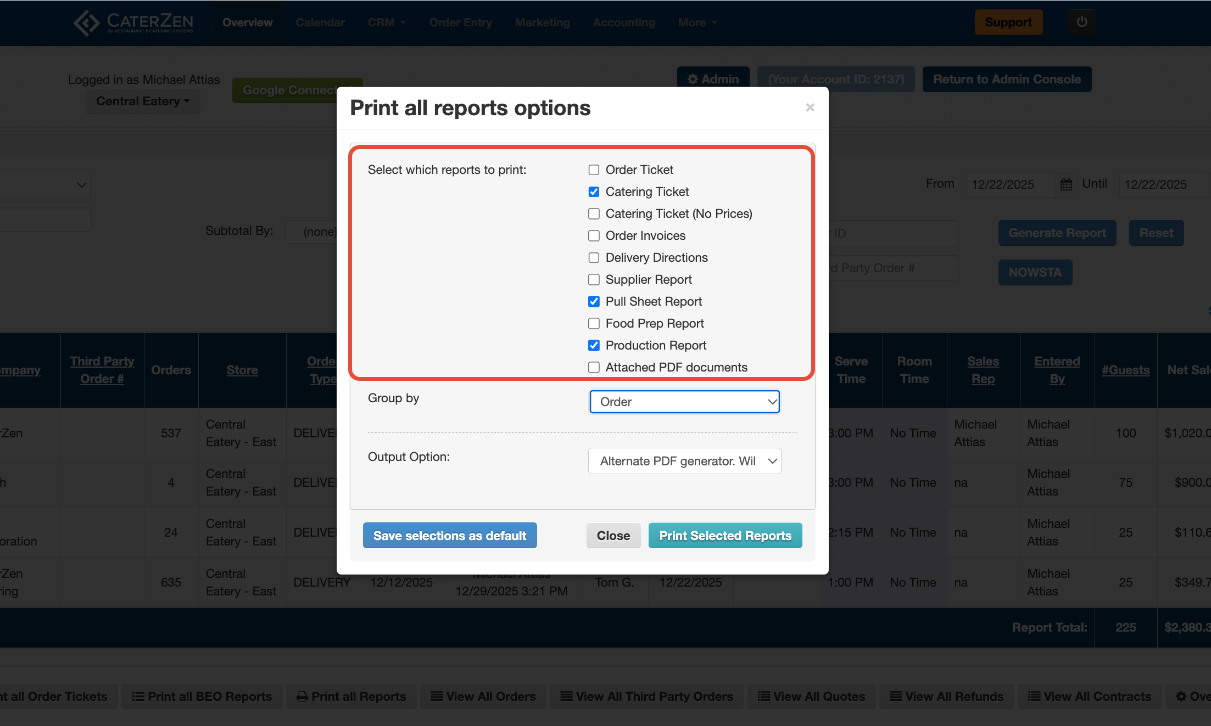
A popup window will appear showing all available reports.
From here, you can:
Check the box next to each report you want to include
Examples include Catering Ticket, Pull Sheet Report, Food Prep Report, Production Report, Delivery Directions, and more
Leave unchecked any reports you do not need
Grouping Options
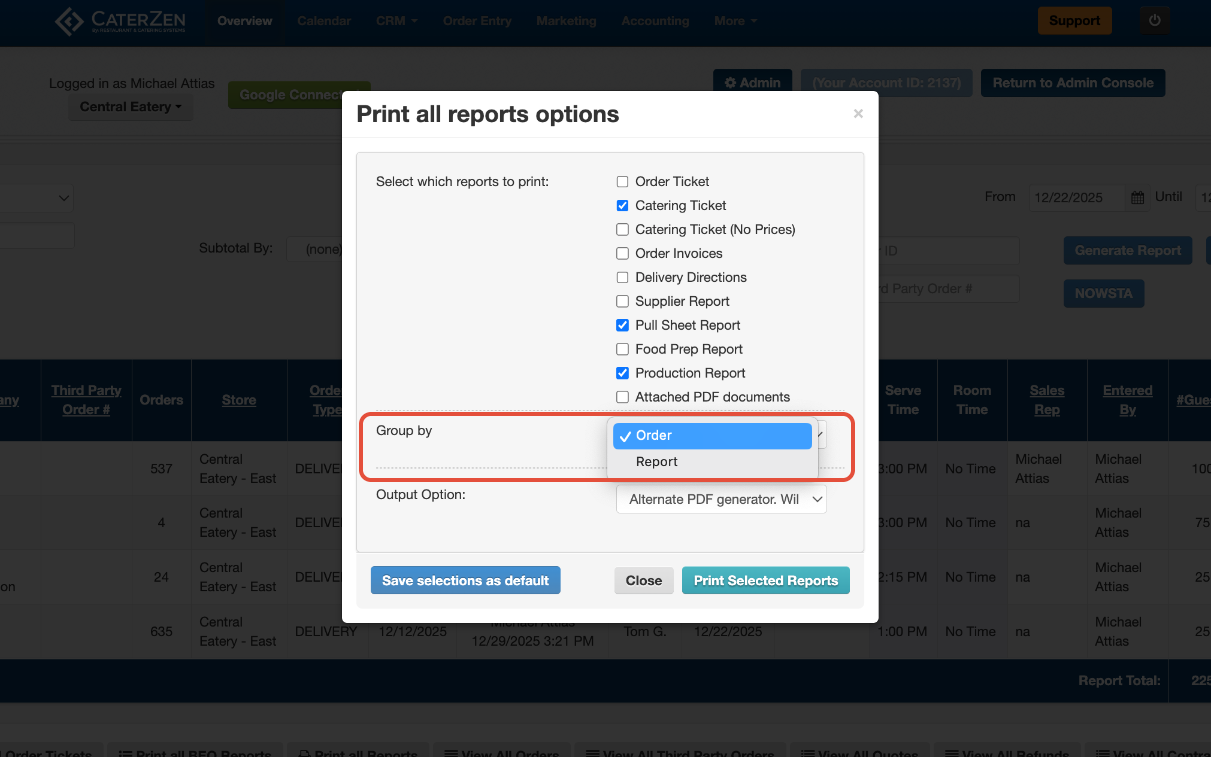
Use the Group by dropdown to control how the PDF is organized.
Group by Order: All selected reports for Order #1 print together, then Order #2, and so on
Group by Report: All Pull Sheets print together, then all Production Reports, etc.
Choose the option that best fits how your team works.
Saving Your Default Selections
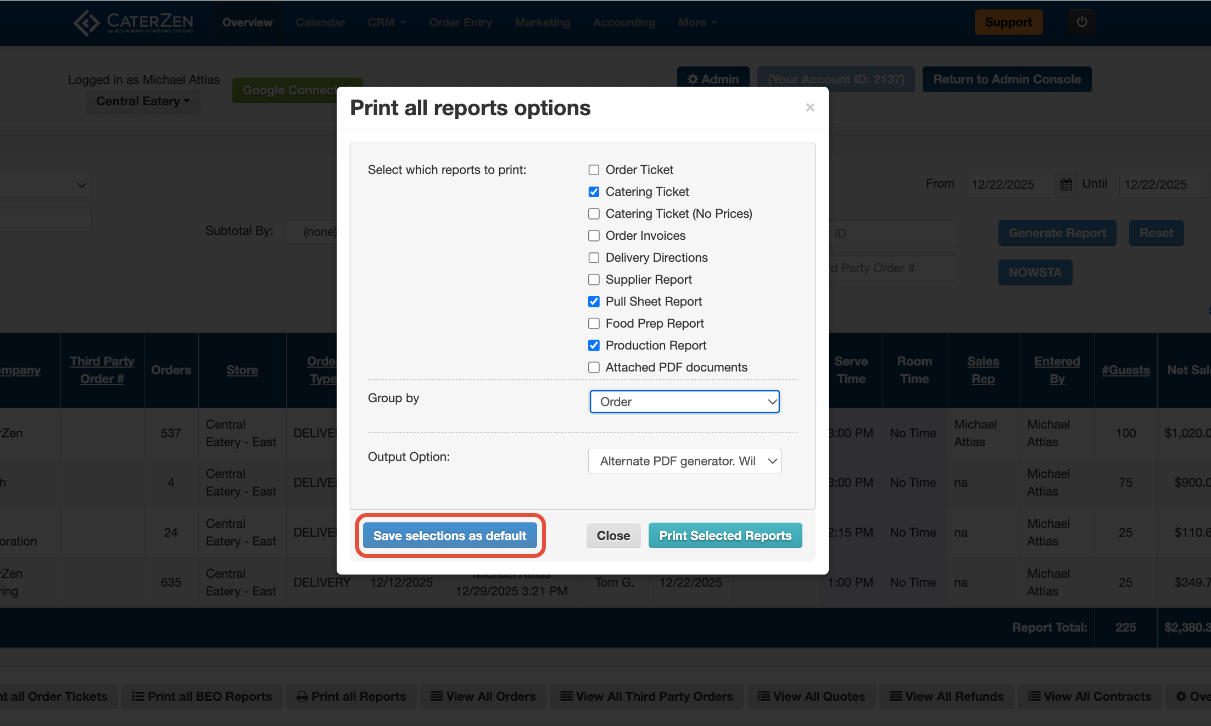
If you regularly print the same set of reports:
Select the reports you want.
Click Save selections as default.
The next time you open Print All Reports, those same reports will already be checked.
Choosing the Output Format
We strongly recommend leaving PDF selected. This produces the most consistent formatting and is easiest to share or reprint.
Printing and Downloading
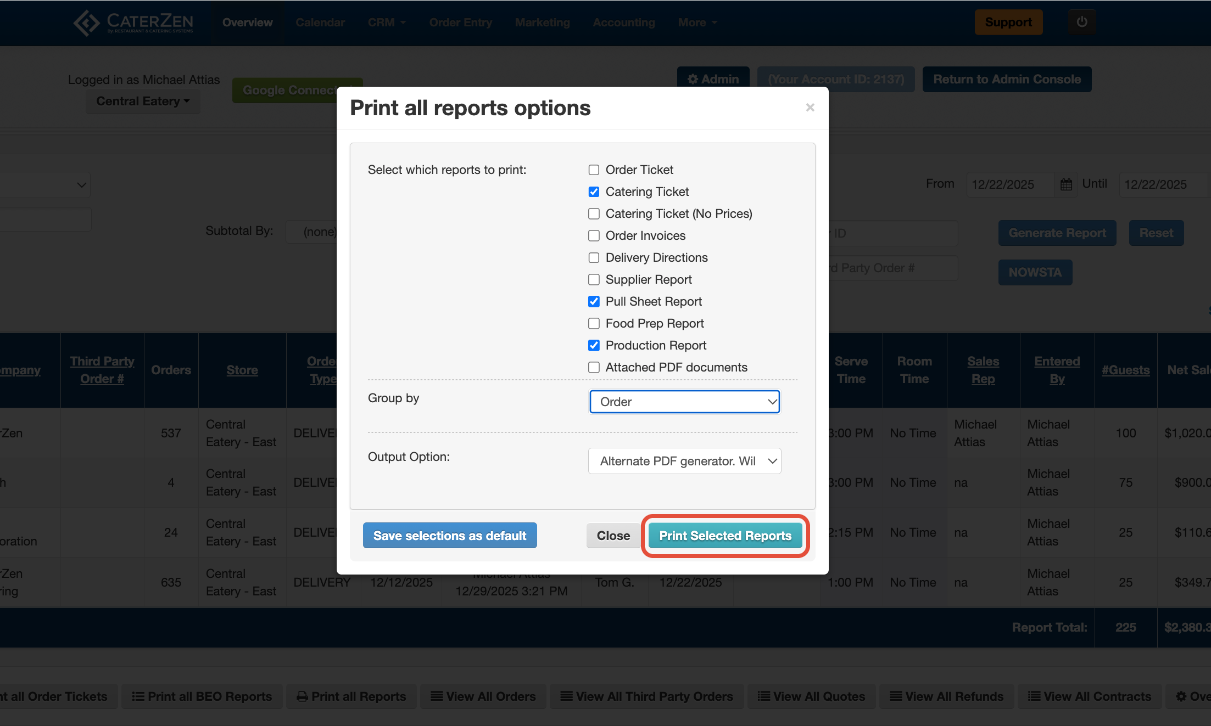
Click Print Selected Reports.
A PDF file will download to your computer. **This is typically saved to your Downloads folder.
Printing Troubleshooting
If you experience issues printing large batches or high-volume days (such as holidays), change the output option to: HTML only – use browser to print or save to PDF
This option can be more reliable when handling very large report sets.
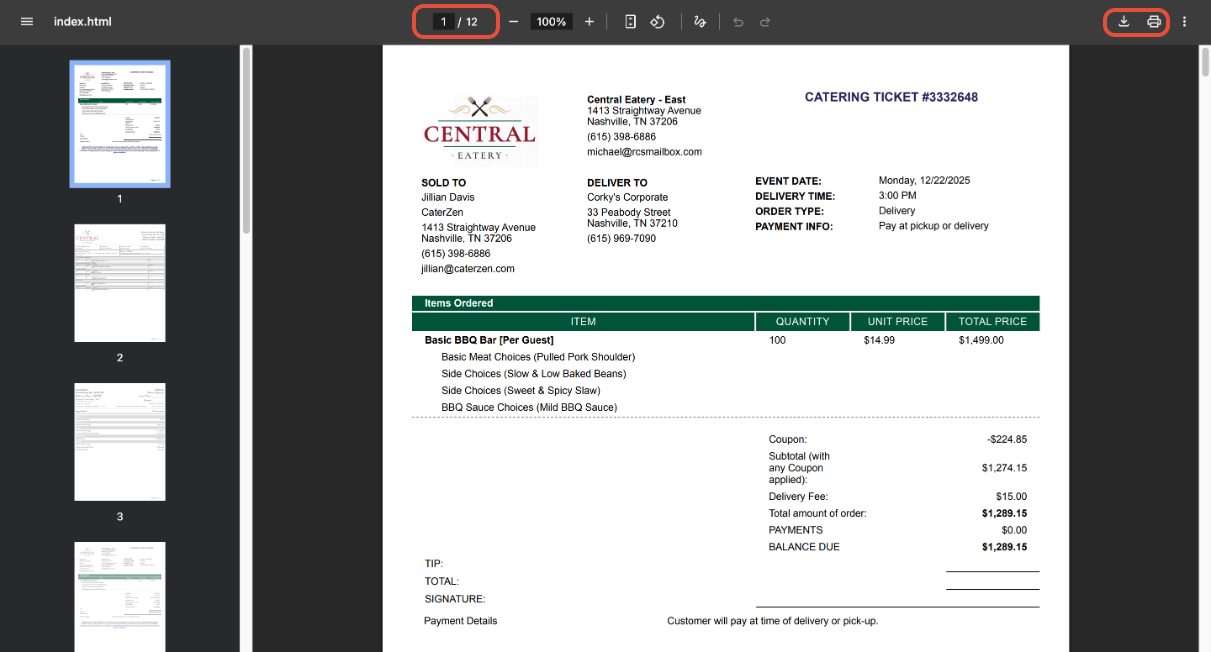
Reviewing the PDF
Once opened:
You will see all selected reports combined into a single file
The page count is shown at the top
You can:
Print the reports
Save the PDF to a specific location
Share the file with your team
Best Practices
Use Print All Reports instead of printing reports one at a time to save time.
Save your default selections if your workflow is consistent.
Use Group by Order for packing and event prep.
Use Group by Report for kitchen or operations teams.
Switch to HTML output if PDF generation struggles on high-volume days.
Related Articles
Support
For additional help, refer to the CaterZen Support Center or contact our CaterZen Support Team.
Not a CaterZen customer yet? Discover how our catering software can streamline your business — click here to learn more!