
Overview
CaterZen provides ready-made email templates that make it easier to promote your catering services throughout the year. Templates are available for major holidays, seasonal events, and other catering opportunities.
After selecting a template, you can personalize the campaign for your business, choose the Customers and prospects who should receive it, and send it immediately or schedule it for a future date.
Interactive Guide
Follow the written instructions below, or click through this interactive guide for a visual walkthrough.
Create an Email Campaign From a Template
- From the main navigation, click Marketing.
- Click Email Marketing.
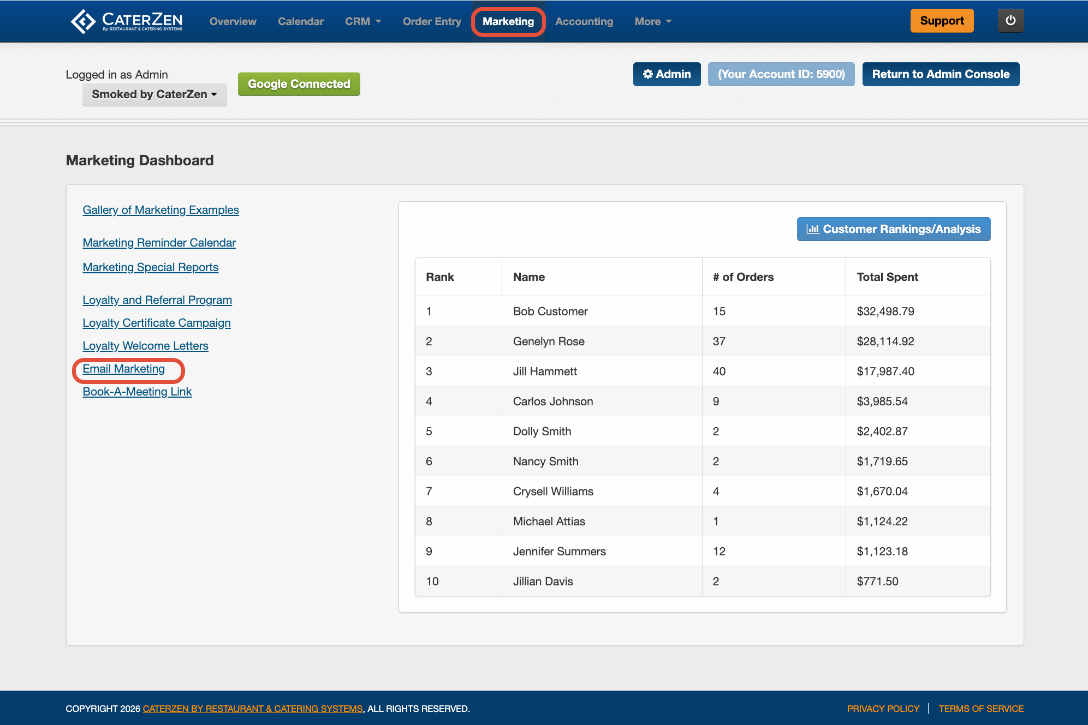
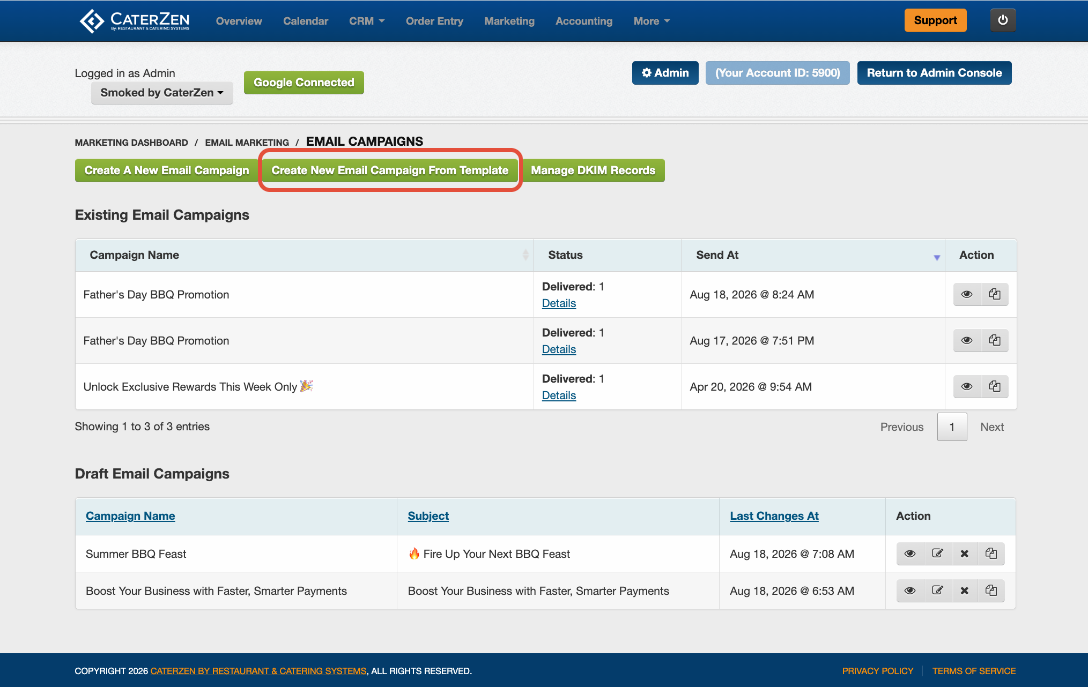
- Click Create New Email Campaign From Templates.
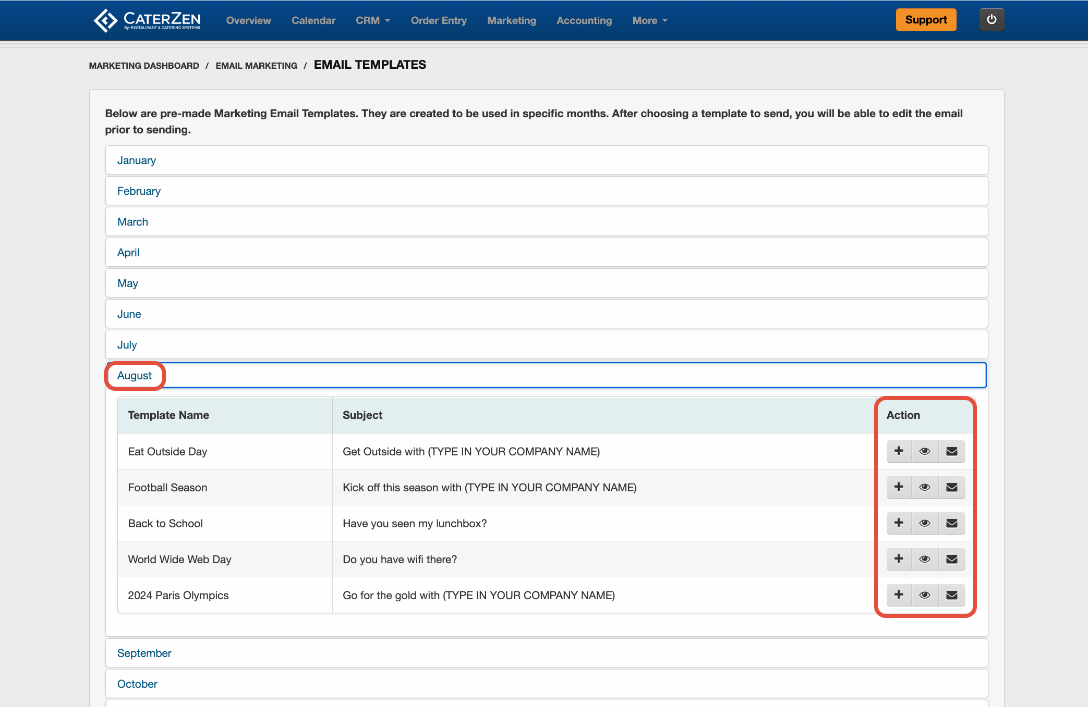
- Select the month containing the campaign you want to use.
- Review the available templates. Under Actions, you can preview the HTML version (eye icon), or email a sample of the campaign to yourself or someone else (envelope icon).
- When you find the template you want to use, click the plus sign (+) under Actions.
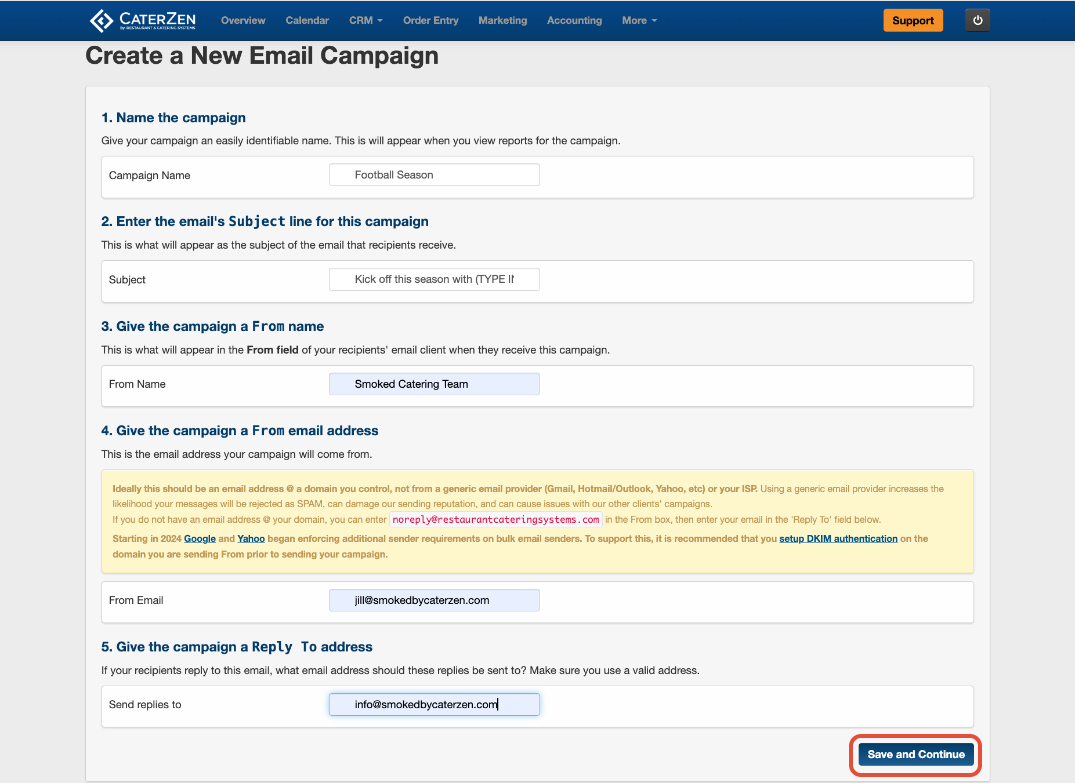
Enter the Campaign Details
The template automatically includes a campaign name and subject line. You can keep the provided information or update it for your campaign.
- Campaign Name: An internal name that helps you identify the campaign in CaterZen. Customers will not see this name.
- Subject Line: The subject Customers will see in their inbox.
- From Name: The person or business name Customers will see as the sender.
- From Email Address: The email address displayed as the sender
- Reply-To Email Address: The email address that will receive replies from Customers.
- Click Save and Continue.
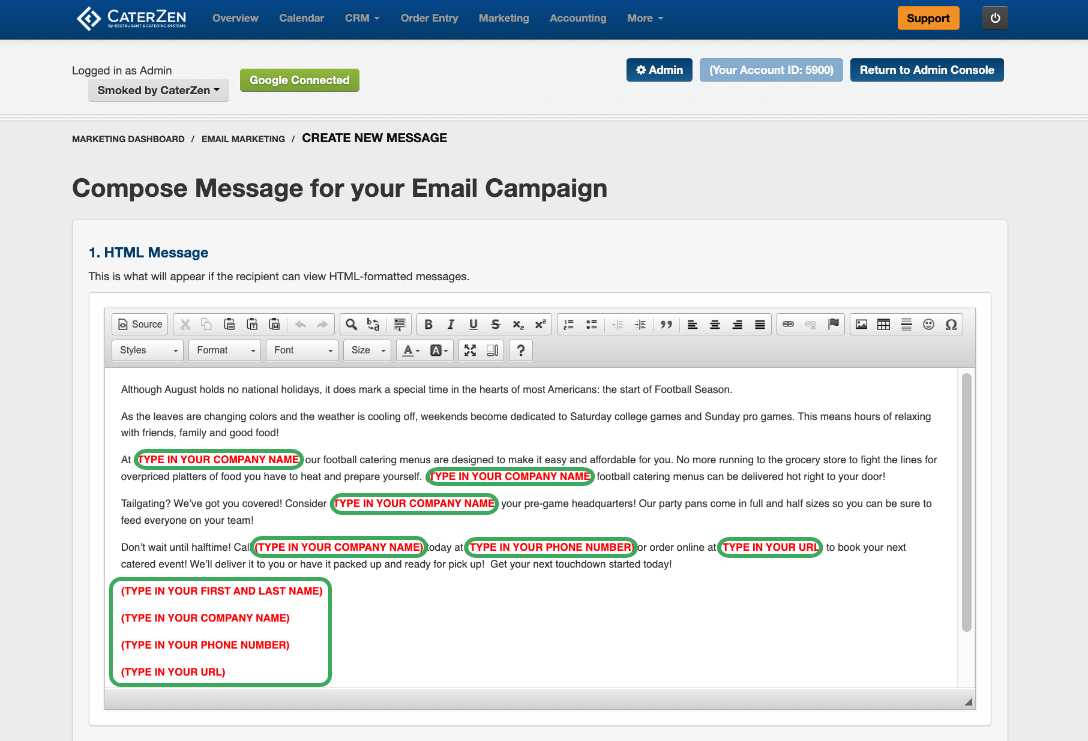
Customize the Email Message
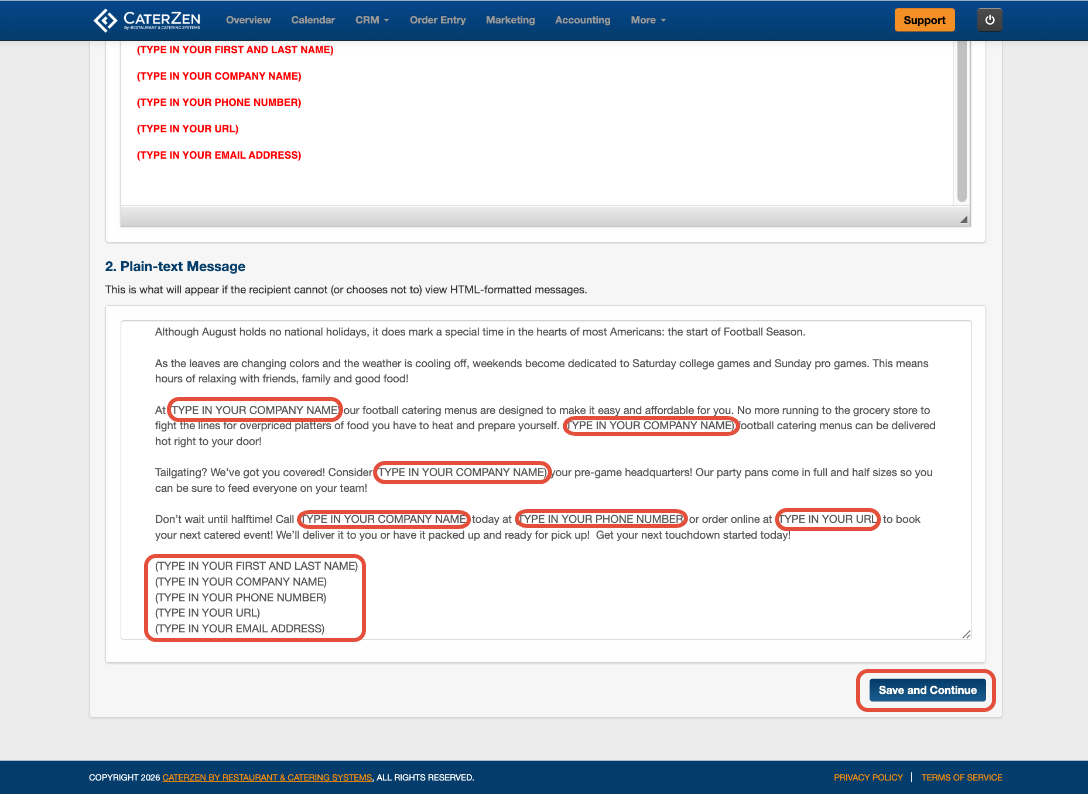
Review and customize both versions of the email:
- HTML Email Message: The formatted version that may include colors, images, buttons, and links.
- Plain Text Email Message: The text-only version used when a recipient cannot or chooses not to view HTML emails.
- Replace all RED template instructions and placeholder text with information specific to your business and campaign. **These do NOT autopopulate your information**
When both versions are complete, click Save and Continue.
Select the Recipients
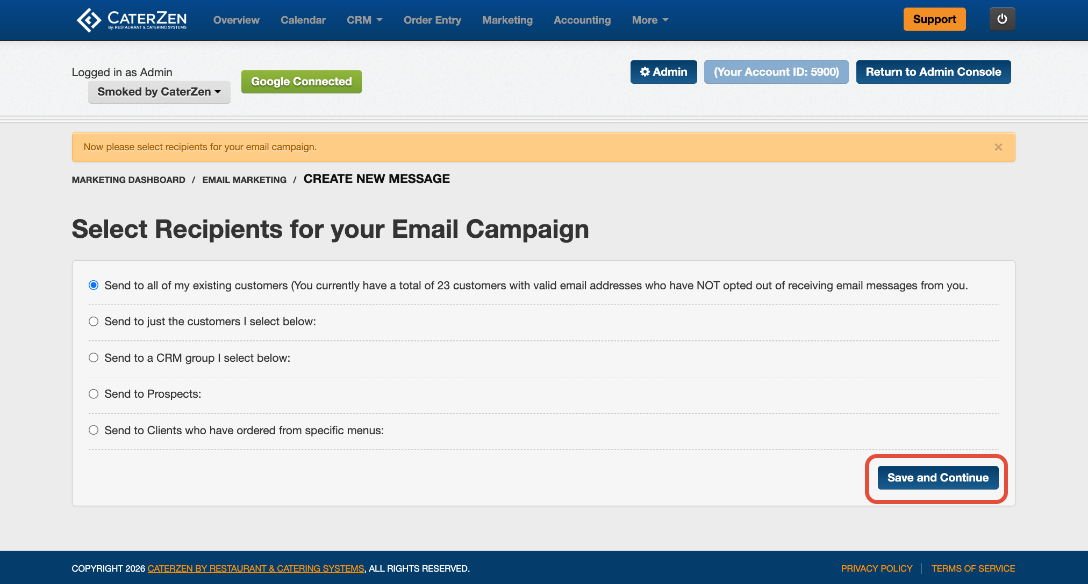
Choose who should receive the email campaign. Available recipient options include:
- Everyone in Your CRM: Sends the campaign to all eligible CRM contacts.
- Specific People: Allows you to select individual contacts.
- CRM Groups: Sends the campaign to one or more groups you have created in the CRM.
- Prospects: Sends the campaign to contacts marked as prospects.
- Customers Who Ordered From a Specific Menu: Targets Customers based on the menu used for a previous order.
After choosing the recipients, click Save and Continue.
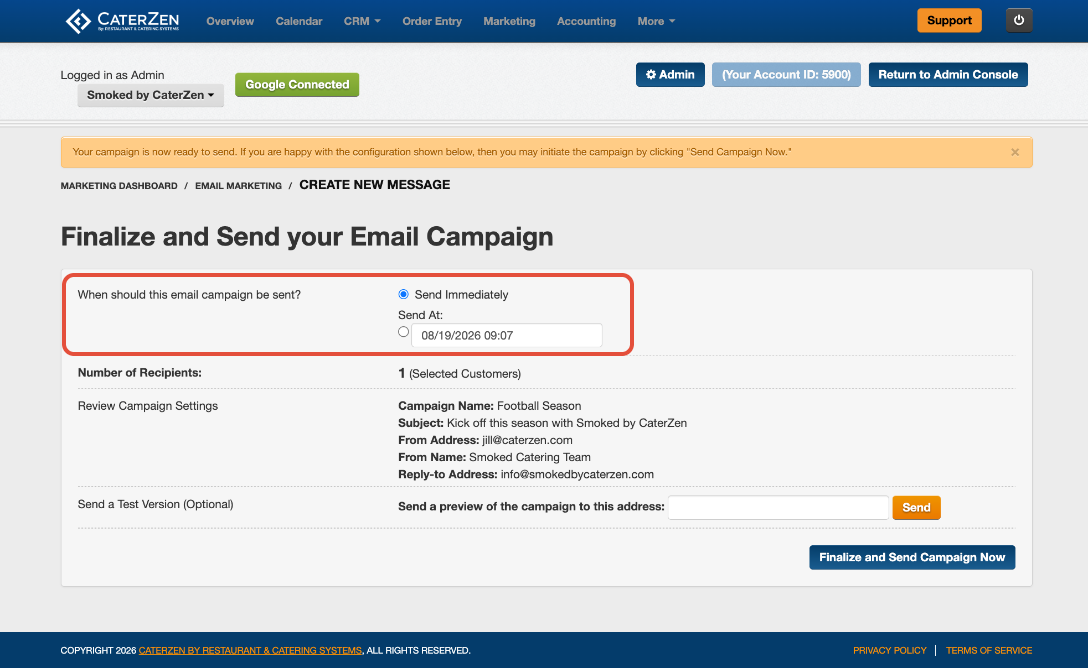
Choose When to Send the Campaign
Select one of the available delivery options:
- Send Immediately: Sends the campaign after you complete the final review and activate it.
- Send at a Specific Time and Date: Places the campaign in the queue to send at the date and time you select.
Review and Preview the Campaign
Carefully review the campaign settings, recipients, message, links, and scheduled delivery time.
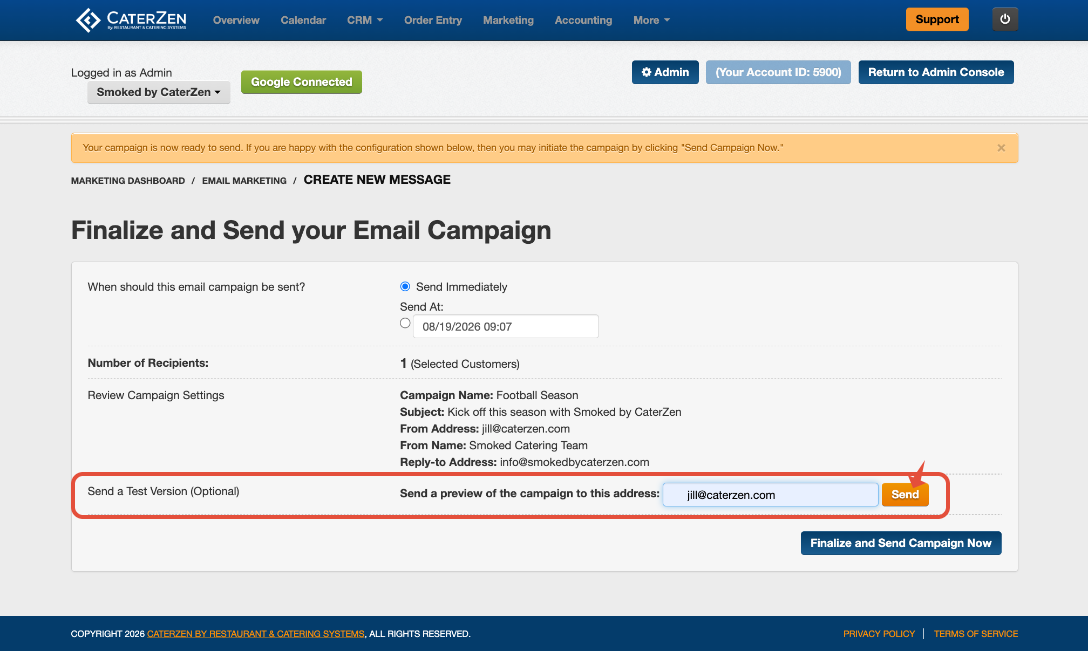
To send yourself a test version:
- Under Send a Test Version of This Campaign, enter the email address where you want to receive the preview.
- Click the orange Send button.
- Open the test email and review it on both a computer and mobile device.
- Check the formatting, spelling, images, and recipient-facing information. Test each link to confirm it opens the correct page.
Make any necessary changes before sending or scheduling the final campaign.
Finalize the Campaign
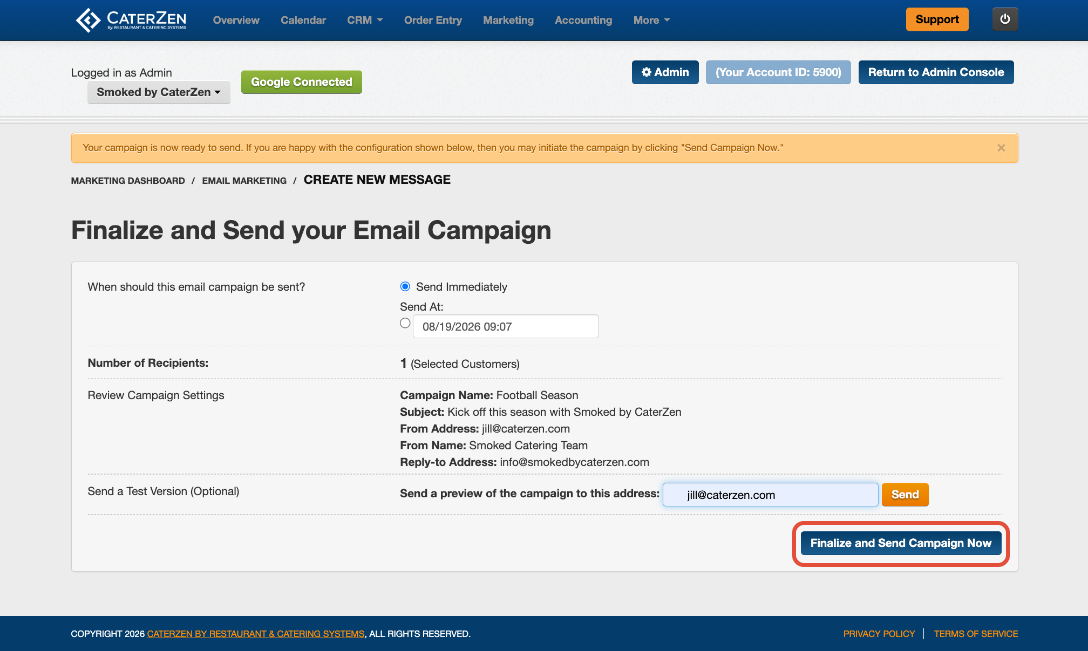
Once everything is correct, click Save and Send Campaign Now.
If you selected a future date and time, finalizing the campaign places it in the queue to send at the scheduled time.
Understanding Email Campaign Statuses
After an email campaign is created, its status will change as it moves through the sending and delivery process.
- Not Yet Sent – The campaign has been created but has not started sending to recipients.
- Pending – The campaign is queued within CaterZen and is being prepared for sending.
- Queued – CaterZen has sent the campaign to the mailing service, where it is waiting to be processed and delivered to recipients.
- Delivered – The email campaign has been successfully processed and delivered to the intended recipients.
All CaterZen accounts use the same email sending queue. If several accounts send marketing campaigns around the same time, your campaign may take longer to move through the queue.
Delivery time can vary based on the number and size of campaigns being processed. If your campaign remains Pending or Queued for a while, it may simply be waiting for its turn.
Related Email Marketing Articles
- Email Marketing: Create, Send, and Track an Email Campaign
- Email Marketing: Manage Existing Campaigns and Drafts
- Email Marketing: Add Images to an Email Campaign
- Email Marketing: Improve Deliverability With From Email and DKIM Settings
Support
For additional help, refer to the CaterZen Support Center or contact our CaterZen Support Team.
Not a CaterZen Customer yet? Discover how our catering software can streamline your business — click here to learn more!