
Overview
Adding employees to CaterZen gives each team member their own login and allows you to control which areas of the system they can access.
When creating an employee, you can enter their contact information, create their login credentials, assign permissions, and select the positions they are qualified to work. You can also limit an employee’s access to orders and reports for specific locations.
Before You Start
You must have permission to access the Admin settings to add or manage employees. If you do not have Admin access, contact an administrator on your CaterZen account for assistance.
Before adding an employee, consider:
- Which CaterZen features they need to access
- Whether they should have Full Admin Access
- Whether emails should be sent from their individual email address
- Whether they should have access to every location or only selected locations
Full Admin Access should only be given to employees who need access to the entire CaterZen system, including employee management and the main account settings.
Adding a New Employee
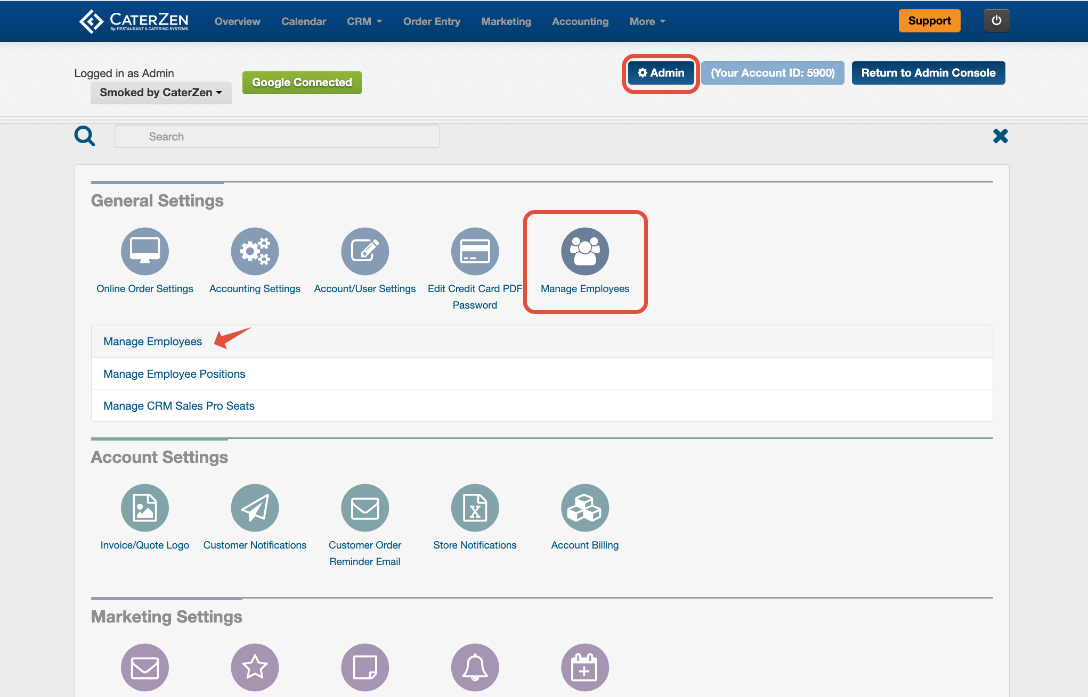
Step 1: Open Manage Employees
From the main navigation menu:
- Click Admin
- Select Manage Employees
- Click the Manage Employees link that appears
Step 2: Add the Employee
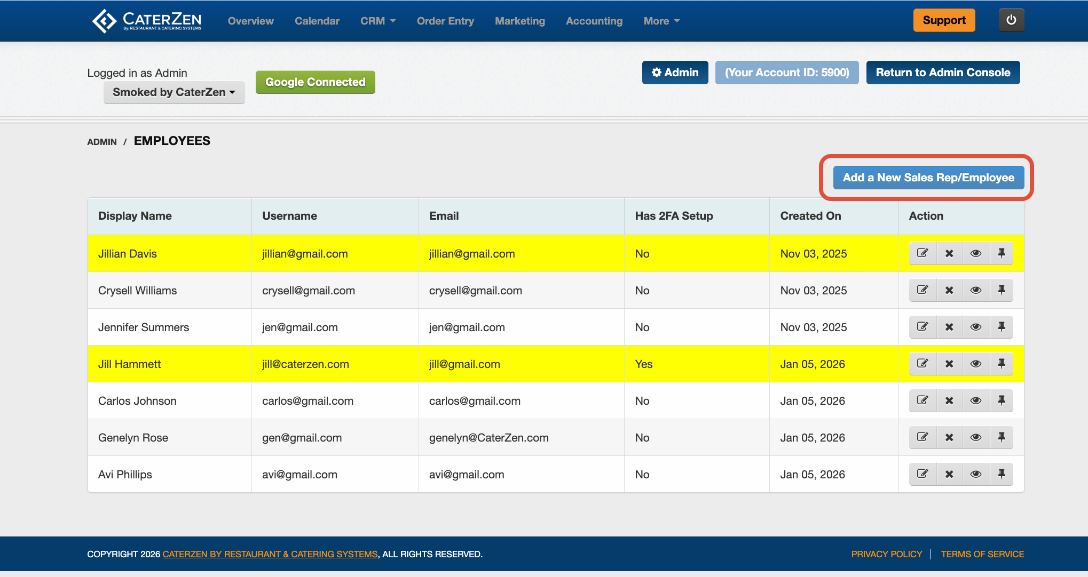
Click Add a New Sales Rep/Employee
Step 3: Completing the Employee Form
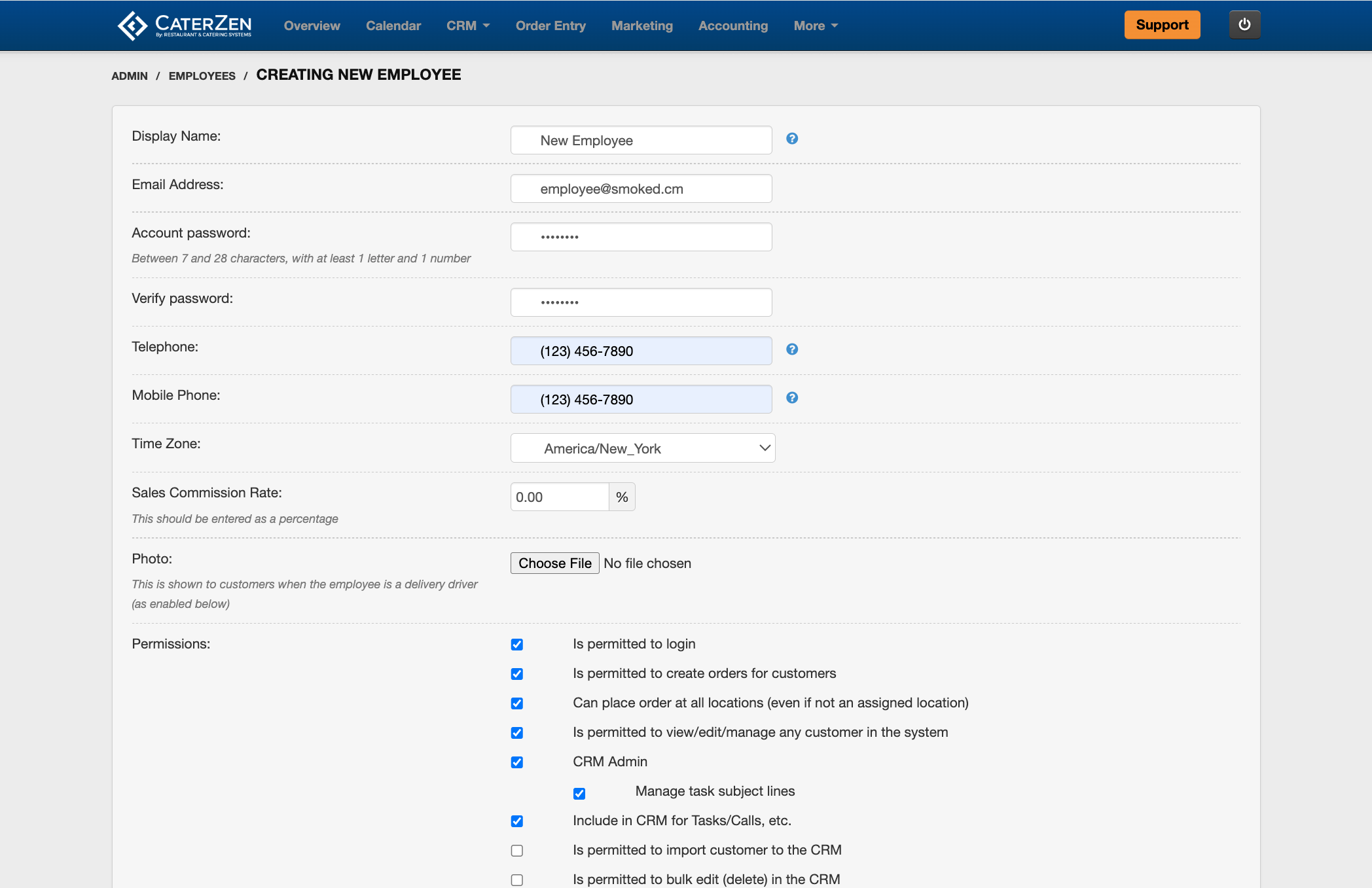
Enter the employee’s account and contact information.
- Display Name: Enter the employee’s first and last name. This name will appear throughout CaterZen and on tickets the employee creates.
- Email Address: Enter the employee’s work email address.
- Account Password: Create a password for the employee and enter it again in the Verify Password field. You can create a temporary password for the employee to use for their first login. Once logged in, the employee can update it to a password they will remember.
- Telephone and Mobile Phone: Enter the employee’s available contact numbers.
- Sales Commission Rate: If applicable, enter the employee’s commission percentage as a whole number. For example, enter 6 for a 6% commission rate.
- Employee Photo: Upload a photo when appropriate. The employee’s photo may be displayed to Customers when the employee is assigned as a delivery driver.
Setting Employee Permissions
Use the Permissions section to choose what the employee can access or manage within CaterZen.
Available permissions may include the ability to:
- Log in to CaterZen
- Create orders for Customers
- Place orders at locations other than their assigned location
- View, edit, or manage Customer records
- Access the Accounting module
- Access the Marketing module
- Access the Loyalty program
- Grant loyalty credit
- Access the Reporting module
- View payment information on orders
- Access Admin settings
- Issue Customer refunds
- Serve as a delivery driver
Only select the permissions the employee needs to perform their job.
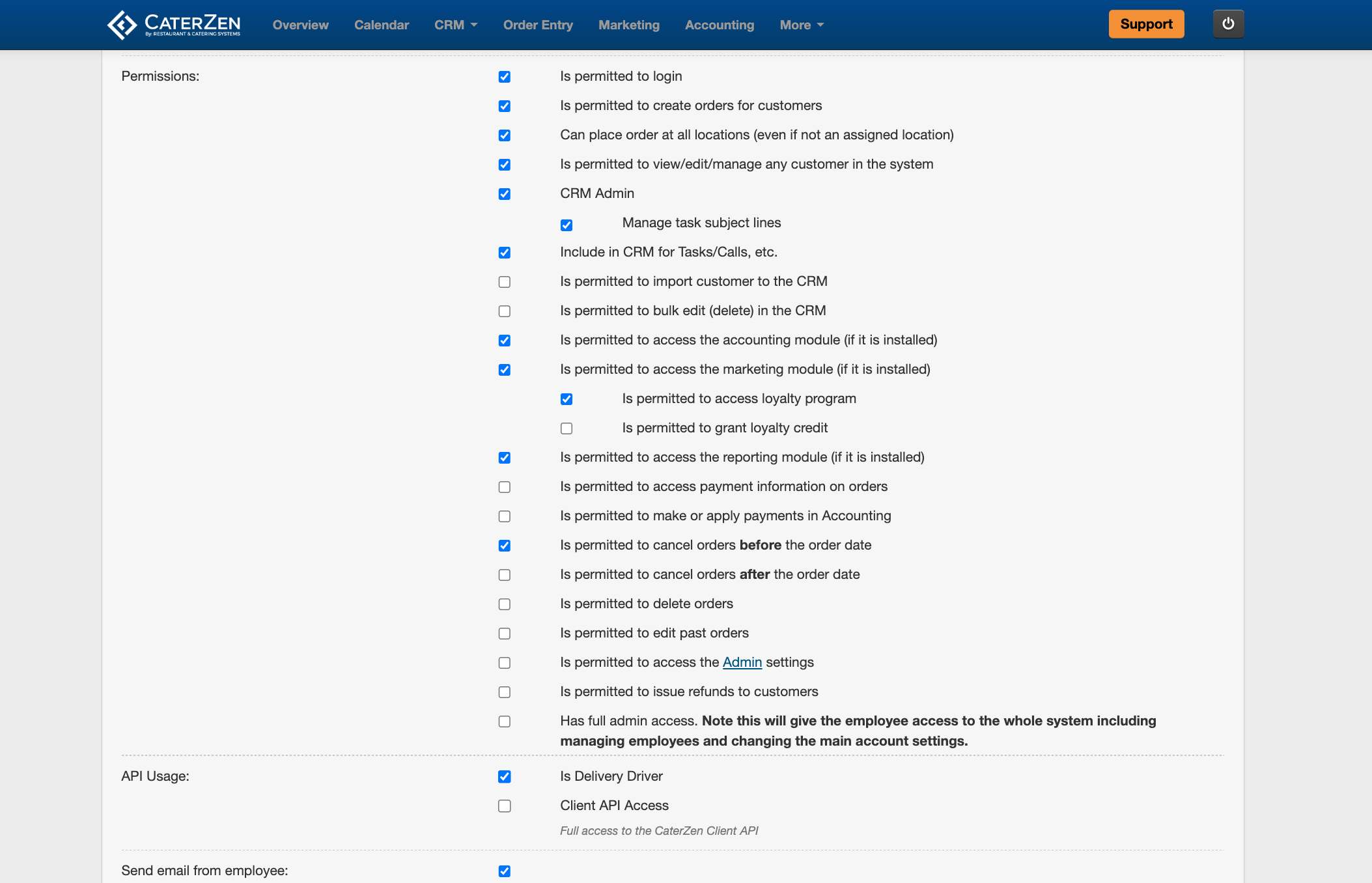
Important: Full Admin Access
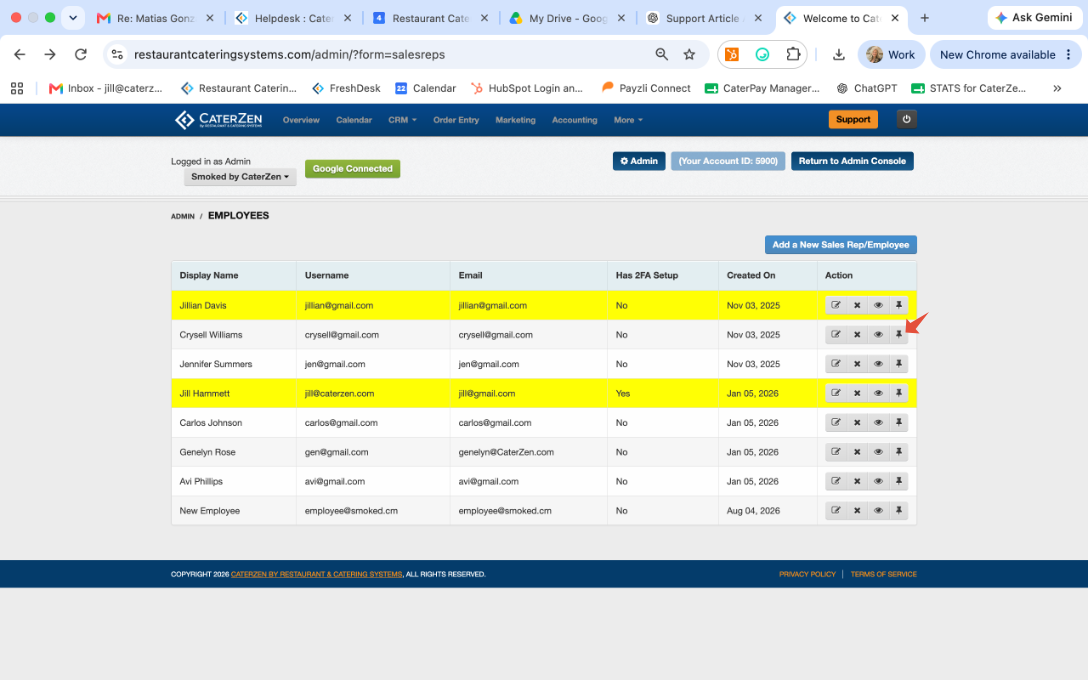
Selecting Full Admin Access gives the employee access to the entire system. This includes managing other employees and changing the main account settings. Employees with Full Admin Access appear highlighted in yellow on the employee list.
Sending Emails From the Employee
By default, CaterZen sends orders, invoices, proposals, and other communications from the main email address associated with your account.
Select Send Email From Employee if communications sent while the employee is logged in should come from that employee’s email address. When a Customer replies, the response will be sent directly to the employee’s inbox.
Additional Employee Settings
Depending on the features enabled for your CaterZen account, you may also be able to:
- Allow emails to be sent from the employee’s email address
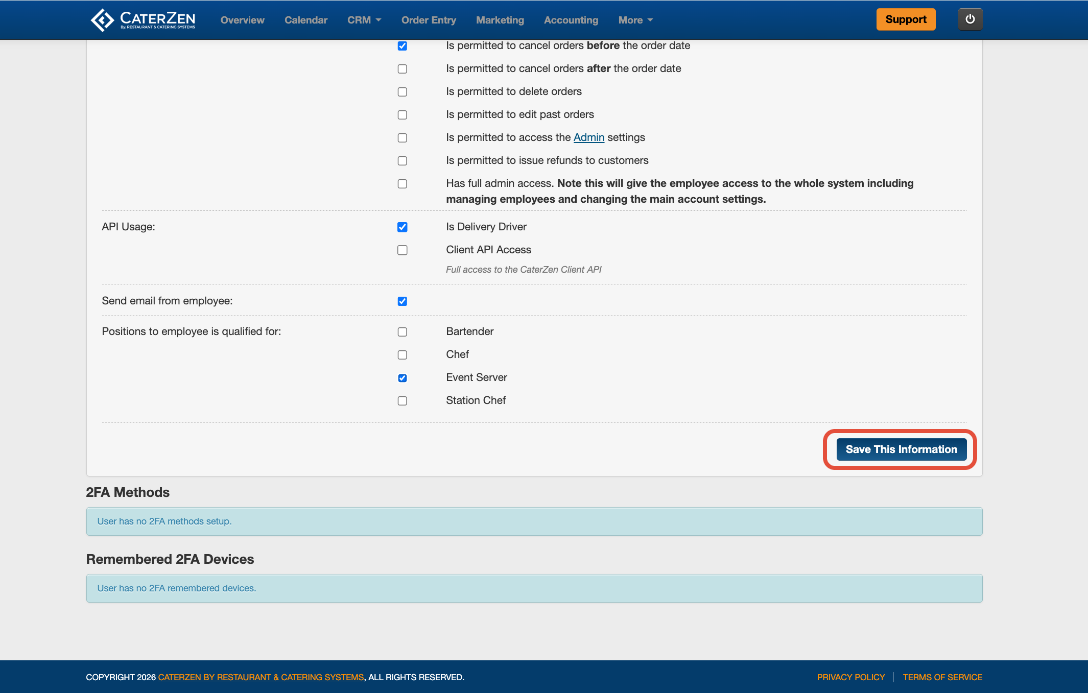
- Select the positions the employee is qualified to work, such as Bartender, Catering Captain, Chef, Floater, Greeter, Server, or Stocker
Saving the Employee
After entering the employee’s information and selecting the appropriate permissions, click Save This Information. The employee will then appear on the employee list.
Assigning an Employee to Specific Locations
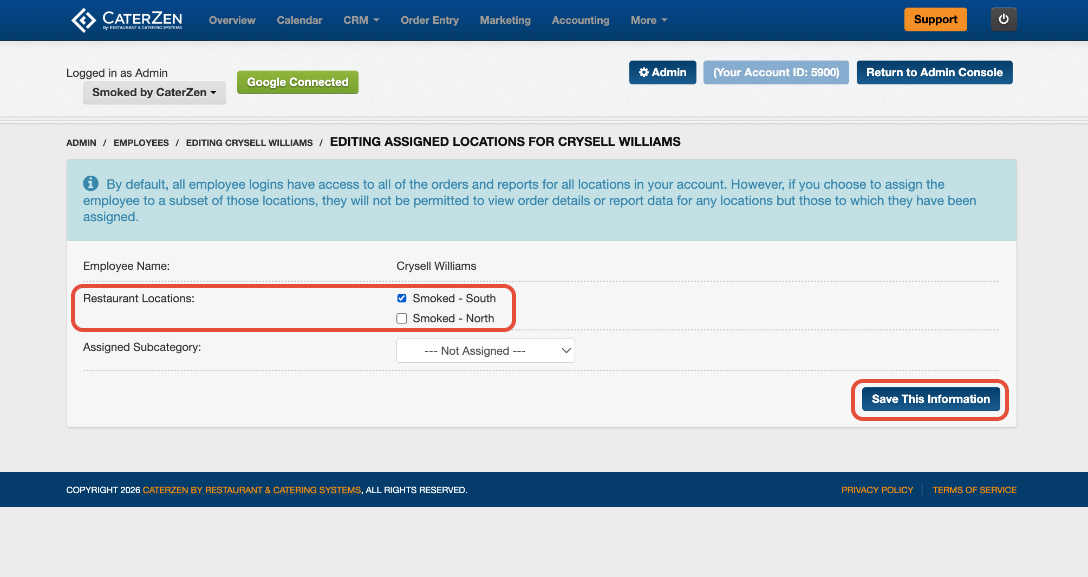
By default, every employee login can access orders and reports for all locations within your account.
To limit an employee to specific locations:
- Go to Admin > Manage Employees
- Locate the employee on the employee list
- Click the Pin icon in the Action column
- Select each location the employee should be permitted to access
- Click Save This Information
Once locations are assigned, the employee will only be able to view order details and report data for those selected locations. They will no longer have access to orders or reports for any unassigned locations.
Important: You do not need to select every location to give the employee access to the entire account. If no specific locations are assigned, the employee will continue to have access to all locations by default.
Managing an Existing Employee
Return to Admin > Manage Employees to view or update existing employees. From the employee list, use the available action buttons to edit the employee’s information or manage their account.
Support
For additional help, refer to the CaterZen Support Center or contact our CaterZen Support Team.
Not a CaterZen customer yet? Discover how our catering software can streamline your business — click here to learn more!